

Book a meeting room
The whole booking form, field by field, as an ordinary employee meets it: finding a free room, holding the time, inviting people, and reading the answer when Offision says the room is confirmed, waiting for approval, or not available at all.
Booking a room in Offision is one form. It opens knowing who you are and what you are allowed to book, and it answers as you fill it in — so by the time you reach Book, the room is either yours or the form has already told you why it is not.
1. Open the booking form
On the app home, the row of quick actions across the top is where every booking starts. Choose Booking, then the kind of thing you want — Room, Desk, Equipment, Parking or Other resources. This article is the room; a desk asks four fewer questions and has a page of its own — see Book a desk.
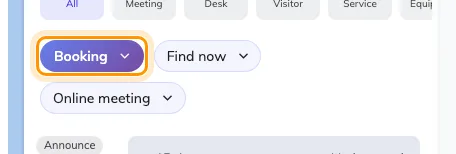
The quick actions on the app home. Booking opens the form; Find now skips it.
On a phone the same door is the + button in the bar along the bottom.
The form opens titled Book a room, with the day already set to today. Nothing is reserved yet — nothing is held until you choose Book in step 8.
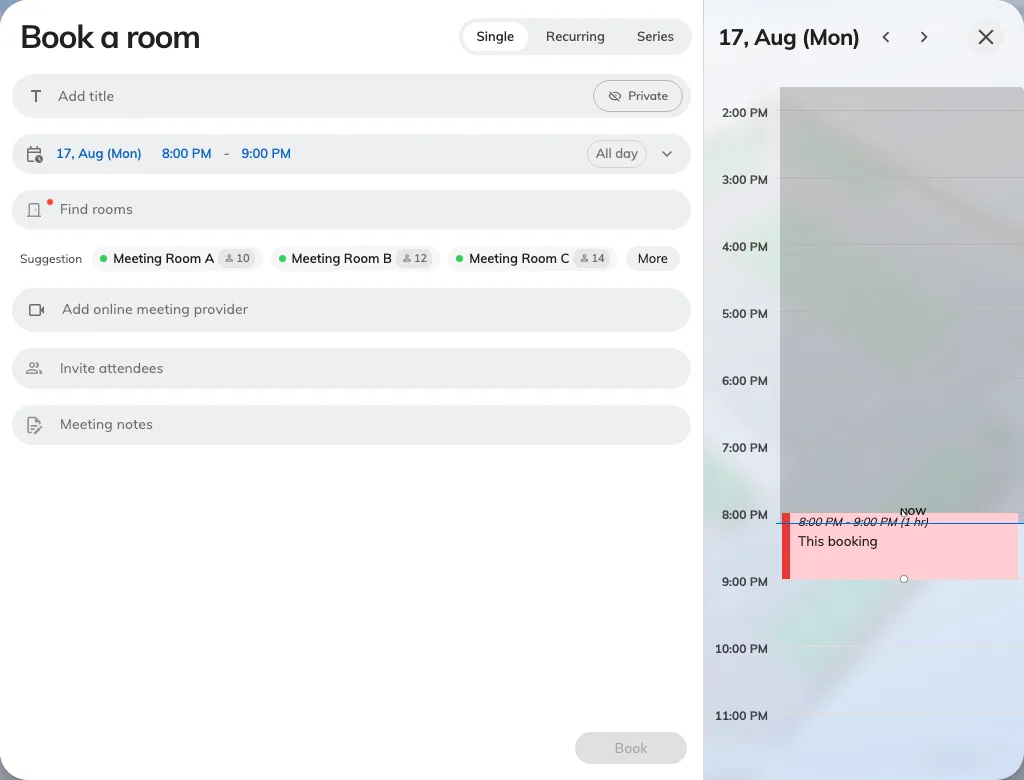
The booking form as it opens: the details on the left, the day's timeline on the right.
2. Choose your room
Open the room field — it reads Find rooms until you pick one — and search by name, or scroll the list. The filter beside the search narrows it by Location, by category, by how many people it seats, and by what is in the room; Available only hides everything already taken, Favourites only shows just the rooms you have starred, and Clear all filters puts it back. The button at the bottom counts what you are about to get before you close the filter.
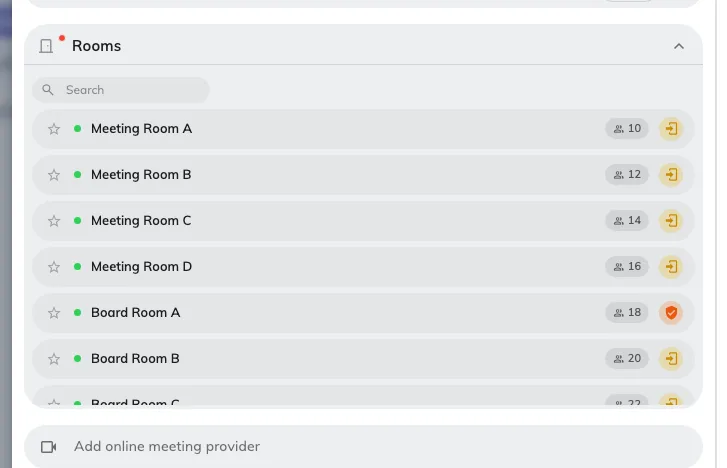
Searching for a room. The marks on the right of each row are the conditions attached to it.
Each row carries how many people the room seats, and then the conditions on it. Two are worth reading before you choose:
- Require approval — booking it sends a request rather than taking the room. Step 8 explains what that looks like.
- Require check in — somebody has to confirm they turned up, or the room is released again. See How check-in and no-show work.
Hover a mark to see which it is. The star sets a room as a favourite, so it comes back to the top of this list next time.
You can select more than one room, and add a desk, a parking space or equipment alongside the room in the same booking. Holding a row of desks for a team works the same way — see Book several desks together.
3. Set the day and time
From and To set the period; All day covers the whole working day and Time zone matters when you are booking a room in another office.
The panel down the right-hand side is the part worth watching: it is the room’s own day, with everything already on it, and your booking drawn in as you move it. Drag the block to shift the time, or drag its edge to make the meeting longer.
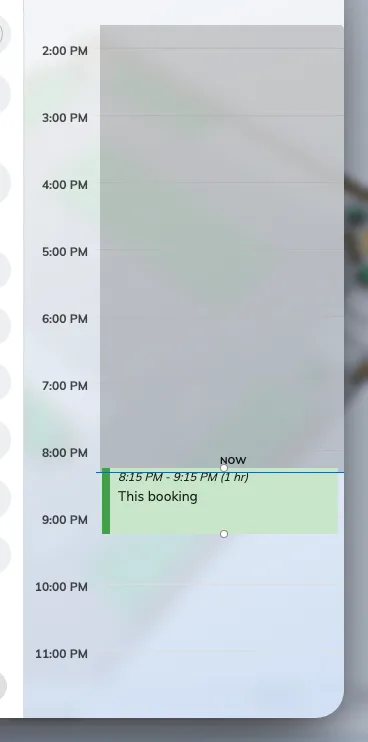
The room's day. Your booking is the block you can drag; the colour tells you whether it stands.
How much freedom that panel gives you depends on the room:
- Most rooms show the whole day and let you take any gap in it.
- Some are only bookable in fixed slots, and the panel offers those and nothing else. Those rooms need choosing first — until one is picked the panel has no slots to offer and asks you to Pick what to book.
- Others suggest times but let you overrule them: choose Custom time to set your own, and Suggested times to go back to their list. A suggested block whose time has already passed stays in the list, greyed and marked Past, rather than disappearing — so a short list late in the day still looks like the list you were expecting.
You can also work the other way round. Leave the room empty and Offision suggests rooms under the field — the chips marked Suggestion, each of which picks that room when you choose it.
The minimum guides room suggestions when a headcount is supplied: a 4–8-person room is not suggested for two people. It does not make a smaller booking invalid. The maximum is still used by capacity filters and the attendee warning; that warning does not prevent booking. Suggestion Priority only changes ranking among suitable rooms.
4. Say what the meeting is
Add title is what everyone else will see on the room’s schedule and on the panel outside the door, so write it for them rather than for yourself.
Turn on Private if it should not be. The room still shows as taken; the title, the notes and the guest list come off everybody else’s screen — see What a private booking hides.
Meeting notes is the agenda, and it travels with the invitation.
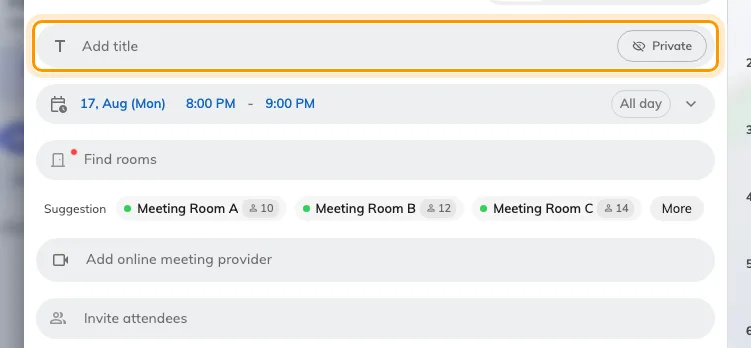
The title, with the Private toggle beside it.
5. Invite the people
Search people finds colleagues, Search groups invites a whole team at once, and typing an email address invites somebody from outside. Check availability shows you who is already busy — and finds a time that works for everyone.
For a list you already have, paste it instead of searching one by one. The field
reads Outlook’s Alex Wong <alex@example.com> form and splits on semicolons,
commas, tabs or line breaks, so a whole recipient list goes in at once and a
count appears confirming who it found. An address that matches no user is kept
as an email-only attendee; anything that is not an address stays in the box for
you to fix.
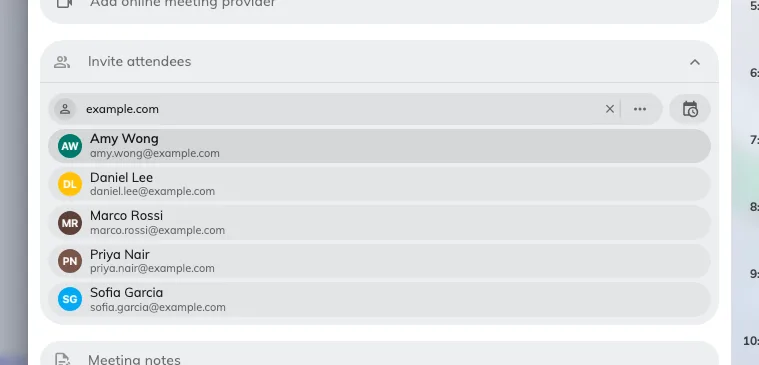
Attendees. Colleagues, groups, or an email address for a guest.
Two things happen automatically here:
- Invite more people than the room seats and the form warns you — “The number of attendees exceeds the room capacity”. It is a warning, not a refusal.
- Invite somebody from outside your company and a switch appears under the list — Invite external attendee as visitor. Turn it on and the same booking also books them into the building. See Invite a visitor while booking a room.
6. Answer whatever else the form asks
Below the attendees, the rest of the form is whatever your company has decided a booking needs — a cost item, a project ID, a booking purpose, Number of room users, or a catering and equipment request under Request service — see Ask for tea, cleaning or help.
These appear only once a room is chosen, because they are attached to the room and not to the form. If you were expecting a field and cannot see it, pick the room first. Which fields exist is set by your administrator — see the Booking form reference.
7. Repeat it, if it repeats
The control at the top of the form offers Single, Recurring and Series. A recurring booking is one booking that repeats; a series books each session separately. See Book a repeating meeting.
8. Book it
Choose Book. Before you do, read the bottom of the form — it is where the answer already is.
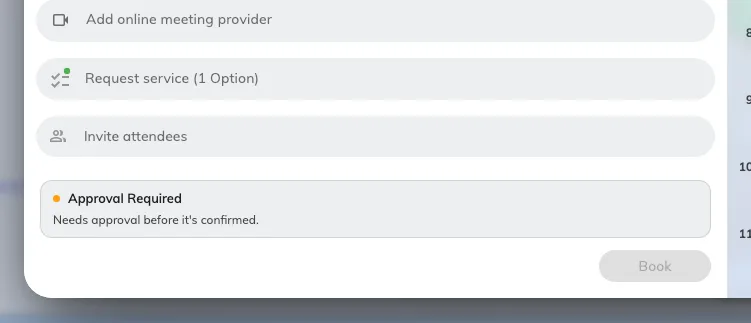
A room that needs approving, with the notice sitting above the Book button.
If the room needs approving, Approval Required appears there — “Needs approval before it’s confirmed.” — and where your company has named the approvers, Reviewed by lists who will decide. You still choose Book; it sends the request. See Require approval before a room is booked.
Book stays greyed out until the form is complete and allowed — something required is empty, or the booking is being refused just above the button. See Why a room refuses your booking.
9. Check it worked
Offision confirms with one of three messages, and they are not the same thing:
| Booking success | The room is yours. |
| Booking created, waiting approval | Sent. The room is not yours yet. |
| Booking created. Synchronizing to integrated calendar. | Yours, and being written to Outlook or Google now. |
Choose OK, then find the booking on your own schedule — that is the real confirmation. Open it there to change the time, add someone, or cancel it.
When you just need a room right now
Find now, beside the Booking button, skips the form: pick a duration and Offision takes the first free room that fits. See Find a room right now.