

Ask for tea, cleaning or help
Two moments to ask for something to be done for your meeting — ordered with the booking, or called for while it is running — what each one asks you, how to follow the request afterwards, and why the list of services in front of you is not the same as anybody else's.
A service is something a person does for your meeting: bringing the tea in, clearing the room afterwards, coming to look at a screen that will not wake up. You do not arrange it — you ask, and it reaches whoever does that work.
There are two moments to ask, and they are not interchangeable — which one a service belongs to was decided when somebody built it. So tea waiting at the start and a fresh pot at half past three may be two different services, asked for in two different places.
1. Order it with the booking
Anything that has to be ready before people walk in — tea, a layout, cleaning afterwards — is ordered on the booking form, at the same time as the room.
Fill the form in as usual, then look near the bottom for a row reading Request service. It counts what this room offers — (2 Options) — and carries a grey dot while you have chosen nothing.
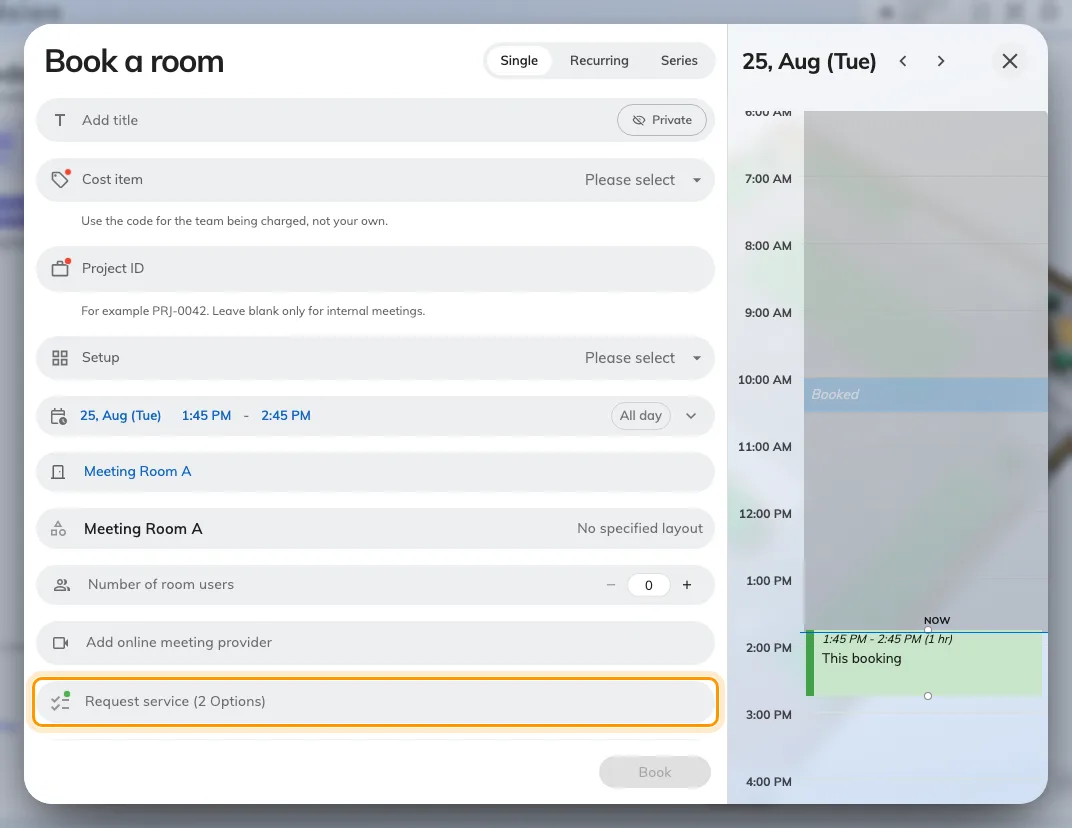
The Request service row, closed. The count is what this room offers, not what you have taken.
It is not there until you have picked a room. Services hang off the room rather than off the form, so an empty form has nothing to show you. If you were expecting it, choose the room first and look again.
Open the row and tick what you want.
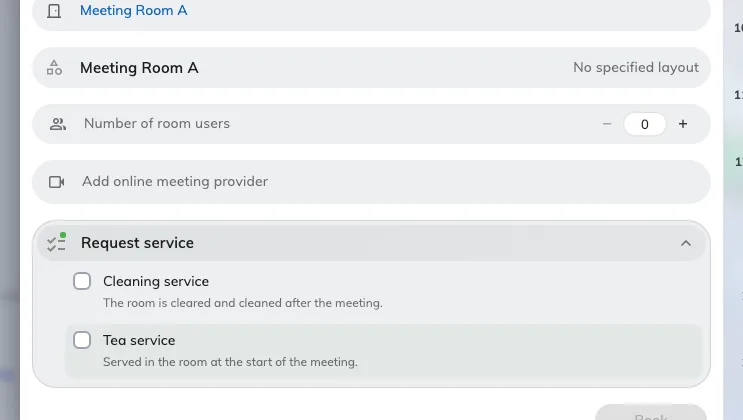
Open: this room's services. The names here are one company's — yours will be different.
What a service asks you
Ticking a service can open a short list of questions — how many cups, hot or cold, what is wrong with the screen. Tap one and it opens on its own, with an arrow back. You get a number on a plus-and-minus stepper, a line of text, or options to tap — whichever the service was built with. Select at least one sits above a row of options that has to be answered.
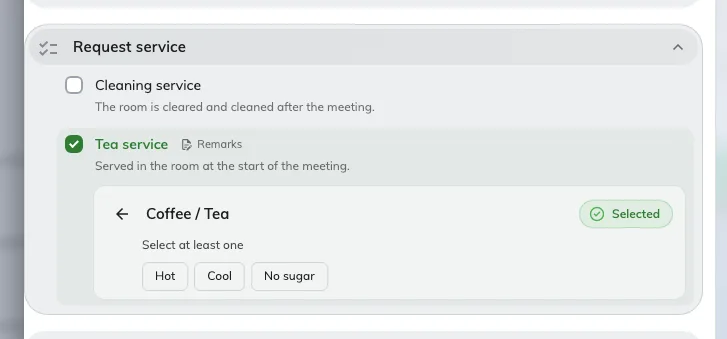
One question, open: what it asks, and the answers already taken above it.
Each answer comes back as a row with a × to take it off again, and Add more appears under them where the service allows more than one — so three coffees and two teas is two passes, not one. A red dot marks an answer still missing, and the form will not let you book until it has gone.
- Remarks takes anything the question did not cover. It is headed Remarks for service staff, and that is exactly who reads it.
- A service marked (Default) comes with the room and cannot be unticked.
- Where a service has conditions, you are asked to read them — Please confirm terms for service — before it can be taken.
Then book as normal. The request goes out when the booking is saved, not before.
Ordering tea can make the room busy for longer than your meeting. A service laid out beforehand or cleared afterwards takes that time out of the room’s day — see How a service request works.
When the form refuses a service
The service stays on screen and says why underneath it:
| What it says | What it means |
|---|---|
| Only allowed to select at … before the booking start | Too late to order it. There is a cut-off, and your meeting is inside it |
| … is not allowed to select out of service hour | The people who do it are not working then. The hours are shown beside the message |
| … does not have enough preparation time | It needs longer to get ready than the gap before your meeting |
| Conflict with other service preparation time | Two things you have ordered want the room at once |
| … is not allowed to select since resource are out of service | The room is closed for that period |
Moving the meeting later clears most of these.
2. Or ask while the meeting is running
Nobody plans a spill. Anything you only discover once you are in the room is asked for from the in-use bar — the dark pill at the top of the app on a computer, along the bottom of the home screen on a phone.
Open it, and Service sits beside Extend and End.
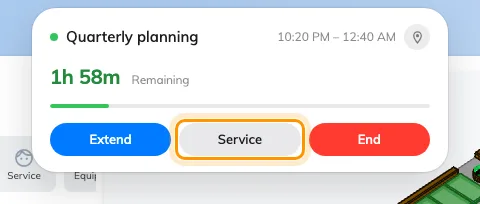
The in-use bar, open. Service sits beside Extend and End.
Service appears once the room is in use, which is not quite the same as once the booking has started. On most rooms it is — the booking turns itself to in-use at its start time and the bar appears with it. On a room that asks people to check in, the booking waits, and the bar offers Check in and nothing else until somebody does.
Press it, and the request takes three taps.
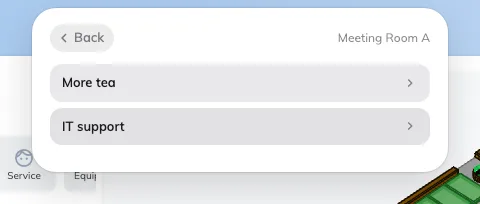
The room's services. One already asked for is marked instead of opening.
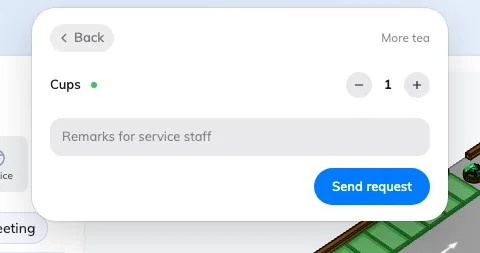
The service's own page: what it asks, a line for the staff, and Send request.
- Pick the room, if your booking holds more than one. Where it holds one, this step is skipped.
- Pick the service. Something you have already asked for this meeting is marked Requested instead of opening again. Where the room offers exactly one service, it opens straight away.
- Answer what it asks — a count on a plus-and-minus stepper, a choice to tap, a line of text — add anything else under Remarks for service staff, and choose Send request.
A tick and Send Success confirm it. The room goes with the request automatically, so nobody has to say where you are.
Or from the booking itself
Opening the booking on your calendar gives you the same Request service row while the meeting is in use, and the same list behind it. It is also where the room’s own contact routes appear, where it has any — a Microsoft Teams chat, Zoom, WhatsApp, LINE, a Webex space, a phone number, a text, an email, a web page. Those reach the people directly instead of filing a request, and which you see is the room’s setting rather than yours.
The same request can also be made at the panel outside the door, and from a QR code on the table where the room has one — see Request service at the room panel.
What you can actually ask for
The services in the pictures above are one demo company’s — yours will not match them. What you are offered is your own organisation’s list, and only the part of it that somebody attached to the room you picked. Two rooms on the same floor can offer completely different things, or one of them nothing at all.
Two more things change the list in front of you. A service belongs to one moment or the other — something you can order with the booking will not appear during the meeting, and the reverse, so look in the other place before reporting it missing. And choosing a booking purpose can replace the whole list, where that purpose carries services of its own.
An empty list, or no Request service row at all, is the normal state of a room nothing has been attached to. It is not a fault — the rest of the reasons are in the table below.
Following it up
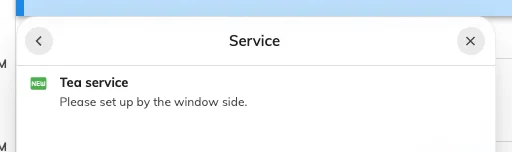
A service on a booking, carrying the status it has reached.
Open the booking and look at its services. Each one carries where it has got to — New request, In progress, Finished, or Rejected. Staff response appears against a request where the person doing it wrote something back.
You are emailed about a change only when they choose to tell you, so a status that has moved quietly is normal rather than a fault. For the queue behind those statuses, see How a service request works.
Cancelling
The two routes differ, and this is the part worth knowing before you need it.
- Something you ordered with the booking is removed by editing the booking and unticking it — see Edit a booking. A (Default) service, one that came with the booking purpose, or one already past its cut-off cannot be taken off that way.
- Something you asked for during the meeting cannot be withdrawn. There is no button for it. Tell the person who turns up, or ask at the panel.
Cancelling the booking removes everything ordered with it, and tells whoever was going to do the work.
When there is no Service to press
| Why | What to do instead |
|---|---|
| The room has nothing attached to it | Nothing in the app. Ask whoever looks after that room |
| It is outside the service’s own hours — which are the service’s, not the room’s | Wait until they start, or use the room’s own contact route |
| The room is not in use yet | On a room that asks for check-in, check in first. Otherwise wait for the start time — the bar appears by itself |
| The booking is not yours | Ask the organiser |
| A booking purpose replaced the room’s list | Try the booking’s other purpose, if it has one that suits |
| Service is not switched on for your organisation | Nothing in the app |
What this is not
| A hold on your booking | A booking that needs approving does not wait for the tea, and approving the booking does not approve the tea |
| A way of booking the room longer | A service ordered with the booking can block the room afterwards, but it is not extending your meeting — see Extend a meeting, or end it early |
| A message to a person | It joins a queue. Who picks it up is decided by how the service was set up, not by you |