

Add Offision to Outlook
Offision as an app in Outlook's own tab rail — the same package that runs in Teams, who has to allow it before you see it, what changes inside the host, and what became of the ribbon add-in people remember.
In Outlook, Offision is an app in the rail down the side — all of Offision, in a tab of its own, beside Mail and Calendar. It is the same app that runs in Teams: one package, one decision by your administrator, both hosts.
1. Find it in Outlook
Choose Apps in Outlook and search for Offision.
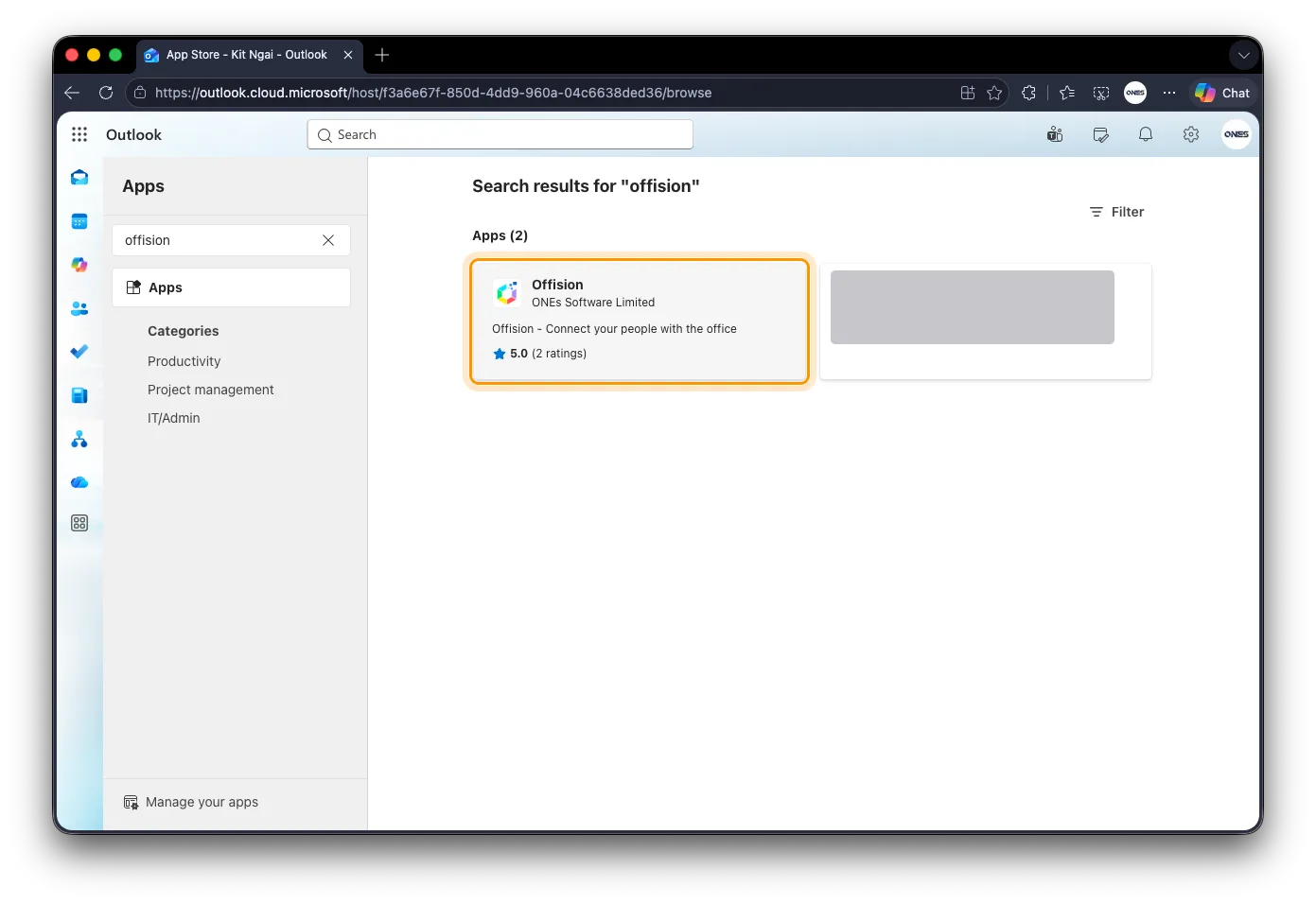
Apps in Outlook, searched for Offision.
Open the listing and choose Add.
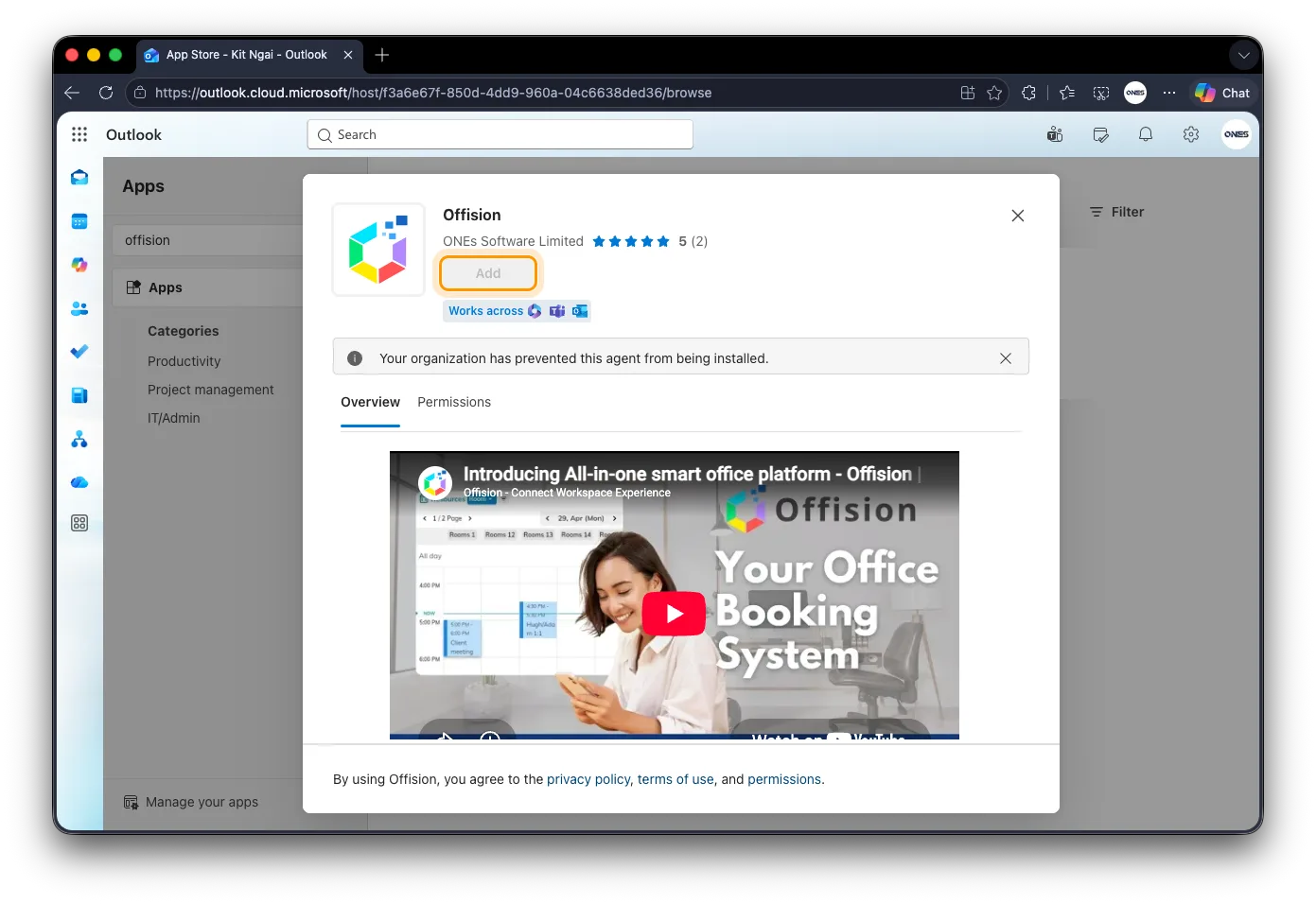
The Offision listing in Outlook, with Add greyed out.
A greyed-out Add, or “Your organization has prevented this agent from being installed”, is your administrator’s decision and not something to fix on your machine. Allowing it is the same job as allowing it for Teams, because it is the same app — see Add Offision to Microsoft Teams.
2. Sign in
The tab asks you to sign in the first time, using your work email as usual — see Sign in to Offision. Afterwards it opens straight to your home screen.
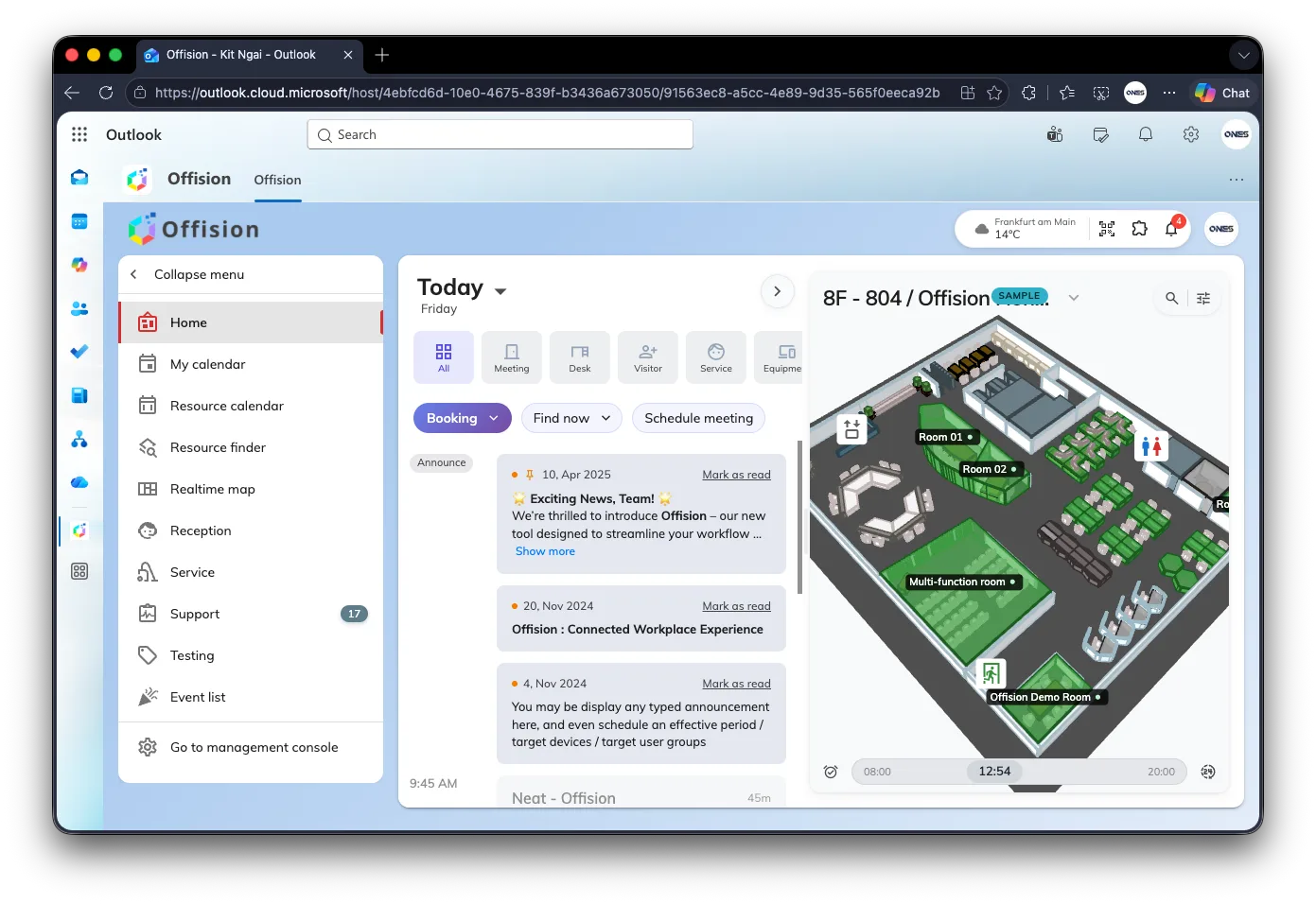
Offision open as a tab in Outlook. The same home screen, inside Outlook.
What is different inside Outlook
Outlook hosts Offision the way Teams does, so the same two things are true:
- Location check-in does not work here. A page inside Outlook cannot see where you are, so a room that requires a location check-in has to be checked into from a browser or the phone app instead. See Check in by QR code and GPS.
- The theme follows Outlook, light or dark.
Everything else behaves as it does in a browser.
The ribbon add-in is gone
Offision used to put buttons on the ribbon of the meeting you were writing — Room booking, Room finder, Desk booking and the rest — which opened Offision with that meeting’s subject and attendees already filled in. That add-in is no longer part of Offision. There is nothing to install and nothing to repair: bookings start in Offision itself now, in this tab or anywhere else you use it.
Two habits go with it. Writing an Outlook meeting no longer creates an Offision booking, and the buttons are not coming back, so waiting for them is not a plan.
Where it runs, and where it does not
Every Outlook has the Apps rail except one: Outlook for Mac. On a Mac, open Outlook on the web in a browser and Offision is in the rail there — the account and the bookings are the same either way. The Offision desktop and phone apps are another way in again, covered in Where you can use Offision.