

Clock in and out
Signing in when you arrive and out when you leave — from the app or a kiosk at the door — what the dialog's checks mean, why it may ask for your location, a reason or a selfie, and where your own records live.
If your company tracks attendance, your app’s home screen carries a My attendance action, and the footer menu an Attendance group with Sign in, Sign out and Records. Sign in when you arrive, out when you leave — each punch takes a few seconds, and the dialog tells you everything it is checking before it takes one.
Sign in from the app
Tap Sign in. The dialog runs your company’s checks live and shows each one as it passes — Within working hours, and depending on your schedule Location verified and Network verified. When your location is checked, a small map shows Your location against the Allowed area, so you can see where you stand — literally. Then Confirm Sign In, and you are done; a notification confirms the time.
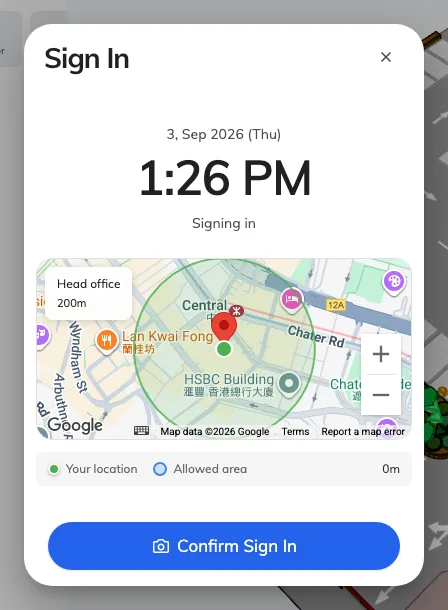
The Sign In dialog: each check ticked as it passes, your position on the map against the allowed area, and Confirm at the bottom.
Three extra asks, depending on your schedule:
- Your location — the app needs the location permission. Allow it when the phone or browser asks; refused once, it must be re-allowed in your device settings. Inside Microsoft Teams location never works — the app will offer to open in your browser or the mobile app instead.
- A reason — arriving late or leaving early, the Remarks required box may refuse to let you confirm without one. One line is enough; your manager sees it against that punch.
- A selfie — Take a selfie to continue means your company verifies who is signing in. The photo is stored with the punch and deleted automatically after your company’s retention period.
If a check fails — You are outside the allowed area, Outside of working hours, Already signed in today — the punch is refused, and the message names the rule. Move inside the area or check the time and try again; if it still refuses, the schedule is a question for your administrator.
Sign out
Same button, other direction: Sign out, then Confirm Sign Out. Do not skip it — a day with a sign-in and no sign-out cannot be counted, and your worked hours for the day show as zero.
At a kiosk
Some offices put attendance on a screen at the door instead. Tap the Take attendance tile, identify yourself the way the screen offers — scanning your QR code, tapping your staff card, entering your PIN, or by face — and confirm. The same rules apply; the screen shows the same checks.
Your records
My attendance › Records lists every punch, grouped by month, newest first. Open one to see its details — and where your location was checked, a View on map link shows exactly where the punch was accepted. If a punch is missing or wrong, tell your manager or administrator: records can only be corrected on their side, and the correction shows up here.
A month of your own records can be saved as a PDF to print or send on — see Download your attendance record as a PDF.