

Add Offision to Microsoft Teams
The whole of Offision inside Microsoft Teams, the chat tool — every booking, visitor, service and attendance screen, on the same account and the same rooms. Adding it as a personal tab, why your Teams admin usually has to deploy it for everyone, what that deployment unlocks besides convenience, the one check-in that cannot work inside Teams, and the one thing the app deliberately leaves alone — your chat status, Available or Away.
Everything Offision does, inside Teams. Book a room, claim a desk, invite a visitor, raise a service request, read your attendance — the whole app, on the same account and the same rooms you already use in a browser. Nothing is a cut-down version of itself.
Microsoft Teams is a chat tool, and Offision sits in its sidebar alongside Chat and Calendar as a personal tab: not a bot, and it does not join meetings. What behaves differently inside Teams is a short list, and it is below.
1. Find it in Teams
In Teams, choose Apps at the bottom of the sidebar and search for Offision.
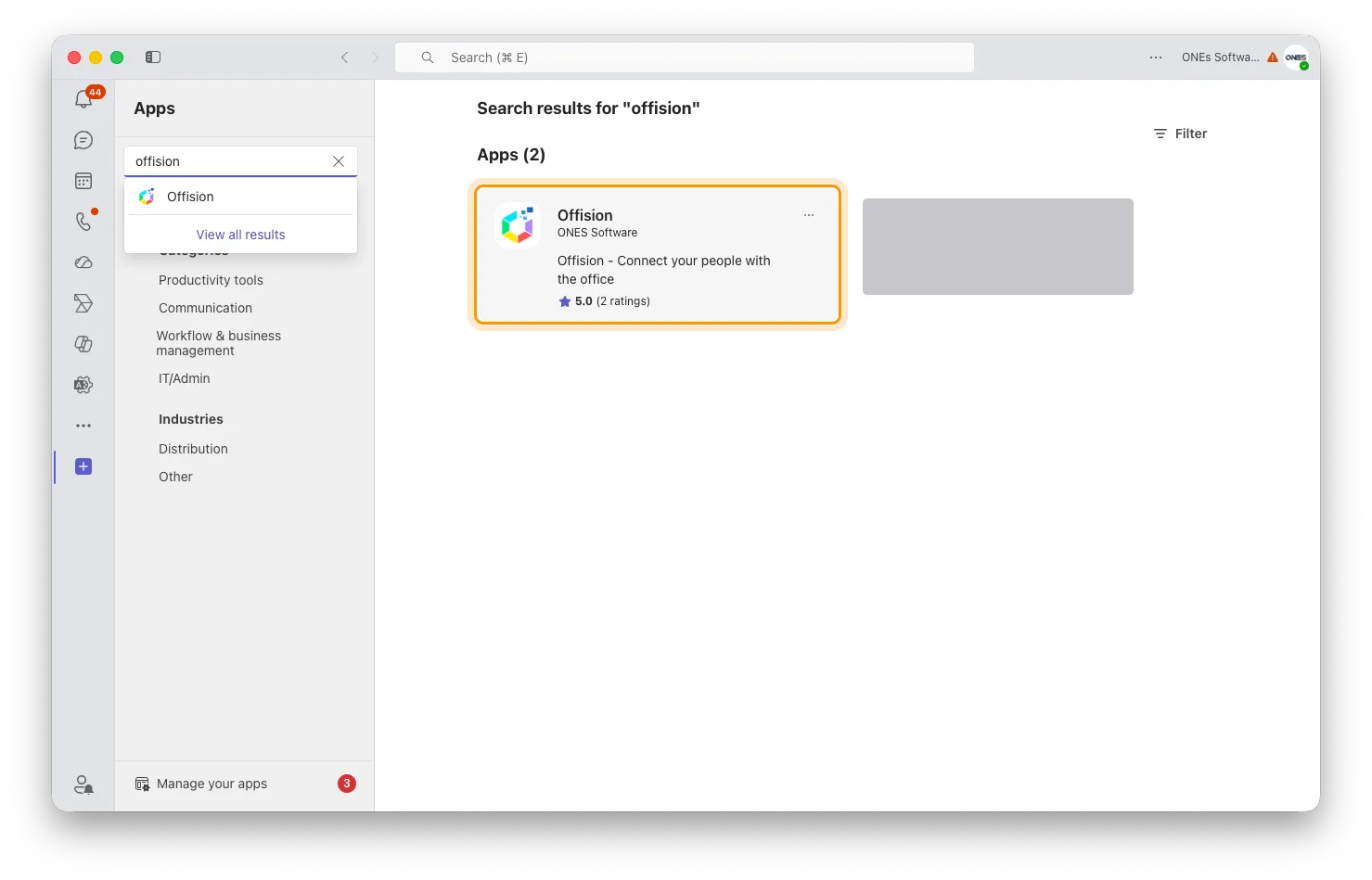
Apps, then search. The listing is there once your administrator has deployed it.
Choose Add. Offision opens as a tab, and right-clicking it in the sidebar lets you Pin it so it stays there.
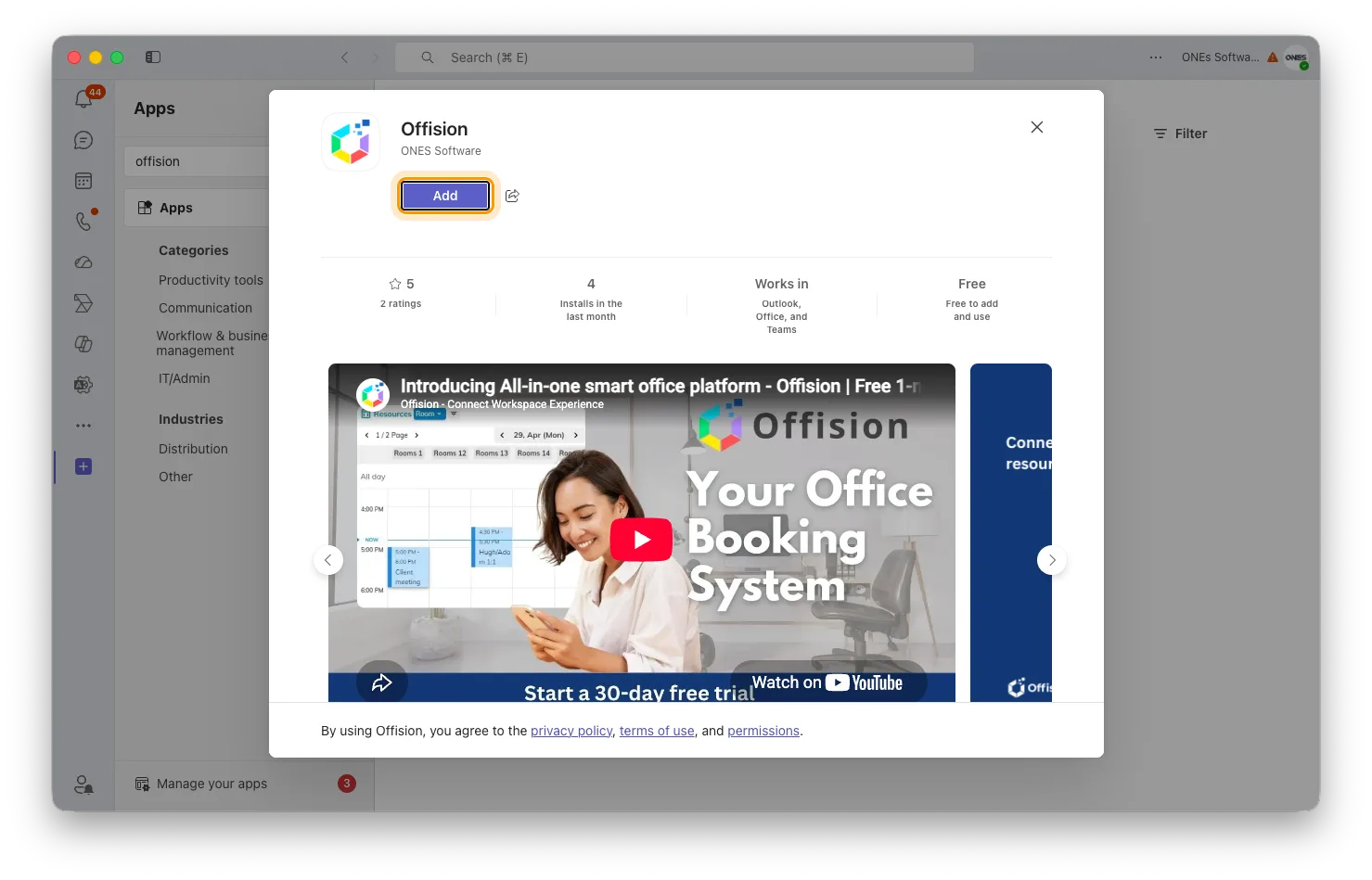
The Offision listing in Teams. Add puts it in your sidebar.
2. Sign in
The tab asks you to sign in the first time, using your work email as usual — see Sign in to Offision. Afterwards it opens straight to your home screen.
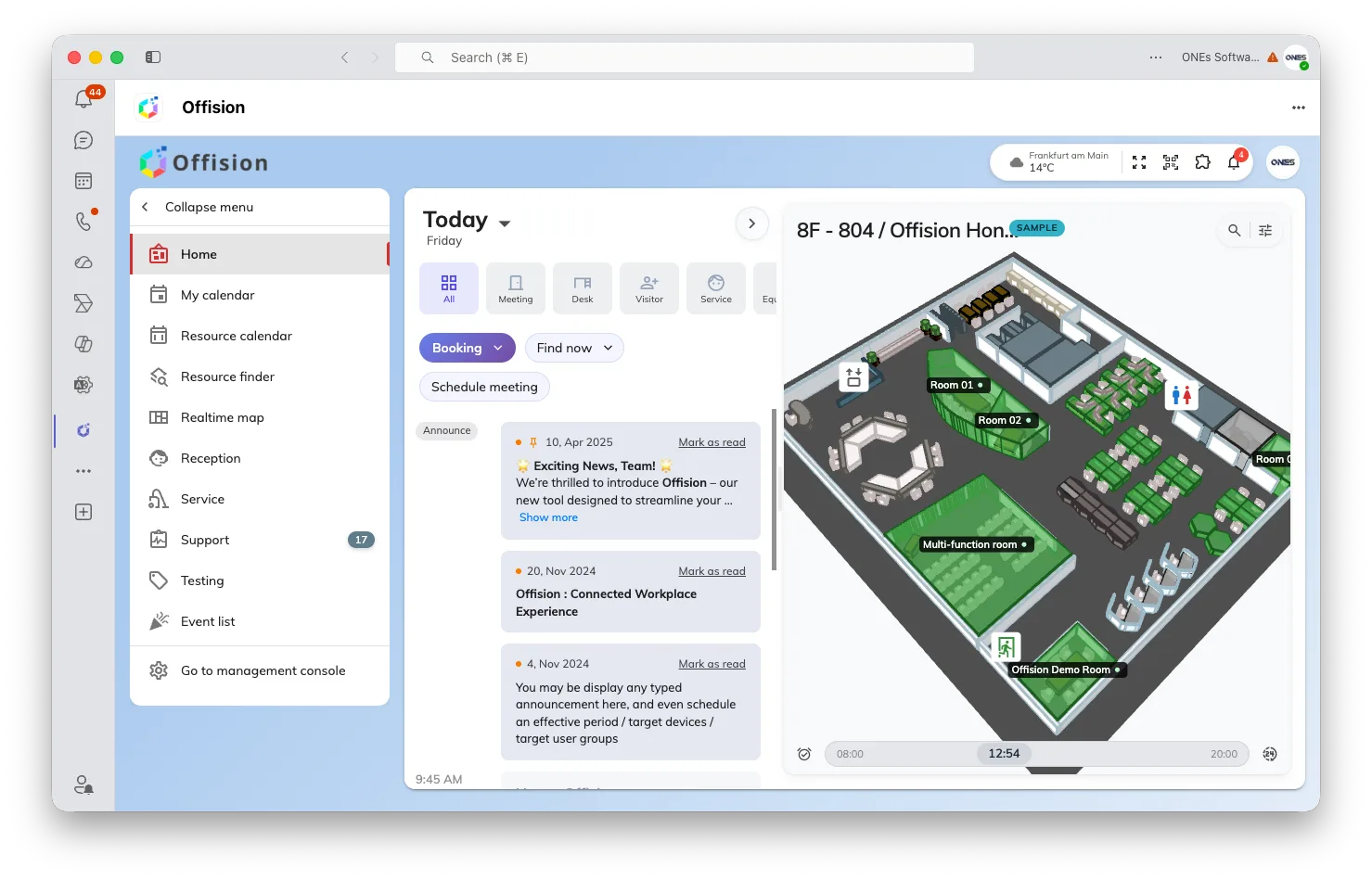
Offision running as a personal tab. The same home screen, inside Teams.
Your administrator can give it to everyone
This is the usual way it happens, and it is worth asking for rather than having each person search: in the Teams admin centre, under Manage apps, Offision can be allowed for the organisation, and an app setup policy can pin it into everybody’s sidebar automatically.
It is not only convenience. Offision can send its notifications — a booking approved, a visitor arrived, a request assigned — to the Teams activity feed, and that cannot work until the app is deployed across the organisation. Offision says so plainly when it is not: “The Offision app is not deployed in your organization’s Teams — ask your Teams admin to deploy it.”
Turning the notifications on is separate again, and it is done in the Offision admin console under Marketplace, where a Microsoft 365 Global Administrator grants consent once. A normal account cannot complete that step.
Once they are arriving, Teams lets each person mute them by subject rather than one message type at a time — Booking updates, Service request updates, Visitor updates, Support ticket updates, Attendance updates and a catch-all Offision notification — in Teams’ own notification settings.
Open IntegrationsWhat is different inside Teams
Location check-in does not work here. Teams does not let a page inside it see where you are, so a room that requires a location check-in cannot be checked into from the Teams tab. Offision tells you so and offers two ways out: open Offision in a browser, or use the phone app. Both are covered in Check in by QR code and GPS.
It does not touch your chat status. Teams shows you to colleagues as Available, Away or Do not disturb. The tab does not read that, and nothing you do in Offision sets it — a check-in, a clock-in or a booking leaves your Teams status exactly where it was. Offision keeps its own signals instead, on the floor plan and in your attendance records: see See who is in the office on a given day.
The side menu is not there, so moving between pages goes through the page switcher in the toolbar instead. It carries the same unread counts the side menu shows in a browser, which is the only place to see them inside Teams.
Everything else behaves as it does in a browser, including the theme — Offision follows whether Teams is in light or dark mode.
Check it worked
Open the tab and make a booking. Then look at your Teams activity feed after something happens to it — an approval, a reminder. A booking that appears in the tab but never notifies you means the app is installed but not deployed org-wide, which is the section above rather than anything on your machine.