

Book a repeating meeting
How to set a booking to repeat — the Recurrence dialog's daily, weekly and monthly patterns, the three ways to say when it stops, and how to read the list of dates it produces before you book. Series is the other thing, and is covered here too.
The control at the top of the booking form offers three shapes, and the difference matters more than it looks.
| Single | One booking. |
| Recurring | One booking that repeats on a schedule. Change it once, every occurrence changes. |
| Series | “Each session is booked one by one as its own booking.” |

Single, Recurring and Series, at the top of the form.
The steps below build a Recurring booking. Series is the last section.
Series is not offered everywhere. Whether it appears at all is a company-wide setting, so a form showing only Single and Recurring means your administrator has turned it off — not that you are missing a permission.
1. Fill the form in as normal
Set the room, the day, the time, the title and the attendees exactly as you would for a one-off — see Book a meeting room. The period you set here becomes the first occurrence, and every later one takes its time of day and its length from it.
Choose the room before you go any further. Whether repeats are allowed at all, and the list of dates in step 5, both belong to the room; until one is picked there is nothing to check them against.
2. Switch to Recurring
Choose Recurring at the top of the form. The same thing sits in the time section as a Repeat button, and either one opens the Recurrence dialog.
Where your administrator has turned repeats off for that kind of resource, Repeat is greyed out and says why — “Not allow recurring booking”. The Recurring control at the top is not greyed out, because the room is not known until you pick one; choose a room that forbids it and the form tells you then, naming the room, just above the Book button. See Allow or block all-day, recurring and cross-day bookings.
3. Set the pattern
Repeat offers Daily, Weekly and Monthly, and those three are the whole list — there is no yearly repeat.
| Daily | Each n day. Every day is 1, every other day is 2. |
| Weekly | Each n week’s, then the row of day buttons. Pick at least one or Save stays greyed out. The row starts on whichever day your week starts on. Repeating fortnightly or longer and picking days either side of the weekend also asks Week start at, because that is what decides which fortnight a Sunday belongs to. |
| Monthly | Specify chooses how the day is named. day of month is Day n of every n month(s) — the 15th. weekday is Every n month(s), then First, Second, Third, Fourth or Last, then the day — the first Monday. |
Past day 28, day of month grows one more control: Skip the day if it does not exist in the month. Leave it off and a booking on the 31st falls back to the last day of a short month; turn it on and February is simply missed out.
All day is here too, on resources that allow it.
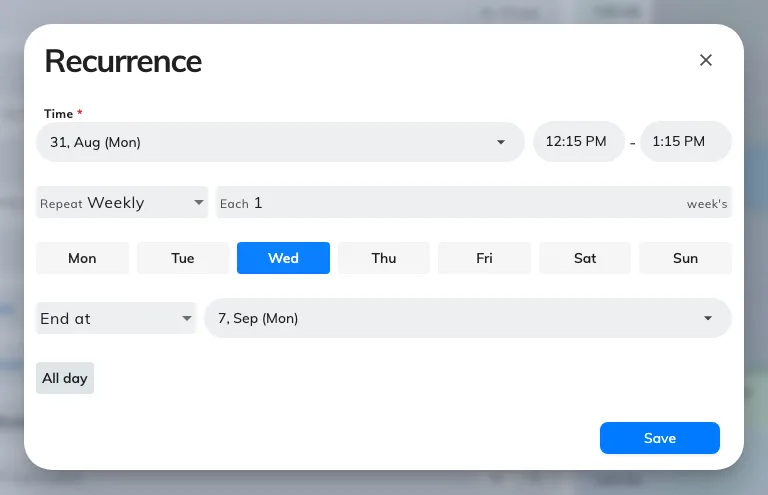
The Recurrence dialog on Weekly: how often, which days, and when it stops.
4. Say when it stops
The select at the bottom of the dialog is the end of the run, and it has three answers:
| End at | A date. It cannot be earlier than the end of the booking itself — Save stays greyed out if it is. |
| Repeat for n times | A count. It starts at 10. |
| No end date | Open-ended. Offision holds a rolling window of dates booked ahead and moves the far end forward as time passes, rather than reserving the room forever. |
Whichever you choose, the run stops at how far ahead that room lets anyone book.
Then choose Save.
5. Check the occurrences before you book
The period field is now a Recurring booking card, and this is the step people skip. Open it and it lists every date the rule produces, each with a status dot, and marks the ones that will not stand:
| n conflict | The room is already taken. Expand the row to see by whom. |
| you have another booking | The room is free; you are not. |
| Out of service, Closed | The room is unavailable, or the place is shut that day. |
Where booking that resource is charged against an allowance, each date shows what it will cost you.
A recurring booking is one booking, so there is no partial book — you cannot keep the dates that work and drop the rest. There are two ways out, both on the card:
- Shorten before this date, on the first bad row. It ends the run the day before that date.
- Switch to series, from the banner that appears — “Some occurrences conflict. Switch to a series to adjust each one.” It turns what you built into one ordinary booking per date, each editable on its own. Read the last section before you take it.
Edit reopens the dialog. Clear drops the repeat and leaves a single booking behind.
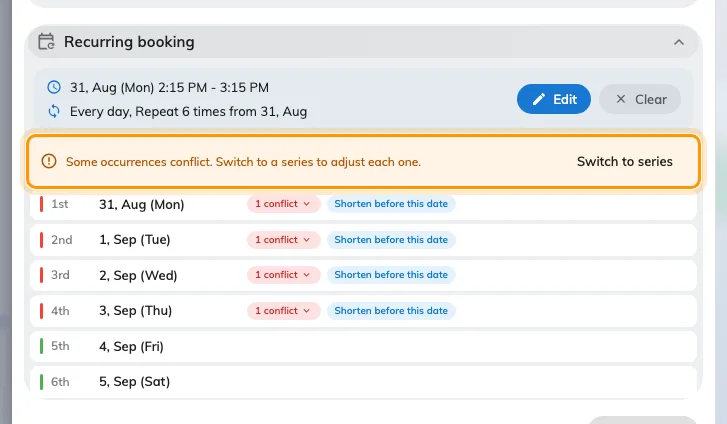
Every date the rule produces. The banner appears once one of them will not stand.
What Switch to series gives you
Every row becomes a booking in its own right, with its own room, time and title. Move the ones that clash to another day or another room, drop the ones you do not need, and leave the rest of the run untouched — a few awkward dates no longer cost you the whole series.
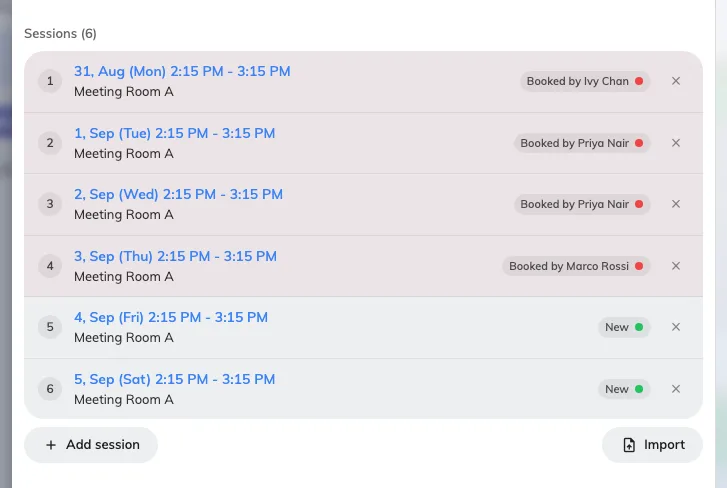
After the switch: one row per session, each editable on its own.
That is the trade. A recurring booking is one thing you change in one place; a series is many things you change one at a time. Going back keeps only the first session, so decide before you commit.
6. Book it
Choose Book. From here it is like any other booking, approval notice above the button included — see Book a meeting room.
Changing or cancelling it afterwards asks which occurrences you mean — All bookings, This and following bookings, or This only. See Edit a booking you already made and Cancel a booking.
When Series is the right one instead
Reach for Series when the sessions genuinely differ — a training course running in three different rooms, or dates that are not on a pattern. It books each one separately, so Book all may come back offering to Skip conflicts & book the rest — taking the dates that were free and leaving the others for you to fix.
Saving a series asks first — “Book n bookings?” — and lists exactly what it is about to do, grouped into New, Updated and Cancelled, with anything untouched counted rather than listed. It is worth reading: a series is several bookings at once, and the cancelled group is the one people do not expect.
How many sessions a series may hold is one answer for the whole company — 50 unless somebody has raised or lowered it, and 200 at the most. Converting a longer repeat keeps the first of them and says so — “Series limited to the first 50 sessions.”
Switching away from Series after building one asks too — “Discard the series booking?” — because the sessions would be lost.