

Publish your name card and share it by QR or WhatsApp
Fill in your card, publish it, then let someone scan it — a QR that opens a WhatsApp chat, adds you on LINE, or saves you straight into their contacts.
Your name card is a page carrying your work contact details, at a link only you hand out. Nobody can see it until you publish it, and you can take it down again at any time.
Open your card
On a phone, tap the action button at the bottom of the app, then My name card.
On a computer there is no action bar along the bottom — open the profile menu from your picture in the top corner instead, where My name card sits under your name.
The first time, the card says “Your name card isn’t published yet.” — that is the normal starting point, not an error.
Fill it in and publish it
Tap Edit. Turn on Publish my name card at the top, then work down the form:
- Identity — your display name, title and department.
- Contact — phone, email, website and LinkedIn.
- Company — company name and office address. Leaving one blank uses the company’s own value, which is usually what you want.
- About — a short bio.
Some fields may be greyed out and marked Locked. Those are the ones your company keeps to itself; the company’s value is used instead, and there is nothing wrong with your card.
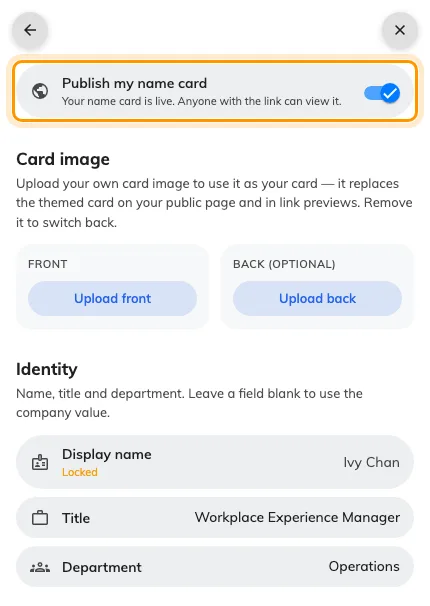
The edit form, with the publish switch at the top.
Give your phone number its dialling code. The number is what builds your WhatsApp link as well as your call link, so a number without its country code gives you a card people cannot call from abroad and no WhatsApp QR at all.
Optional: use your own card image
Under Card image, you can upload a Front — and a Back (optional) — of your own design. An uploaded image replaces the standard card everywhere yours appears, including the little preview that shows when your link is pasted into a chat. Remove puts the standard card back.
Then Save. You are returned to your card, now showing a QR code.
Share it
The buttons above the QR choose what the code does. Point someone’s camera at it and:
- WhatsApp — opens a WhatsApp chat with you, so their first message is already addressed. This is the quickest way to swap details with someone you have just met.
- LINE — adds you as a friend on LINE.
- Contact — saves your details straight into their phone’s contacts, with no app and no account needed.
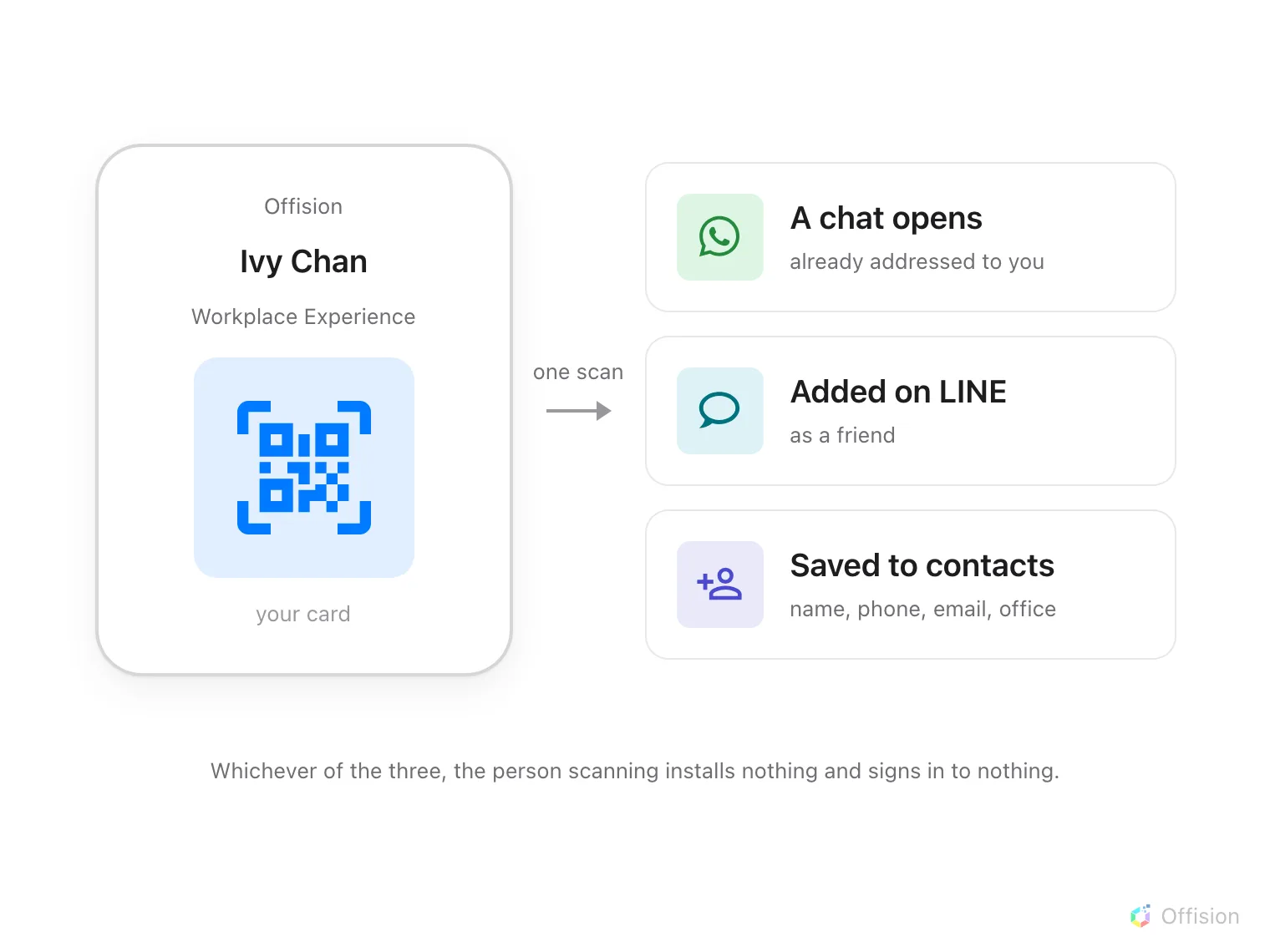
One scan hands the other person a working way to reach you, and they install nothing and sign in to nothing.
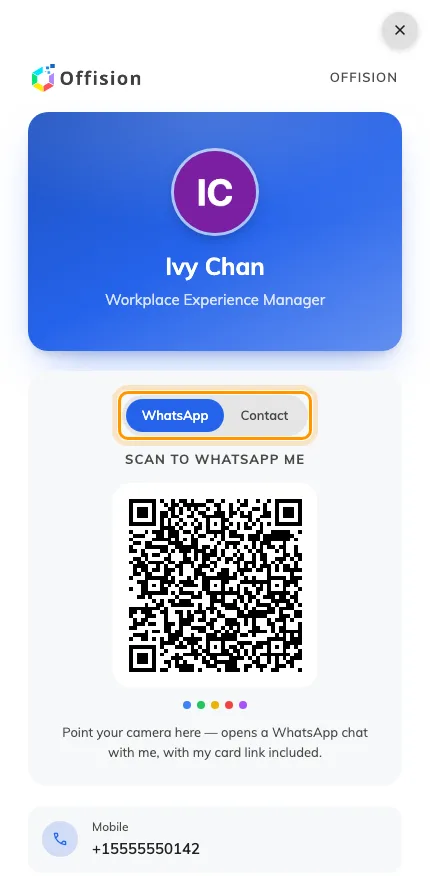
Your published card. The buttons above the QR pick what a scan does.
A button only appears when it can work. WhatsApp shows if your company enabled that channel and you have entered a phone number; LINE needs the channel and your LINE id. Contact is always there.
Check it works
Scan your own QR from a second phone. Contact should offer to save you; WhatsApp should open a chat addressed to you.
What the other person sees
A plain page with your card on it: a Save contact button, your bio, and tappable rows for your mobile, email, website, LinkedIn and office address. It opens without signing in and there is nothing on it they can change.
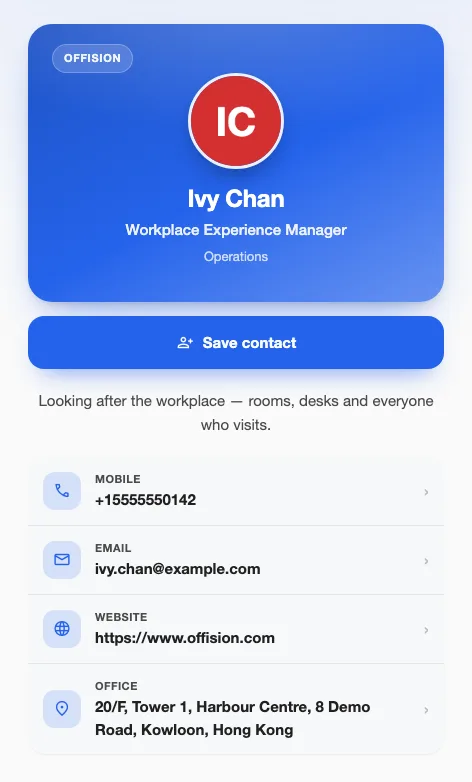
What the other person opens — read-only, with Save contact at the top.
They have no share buttons of their own — passing your card on is yours to do, which is why the QR lives in your app and not on the page they receive.