

Invite a visitor while booking a room
Booking the room and booking the guest into the building in one form: how Offision spots an outside email address, the one switch that turns those people into visitors, and why the guest's pass arrives long after the meeting invitation.
Someone from outside the company is coming to a meeting. That is two jobs — holding the room, and getting the guest through the front door — and the booking form does both, without you opening a second form.
The whole thing is one switch. What earns it its own article is that the switch appears only in certain conditions, that it is all-or-nothing, and that what reaches the guest afterwards is not what most people expect.
1. Add the guest as an attendee
Book the room as you normally would — see Book a meeting room if this part is new — and in Attendees, type the guest’s email address and press Enter. There is no separate field for outside people: they go in the same box as your colleagues.
Offision then checks that address against your company directory. It is a lookup, not a guess from the domain name — anything that matches no account is an outsider, and a contractor who happens to have an account with you is not one.
The clearest sign that it worked is not on the attendee itself: it is that Invite external attendee as visitor has appeared underneath the list. That switch exists only when the booking has at least one outside attendee, so its arrival is the detection.

An address matching no account. The switch below the list is the signal it was recognised as external.
The attendee’s own badge changes too, but only slightly — the dot beside their name goes grey. Grey is also what an attendee whose availability could not be checked looks like — see Find a meeting time that works for everyone for what the dots mean — so do not read too much into the dot on its own.
At this point the guest is invited to the meeting and nothing more. They are not expected at reception, and they have no pass.
2. Turn on the switch
Turning Invite external attendee as visitor on books every outside attendee into the building. Their dots turn purple.

The same badge after the switch: the dot has gone purple.
Two things worth knowing:
- It is all or nothing. There is no way to invite one outside attendee and leave another as a meeting guest. If you need that, invite the one visitor from the invite form and leave this switch off.
- It remembers. The switch keeps whatever position you last left it in, on that browser, and your next booking opens the same way. If the form seems to have decided something on your behalf, this is why.
3. Answer what the visit needs
Turning the switch on adds fields to the booking, because a visit needs answers a meeting does not:
- Visiting purpose — required, and it arrives already filled with your company’s default. This is the same purpose list as the standalone invite form, and it carries the same consequences: what reception asks for at the desk, and whether the visit needs approving first. Because it is pre-filled, it is easy to leave on the wrong one — change it if this visit is an interview, a delivery or a VIP rather than an ordinary meeting.
- Visitor vehicles — a plate number, and only where the room’s location allows it. If you cannot see it, that is the answer. See Collect a visitor’s vehicle plate.
- Any extra fields your company attaches to the visiting purpose.
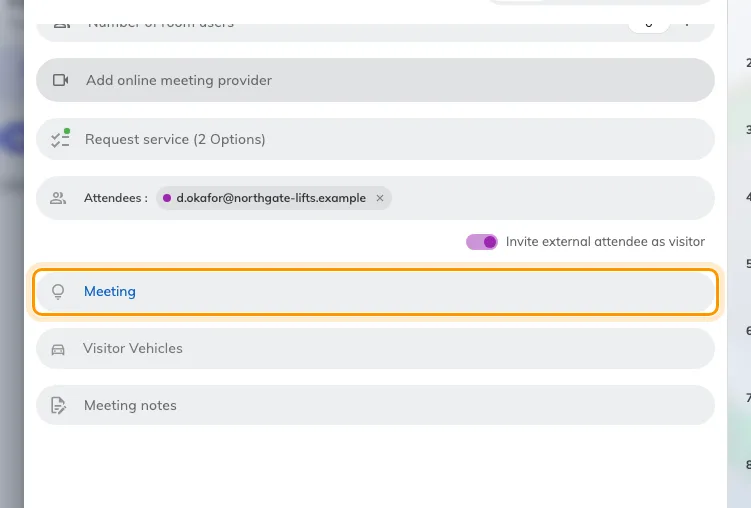
Visiting purpose, added to the booking by the switch, already on the company default. Visitor Vehicles arrived with it.
Change what a visiting purpose asks for in the admin console.
Open Visiting purpose4. Book it
Book saves both halves at once: the room booking, and a visit attached to it. The visit takes its time from the booking and its location from the room — which is why the room had to come first.
From here the two stay linked. Cancel the booking and the visit goes with it.
Only the email address travels this route. Reception gets no visitor name, company or phone number from a booking, because the booking never asked you for them. Where that matters, use the invite form instead.
What the guest actually receives
This is the part that generates support tickets, so it is worth being exact. A visitor invited through a booking gets two things, and neither of them is the email the standalone invite form sends:
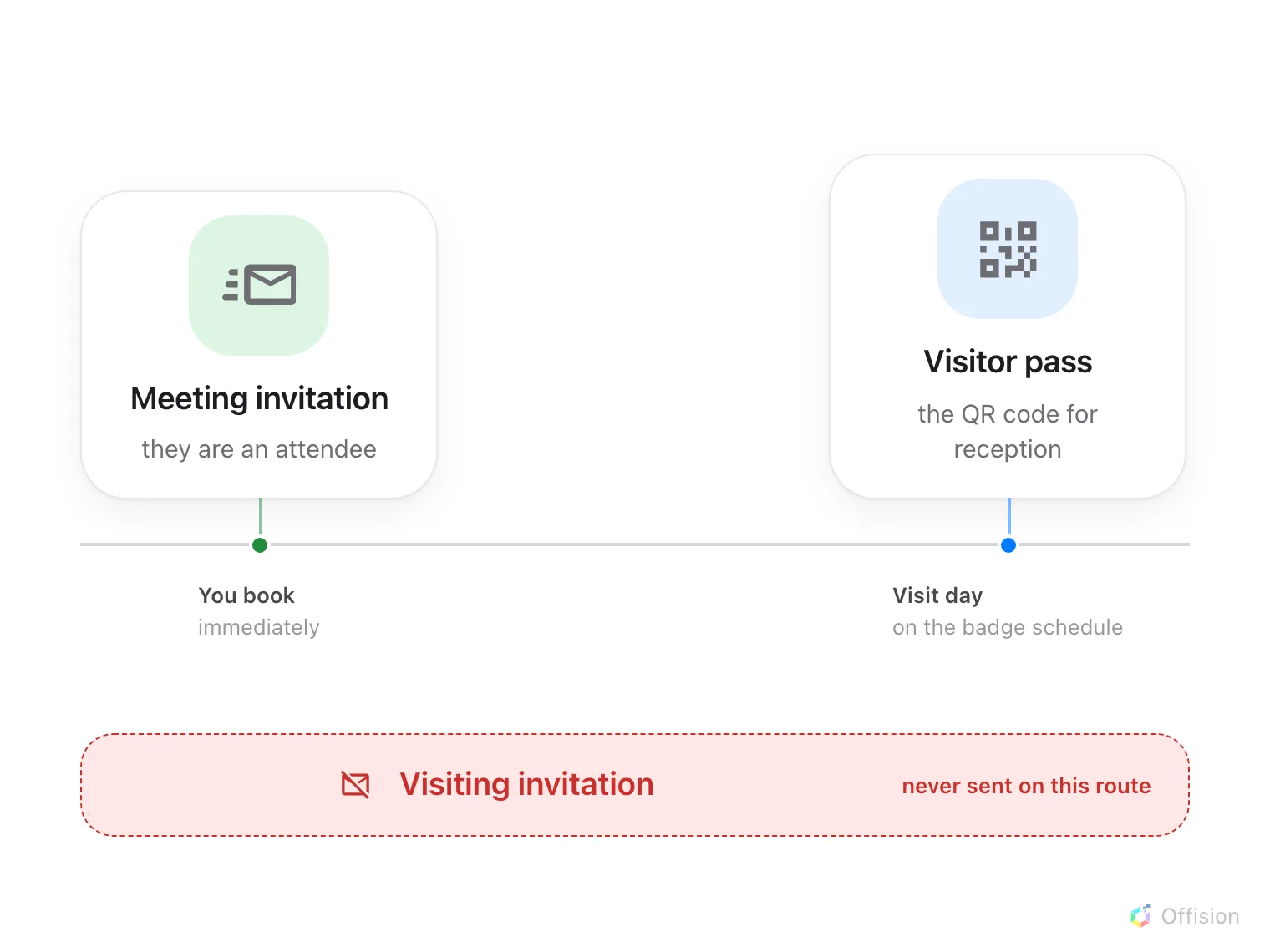
The guest gets the meeting invitation now and the pass later. The visiting invitation the standalone form sends never comes on this route.
| The meeting invitation | Straight away, because they are an attendee on the booking like anyone else. This is the calendar invite — it is not a visitor invitation and says nothing about reception |
| The visitor pass | The QR code they show at the desk, on your company’s badge schedule. If that schedule says “the day before”, a meeting booked three weeks out sends the pass three weeks later |
There is no separate “you have been invited to visit” email on this route. A guest who has the meeting in their calendar and nothing else has not been missed — their pass is simply not due yet.
You get one more thing: on this route you are the host, so you are emailed the moment they are admitted at reception. And if they check themselves in at a lobby screen, that screen points them at the room you booked. Both are in What happens when a visitor checks in.
Open Visitor managementWhen the switch is not there
Working through these in order settles almost every case:
| What you see | What it means |
|---|---|
| No switch, just after typing the address | The validate step has not finished. It takes a moment after you press Enter |
| No switch, and it has been a while | That person has an account with you and is not an outsider — or the booking has no room yet, the room’s building is not marked for visiting, or your company has not allowed staff to invite visitors from the user app |
| The switch is on, but one guest is clearly not being booked in | Their address is on a public mail domain your company’s visiting policy refuses. Blocked addresses are skipped quietly rather than refused out loud, so a personal webmail address can slip through looking invited |
| The switch is on, but Book stays greyed out | Visiting purpose is required once the switch is on. It normally fills itself with the company default, so an empty one means no default has been marked — pick a purpose by hand |
Which route to use
Both routes end in a visit reception can see. They differ in what else they do:
| From a booking — this article | You need a room as well as a guest. The visit follows the booking. Email addresses only, and all outside attendees or none |
| The invite form | You need the guest, not the room. Each visitor gets a name, company and phone number, you choose the building and floor yourself, you pick exactly who is coming, and you can add notes that reach them |
If you need both a room and full visitor details, book the room with the switch on, then open the visit afterwards and fill in who they are.