

Book a desk
Booking a desk is the room form with four things taken out of it. Where the buttons are, what the form stops asking you and why, choosing a desk without a capacity to judge it by, and the scan at the desk that stops it being given away while you are sitting at it.
Booking a desk is the booking form you already know with four things taken out of it. So this page is only the difference — Book a meeting room is everything the two have in common, and it is worth reading first if you have not.
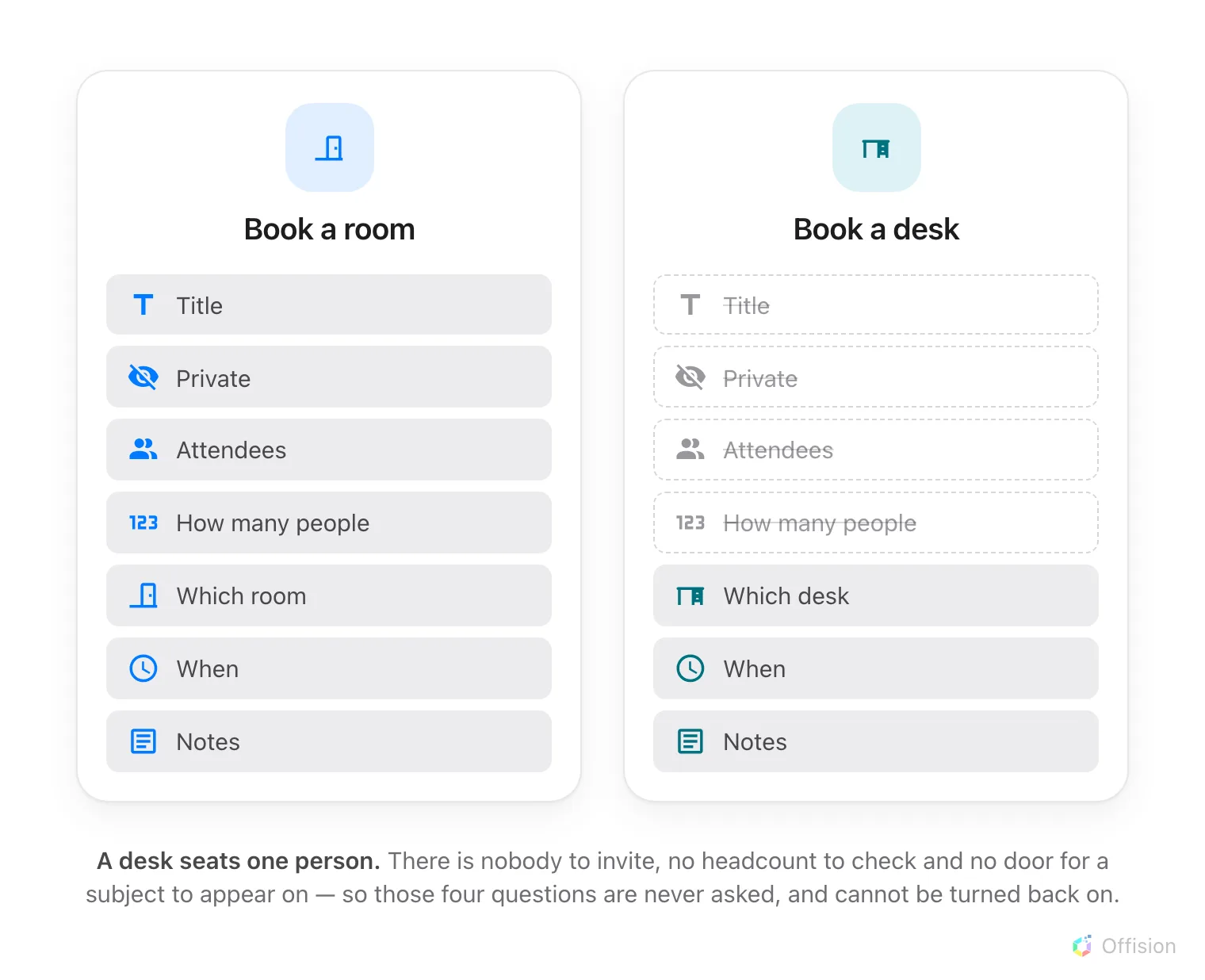
A desk seats one person — so four of the room form's questions have nobody to ask about.
1. Switch the home screen to Desk
Along the top of the home screen is a row of filters — All, Meeting, Desk, and whatever else your company uses. They do two things at once, and the second is the useful one here: choosing Desk narrows the day below to your desk bookings, and it re-aims the two buttons under it.
They now read Book a desk and Find a desk now, with no menu to open first.
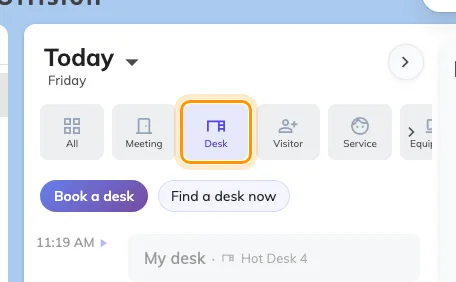
With Desk chosen, the two buttons are desk buttons: Book a desk, and Find a desk now.
You can get to the same form from All instead — the Booking button there opens a menu, and Desk is one of its rows. On a phone it is the + in the bar along the bottom.
2. Notice what the form stops asking
Choose Book a desk and the form opens titled exactly that. Four things you would expect from the room form are not there, and none of them can be switched back on:
- No title. Nothing to name — a desk booking is not a meeting, and there is no door for a subject to appear on.
- No attendees. A desk seats one person. There is nobody to invite, and no availability to compare.
- No Private toggle. With no title and no attendee list, there is nothing to hide.
- No number of people.
Two labels change for the same reason: the organizer line reads Booking by rather than Organizer, and Meeting notes is just Notes.
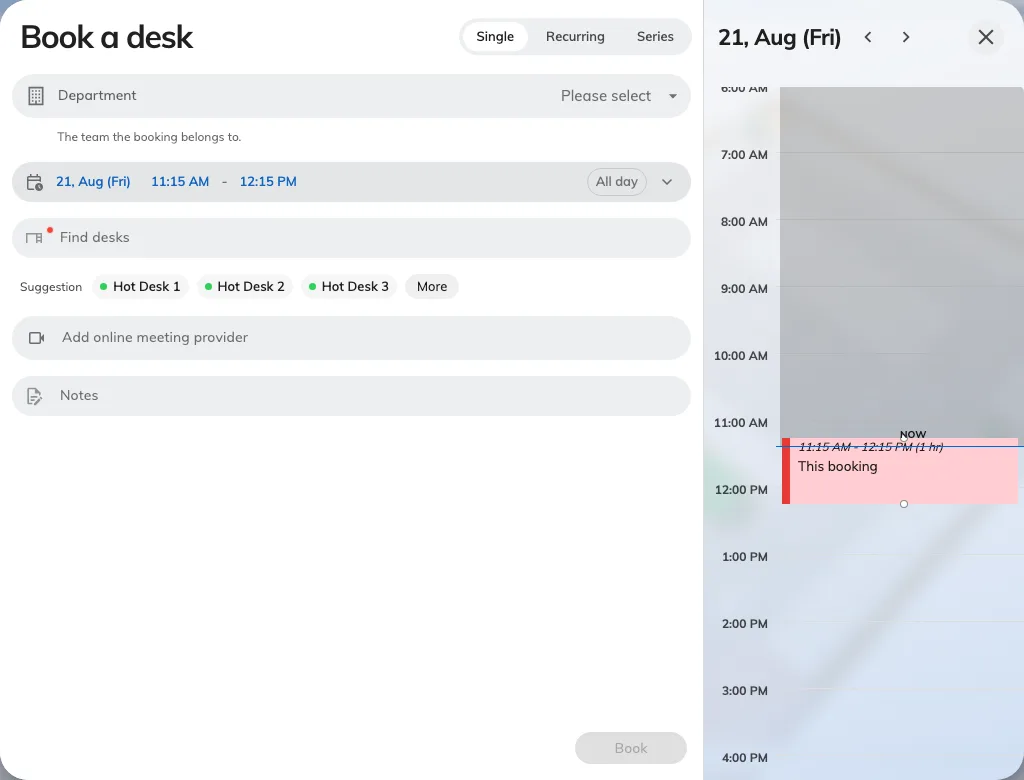
Book a desk. A desk, a time, and notes if you want them — the rest of the room form is not asked.
What is left is the same form: the desk, the day and time, an online-meeting link if you want one, and whatever extra questions your company attaches to a booking. Those are set per kind of resource, so a desk can be asked something a room is not — a Department to charge it to, a cost item, a project ID. They appear where your administrator put them, which on a desk is often above everything else rather than at the bottom.
3. Choose the desk
Open the desk field — it reads Find desks until you pick one — and search by name, or scroll the list. Available only hides everything already taken, Favourites only shows just the desks you have starred, and More filters narrows by location and category.
The rows are shorter than a room’s. A room row prints how many people it seats; a desk row cannot, so what is left is the dot saying whether it is free and the marks for the conditions attached to it. One is worth reading before you choose:
- Require check in — somebody has to confirm they turned up, or the desk is released again. On a shared floor this is the normal setting rather than the exception, and step 5 is how you satisfy it.
The star sets a desk as a favourite, which is what most people end up using instead of searching — a floor of Hot Desk 1 to Hot Desk 20 is a hard list to read twice a week.
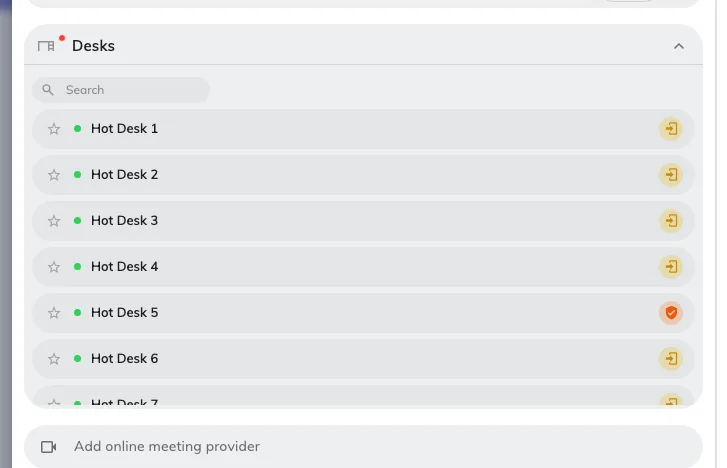
Finding a desk. No seat count on the rows — there is nothing for a desk to seat.
You can add a parking space to the same booking, which is the pairing most people want on a day they come in. (A room offers equipment here instead.)
If you would rather see where the desks are than read their names, the floor plan does the same job better — see Find a desk on the floor plan.
4. Set the day — usually the whole of it
All day is the ordinary shape of a desk booking, not the exception it is on a meeting room, and most companies leave it available for exactly that reason. Set From and To by hand when you only want the morning.
Two things behave differently here from a room:
- Find a desk now starts at two hours rather than one, because a desk is taken for a stretch of work rather than for a meeting.
- Some desks cannot be booked ahead at all. A touchdown desk or a phone booth may be walk-in only, which means it is taken by turning up and scanning it, and it will not appear in this form. That is deliberate, not a fault.
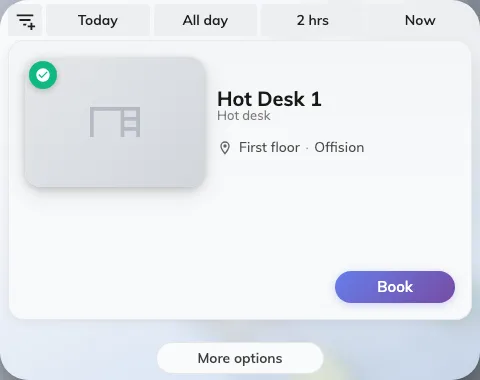
Find a desk now: whatever is free for the length of time you asked for, each row with its own Book.
5. Then go and sit at it — and scan it
This is the step people skip, and it is the one that decides whether the desk is still yours at eleven o’clock.
Where a desk requires check-in, a booking nobody confirms is treated as a no-show and handed back part-way through the day. The printed QR code stuck to the desk is how you confirm: point a phone at it, and the scan checks you in without asking you anything.
The same code does three other things — takes a free desk on the spot, adds time to the one you are at, and hands it back when you leave. All four outcomes, and what each of the refusals means, are in Check in and out by scanning the sticker.
End now, on the way out, is the one worth building a habit around. Leaving at three when you booked until six holds a desk for three hours that nobody else can use, and the booking has no way of noticing you have gone.
6. Check it worked
Offision confirms with Booking success, or Booking created, waiting approval where the desk needs approving — those are not the same thing, and the second means the desk is not yours yet.
Then look at the home screen: with the Desk filter still on, today’s desk is there as a My desk card. See See your desk day on the home screen.
What this does not cover
- Changing or cancelling it. A desk booking is edited and cancelled like any other — see Edit a booking and Cancel a booking.
- A desk that is permanently yours. If you have an assigned seat rather than a shared one, there is nothing to book: it is yours without a booking, and it will not appear in this form.
- Why a desk refuses. Out of hours, over quota, reserved for another team — the messages and what each means are in Why a room refuses your booking, and they are the same for desks.
When claiming a desk also records attendance
Where your working schedule enables it, checking in to a desk booking or walking up and claiming a desk also records an attendance sign-in. Making a future reservation alone does not. Separate schedule rules can record sign-out when you check out (including sensor release) or when the desk booking ends. These rules apply to desks, not rooms, and can be limited to selected buildings and floors.
Check Working schedule settings before treating a desk claim as proof of attendance. If two equally suitable schedules match, Offision records neither rather than choosing one arbitrarily.