

Sign in to Offision
Getting into Offision with your work email and a password — finding your company, the two-step sign-in card, setting your own password the first time, and what each of the refusals actually means.
Offision asks for your email first and your password second, on two halves of the same card. The split is deliberate: by the time you are asked for a password, Offision already knows whether your company signs you in with one at all.
1. Open Offision and find your company
Most people are sent a link and land straight on their company’s sign-in card. If you were not, open Offision without one and it asks Enter your work email — type it, choose Continue, and it finds the company your account belongs to.
Two things can happen from there:
- One company — you go straight to its sign-in card.
- Several — Select Offision domain lists them, each card showing the company name and its Offision address. Choose the one you want.
A card may also carry a web address of its own, under the company name. That is an account kept on a different Offision server from the one you are looking at — a company with offices in more than one part of the world usually has one — and choosing it takes you there to sign in. Nothing changes about how you sign in; the address in your browser does. The desktop and phone apps then stay on that server until you tell them otherwise, so there is nothing to re-enter next time.
If you already know your company’s Offision address, Login with URL takes you there directly instead.
2. Enter your email
The card carries your company’s name and logo, so check it is the right company before you type. Enter your address and choose Continue.
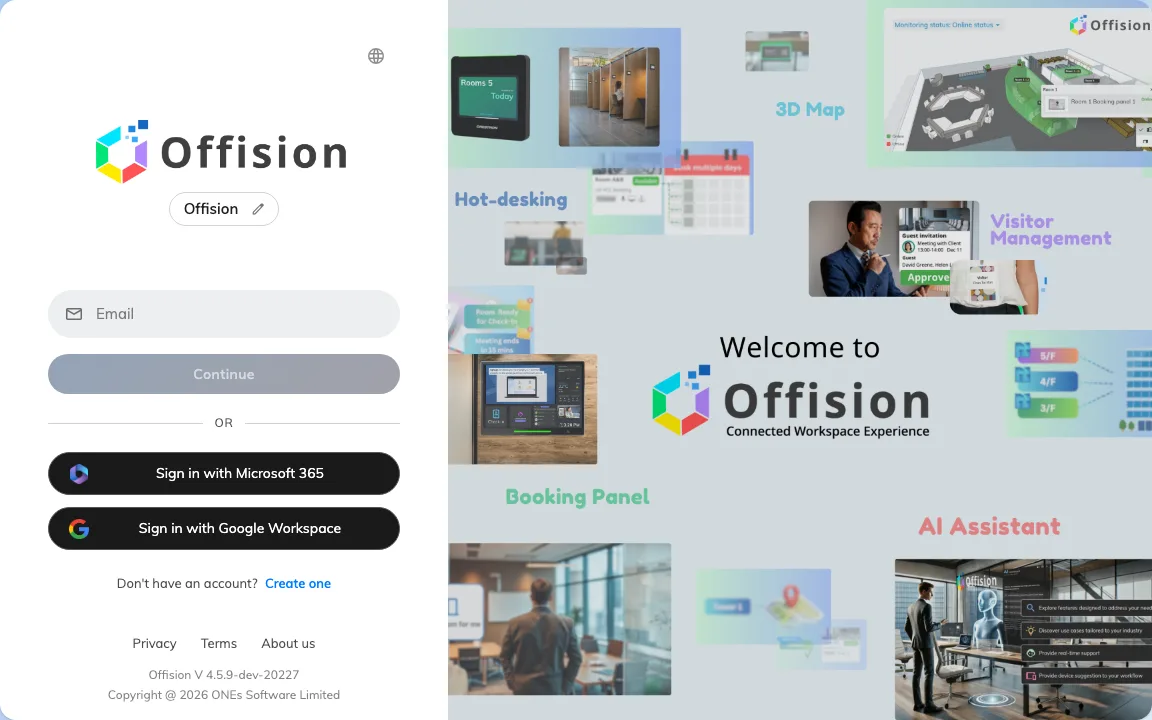
The sign-in card. Your email first — the password comes after.
“Email not found” here means this address is not on this company’s Offision. It says nothing about your password, and re-typing the password will not fix it. Check for a typo, check you are on the right company, and if both look right ask your administrator whether your account was created.
3. Enter your password
Offision now shows Login as with your address above the password box, so you can see which account you are about to sign in to. Type your password and choose Login.
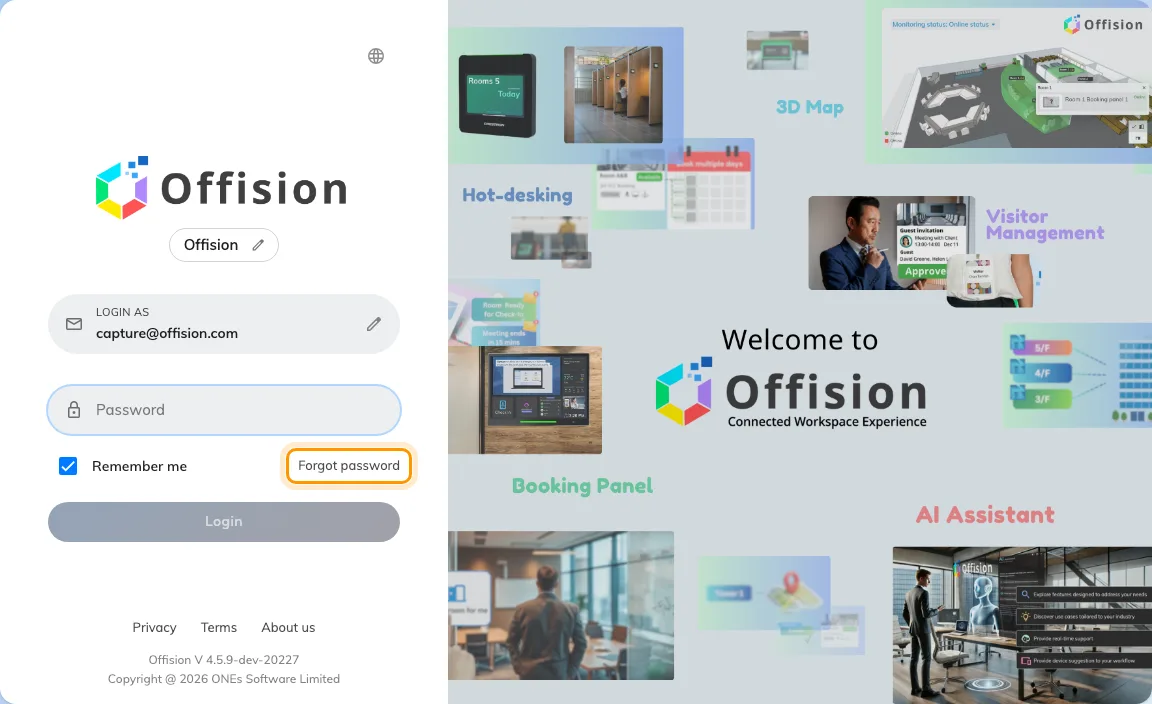
The password step. Forgot password is ringed, beside Remember me.
Three things sit around that box:
- Remember me keeps you signed in on this device. Leave it off on a shared or public computer. In the Offision desktop and mobile apps it is not there at all — those always remember you.
- Caps lock is on appears if it is. It is the commonest reason a password you are sure about is refused.
- Forgot password starts the recovery described in Reset a forgotten password.
The pencil beside your address takes you back a step, so you can sign in as somebody else.
If your company signs you in with Microsoft 365 or Google Workspace, there is no password box here — just a Sign in with Microsoft 365 button. Your Offision password does not exist in that case, and changing it is done wherever your company account lives.
4. The first time: set your own password
An account that has just been created does not go to the home page. It opens on Welcome to Use Offision — “Please set the password before continue” — and asks for New password and Confirm password before anything else.
The rule underneath is your company’s, not a fixed one: “Must contain A-Z, a-z, 0-9 and At least 6 characters” is the usual wording, and the list below the fields ticks off each requirement as you type. Submit stays unavailable until every one of them is ticked.
Once they all are, you are signed in and on the home page. Offision asks for the same two fields again whenever your company’s password expiry catches up with you — see Change your password.
If you are asked for a six-digit code
Some companies turn on Two-Factor Authentication. After your password, Offision asks for a code — “We’ve sent a verification code to your email”, or from your authenticator app if you registered one.
Type the six digits and it submits itself; Verify Code is there if it does not. Resend Code sends a new email after a short wait, and Use email verification instead falls back to email when your authenticator is not to hand.
When it will not let you in
| What you see | What it means |
|---|---|
| Email not found | The address is not on this company’s Offision. See step 2. |
| Username or Password Incorrect | The password is wrong — or the address is, since Offision deliberately does not say which. |
| Login fail. Please try again on the button | The attempt did not go through. Try once more; if it keeps happening, it is not your password. |
| A message about the account being locked | Too many wrong passwords in a row. Your company sets how many and for how long — wait it out, or ask an administrator to unlock you. |
| No Permission to login User App | The password was right. The account is simply not allowed into the Offision app, which only an administrator can change. |
| A Sign in with Microsoft 365 button and no password box | Your company signs you in through that account, not with an Offision password. |
If you are locked out and none of these fit, the reliable next step is to reset the password rather than keep guessing at it — see Reset a forgotten password.