

I can't sign in to Offision
Every message the sign-in screen can refuse you with, what each one actually means, what you can do yourself, and the one-line fix to pass on to your administrator when you cannot.
The sign-in card refuses in a handful of distinct ways, and each one names a different fix. Some of the messages appear in English whatever language you use — that is expected, and the wording is quoted here exactly so you can match it. Each solution ends with what your administrator does on your account.
Open UsersUsername or Password Incorrect
Most commonThe password is wrong — or the email is not on this Offision at all. Both produce this same message on purpose, so nobody can use the sign-in page to discover which addresses exist. The button flashes Login fail. Please try again for a moment and turns red.
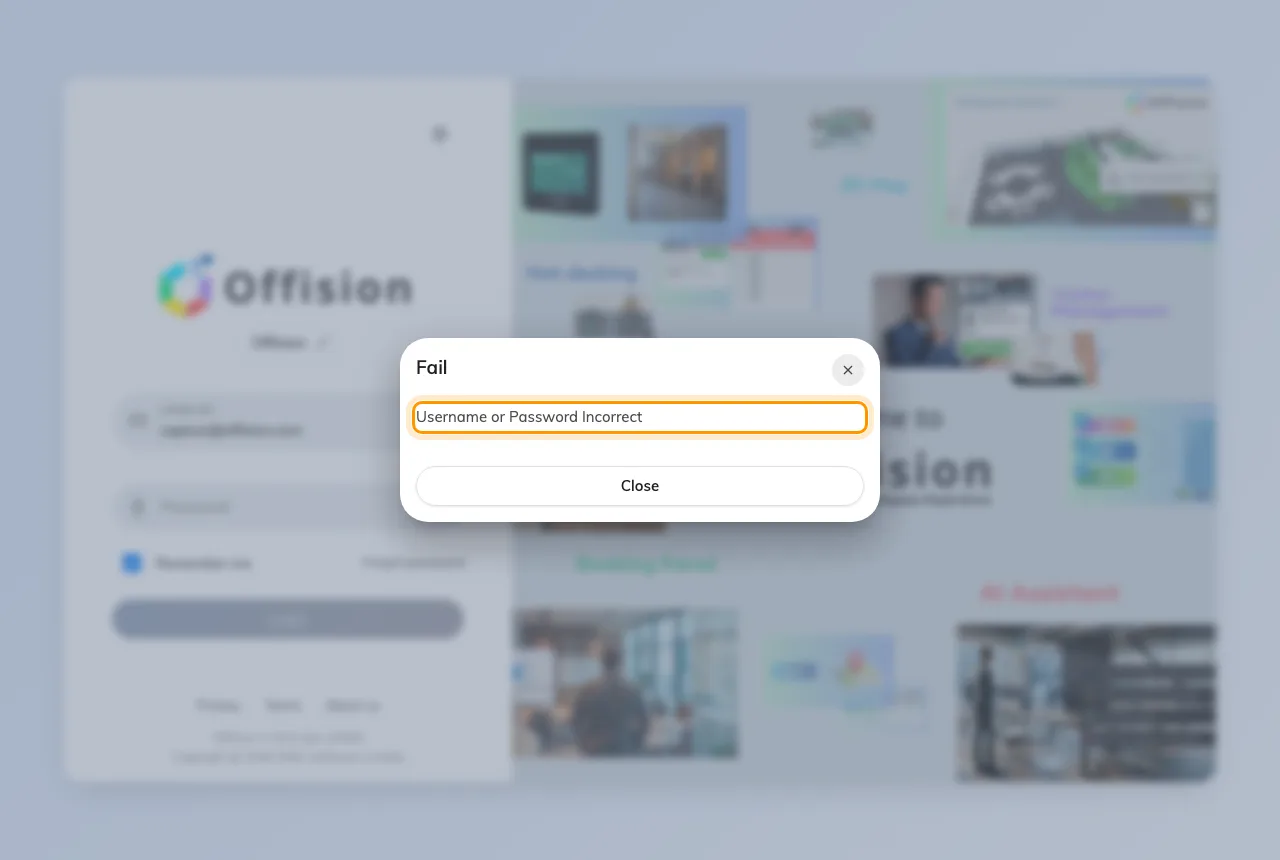
The sign-in card refusing a wrong password.
Check Caps lock is on is not showing, then try once more. If you are not sure, press Forgot password and follow Reset a forgotten password. If you have more than one work email, try the other one.
Every wrong attempt counts towards a lockout, so do not keep guessing.
Administrator: Manually reset password on the person’s panel, or Send reset password email.
Email not found, or Sorry, we cannot find your account
CommonEmail not found appears after the first step of the card: the address you typed has no account on this company’s Offision. Sorry, we cannot find your account is the same thing said by the Enter your work email screen that looks up which Offision you belong to.
Either you have not been invited yet, or you are on the wrong company’s sign-in page. Ask whoever invited you for the address they used, and check the invitation email for the right link.
Administrator: add the person and send the invitation; see How account status works.
Identity Locked Out
CommonToo many wrong passwords in a row. The line under it says how long remains: This account is locked out for N minutes. Nothing you type during that time will work, even the right password.
Wait it out, then sign in. If you had forgotten the password anyway, use Forgot password now so the next attempt is a correct one.
Administrator: there is no unlock button. Either wait with them or Manually reset password; how many attempts and how long the lock lasts are set on Global password policy.
Deactivated User Cannot Login, or Not Allowed To Login
Less commonYour account exists but has been switched off. Deactivated User Cannot Login means it was deactivated; Not Allowed To Login means it was deleted and sits in the recycle bin. Both usually happen when someone leaves or changes role, and both are reversible.
There is nothing to do on your side except ask.
Administrator: Re-enable user on the person’s panel, or open Recycle bin and Restore them — see How account status works.
Invalid Two Factor Code, or Two Factor Session Expired
Less commonThe six-digit code was wrong, or you ran out of time. A code is good for five minutes and five attempts; after that the session is dropped and you see Two Factor Session Expired. Start again from the email and password, and if the code came by email use Resend Code rather than an old message. If you use an authenticator app, check the phone’s clock is set automatically.
Administrator: if the phone or the app is gone, Reset two-factor authentication on the person’s panel lets them sign in with the password alone and set it up again.
There is no password box, or you got in and were sent straight out
RareOnly a Sign in with Microsoft 365 or Sign in with Google Workspace button. Your company signs in through its own directory and has hidden the password form. Use that button with your usual work account; a password you set for Offision will not be asked for.
No Permission to login User App after that button worked. The directory knows you, but your Offision account has no right to use the user portal.
Access Restricted, with a line such as You are not allowed to access the Offision web portal, please contact your admin. You signed in, but your account is not allowed from this kind of device — browser, phone browser, the app, or the Outlook / Teams add-in. Try the kind your colleagues use.
Administrator: the first is Login page under UI customization; the second is the User switch on the person’s Permissions page; the third is the Allow user access from … switches on their User security profile.