

User guide
Using Offision day to day, from your own account: booking the space you need, meeting the people you invited, and finding what you booked afterwards.
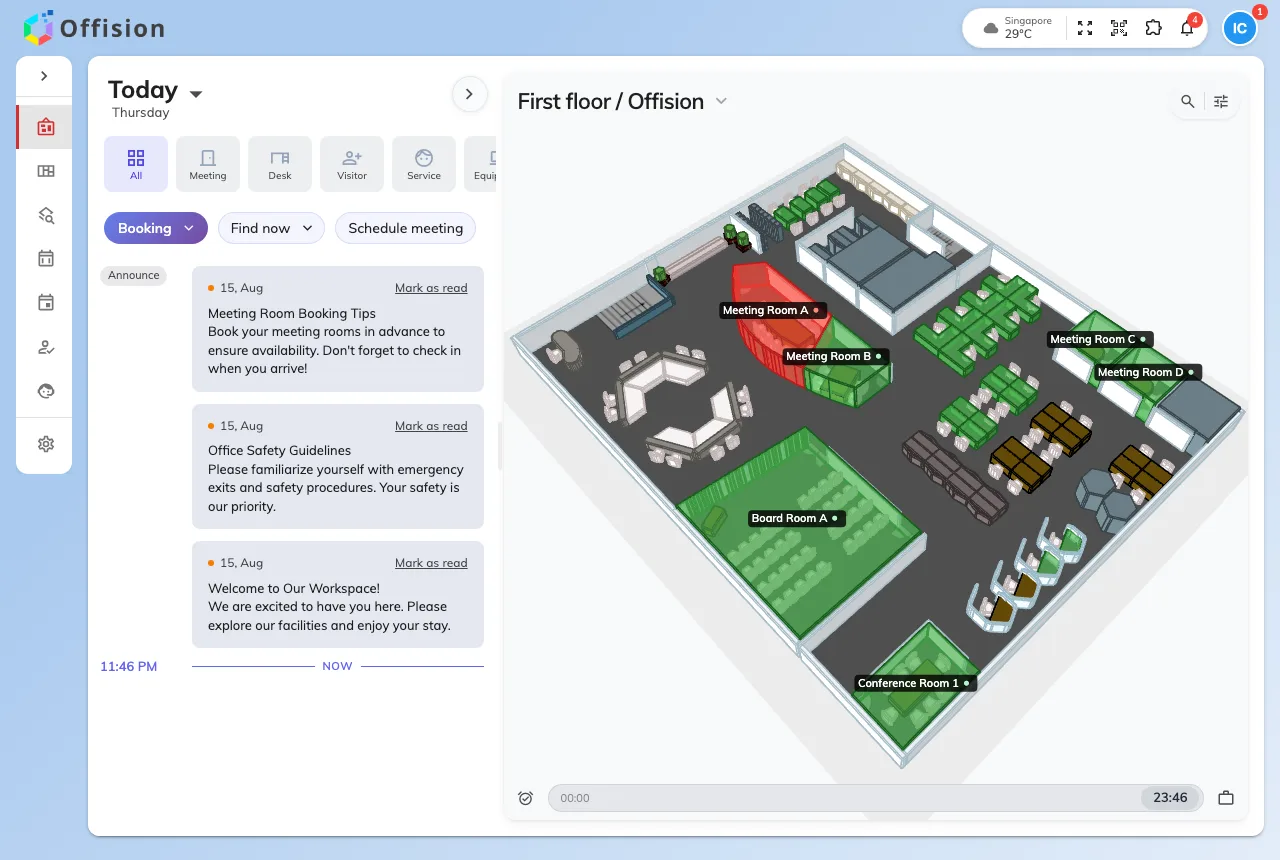
This is the half of Offision you use without administering anything: your own bookings, your own visitors, your own account. Everything here happens in the Offision app — in a browser, on a phone, or from Outlook and Teams. Which of those you can use, and how to get each one, is under Apps.
Booking something, and finding it again
The home screen leads with the two things people do most: book a space, and see what is happening today. A booking asks for a time and a resource; anything else on the form — a purpose, a cost item, a list of attendees — is there because your company asked for it.
A desk is booked on the same form with four of its questions taken away — there is no title, no attendee list and no headcount, because a desk seats one person. That, the map most people actually pick a desk on, and the printed code stuck to the desk itself are under Desks.
Afterwards you have two calendars, and they are not the same thing. My calendar shows your own bookings, and dragging one moves it in time. The resource calendar shows the rooms side by side, and dragging a booking there moves it to a different room. Which one you want depends on whether the problem is when or where.
Why a free room sometimes says no
Most of the surprises in day-to-day use come from rules an administrator set and you never see. A room can be genuinely free and still refuse the booking: it may be outside the period that room can be booked in, longer than that room allows, outside business hours, reserved for another department, over your quota, or it may need approving before it counts. The message says which one — the room being empty on screen is not the same as the room being available to you.
The other common surprise is check-in. Where a room requires it, turning up is not enough: somebody has to check in at the panel, by QR code, or with a staff card, or the booking is released and the room goes back to the pool part-way through your meeting.
Going to an event
Events your company runs are listed in the app, and joining one is a button. Some ask you to register and some just take you; either way you end up with a code to show at the door.
Running one is a different job with a permission behind it, and it has a guide of its own — Event coordinator.
Meeting someone from outside
Inviting a visitor is an ordinary thing for an employee to do, so it lives here rather than in the admin console. You invite them, they get an email with a code, and they use it at the lobby to check in — and you are told when they arrive.
Making it yours
The app can be switched to your language, put into dark mode, moved to a twenty-four hour clock and given larger text, all from one group behind your picture. Only the language follows your account — the rest stay in the browser you set them in, which is why they seem to reset when you sign in somewhere new.
What this guide does not cover
Setting things up for the whole company. Adding rooms, writing booking rules, enrolling panels, creating accounts, deciding whether events are switched on at all, and connecting Microsoft 365 are administrator work, documented in the modules under For administrators.
Nor the jobs that come with a staff permission — running the front desk, delivering a service, fixing what somebody reported, or organising an event. Each of those has a guide of its own beside this one.