

Install the Offision desktop app
Where the Windows and Mac installers actually live, which file to take for which machine, what the installer does and does not ask you, and why you never have to come back to the download page again.
The desktop app is Offision in its own window instead of a browser tab: it keeps you signed in, it sits on your dock or taskbar, and it can reach a label printer and the meeting-room hardware on your desk, which a browser tab cannot.
1. Open the download page
Every installer lives in one place: offision.com, under Download. There is no link to it inside Offision itself, which is why people hunt for it — go to the Offision download page directly.
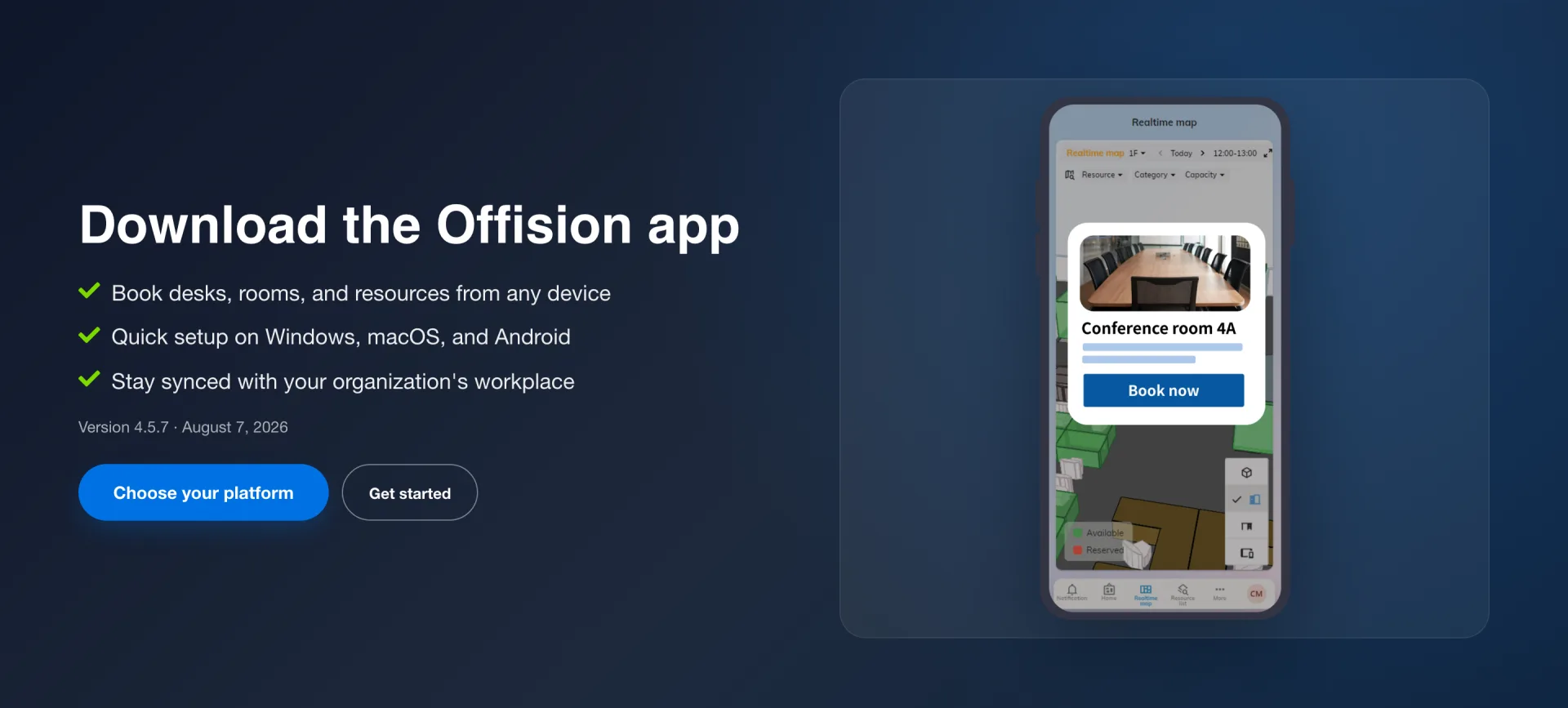
The download page. The version and its date sit above the buttons, so you can see what you are about to install.
Choose your platform jumps straight down to the files.
2. Take the file for your machine
Three cards, one per platform. Each names the exact file and the version, so you can tell at a glance whether you already have it.
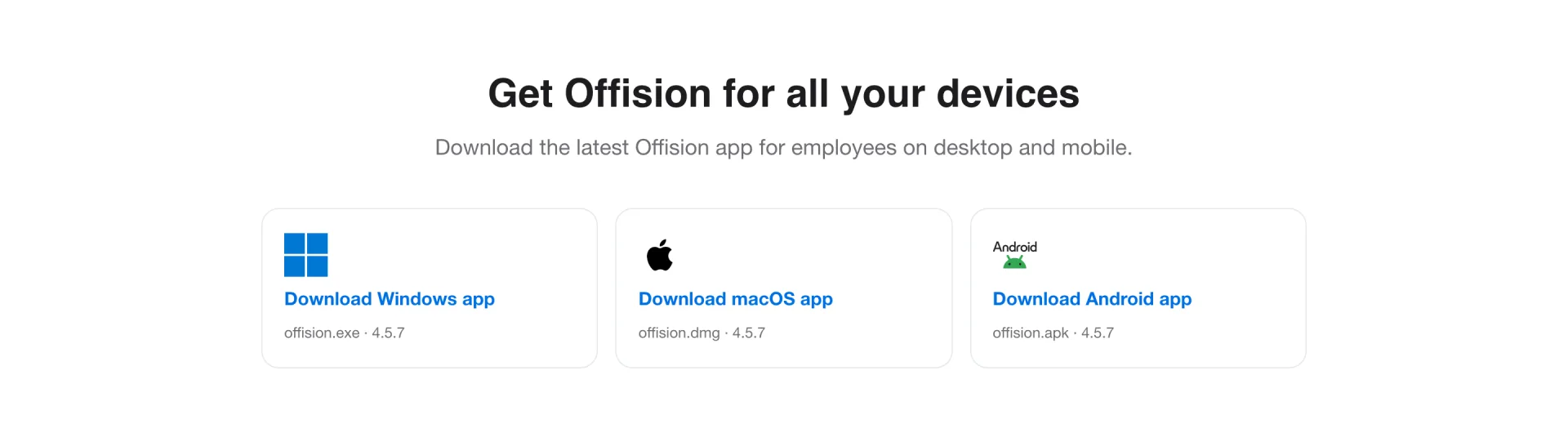
One card per platform. The filename and version are printed under each.
| Your machine | Take | Notes |
|---|---|---|
| Windows 10 or 11, 64-bit | Download Windows app — offision.exe | The only Windows build; there is no 32-bit version |
| Mac with Apple silicon | Download macOS app — offision.dmg | M1 or later |
| Android phone or tablet | Download Android app — offision.apk | Only for phones with no Play Store; see Install on your phone |
An Intel Mac is not covered by the Mac app. Use a browser there — it is the full Offision, and nothing in this manual is out of reach in it.
3. Run the installer
On Windows, open offision.exe. It installs for you alone and asks nothing
— no folder to choose, no components to tick — and opens when it finishes. That
brevity is deliberate, and it is also why it needs no administrator password.
On a Mac, open offision.dmg and drag Offision into Applications. The
first launch asks the usual macOS confirmation for an app downloaded from the
internet; Offision is signed and notarised, so allowing it is the expected
answer and not a warning to work around.
4. Sign in
The app opens on your company’s sign-in card, and from here it is the ordinary sign-in — see Sign in to Offision. As on the phone there is no Remember me: the desktop app always remembers you.
If your account is kept on a different Offision server, choosing it moves the app there and it stays there — the next launch opens on the same server without asking. If you ever need to get back, the app’s no connection screen carries a Back to button naming the default server, which returns it.
The download page describes the same three steps, and it is worth reading its first one before you blame the installer.
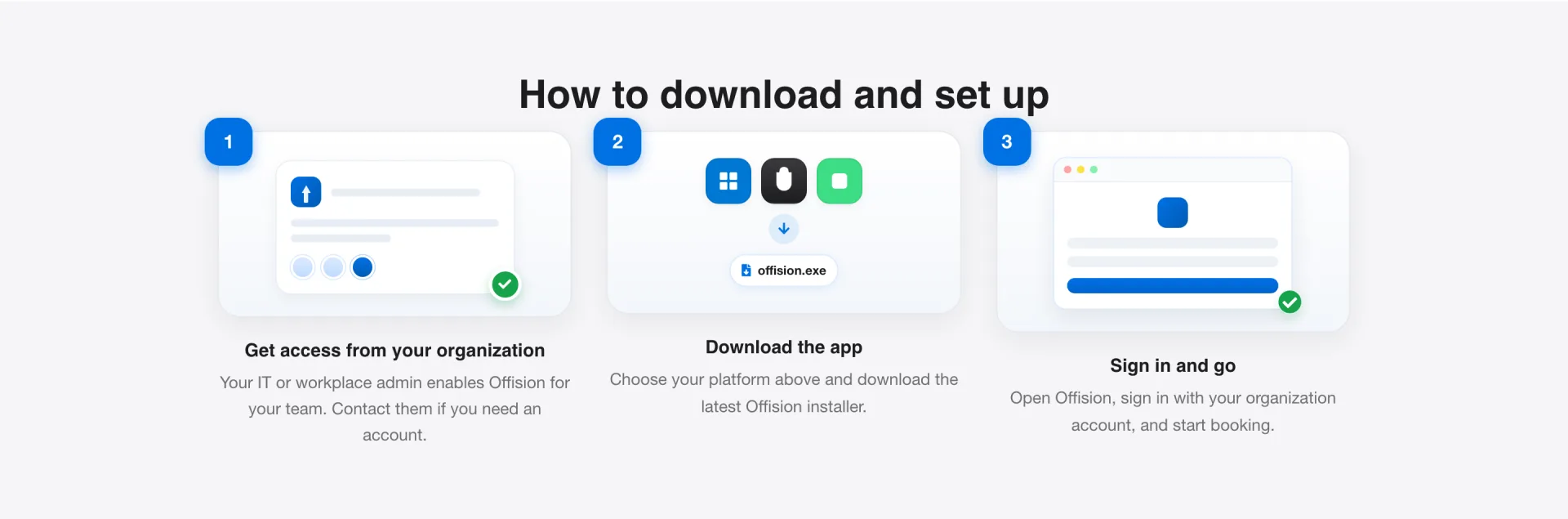
Get access, download, sign in. The account has to exist before the app is any use.
You do not have to come back here
The desktop app updates itself. It checks on its own, fetches the new version in the background and applies it the next time you restart the app — so the download page is a place you visit once per machine, not once per release.
If you are on a much older version and the update seems stuck, reinstalling from the page above is safe: it upgrades in place and keeps you signed in.
Check it worked
Open the app, sign in, and make a booking. Then open Offision in a browser and confirm the booking is there. Same account, same bookings — if the browser shows something different, the app is signed in as somebody else.