

Change your password
Replacing the password you sign in with, from Security settings in your own profile — the three fields, the requirement checklist that decides when Update becomes available, and the times Offision makes you change it rather than asking.
You change your own password from inside Offision, and you have to type the current one to do it. That is the difference between this page and Reset a forgotten password — if you cannot supply the current password, that is the way back in.
1. Open Security settings
Choose your picture in the top right corner. The panel that opens has a Security settings group, and Change password is the first row in it.
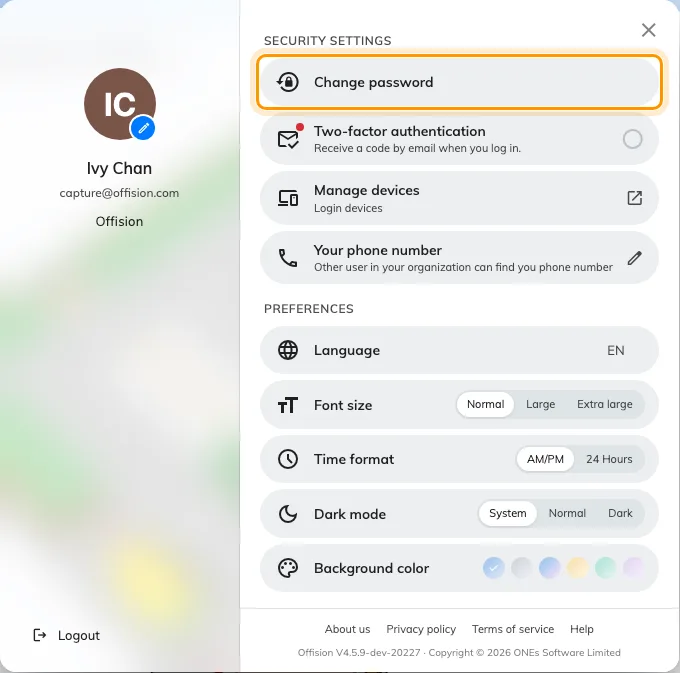
Your profile panel. Change password, under Security settings.
On a phone the same group is on the Profile page.
2. Fill in the three fields
Current password is the one you use today. The middle field is labelled just Password — that one is the new password. Confirm password is the new one again.
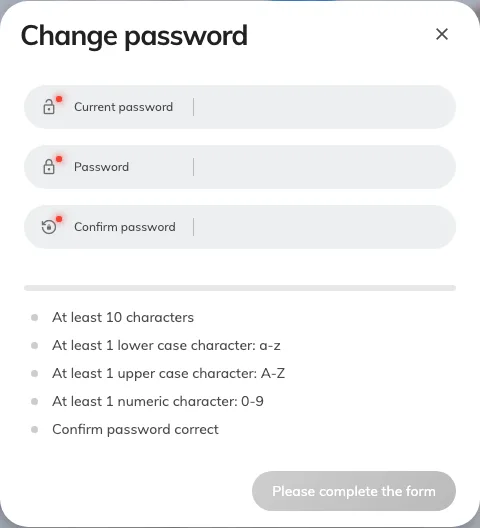
Change password. Current first, then the new one twice.
Caps lock is on appears under the fields if it is. It is the commonest reason a current password you are sure about is refused.
3. Get every requirement ticked
Below the fields is a bar and a row of tags. The tags are your company’s password rules, so the list is not the same everywhere: a minimum length — At least 10 characters in the example above — and Confirm password correct are always there, while At least 1 lower case character: a-z, upper case, numeric and special character appear only where your company requires them. Each one ticks as you type.
Until every tag is ticked the button at the bottom reads “Please complete the form” and cannot be pressed. It turns into Update the moment the last one ticks.
The bar above them — Weak, Medium, Strong!, Very strong!! — is advice, not a rule. A password that ticks every tag is accepted even while the bar still reads Weak.
4. Choose Update
The panel closes and “Change password success” appears. You stay signed in here; there is nothing to sign in to again.
When Offision makes you change it
Sometimes Offision asks rather than waiting for you. Signing in then lands you on a Change password page instead of the home page, with only New password and Confirm password — no current password, because you have just typed it — and Submit at the bottom. Two things put you there:
- An administrator set your password for you. A password set from the admin side is meant to be replaced the first time you use it.
- Your company expires passwords. Previous password expired sits under the title. How often that happens is your company’s setting.
The checklist behaves exactly as it does above. You cannot go anywhere else in Offision until you finish — signing out is the only other way off the page.
Setting your very first password from an invitation email is a different screen again; see Sign in to Offision.
If it will not accept the new password
| What you see | What it means |
|---|---|
| The button still reads Please complete the form | A tag under the fields is not ticked yet. Confirm password correct is the one people miss — the two new passwords do not match. |
| You’ve used this password before. Please choose a different one. | Your company keeps a short history of your previous passwords and will not let you return to one. Choose something you have not used here before. |
| We couldn’t change your password. Please try again. | Usually Current password is wrong. Check caps lock, then try the password you actually signed in with. |
| No Change password row under Security settings | Your company signs you in through Microsoft 365 or Google Workspace. There is no Offision password to change. |
If it is the current password you do not know, stop guessing at it and use Reset a forgotten password instead.