

Reschedule a booking on My calendar
Your own calendar: what each colour of block on it is, how to narrow it down to the ones you care about, and how to move a booking to a new time by dragging it — including what the confirmation asks when the booking repeats.
My calendar is everything you have on: the rooms and desks you booked, the meetings you were invited to, the visitors you invited in, and whatever your Outlook or Google calendar is syncing across. It is also where you change a booking after making it — mostly by taking hold of it and moving it.
1. Open My calendar
Choose My calendar from the app’s page menu. It opens headed Calendar, on whichever view you were last using, scrolled to about now.
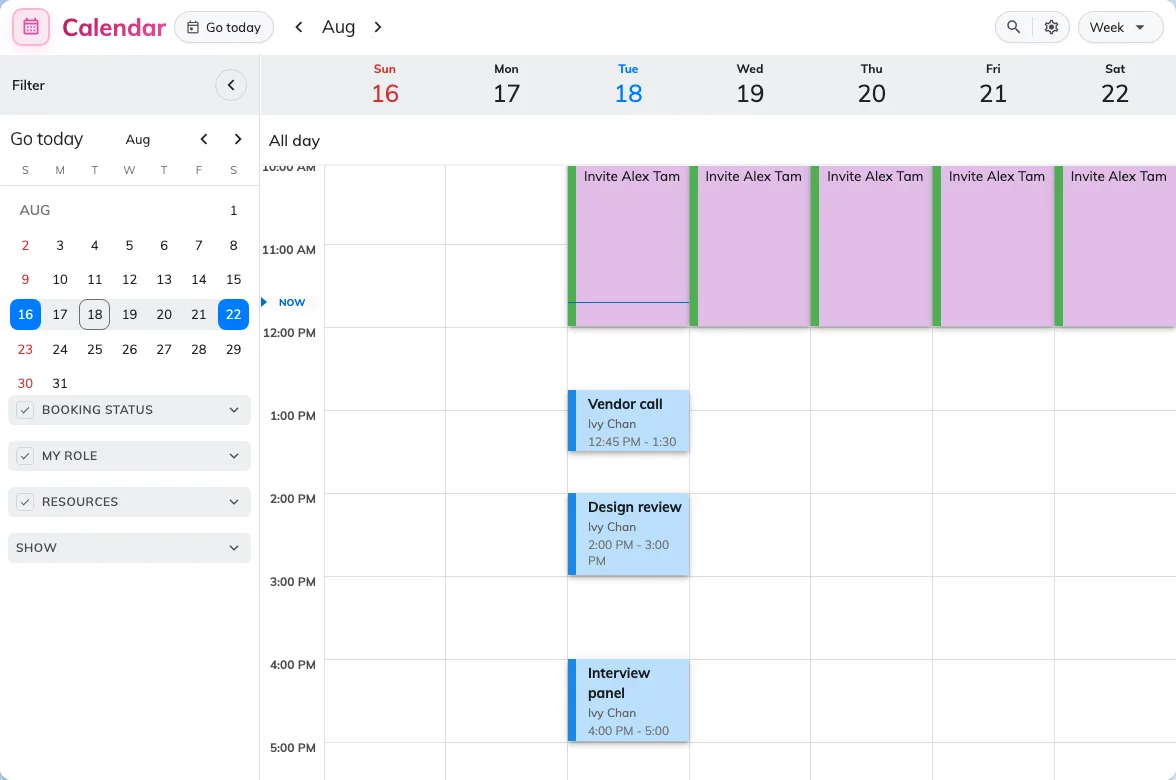
My calendar on the week view, with the filter panel down the left.
The columns are days. They are never rooms — this screen is your week, not the building’s.
2. Read what is on it
Four kinds of thing share the calendar, and the colour is what tells them apart:
| Blue | A booking — a room, a desk, equipment, a parking space. |
| Purple | A visitor you invited in. |
| Green | A service attached to one of your bookings, titled [Service]. |
| Grey | Another appointment, synced across from Outlook or Google. |
Two more things are worth reading off a block before you touch it. Anything already finished is drawn dimmed. And anything you can move stands raised off the grid — flat means it is not yours to change, so there is no point dragging it.
Clicking a block opens its card rather than a form: from there you can join the online meeting, open it in Outlook or Google, extend it, end it now, request a service, check in, edit it properly, or cancel it.
3. Narrow it down
A full calendar is hard to work in, and the panel down the left is how you cut it back. It opens on a month you can use to jump about, and below that it filters by Booking status; by My role, which is the useful one — Organized by me against Invited; by resource type under Resources; by Services; and under Show, whether to draw Other appointments from Outlook or Google at all, and Visiting appointments for guests you invited.
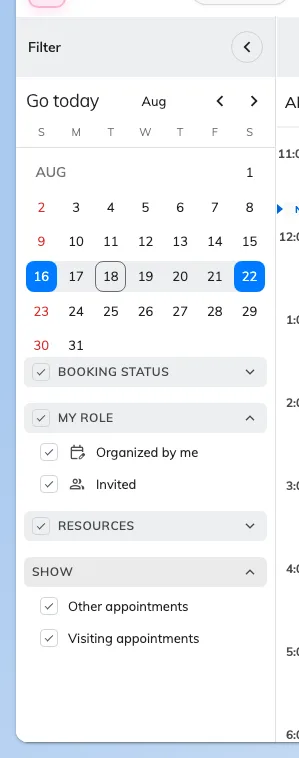
The filter panel. My role is the quickest way to see only the bookings you run.
The view menu at the top right sets the span — Day, 3 days, Week, Month or List — and carries two display toggles with it. Show full day widens the day beyond working hours, so an early or late booking stops being hidden above or below the fold. Show weekend adds Saturday and Sunday.
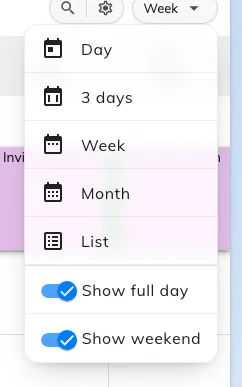
The view menu, with the two display toggles under the spans.
Two more controls sit beside it. Calendar options adds your country’s public holidays and any published calendars your company offers. And if a colleague has made you their delegate, the person picker in the header flips the whole calendar to their schedule, so you can work on their bookings as well as your own.
4. Drag it to a new time
Take hold of the block and drop it where the meeting should be. Drag its top or bottom edge instead and the meeting gets longer or shorter, from the same screen.
Times land on the quarter hour, so you cannot leave a booking at 14:07 by accident. On a touch screen, hold the block still for a moment before moving it — otherwise the calendar reads the gesture as a scroll.
Nothing has changed yet. The booking moves only once you answer the next step.
5. Confirm the change
Dropping the block opens Edit Booking, which shows what you just did as before and after — a Time change row with the old period on the left and the new one on the right.
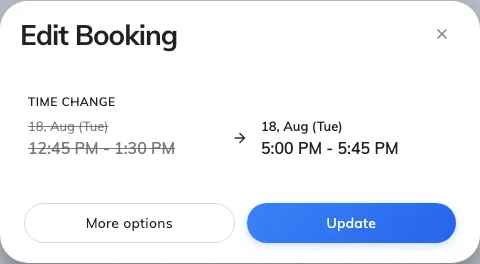
Edit Booking, after dragging a booking down to a later hour.
Update applies it and tells everyone invited. More options hands the same change to the full booking form with the new time already filled in — take that route when you want to fix something else at the same time, such as the attendees or a service request.
If the booking repeats, Offision asks the scope first, under “Choose how the change applies”:
| This only | Just this occurrence. Comes back to the short Edit Booking dialog. |
| This and following bookings | This one and everything after it. Opens the full booking form. |
| All bookings | The whole series. Opens the full booking form. |
6. Check it worked
The block should be sitting at its new time, and the booking’s card should agree when you open it. Everyone you invited gets the update, so a meeting moved this way does not need a separate message.
When the block snaps back
A refused move puts the block back where it was, usually saying why first.
| What you see | What it means |
|---|---|
| “Please select a future time” | You dropped it in the past. Offision will not move a booking to a time that has already gone. |
| Nothing at all | The booking was never yours to move — it only looked movable. Flat blocks do not travel, and neither does anything already closed to change. |
| A message about the booking rules | The new time breaks one of them — it clashes with somebody else, it is too far ahead, or it falls outside the hours the room is available. These are the same refusals the booking form gives, and they are listed under Why a room refuses your booking. |
Changing the room instead
Dragging on My calendar moves a booking in time and nothing else. The room goes with it, because this screen has no rooms on it to drop one into.
To put a booking in a different room, open it and use More options to reach the full booking form, where the room is a field like any other. If you first want to see which rooms are actually free, select the candidates in Resource finder and choose Compare schedule(s) — that lays them out side by side as lanes, and a booking can be dragged from one to another there.