

Receptionist guide
Running the front desk from the Offision app: checking visitors in as they arrive, registering the ones nobody expected, and knowing who is in the building right now.
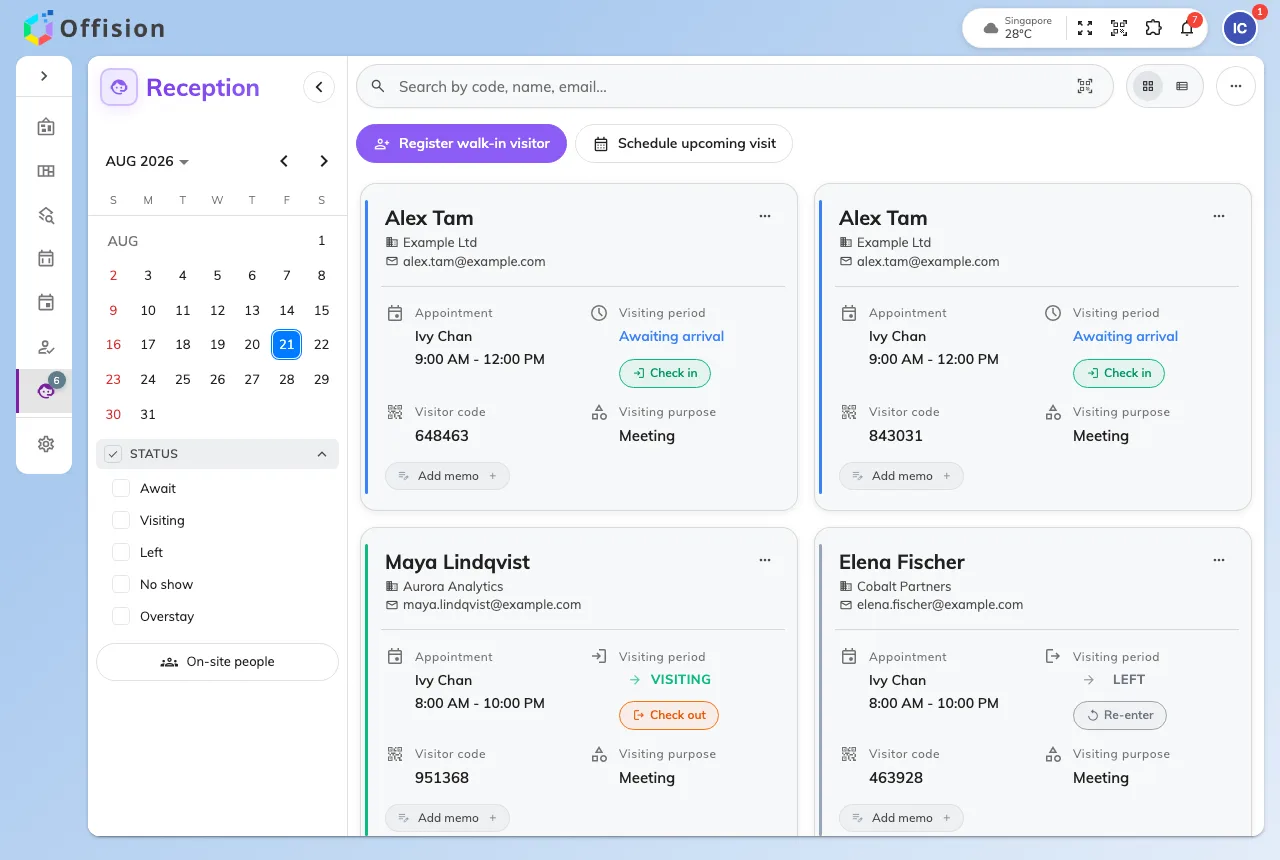
This guide is written for the person at the front desk. Everything in it happens in the Offision app — the same app everybody else books rooms in — because a receptionist is a user with one extra permission, not an administrator. If your account has the Receptionist permission and a building, the app grows a Reception page, and that page is your desk.
The day, on one page
Reception opens on today’s visitors — everyone expected, everyone here, everyone already gone — and each visitor’s card says which of those they are: Await, Visiting, Left, No show or Overstay. The day’s work is moving people through those states: scan a code or find a name, check them in, hand over a badge, and check them out when they leave.
The two ways a visitor arrives
Most visitors were invited: an employee sent them a code, and your job is to read it and let the check-in wizard walk you through whatever their visit requires — a photo, a survey, a badge. The rest are walk-ins, who have no code and no appointment; the desk registers them from scratch, and that form admits them as it saves.
Who is in the building
The desk always knows who is on site right now. On-site people lists every visitor currently in the building, grouped by building, with a count — and exports each building’s list to a spreadsheet, which is the list you want in an evacuation or at the end of the day.
What this guide does not cover
Anything configured rather than done. Which questions a visitor is asked, what the badge looks like, who approves visits and when visitors are checked out automatically are all settings in the admin console, documented under Visitor management. Inviting a visitor is the employee’s own task, in the user guide.