

Both maps
See who is in the office on a given day
Deciding whether to come in: setting the home screen to the day you mean, switching the floor plan to show people instead of free space, and reading who is booked in at the hour you would be there — plus why a colleague who was only invited to a meeting never appears on it.
Commuting in to a half-empty office is a wasted morning. The home screen can answer the question before you leave: for any day you choose, who has booked a desk or a room, and where they will be sitting.
The screenshots show Classic map. The account can instead show Map 2.0; the drawing and resource assignments must belong to the family in use. Booking permissions still apply in either map.
1. Pick the day
The date sits at the top of the left panel, not on the map. It reads Today until you move it, and the whole screen — your own list on the left, the floor plan on the right — follows it.
Past days are allowed here, which is useful for the opposite question: who was in last Tuesday.
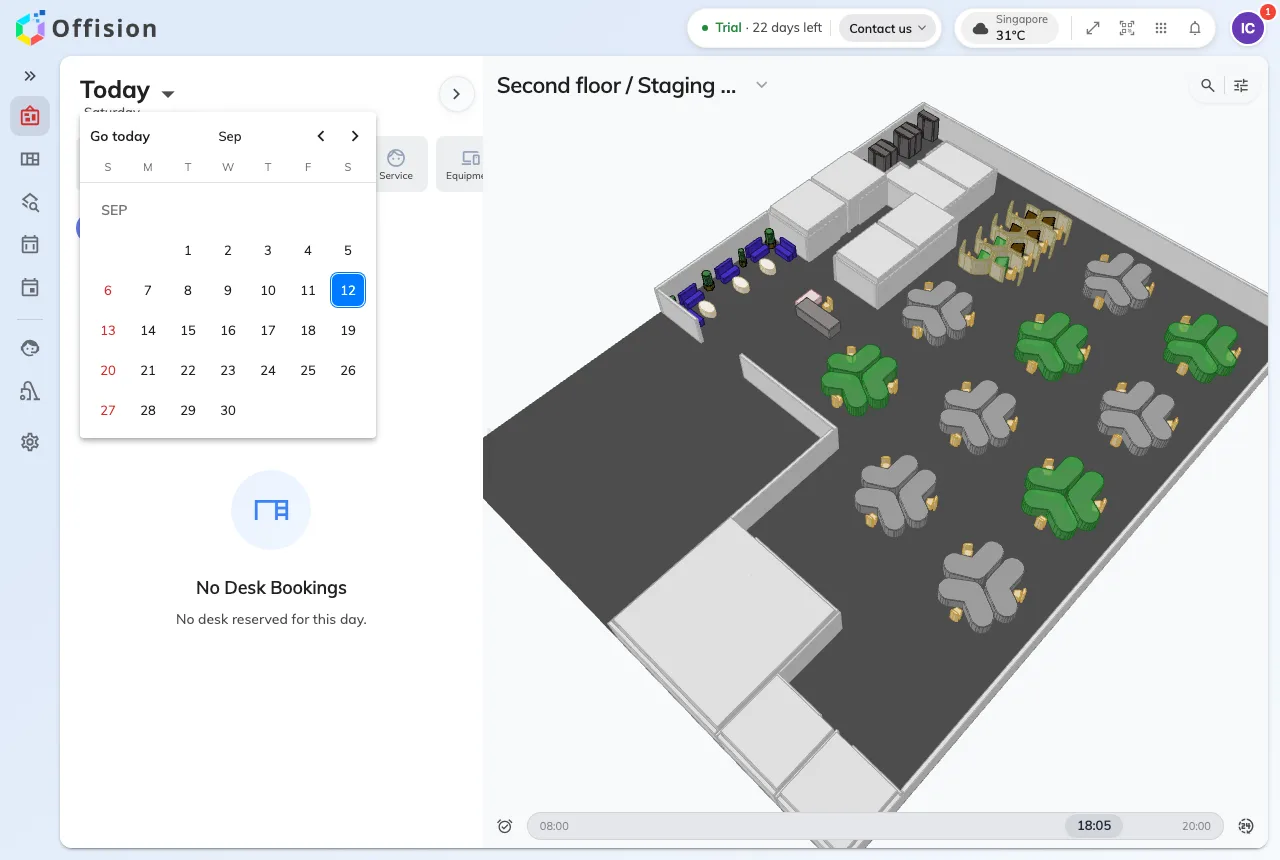
The date control at the top of the left panel. Everything on the screen, including the map, follows it.
2. Switch the map to people
This is the step everyone misses, and without it the rest of the page looks like it does not work.
The floor plan opens showing space: which desks are free and which are taken, and nothing about who has them. Open the magnifier at the top right of the map — Find location — and turn Show all users on. Only then does the map start drawing people.
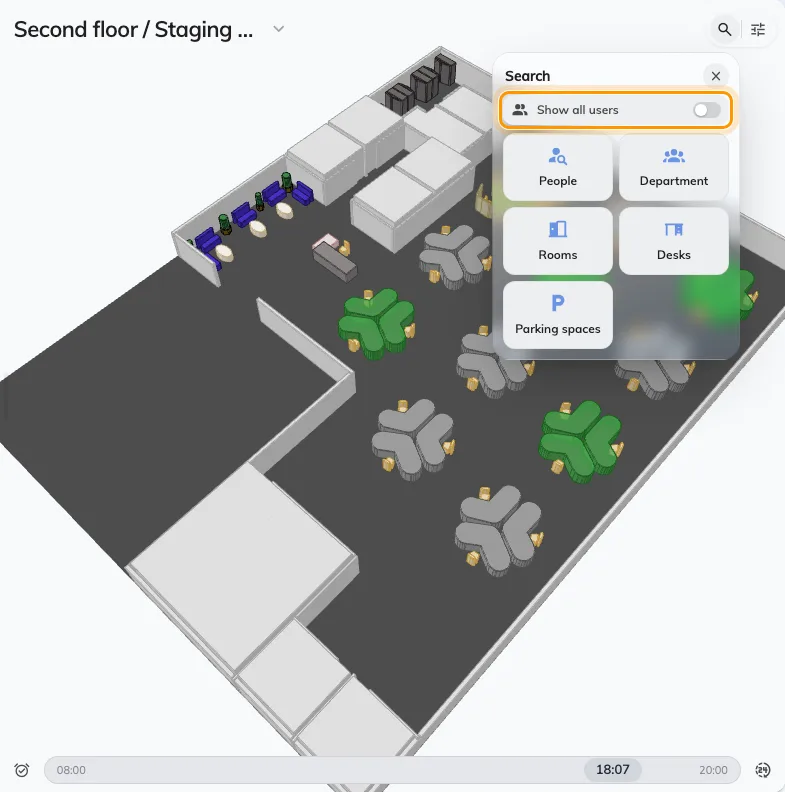
Show all users, at the top of the search panel. It is off every time you open the map.
3. Move the time to when you would be there
The map is not showing now. It shows one minute of the day you picked, and the slider along the bottom moves it in half-hour steps.
That matters more than it sounds: a floor that looks busy at nine can be empty by four. Drag the slider to the hour you would actually be in before you judge anything. It covers Business hours — 08:00 to 20:00 — until you switch it to Full day; the button beside it snaps back to now, and to today.
4. Read the floor
Each person shows as a face on the desk or room they booked, with their name under it. Tapping one opens their card: which desk it is, the floor and building it is on, and how to reach them.
A desk that belongs to somebody permanently is different — it always carries its owner, and says At seat or Away depending on whether they have actually checked in. That is the closest thing here to a live presence.
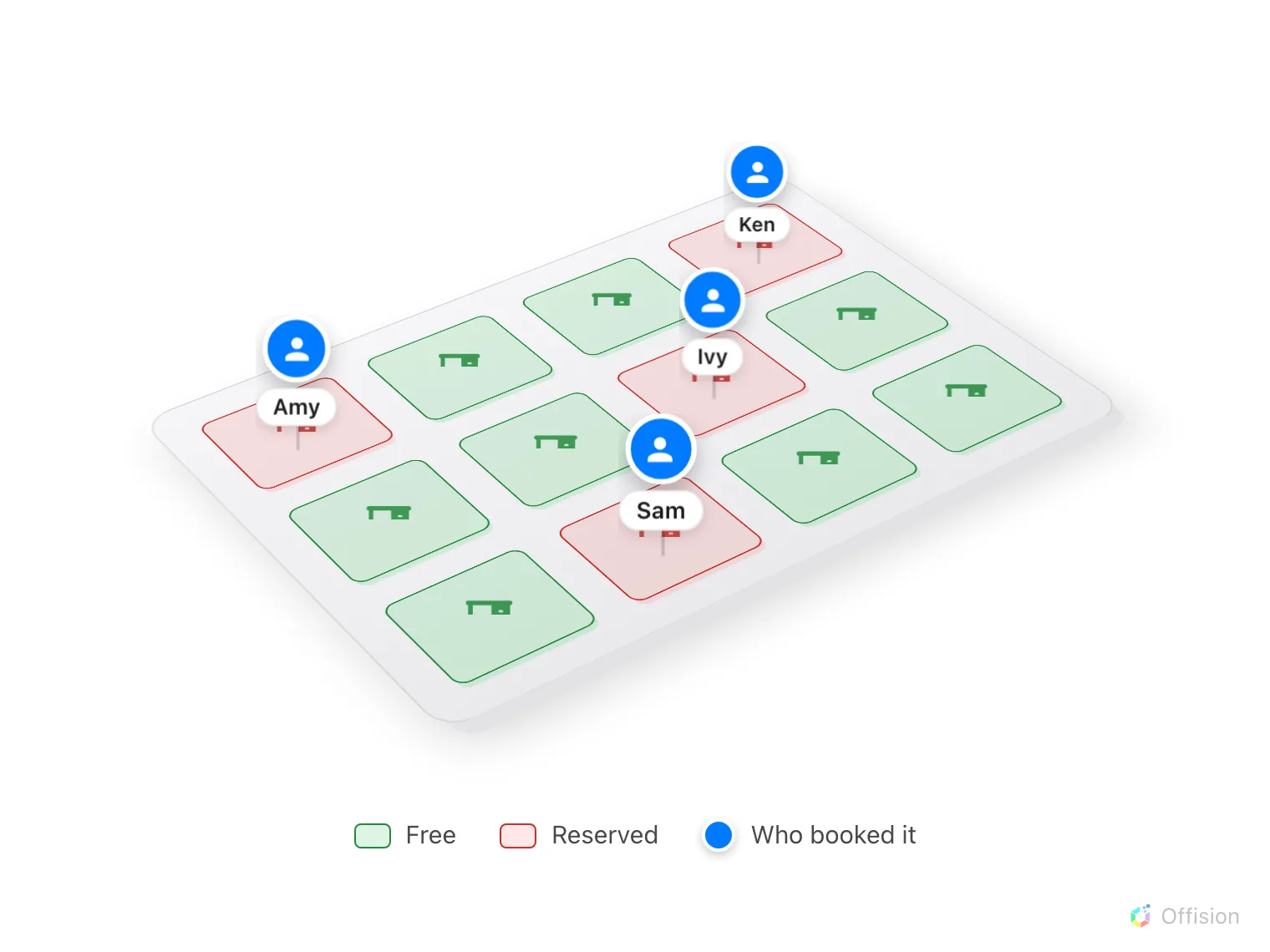
One floor, one moment. Every reserved desk carries the person who booked it.
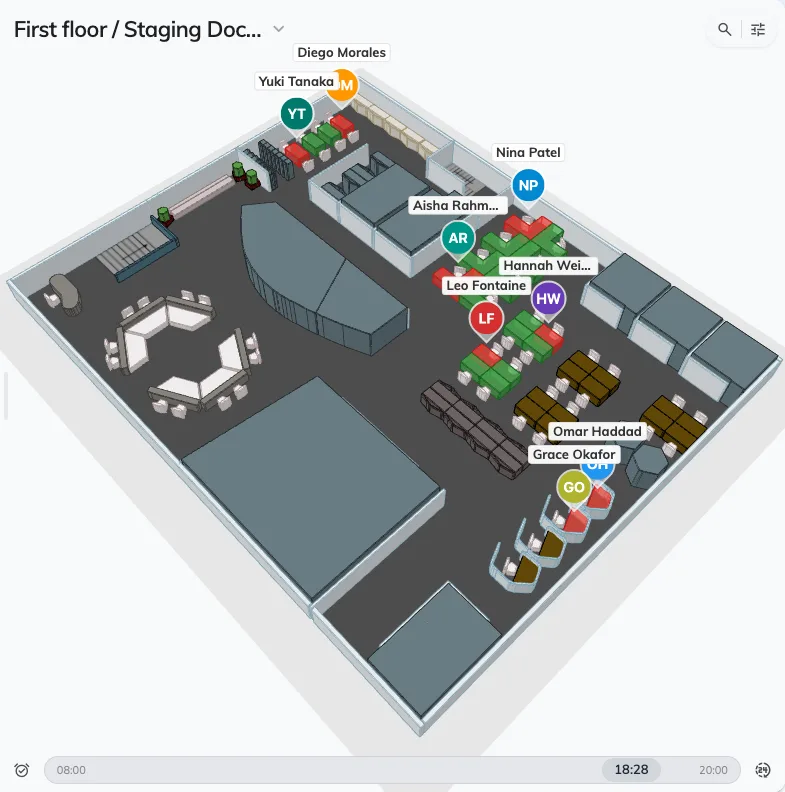
The same floor as step 2, with Show all users on: every reserved desk carries the person who booked it.
5. Look for one person, or one team
Turning every face on at once answers is anybody in. For is Amy in, use the same search panel: People finds one colleague, and the tiles beside it find a whole department at a time.
Picking somebody jumps the map to their floor and highlights where they are — their booking for that moment, or their permanent desk. If they have neither, you get Unable to find the user’s booking location., which means they have not booked anything that day rather than that the search failed.
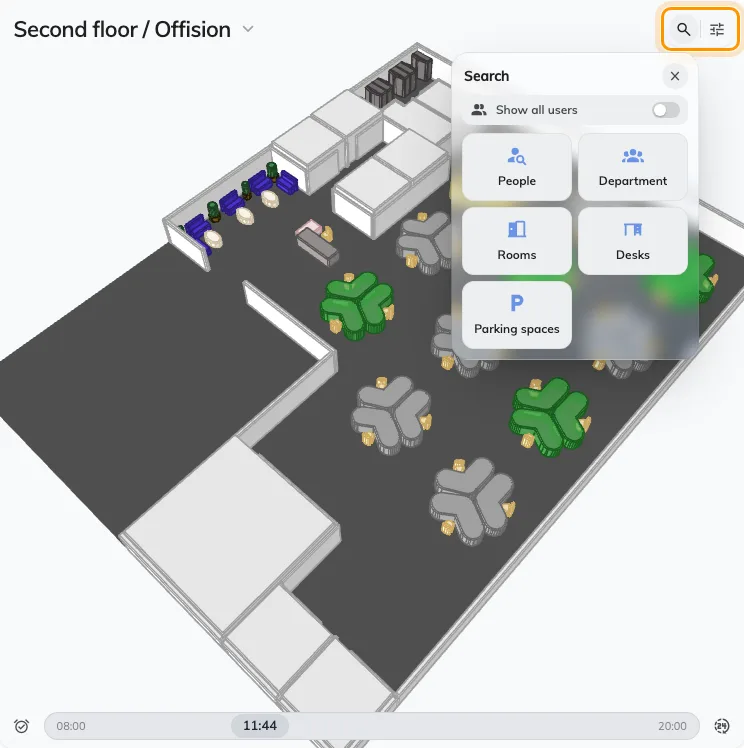
The search panel offers people and departments before it offers rooms and desks.
What this cannot tell you
- People who were only invited. The map shows whoever booked the desk or room. A colleague invited to somebody else’s meeting is in the office and will not appear — for them, check the meeting itself.
- People who booked nothing. Anyone who walks in and sits at a free desk without claiming it is invisible here.
- Desks that were never put on the plan. A desk with only a floor set against it is fully bookable and never drawn — see A room or desk does not appear on the map.
- On a phone, the home screen has no map beside it. Add the Realtime map to your home screen instead.
To choose a desk rather than find a person — filtering by what a desk has, booking straight from the plan — see Find a desk on the floor plan.