

Book several desks together
One booking can hold as many desks as you need, so a team takes its seats in one action and gives them back in one action. Adding desks in the form, picking a run of them from the list with Book together, whose name each booking carries, and cancelling the lot.
A booking is not limited to one desk. One booking can hold the whole row your team is sitting in — which also means one cancellation hands the whole row back, rather than six separate cancellations on a Friday afternoon.
This page is the difference from Book a desk, which is worth reading first if you have not.
1. Add the desks one after another in the form
The everyday way, and the one that works on a phone.
Open Book a desk as usual, then open the desk field. Choose a desk and it drops into the list; choose another and it joins it, rather than replacing it. Keep going until the row is yours. Each one becomes a chip above the list with its own x, and Clear all starts over.
Search, Available only and Favourites only all still work while you are picking, so a floor of Hot Desk 1 to Hot Desk 20 is manageable — star the ones your team uses and the list is six rows instead of twenty.
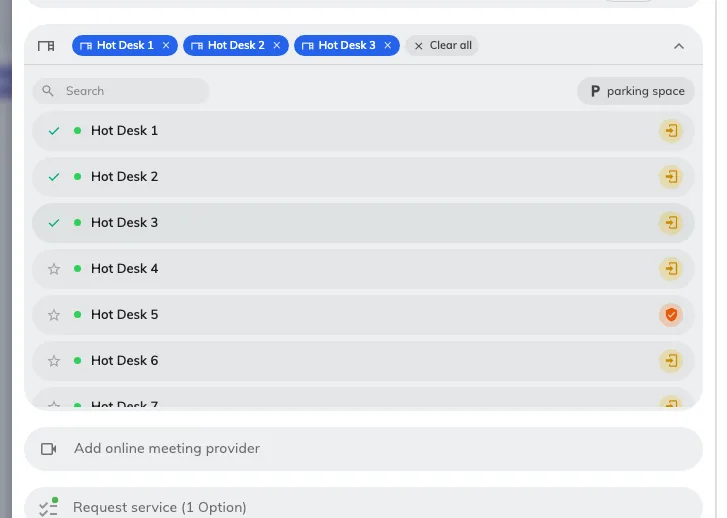
Three desks on one booking, each a chip with its own x — and a ticked row in the list below.
2. Or take a run of them from the list, with Book together
Faster when you want desks that sit next to each other, and it needs a computer rather than a phone, because it is done with the keyboard.
Open Resource finder and switch it to desks. Then:
- Click the first desk.
- ⌘-click (Ctrl-click on Windows) each further desk to add it.
- Or Shift-click a desk further down to take everything between the two — the quickest way to grab Hot Desk 4 through Hot Desk 9.
A bar appears counting what you have picked. Book together opens one booking form with all of them already in it.
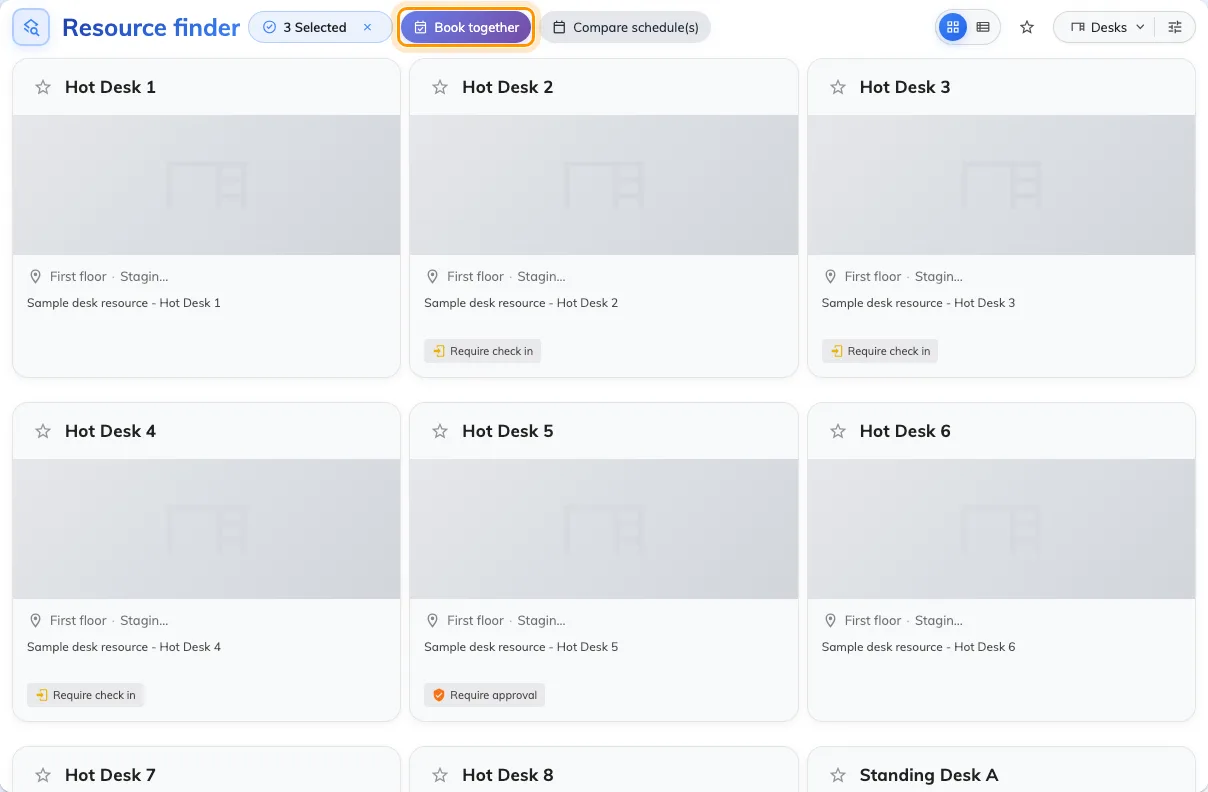
Three desks picked, and Book together waiting: one booking, not three.
A plain click with no key held means only this one — it clears what you had. That is the usual reason a careful selection collapses to a single desk.
3. Set the time once
The time, the notes and any extra questions are asked once and apply to every desk on the booking. Two things follow from that:
- Each desk is charged separately where your company runs a booking budget. Six desks spend six desks’ worth, not one booking’s worth. Check what you have left in Check your quota before you book.
- A desk that is permanently assigned to somebody is not a shared desk and is booked on its own, for its owner. It cannot join a booking with others.
4. Whose name is on it
One booking carries one name, and that is the Booking by row near the top of the form.
Normally it is yours. If your account has been given colleagues you may book for, the row becomes a picker and you can put the booking in one of their names instead — the seats, the confirmation email and the quota all go to them. If you do not see the row, your account has nobody on that list, and an administrator adds them: Set up user delegates.
Because one booking carries one name, a team of six who each want their own name against a seat is six bookings. Holding six seats for the team is one.
5. Cancel them together
This is the part that pays for the effort above. The desks are one booking, so they cancel as one booking — open it and cancel once, and every desk on it is released at the same moment. See Cancel a booking.
The same is true of a repeating desk booking: cancelling the series releases all of its upcoming days in one action.
6. Check it worked
Offision confirms with Booking success, or Booking created, waiting approval where one of the desks needs approving.
Then look at the booking itself: every desk you picked should be listed on it. If one is missing it was not free for the whole time you asked for, and it says so before you save rather than after.
What this does not cover
- Creating desks in bulk. That is an administrator’s job — see Add a desk.
- Importing bookings from a spreadsheet. The import creates room bookings. For desks, this page is the way.
- A company that keeps bookings to one resource each. Your administrator can switch multi-resource booking off, and then a second desk is refused when you save. Ask them about Allow booking multiple resources.