

Find a meeting time that works for everyone
You cannot open a colleague's calendar in Offision, but the booking form checks it for you: a free/busy dot on every attendee you invite, and a Check availability grid that finds a slot — and a room — where everyone you need is free.
Offision never shows you a colleague’s calendar. What it shows you is the only thing you actually need from it: whether they are free — right on the booking form, for every person you invite, before you commit to a time.
Two things do that work. A status dot on each attendee tells you at a glance who can make the time you have picked, and the Check availability button turns the attendee list into a grid that finds a slot — and a room — where everyone is free.
The dot on every attendee
Invite people the way Make a booking describes, and each one arrives as a badge with a small dot:
- Green — free for the time currently on the form.
- Red — their calendar already has something in that slot.
- Grey — no calendar data. An attendee invited by email address from outside your company is always grey, and so is a colleague whose account is not connected to a work calendar.
- Purple — invited as a visitor; see Invite a visitor while booking a room.
A hollow dot means the attendee is optional rather than required. The dots re-check themselves every time you change the booking time or the guest list — and when a required attendee is busy for the time you have picked, a red mark appears on the calendar-clock button itself, so a clash is visible even with the list collapsed.
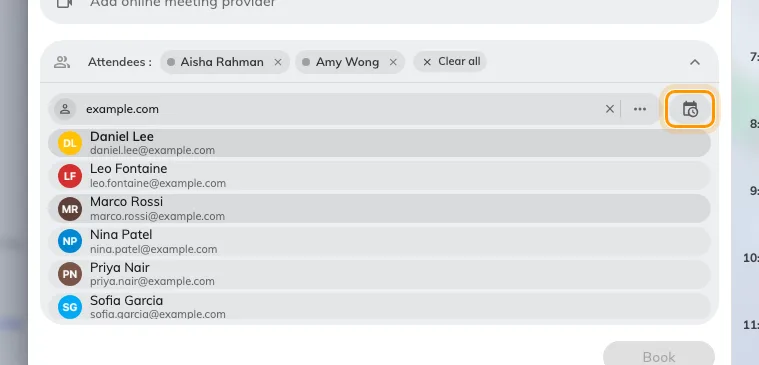
Each attendee carries a free/busy dot; the calendar-clock button opens the availability grid.
Find a time for everyone
Dots tell you the time you picked does not work. The grid finds one that does.
1. Add the people first
The search looks for a time that suits the attendees already on the booking, so invite them before you check.
2. Open Check availability
Click the calendar-clock button at the right of the attendee search bar. The attendee list turns into a calendar of the next two working weeks, each day split into a morning and an afternoon slot.
3. Read the grid
A slot that works shows a start time and a room — the earliest moment in that half-day when every attendee is free and a suitable room is too. A slot that cannot work shows a block mark: No common available time found.
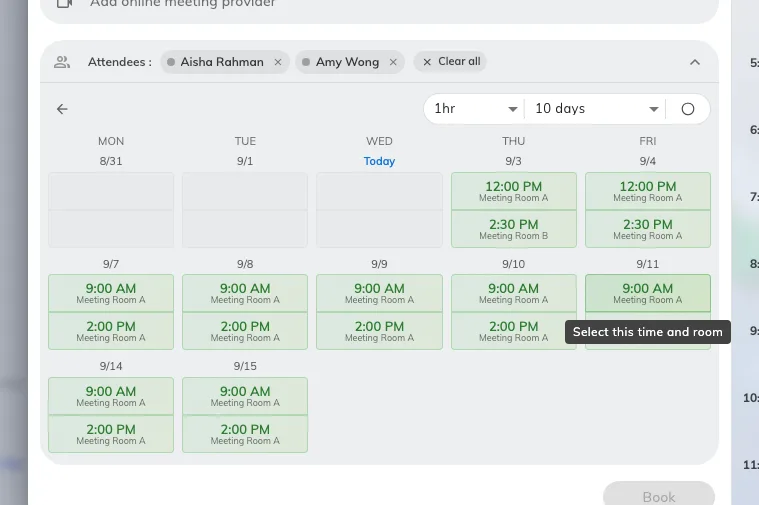
Morning and afternoon slots across the coming days. A time and a room means everyone you need is free then.
Tune the search with the bar above the grid:
- Duration — from 30 minutes up to 4 hours.
- Range — 10 days, Next week, or any week up to eight weeks out.
- Find time for everyone / Find time for required attendees — drop the optional people from the search when the required ones are what matters.
- Find time for selected rooms / Find time for all rooms — search only the rooms already on the booking, or let it consider every room you may book, with a filter to narrow them.
Your own calendar always counts: a slot is only offered when you are free too.
4. Take the slot
Click a slot that works and the booking form takes both halves of the suggestion — the time moves to the slot’s start, and the suggested room replaces the one on the form. Check the period and the room now read what you expect, then book as usual.
What it does not show
- Never the details. No subject, no location, no guest list — only that the time is taken. A private booking is no different here: it counts as busy without giving anything away.
- Only real commitments block. An entry a colleague marks as Free in their calendar does not count against them.
- It is not a calendar you can browse. There is no way to open a colleague’s day and read through it; the answer is always about the meeting you are building, never about their schedule.