

Install Offision on your phone or tablet
Getting the Offision app from the App Store or Google Play, what each store asks of your device, the installer file for phones with no Play Store, and what the phone app can do that a browser cannot.
The phone app is the same Offision as the browser, wrapped so the phone’s own hardware is available to it. That is the reason to install it: the camera, and where you are standing.
1. iPhone and iPad
Search the App Store for Offision, published by ONEs Software Ltd., or open Offision on the App Store directly.
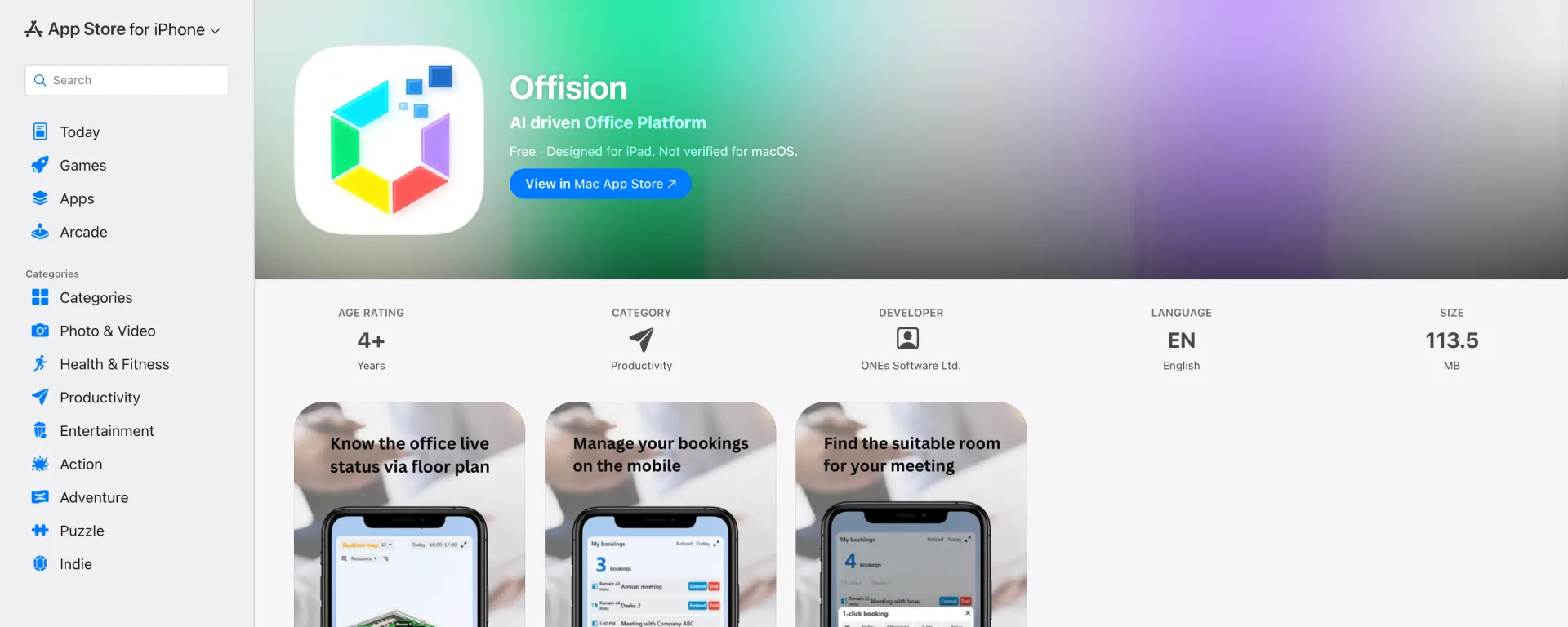
The App Store listing. Check the developer is ONEs Software Ltd. before installing.
It needs iOS or iPadOS 16.4 or later. An older iPhone that cannot update that far will not see the app as compatible — use a browser on that device instead; everything still works there.
2. Android
Search Google Play for Offision, published by ONES Software, or open Offision on Google Play directly. Choose Install.
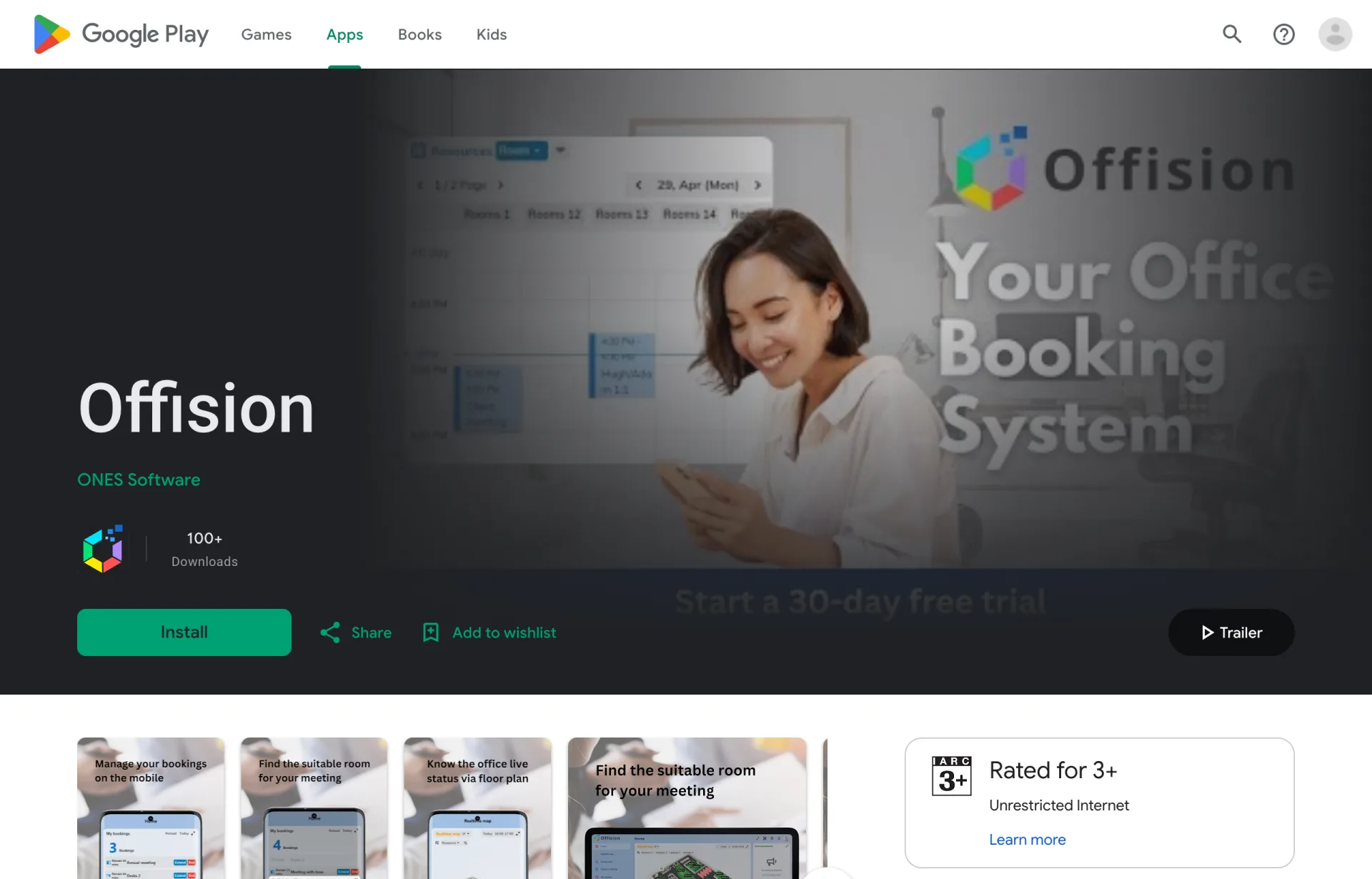
The Google Play listing, with Install.
Some company-managed Android phones have no Play Store at all. For those, Offision publishes the installer file directly — offision.apk — and your IT team can push it to the phone the same way they push their other apps. Installing it by hand means allowing installation from outside the store, so check with them first rather than turning that off yourself.
3. Sign in
Open the app and sign in exactly as you would in a browser — your work email, then your password. The steps and every refusal they can produce are in Sign in to Offision.
There is no Remember me here, and that is not an omission: the app always remembers you, because it is your own phone.
What the phone app adds
Two things a browser on the same phone cannot do:
- Scan a QR code to check in, using the camera.
- Check in by location, for rooms that require you to actually be there.
Both are described in Check in by QR code and GPS. If your company uses either, the phone app is not a convenience — it is the way those check-ins are done.
On a Mac
The iPhone app can be installed on a Mac with Apple silicon, but Apple labels it “Not verified for macOS” — it has not been tested for that, and it is the phone layout on a desktop screen. The Mac app is the better answer, and it is a separate download; see Install the Offision desktop app.
Check it worked
Make a booking in the app, then open Offision in a browser and confirm the same booking is there. If it is, the app is signed in to the right account — which is the thing most likely to be wrong when the app and the browser disagree.