

Take a free room at the panel outside it
The room is free, you are already standing at the door, and the meeting starts now. Walk in on the panel holds the room from this minute until the length you pick — no form, no app, and nothing to check into afterwards.
A free room’s panel offers Walk in. Press it and the room is yours from this minute until the length you pick — without opening the app, without the booking form, and without checking in afterwards, because standing at the door is the proof a check-in would have asked for.
1. Tap Walk in
Walk in is on the panel of any room that is free. A room already in use shows End now and Extend instead, and a room waiting for somebody to arrive shows Check in — so the button you see tells you what the room is doing.
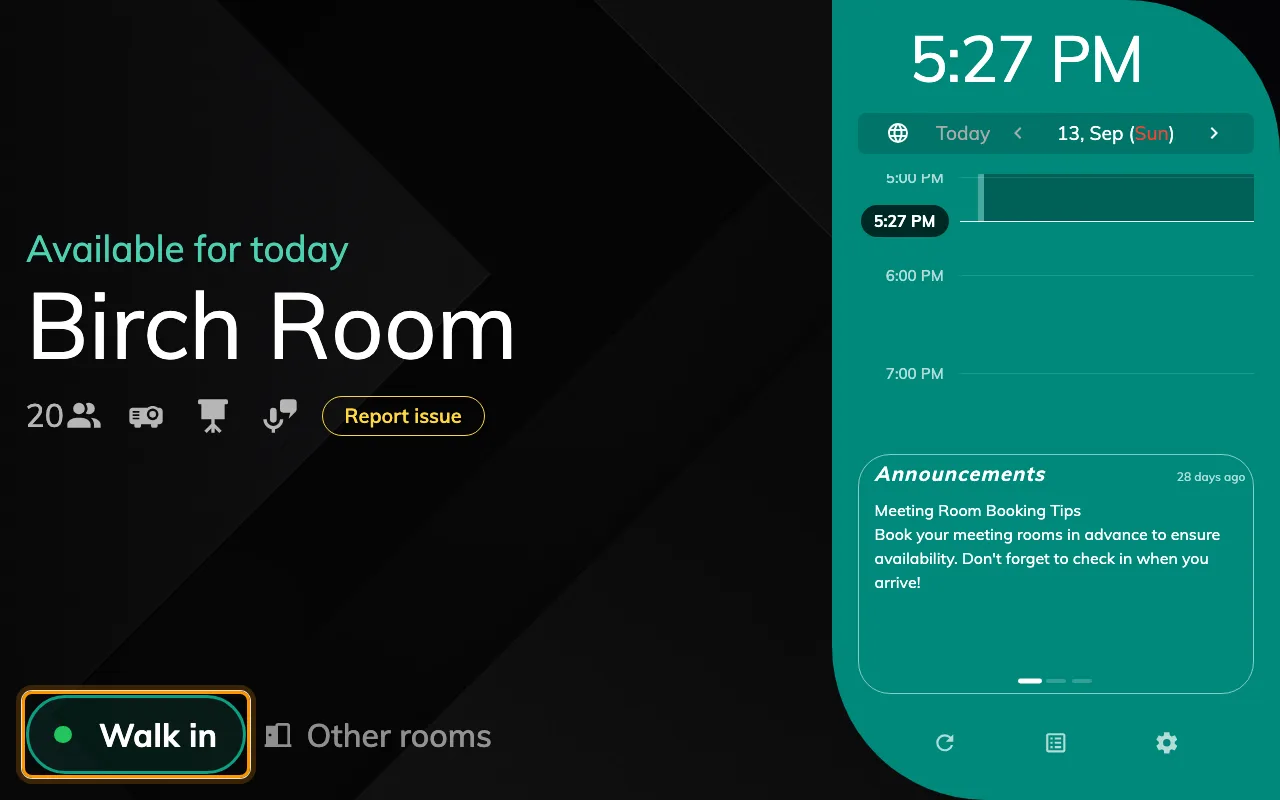
Walk in, on a free room. A room in use offers End now and Extend instead.
2. Pick how long you need it
A column of lengths, each showing the time it would end at, with a Duration / Time switch above them. It only ever offers what the room can actually give: the list stops at the next booking, and the row underneath says when that is.
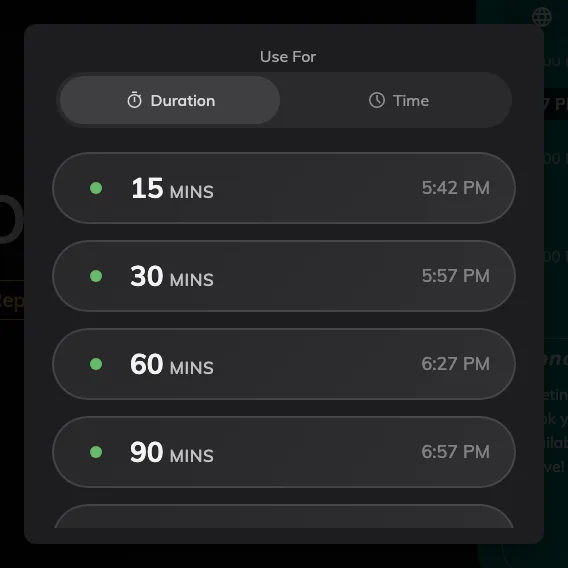
The lengths this room can give, ending before whatever is booked next.
3. Say who you are
The panel then asks who is taking the room. Which ways it offers is set on that panel — a staff card, the QR code in your Offision app, your own passcode, or your face — so two panels in the same building can ask for different things.
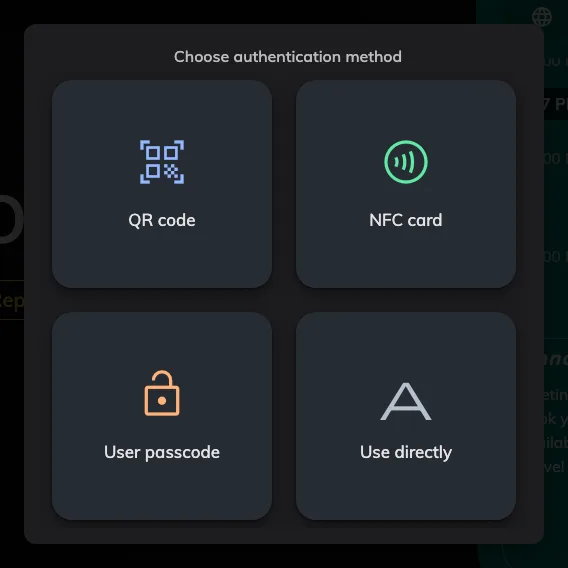
The ways this panel accepts. Use directly is the panel asking for nothing at all.
If you have no card and no phone on you, set your user passcode once and it works at every panel afterwards. The full list of methods, and what each needs in place, is in How somebody proves who they are at the panel.
4. Confirm, where the panel asks
One last screen. What it asks for is up to whoever set the panel up — a name for the meeting, how many are coming, both or neither. The name box starts empty, showing Walk in booking in grey as a suggestion: type over it, or leave it and that is the title you get. Anything you leave blank is left alone, and an unasked headcount counts as one. Panels set up for one tap skip this screen altogether, and the room is yours as soon as you have identified yourself.
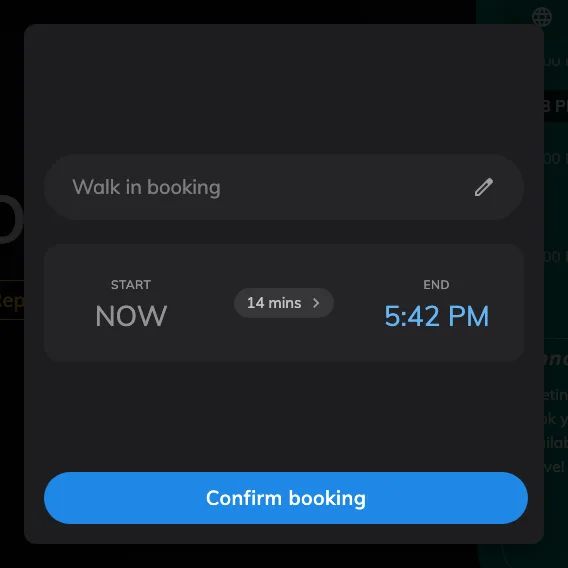
The confirmation screen, asking for a name. Where it is turned off, the walk-in ends one step earlier.
Rooms that ask you to accept terms and conditions put that screen before the identification step, and a walk-in cannot skip it.
5. It is yours, and there is nothing to check into
The panel goes straight to in use. A walk-in never needs checking in afterwards — that is the difference between taking a room at its door and booking one in advance from your desk.
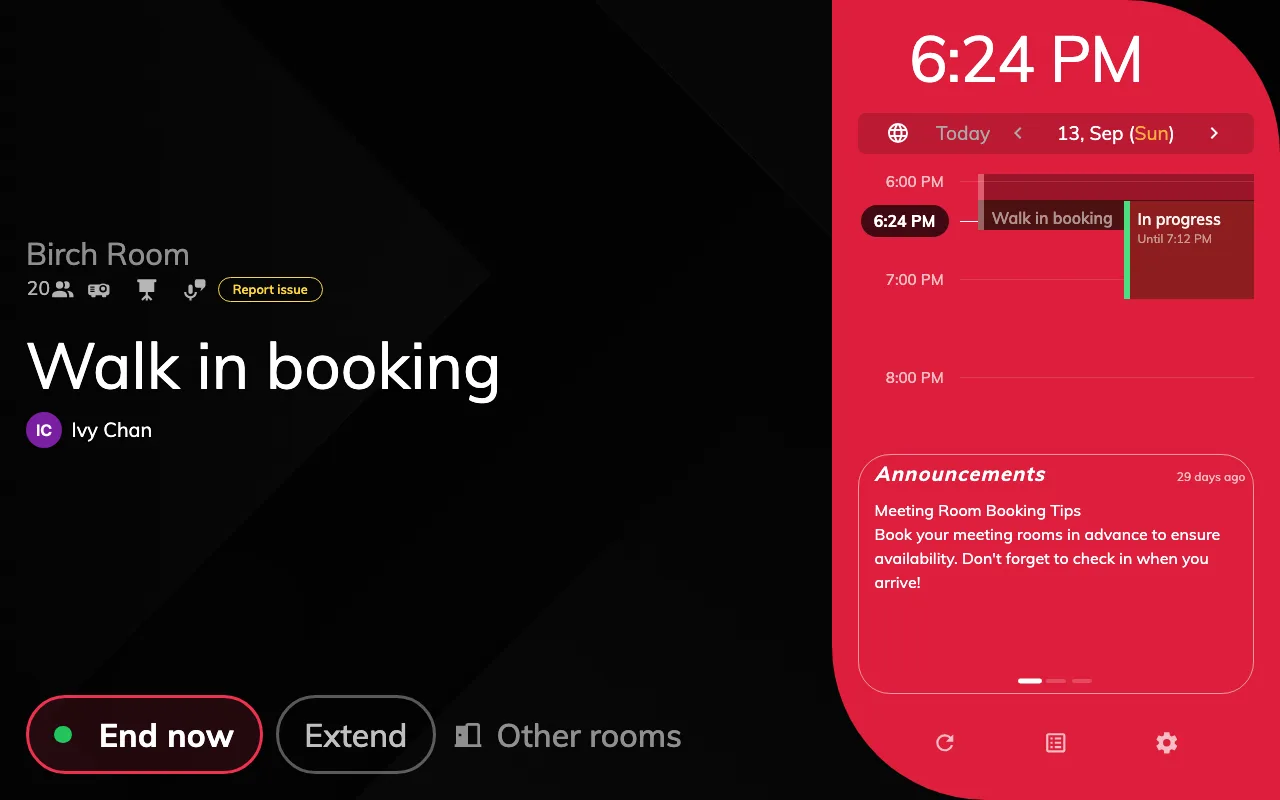
Straight to in use. No check-in step, and the room is held for the length you picked.
The booking appears in the room’s calendar under your name, and on your own schedule with everything else. Where the panel let you identify as nobody, it is recorded with no organiser instead — the room is held, but nothing says who took it. From here the same panel will extend it or end it early.
When there is no Walk in button
Two of these you can see for yourself, and the rest are settings somebody administers:
- The room is not free. Walk in exists only on a free room.
- The next booking starts within five minutes. The button goes rather than offering you a room somebody is about to walk into.
- The room takes no bookings for today — some rooms have to be booked at least a day ahead.
- The room does not accept bookings made at its panel, or the panel is set to show status only, with no buttons at all.