

Set up user delegates
Let an assistant book rooms and desks in their manager's name. Where the Delegates list lives on the user record, which way round it reads, what the delegate then sees in the app, and whose quota the booking spends.
An assistant who books their manager’s meetings needs the booking to be in the manager’s name, not their own — so the room shows the right organizer, the confirmation reaches the right person, and the booking spends the right budget.
A delegate is how that is granted. It is set per person, by you, on the user record.
1. Open the record of the person who will do the booking
This is the step everybody gets backwards, so it is worth saying plainly:
The names on Ben’s record are the people Ben may book for.
So to let Ben book for Alice, you open Ben’s record — not Alice’s. The list reads outwards, from the assistant to the people they cover.
Open UsersFind Ben in the list, click that row to open the panel beside it, then open the record for editing.
2. Add the people they book for
Choose Delegates in the form’s list of pages. It shows who this person can currently act for, No delegates if nobody, and a search box — Search a user to delegate — to add somebody.
Add Alice, and save.
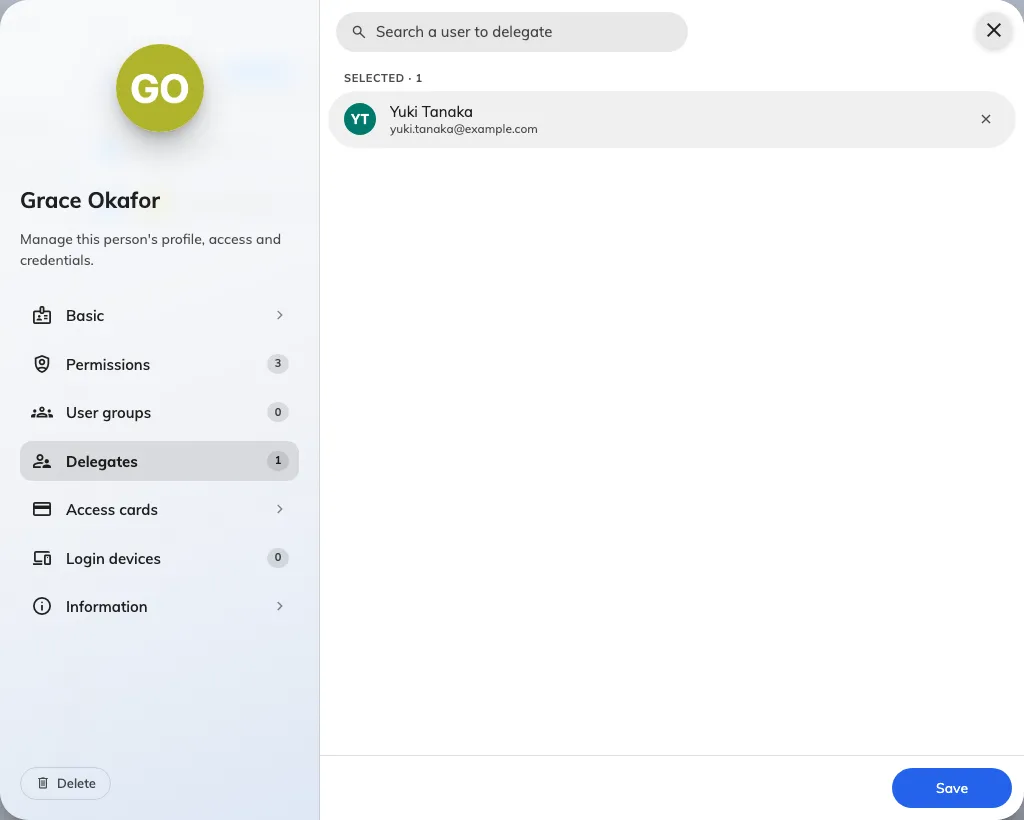
The Delegates page on a user record: the people this person may book for.
There is no limit on the list, so an assistant covering three directors is one record with three names on it. Somebody can appear on several people’s lists too — a director whose meetings two assistants both arrange.
Two things to know while you are here:
- The count is on the page tab, so you can see at a glance whether a record has any without opening it.
- The user list can show the same thing as a column. Turn on Delegates in the column chooser, which is hidden by default, and the list prints who each person can book for, with a pencil that jumps straight back to this page. That is the fastest way to audit who can act for whom.
3. Check what the delegate now sees
Have Ben sign in to the app and start a booking. The change is one row near the top of the form: Organizer on a room, Booking by on a desk. It is a picker now, listing Ben and everyone on Ben’s Delegates list.
Choosing Alice puts the booking in Alice’s name. From that point on it behaves as though Alice had made it:
- The booking appears as Alice’s, and Alice can edit and cancel it — and so can Ben.
- The confirmation email goes to Alice.
- Alice’s quota is charged, not Ben’s. In the quota history the Action user column says Ben while the charge says Alice — see Read the quota usage history.
Ben can also edit and cancel Alice’s existing bookings, including ones Alice made herself. The person picker at the top of the My calendar and My bookings cards on the home screen switches the card to Alice’s schedule, and her bookings then open with Edit and Cancel for Ben.
Alice’s room rules apply, not Ben’s. Where Alice’s room stops people editing or cancelling close to the start, it stops Ben at the same moment. Who else can act on a booking that is not theirs is set out in User delegation.
4. Check it worked
Ask Ben to make one booking in Alice’s name and cancel it again. If the row never appears, or Alice is missing from the picker:
- The list is on the wrong record. Nothing was saved against the account doing the booking — the commonest cause is having edited Alice’s record instead of Ben’s.
- Alice has never signed in. The picker lists only accounts that are Activated — signed in at least once — and hold the User permission. A director who only ever uses Outlook still reads Created or Invited until they sign in once; see How account status works.
The other ways to book for someone
Delegates is the one that gives an employee the ability. There are three more, and choosing the right one saves setting up delegates you do not need:
| You want | What to use | Where it is set |
|---|---|---|
| An assistant booking for named colleagues | Delegates, on the assistant’s own record | this page |
| An administrator booking for anyone | the management console’s own booking form, which always asks who the organizer is | nothing to switch on — but the person named as organizer needs the User permission (Who can open the management console), and you must be able to manage the resource |
| Different booking rules when a manager books | the Booking manager override condition on a resource policy | Resource policy reference |
| To name who a meeting is for, without giving away the booking | the Host field | Which form a booking uses |
You can also close the console route off for a particular resource, with Allow booking manager book for user — see Choose where a resource can be booked from.
What this does not control
- Private bookings. A private booking is judged against whoever is signed in, not the person they are acting for, so a delegate does not automatically see the subject of their manager’s private meetings. See Keep a booking private.
- Anything outside booking. A delegate books; they do not inherit the other person’s permissions.
- Permanently assigned desks. A desk that belongs to one person stays that person’s, whoever makes the booking.