

Import visits from a spreadsheet
Bulk-create visitor invitations from an Excel file on the Invitation calendar: one row per visitor, a shared Visit ID to group visitors onto one visit, and a preview that flags only the rows needing attention before anything is created.
One row per visitor, one file for the whole delegation: the Invitation calendar’s Import takes an Excel sheet and creates the visits — invitations, approval, badges and check-in all behave exactly as if each visit had been created by hand. It is the way to load a conference’s guest list, and to bring your scheduled visits with you when moving in from another system.
1. Open Invitation and press Import
Import sits beside Invite visitors at the top of the calendar under Visiting › Invitation — the page itself is titled Visiting calendar.
Open Invitation
Import, next to Invite visitors on the Invitation calendar.
The dialog has pages down the left: Import, Location import IDs, and — when a visiting purpose carries an Access ID — Visiting purpose import IDs.
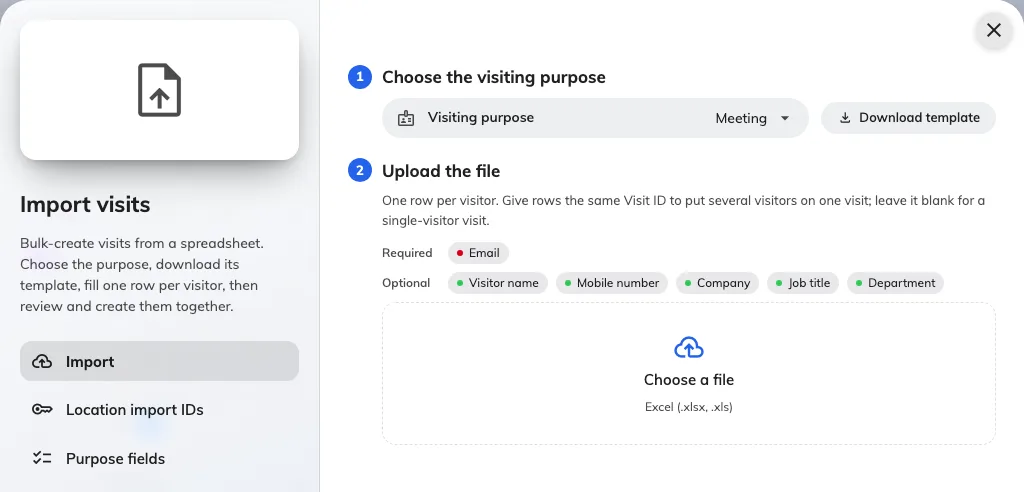
The Import page: download the template, fill in your visits, upload the file.
2. Check locations and purposes have import IDs
The sheet names a building or room by its Access ID, never by its display name. The Location import IDs page lists every building and visiting room with its ID and a copy button; Download takes the table as an Excel file to keep beside the template. A location without an import ID cannot be used in the sheet — point at a building’s row and a pencil appears, so you can assign one without leaving the dialog.
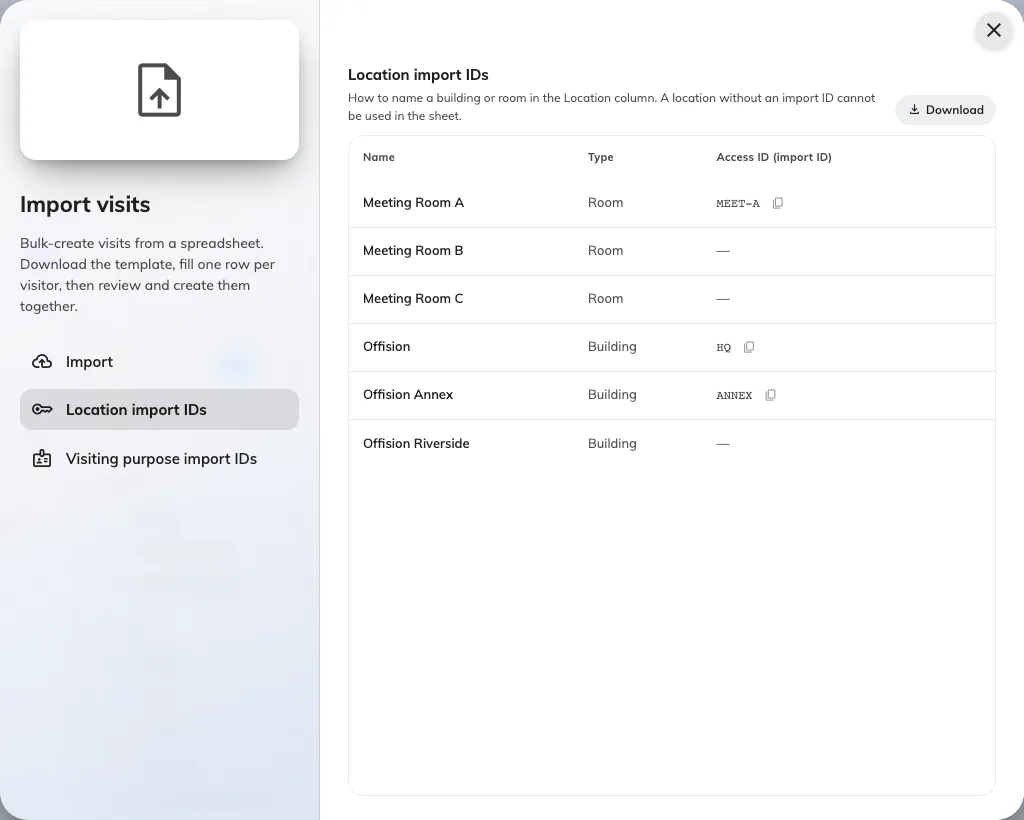
Location import IDs: how the sheet names a building or room.
The Visiting purpose import IDs page does the same for purposes. A purpose’s Access ID lives on the purpose itself; the row’s pencil opens it.
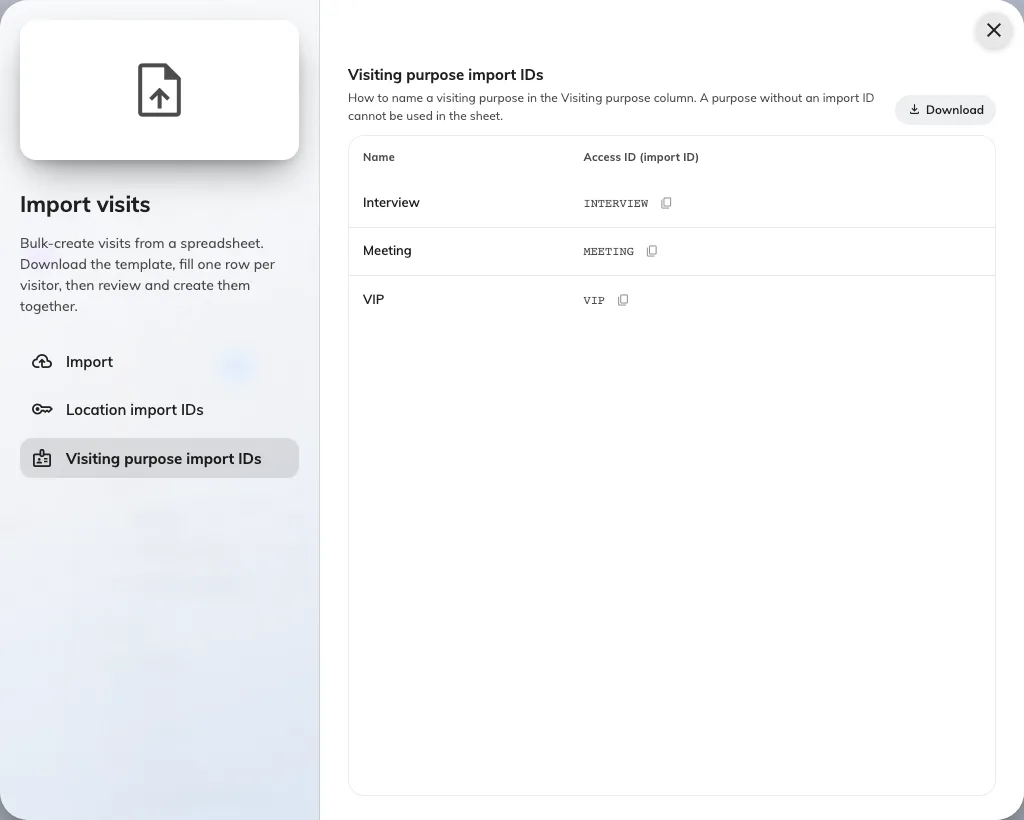
Visiting purpose import IDs: the code the Visiting purpose column expects.
3. Download the template
Download template builds the file from your own tenant — your visiting purposes and your visiting form’s extra fields — so the columns below are the general shape, not necessarily your exact sheet. The sample rows it ships with are two visitors sharing one Visit ID, to show the grouping rule in action.
| Column | What goes in it |
|---|---|
| Visiting purpose (import ID) | Only present when a purpose has an Access ID. From the Visiting purpose import IDs page |
| Visit ID | Optional. Rows sharing a Visit ID become one visit with several visitors; blank means a visit of its own |
| Start / End | YYYY-MM-DD HH:mm, read as local time at the location |
| All day | yes or no |
| Location (import ID) | A building or room’s Access ID. Several locations: separate them with commas |
| Host | A user’s email address. Leave it blank and the visit is hosted by you |
| Visitor name | Required on every row |
| Email / Mobile number / Customize key | How the visitor is identified — at least one, whichever your visiting settings accept. Mobile numbers need a country code |
| Company / Job title / Department / Phone number | Optional visitor details |
| Remarks (to receptionist) | Shown to the front desk, not to the visitor |
| One column per extra field | The header carries the format it wants — YYYY-MM-DD, HH:mm, yes/no, 123, or the option names |
Extra fields that take a file or formatted text cannot ride in a spreadsheet and are not in the template.
4. Fill in your visits
One row per visitor — a visit with four guests is four rows sharing one Visit ID. The grouped rows must agree on the visit itself: same purpose, location, host and times. Only the visitor columns may differ.
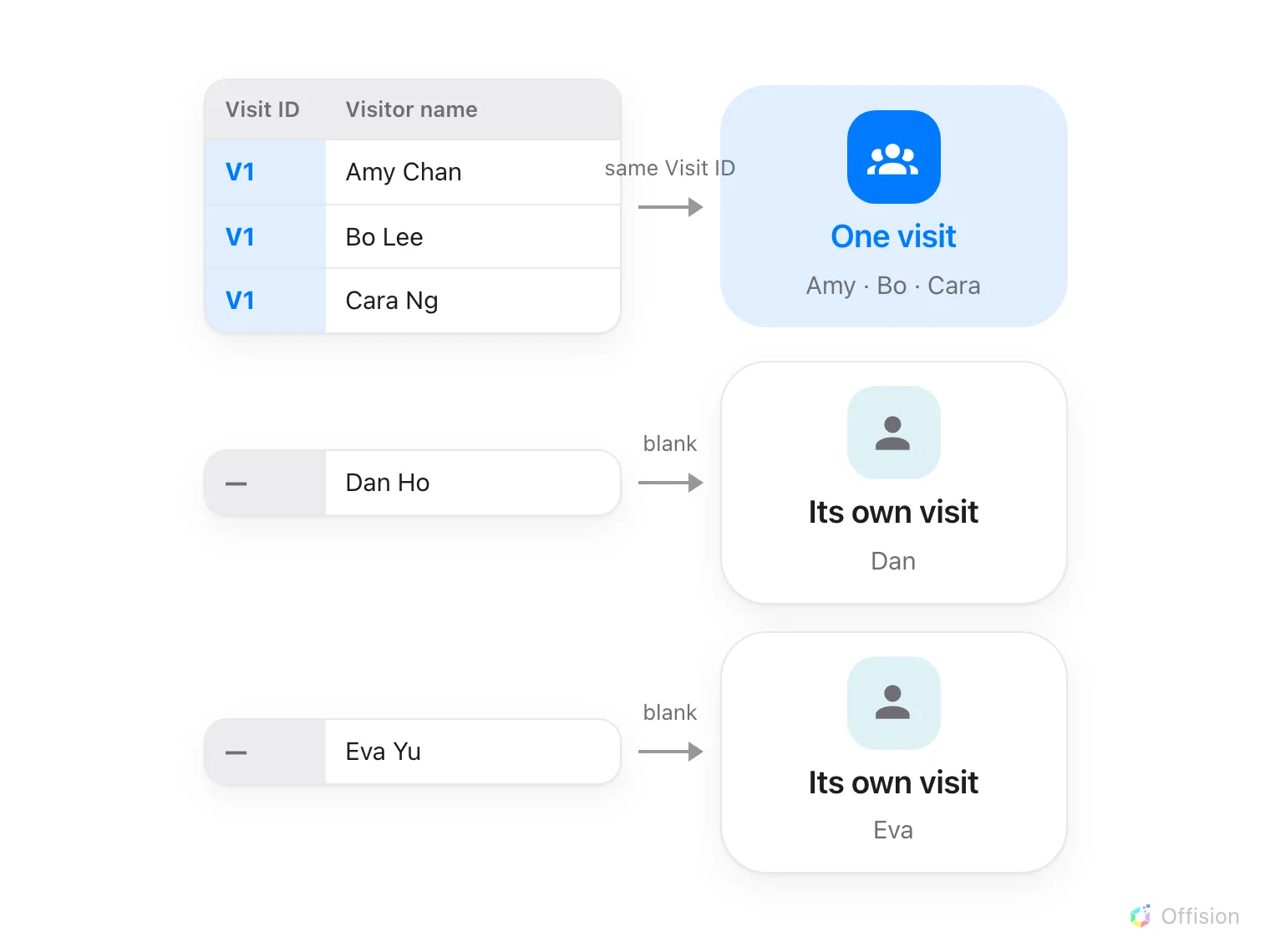
Rows that share a Visit ID become one visit with several visitors; a blank Visit ID makes a visit of its own.
Times are wall-clock times at the location: 09:00 for a Tokyo building
means 09:00 in Tokyo, whatever time zone you are importing from. The review
screen states which zone it read the sheet in, so a surprise there means the
wrong location, not a broken clock.
5. Upload it and fix what it flags
Drop the file on Choose a file (.xlsx or .xls). The dialog answers with
one line — ready and need attention counts — and lists only the visits
with a problem, each showing just the field that failed, with the Excel row
numbers it came from:
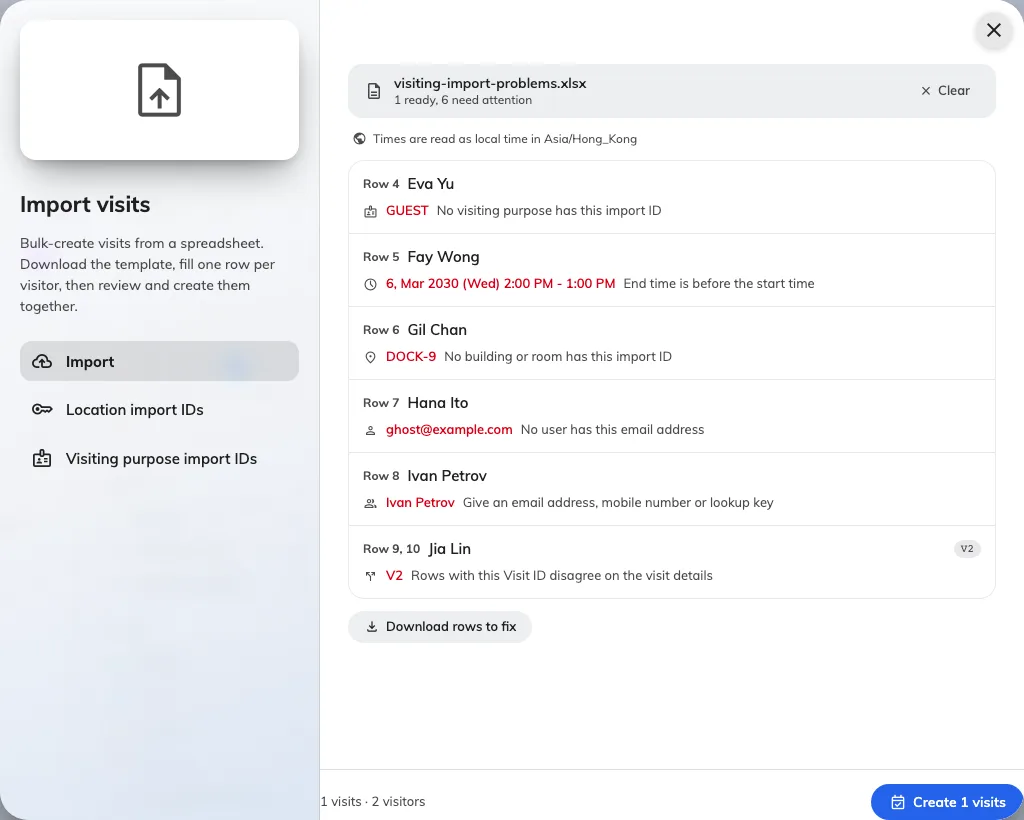
Only the problem visits are listed — the field that failed, and the rows it came from.
| What it says | What it means |
|---|---|
| No visiting purpose has this import ID | The purpose cell matches nothing on the Visiting purpose import IDs page |
| Start or end time is missing or unreadable | A time cell is empty or not YYYY-MM-DD HH:mm |
| End time is before the start time | The two cells are swapped |
| No location given | The Location column is empty |
| No building or room has this import ID | A location key matches nothing on the Location import IDs page |
| This building has used up its visitor quota for this month | Your licence meters visitors per building, and this building’s month is spent |
| No user has this email address | The Host cell does not belong to any user |
| This user cannot invite visitors (missing permission or license) | The host exists but cannot invite — fix their permission, or host it yourself |
| Visitor name is required | A row has no name in the Visitor name column |
| Give an email address, mobile number or lookup key | The visitor has no identifier your visiting settings accept |
| Add a country code to the mobile number | The number could not be resolved to an international one |
| This country code is not enabled in the visitor management settings | The number’s country is not in your accepted list — add it |
| Rows with this Visit ID disagree on the visit details | Grouped rows differ on purpose, location, host or time — they must only differ on the visitor |
| Same visitors, place and time as an earlier visit | The sheet contains the same visit twice; only the first is kept |
Download rows to fix re-exports just the flagged rows, in the template’s own columns, so you correct those in Excel and upload the smaller file — the clean visits from the first file can be created first.
6. Create the visits
The footer counts what is ready — visits · visitors — and Create visits makes them, one by one, with a running count. Valid visits are created even while others are still flagged above.
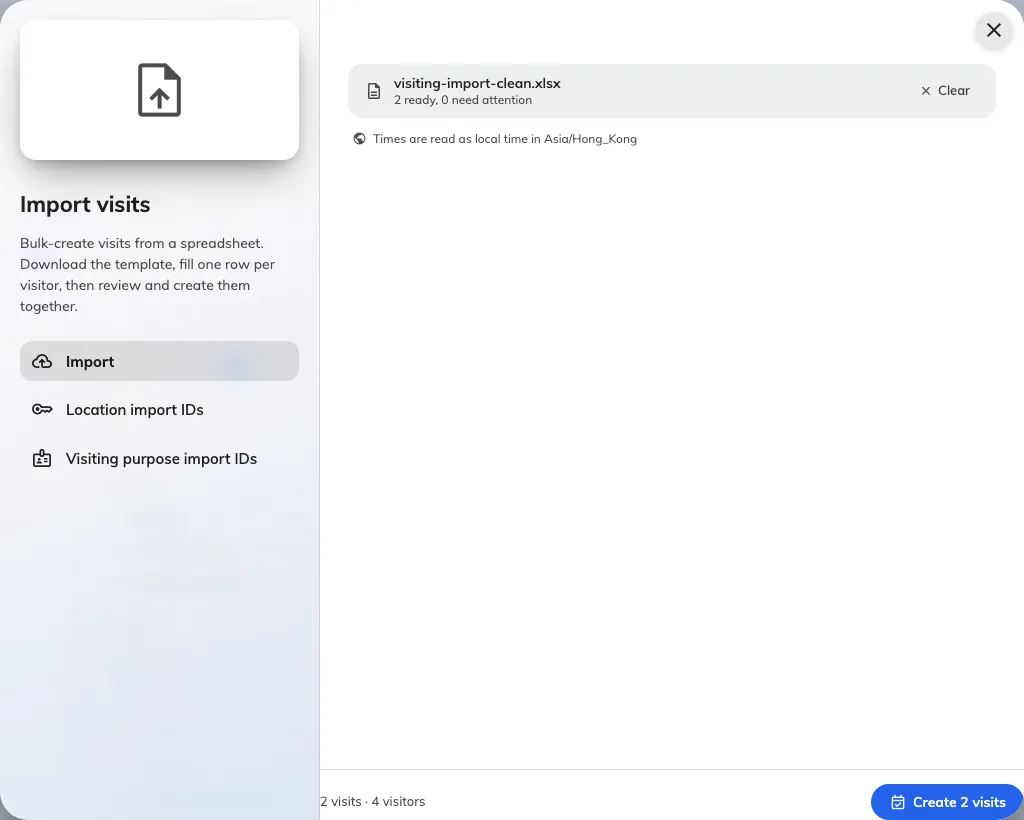
The review footer: how many visits and visitors the sheet is worth, and the button that creates them.
If a visit fails at creation — the one check the preview cannot make — the closing message names its rows: … could not be created. Those rows go back into the sheet for another pass; everything else is already in.
7. Check it worked
The new visits are on the Invitation calendar behind the dialog. From here they are ordinary visits: approval runs where your rules require it, invitations go out on approval, and the visitor arrives at reception like any other guest.
What this does not cover
- The visitor directory. This imports visits — appointments with times and hosts. The Visitors list keeps its own import for visitor records and long-term badge holders.
- The app-side group invite. Employees inviting their own guests have an Import on the invitation form in the Offision app — see Invite a visitor.