

Let visitors register themselves on arrival
Turn on the self-registration page a guest opens from a QR code and fills in themselves — where the link and the code come from, what the visitor is asked for, and the one thing the page cannot ask for: a file.
A guest who arrives without an invitation can register on their own phone instead of queueing at the desk. They scan a code, answer the same questions a receptionist would have typed for them, and are admitted as they submit.
1. Turn it on
Visitor self registration form carries the switch, at the top of the Visitor App card.
Open Visitor self registration form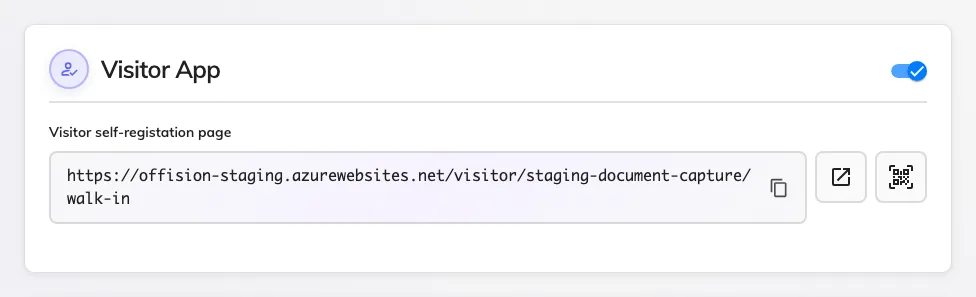
Allow visitor self register, and the page address it reveals.
Turning it on reveals the Visitor self-registation page address, a button that opens it, and a button that downloads its QR code. That code is the whole distribution method: print it for the lobby, or put it on a lobby screen — see Set up a lobby screen for visitors, whose walk-in QR widget draws the same code and rotates it for you.
2. Decide what the visitor may choose
The Visitor settings card holds five choices, all of them about how much of your organisation a stranger is shown.
| Setting | What it does | When to change it |
|---|---|---|
| Allow visitors to select inviter when walk-in in the visitor app | The visitor picks the person expecting them from your staff list | On where reception cannot guess the host. Off keeps your staff directory private |
| Mask part of the inviter name | Shows the host as a partial name, so the list cannot be read as a directory | On wherever the inviter list is on |
| Allow visitor to select multiple location | The visit can cover more than one building | On for a contractor working across a campus |
| Allow visitor to select room | The visitor names the room they are going to | On where the room matters to reception or to a door |
| Visitor self registration page instruction | A paragraph of your own on the first screen | Use it for the rule people get wrong — where to wait, what to have ready |
Visitor advance registration days sets how far ahead of today a visitor may register. Zero means today only.
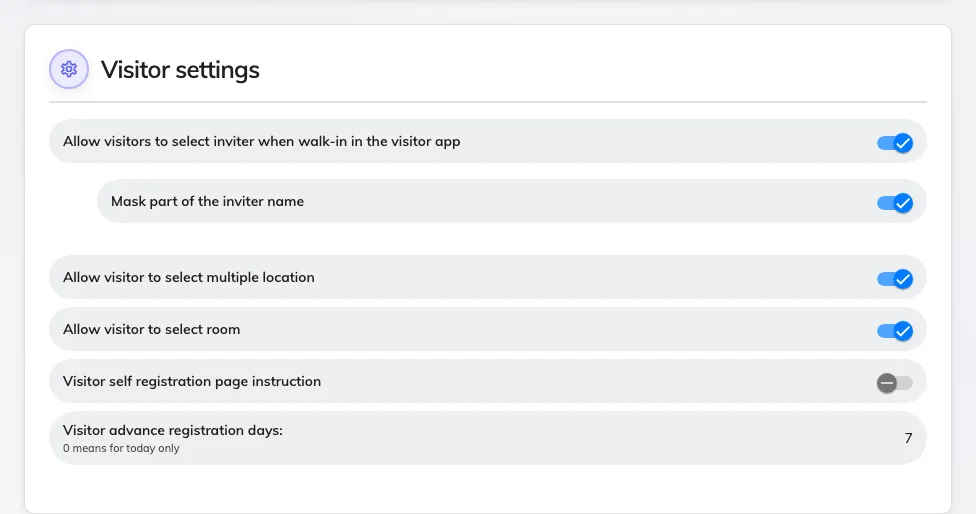
Visitor settings: what a stranger is allowed to see and choose.
3. Decide what they are asked
Nothing on this page decides the questions. They come from three screens you have already set up, and each is asked of the visitor exactly as it is asked at the desk:
- The visiting purpose decides which details are compulsory, whether a photo is taken, which terms are shown, and which surveys are answered — see Set up a visiting purpose. The terms shown here are Visitor self-registration terms, not the pre-registration ones.
- The visiting form adds your own questions — see Visiting form reference. A field reaches this screen only with Enable input in visitor walk-in form on.
- The visiting policy decides whether the vehicle section appears and whether the visit waits for approval.
4. What the visitor meets
One step per screen, with the step list down the side so they can see how much is left:
- Visiting purpose — skipped when there is only one to pick and you have written no instruction.
- Terms — only where the purpose carries self-registration terms.
- Fill in your information — their own details, the vehicle section, and your visiting-form questions.
- Take a photo — only where the purpose asks for one. See The visitor photo.
- Visitor survey — one step per Before visiting survey on the purpose.
- Confirm.
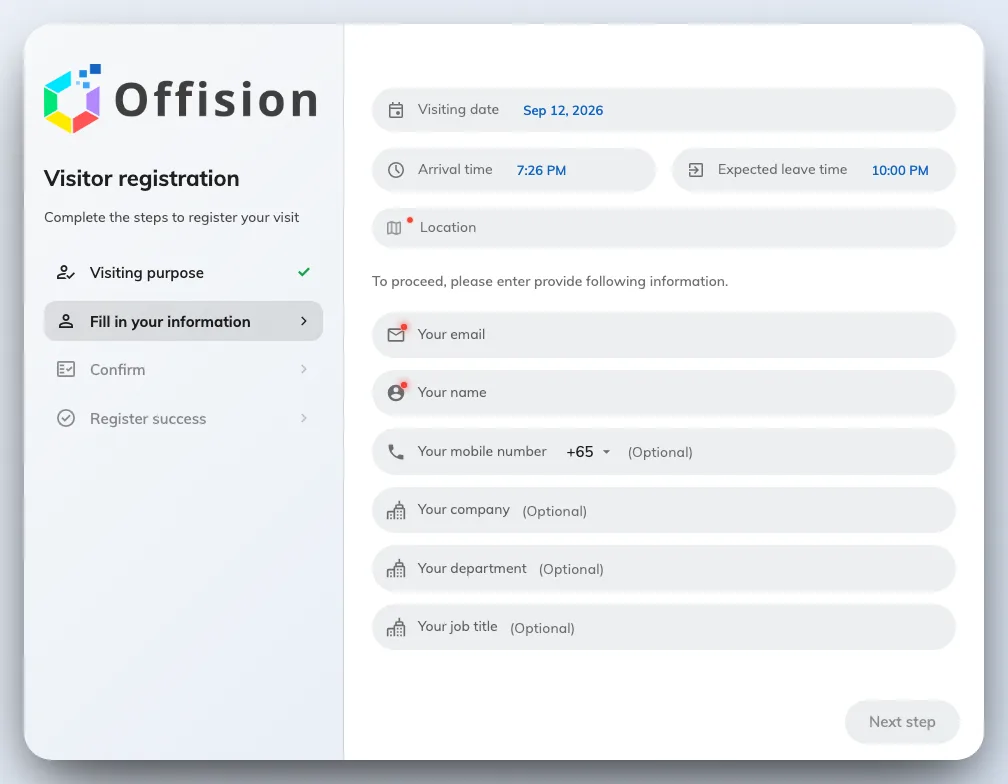
The visitor's own registration form, with the step list beside it.
Submitting admits them. There is no separate check-in afterwards, and a label printer at the desk prints their badge as it would for any arrival — unless the policy requires approval, in which case they wait.
5. Check it worked
Open the page address yourself, register as a test visitor, and find that visitor on the list reading Visiting with the time you submitted.
What self-registration cannot do
- It cannot take a document. A visiting form can carry Upload file fields, but the upload control never appears on any screen a visitor sees — on this one, at the lobby board, or on the pre-registration page. A permit, an insurance certificate or an induction record reaches a visit only when a signed-in host or receptionist attaches it on the invite form.
- It cannot check anything for expiry. Nothing recorded here carries a validity date, and no answer refuses a badge. Visitor approval is the only gate, and a person decides it.
- It is not pre-registration. That is the link an invited visitor opens from their badge email, and it asks a different set: their details, the terms and any survey, but none of your visiting-form questions. See When a visitor badge starts and stops working.
- It does not shorten a repeat visitor’s form. That is what a long-term badge does — see Give a contractor a long-term badge.