

Print the WiFi code on the visitor badge
Put the guest network, username and password on the printed badge — which badge design does it, how the details are chosen, and the reasons a badge comes out without them.
One badge design prints WiFi details: the photo and Wi-Fi layout. Its footer carries the network name, a Username row and a Password row — everything a visitor needs, on the label reception hands them.
1. Pick the photo and Wi-Fi design
On the visiting Settings page, choose Customize next to Visitor label design and pick the photo and Wi-Fi layout. Save the page.
Open Visitor management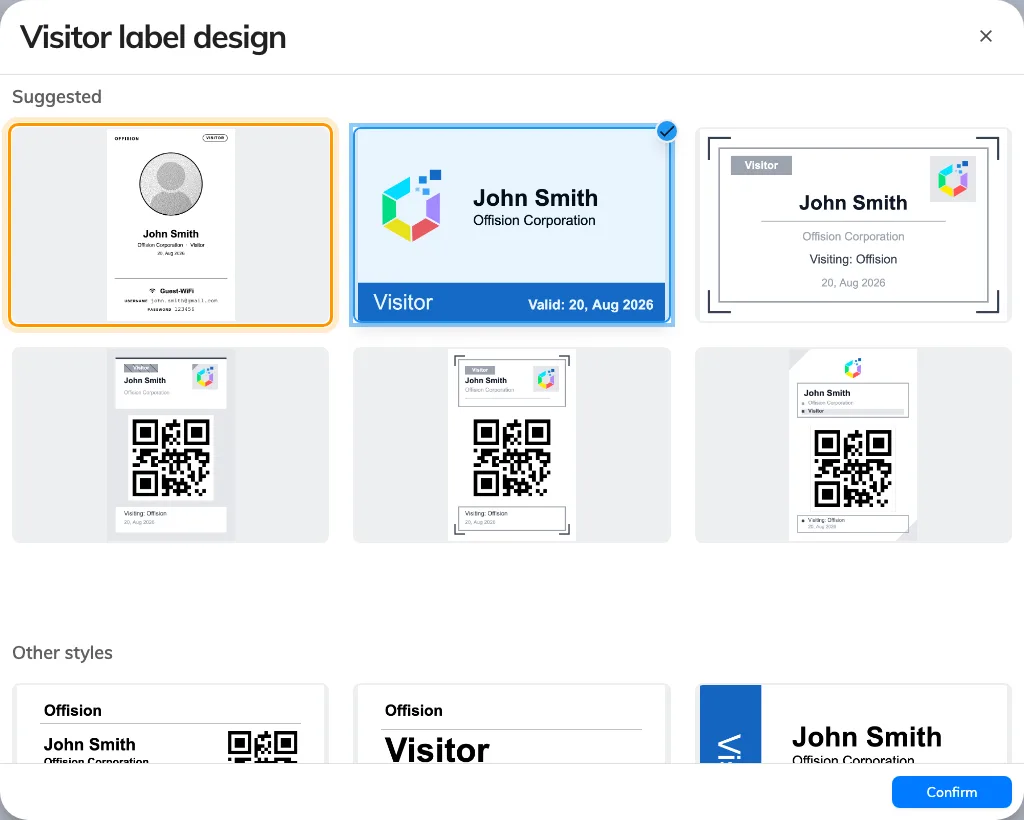
The design gallery, with the photo and Wi-Fi layout.
The full picking walkthrough — logo first, then design, then save — is in Change the visitor badge design.
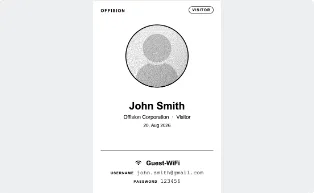
The WiFi block on the badge: network, username, password.
2. Choose what the rows say
The Username and Password rows print whatever the network entry’s Username type and Password type say — the same values the network itself accepts. With Badge WiFi password, the password is a code minted for that visit at check-in; with Not required, the badge prints the network’s shared password instead.
3. Check it worked
Register a walk-in at the lobby or check in an invited visitor, and read the printed label: network name, username, password. Join the network with exactly what is printed.
When the badge prints nothing
The design adapts to what a visit actually has, so a badge can come out without the WiFi block and nothing warns you. In order of likelihood:
- The badge design is not the photo and Wi-Fi layout. No other design has a WiFi block.
- The network is a RADIUS brand. A secured-network entry stores no WiFi SSID, so there is nothing to print — visitors join the network your controller names. See the WPA-Enterprise guide.
- No entry covers the visit’s building. The badge prints the entry linked to one of the visit’s buildings, or failing that an entry linked to no building at all. A visit outside every linked building gets nothing.
- The visit does not have the chosen field. A Mobile number username prints blank for a visitor who never gave one, and the Badge WiFi password only exists from check-in — a badge printed or emailed before then has no password to show.
A badge that prints correctly but is refused by the network is a different problem — the visitor has checked out, the visit period has ended, or the entry has no Visitor WiFi Integration license.