

Check visitors out automatically at the end of the day
A visitor who walks out without signing off stays Visiting forever. One policy card closes the day for you — stragglers become Left, and guests who never arrived are recorded as No show.
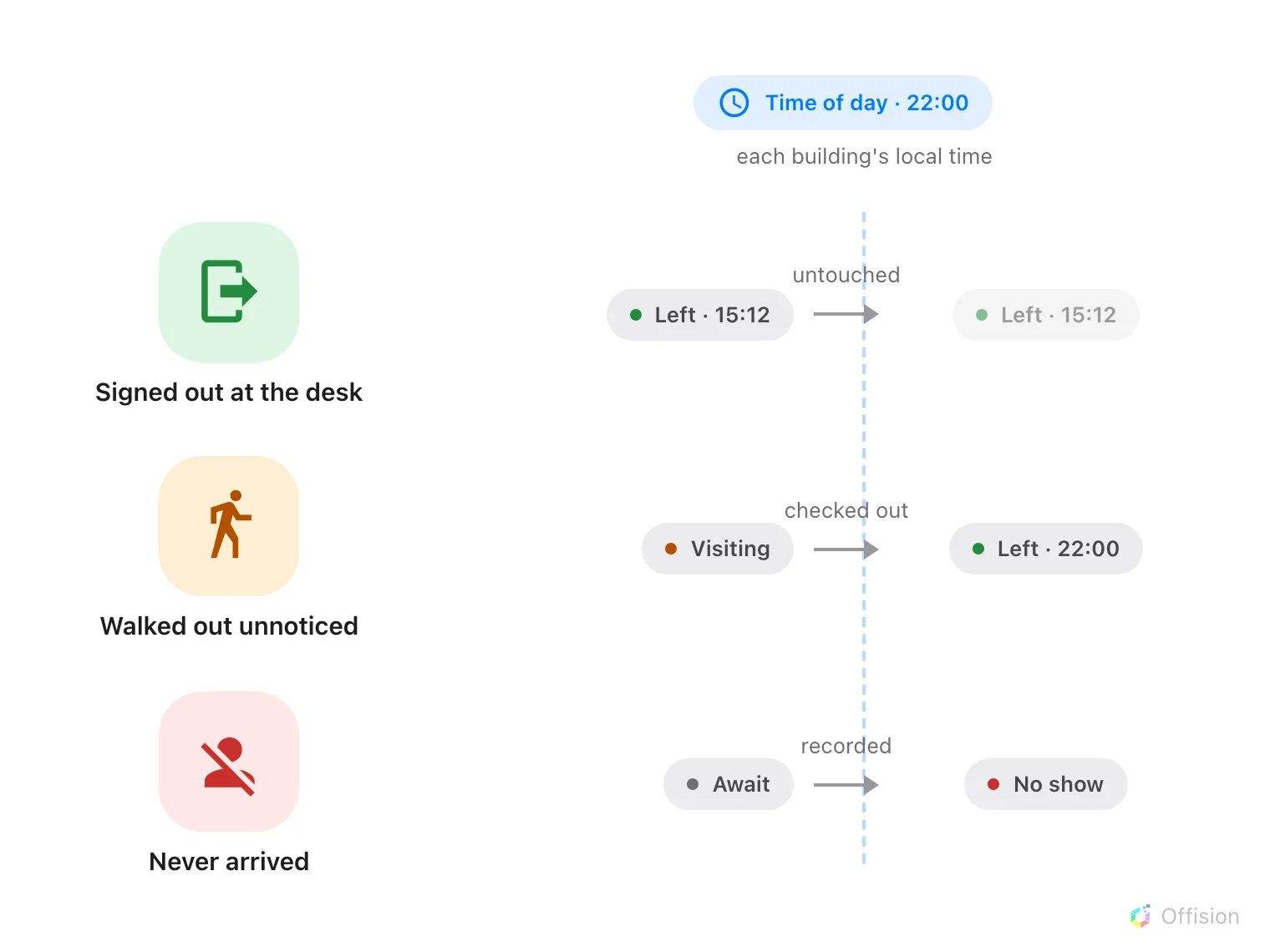
At the time you set, each building closes its own day: whoever is still Visiting becomes Left, whoever never arrived becomes No show — and anyone who signed out properly is untouched.
Most visitors never sign out. They are walked back to the lift, the badge goes in a pocket, and their record stays Visiting — that evening, next week, forever. The Automatic badge status change card on a visiting policy closes the day instead: once a day, at a time you choose, anyone still shown as Visiting becomes Left, and anyone who never turned up at all can be recorded as No show.
1. Open the policy’s Visiting policy page
Select the policy and open it for editing. Its settings are split into pages down the left — Visiting policy, Vehicle registration, Invitation & approval, Others — and this card is at the bottom of Visiting policy, which is where the form opens.
Open Visiting policy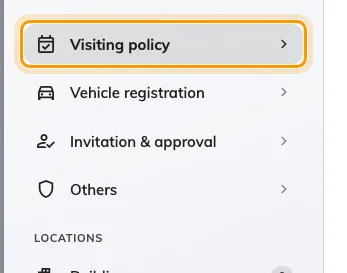
Visiting policy, the page the form opens on — the card sits at its bottom.
2. Turn on Change to left
Scroll past the time and date limits to Automatic badge status change and turn on Change to left. From then on, a badge still in the Visiting state is changed to Left at the time below the switch.
It is a real check-out, not a cosmetic one: the badge stops working, and anything that reacts to a visitor checking out at the desk reacts to this in exactly the same way.
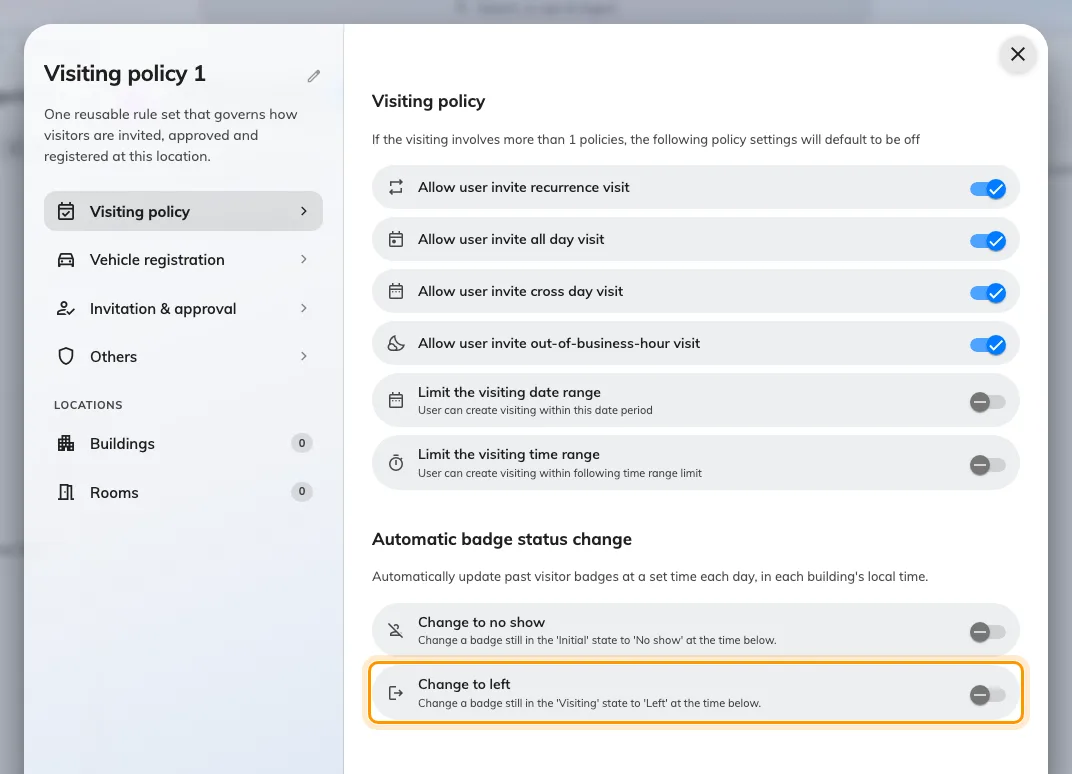
Change to left, at the bottom of the Visiting policy page.
3. Set the time of day
Time of day appears once the switch is on. It is read in each building’s own local time, and it snaps to the quarter-hour — the sweep passes every fifteen minutes, so 09:07 fires on the 09:00 pass. Midnight means the stroke of midnight, not “off”.
Choose a time when the building is genuinely empty. The sweep does not read each visit’s end time: at the moment it runs, everyone still checked in is signed out, a guest mid-meeting included. After the last reasonable departure — or midnight — is the safe answer. The check-out time recorded on the badge is the sweep’s time, not the moment the person actually walked out.
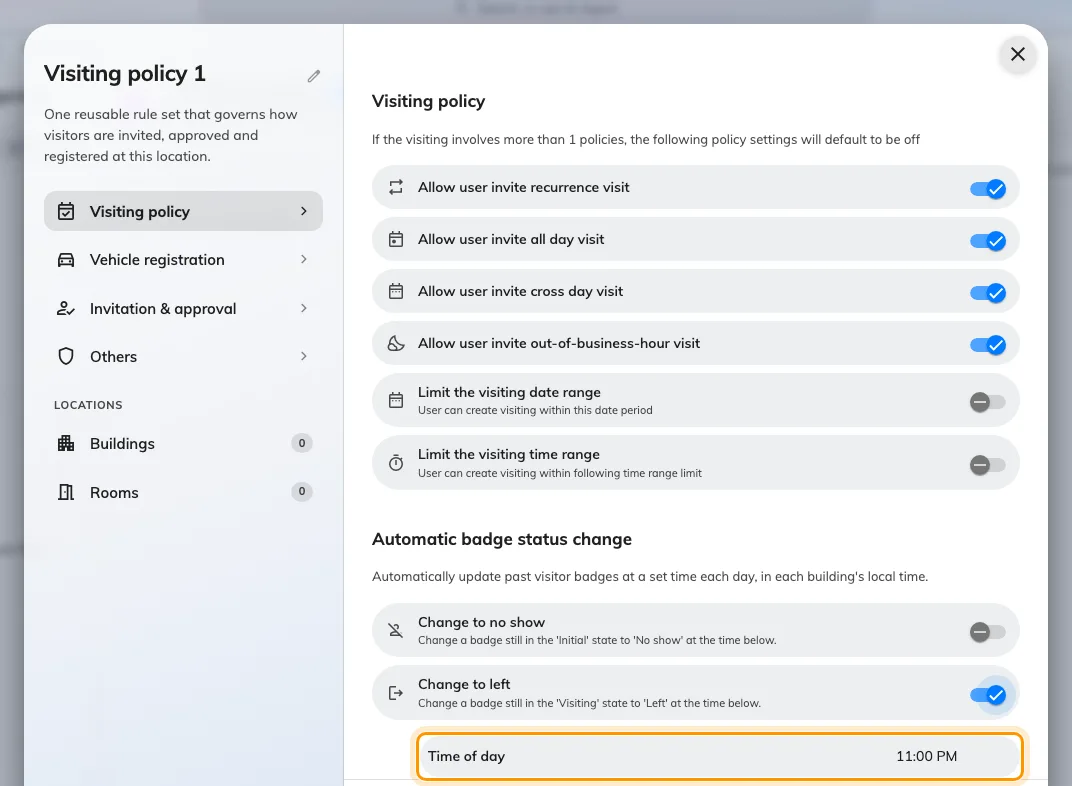
The time the building's day closes, in its own local time.
4. Decide about no shows
Change to no show, on the same card, is the other half of the day’s bookkeeping: a badge still in the Await state — invited, never checked in — is changed to No show at its own time of day. Without it, yesterday’s absent guests sit in the reception list as if they might still arrive.
5. Put the policy on your buildings
Under Locations, attach the policy to the buildings it should close — the sweep covers exactly the badges that belong to them. Each building is swept at the configured time in its own time zone, so an estate spanning regions closes each site at its own local hour.
A building on no visiting policy is not swept at all, and a policy replaces the tenant’s defaults entirely for the buildings it covers — there is no merging of half from each.
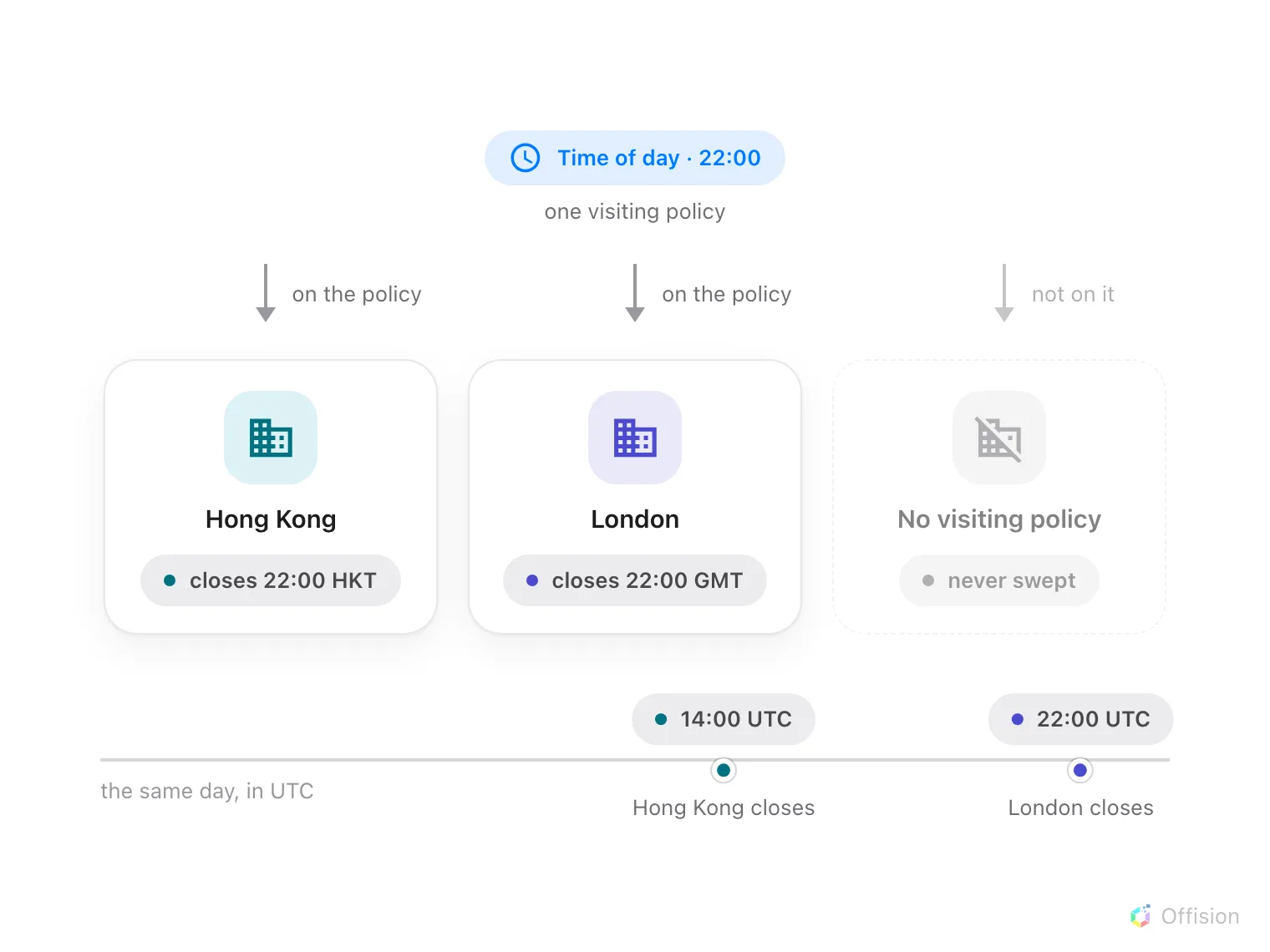
One configured time, read on each building's own clock — Hong Kong and London close eight hours apart, and a building on no policy is never closed at all.
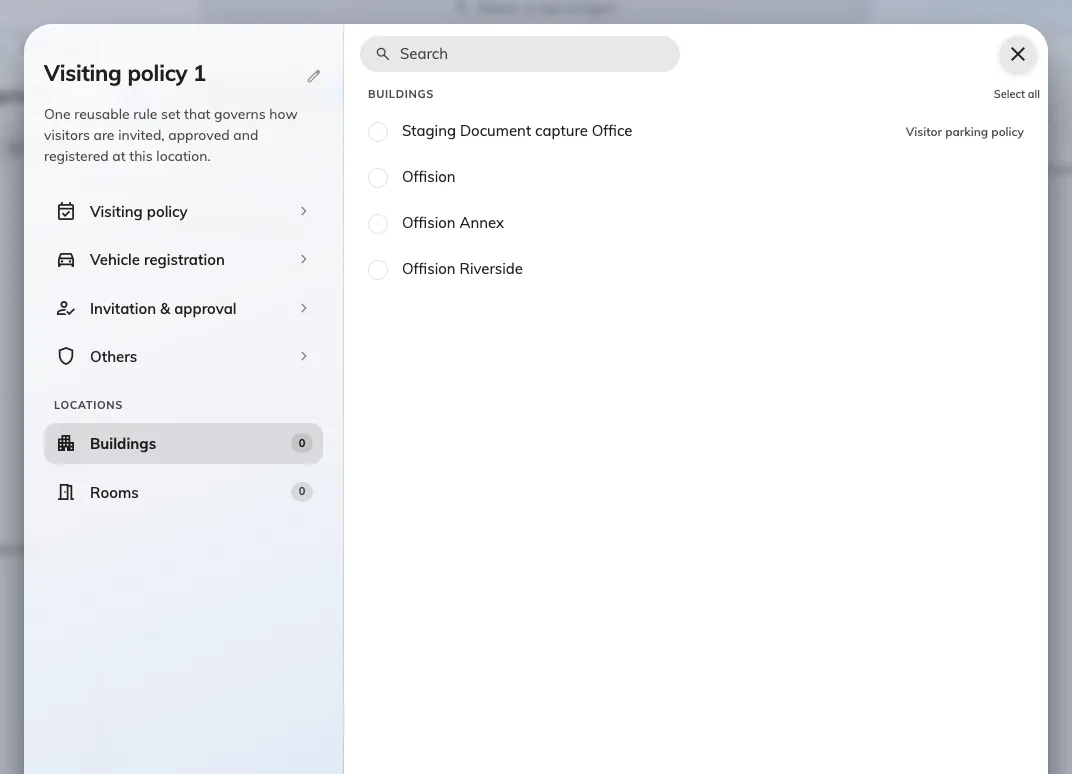
The buildings this policy closes each day.
Save the policy. It applies from the next sweep.
Check it worked
Check a test visitor in and leave them checked in past the configured time — or simply look the next morning. In the reception day view, yesterday’s stragglers should read Left, with the configured time as their check-out time; invited guests who never arrived should read No show.
If a badge is still Visiting, the building it belongs to is not on the policy you edited — that, or the configured time has not yet passed in that building’s local time.
What this does not do
- It is not per-visit. Nothing fires when an individual visit’s end time passes; the day closes once, for everyone, at the configured time.
- It does not watch the door. No sensor or access event marks the true departure — a check-out done at the desk is still the only accurate record of when somebody left. See Check a visitor in by scanning their code.
- It never produces Overstay. That state exists, but nothing sets it on a schedule.
- It closes the record, it does not cancel it. The visit and its details are kept — and a guest swept out while actually still in the building can simply be checked in again at reception.