

Tell the host their visitor has arrived
The host is emailed the moment their visitor is admitted, and it is on out of the box. Who counts as the host, the two switches that turn it off, why turning it off on one building may change nothing at all, and why the message names the visitor but never the room.
The host is told the moment their visitor is admitted — at the desk, at a lobby screen, or on the guest’s own phone. Nothing has to be turned on for this. Three things about it surprise people, and they are worth having before the settings.
The host is whoever invited them. There is no separate recipient field. For a visit created from a booking, the host is that booking’s organiser, so moving the organiser moves the notification with it.
Turning it off on one building may change nothing. A visit can be governed by several policies at once — its room, that room’s floor and its building can each carry one. The host is notified unless every policy governing that visit has turned it off. One building opting out while another still wants it leaves the notification running.
Invited and walk-in are two separate switches. They fire on different events, so turning one off leaves the other working.
What the host gets
An email titled Visitor arrived, carrying the visitor’s name, their email address, their company where the visit recorded one, and a status line reading Your visitor has arrived. Where the host uses the mobile app they also get a push notification, and where Teams notifications are connected the arrival reaches them there.
The message does not name the room. It says who arrived, not where to go or where they are waiting. A host who needs the room reads it off their own calendar.
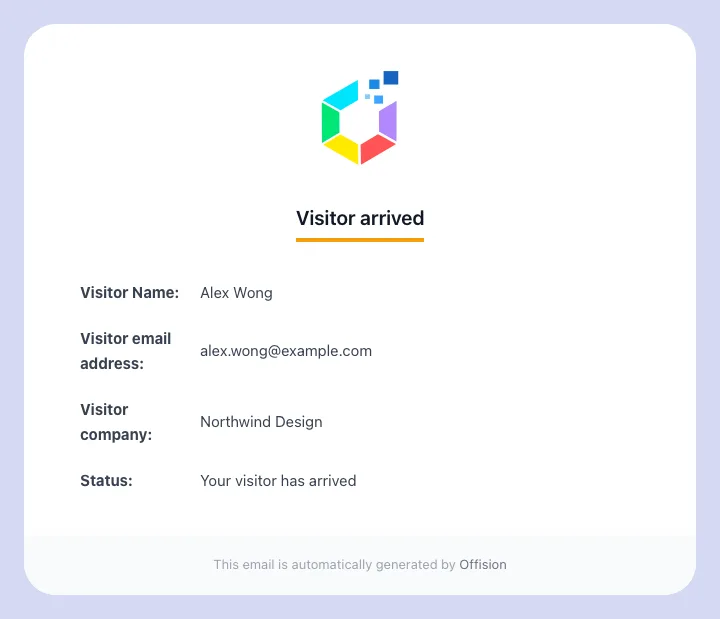
The arrival email names the visitor, their address and their company, and says your visitor has arrived. There is no room on it.
Turn it off for a location
Open Visiting policy- Open the policy attached to that building or room.
- Go to Invitation & approval.
- Scroll to Host notification — Notify the host about their visitors at this location.
- Turn off Notify host when an invited visitor arrives, or Notify host when a walk-in visitor arrives, or both.
- Save. One save covers every page of the dialog.
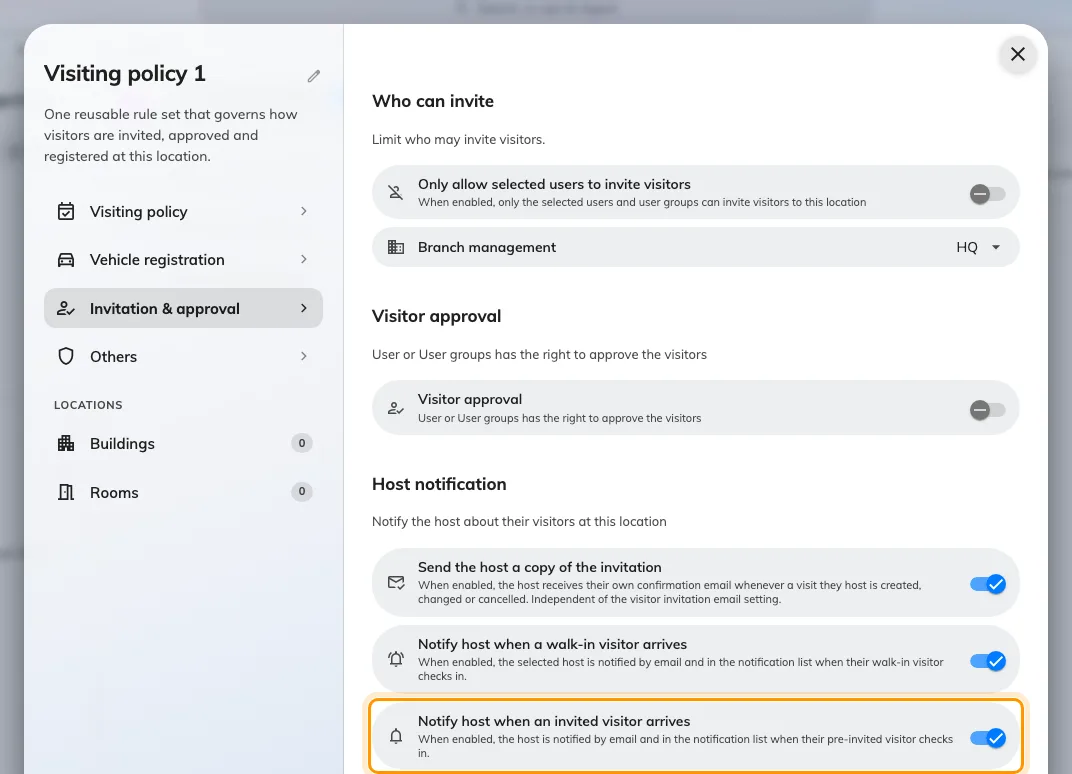
Host notification, at the foot of Invitation & approval. Both arrival switches are on until you turn them off.
The third switch in the group, Send the host a copy of the invitation, is a different thing: it copies the host when a visit is created, changed or cancelled, and has nothing to do with arrival.
When the host was not told
| What happened | Why |
|---|---|
| Nobody was notified | The visit has no host. A visit imported or created without an inviting user has nobody to tell |
| Notified for one building, not another | Each location’s policy is read separately — check the policy on the room, its floor and its building |
| Turned it off, still arriving | Another policy governing the same visit still has it on. All of them have to agree |
| Invited guests notify, walk-ins do not | Two switches. Check Notify host when a walk-in visitor arrives |
| A walk-in was registered but nobody was told | The walk-in form has to admit the guest as it saves. A walk-in registered without checking in fires nothing |
| Nothing at all, for anyone | The visit is still waiting for approval, so it was never invited and never checked in |
What this does not do
- Tell anybody else. Reception sees the arrival on their own page; nobody outside the host is emailed. A blacklist match is a separate warning.
- Say where the visitor is waiting. The status line is the same sentence every time.
- Wait for the host. The guest is admitted whether or not the host reads it.