

Visiting form reference
The screen that decides what a host is asked when they invite a guest and what a visitor is asked at the door — the six questions you cannot change, every setting and field type on a question you add yourself including the two that attach a file, who can actually upload one, and which form a visit ends up using.
A visiting form is the set of extra questions asked about a visit. Unlike the booking form, you do not compose it from the built-in questions — those six are fixed. What you build here is everything on top of them, and where each answer travels afterwards.
Open Visiting form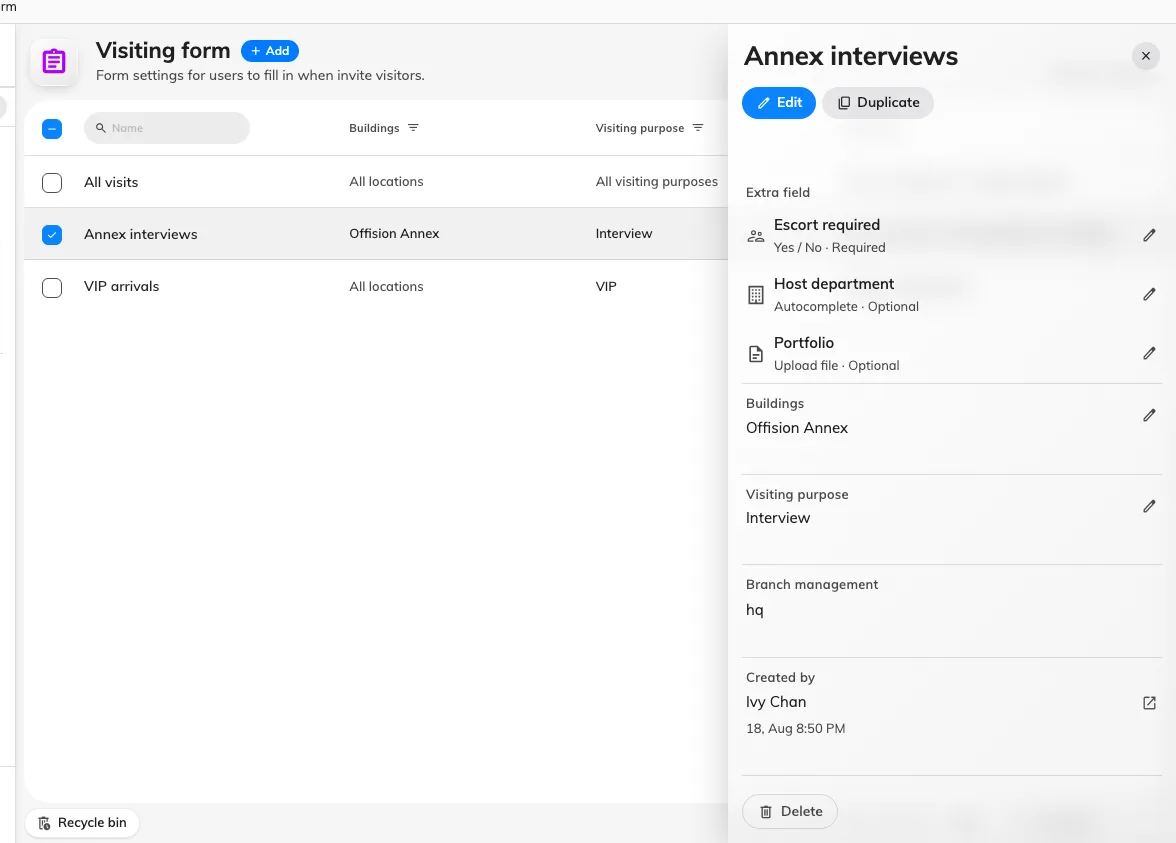
The forms on this site, with one selected. The panel lists its fields and where it applies.
The form itself
| Setting | What it does | When to change it |
|---|---|---|
| Name | Names the form in the list and in the picker on every other screen | Name it after the group of visits it serves — a site, a purpose, a tenancy — not after its fields |
| Branch management | Limits the form to one branch of the organisation | Only on a multi-branch site where each branch runs its own forms |
Below those sits the field list: the six built-in questions, then every field you have added, in the order they appear on the form. Drag your own fields to reorder them, select one to configure it, and choose Add field for a new one.
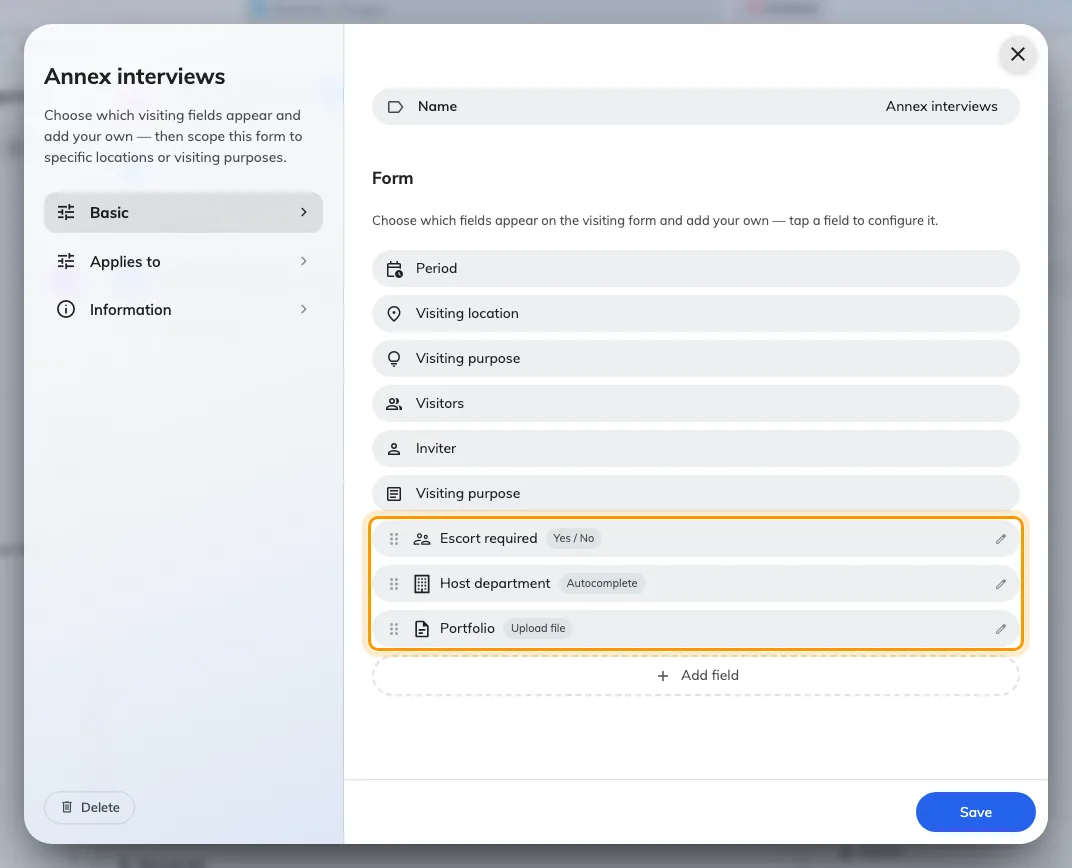
The field list. Only the fields you added — ringed — can be moved or opened.
Built-in fields
These six exist on every visiting form and none of them can be renamed, reordered or switched off. They have no editor: selecting one does nothing. What each of them asks for is decided elsewhere — see Set up a visiting purpose.
| Field | What it collects |
|---|---|
| Period | When the visit starts and ends |
| Visiting location | The building, and the room where one is booked |
| Visiting purpose | Why they are coming |
| Visitors | The guests themselves — name, address, and whatever their visiting purpose asks for |
| Inviter | The person in your organisation who is expecting them |
| Visiting purpose | The free-text note about the visit |
The list really does say Visiting purpose twice: the third row is the category the visit is filed under, the last is the free-text note beside it.
Fields you add yourself
Every field you add carries the same settings.
| Setting | What it does | When to change it |
|---|---|---|
| Name | What the person filling the form sees | Always fill it in for every language your site uses — a name given only in English renders in English on a Japanese screen |
| Description | A one-line hint under the field | Use it for the rule people get wrong, not to restate the name |
| Icon | The mark beside the field | Pick something recognisable; it is how people find the field in a long form |
| Field type | What kind of answer is accepted — see the table below | |
| Select option | The choices, for Select and Multiple select | For a short fixed list. A long or shared list belongs in a data set |
| Data set | Which reusable list backs an Autocomplete field | |
| File type | Limits an upload to images, videos, PDFs, or anything | At least one type must be chosen |
| Required | The form cannot be submitted without an answer | Turn on for anything you intend to reconcile or report on later |
Where a field appears
Five switches, and they do not divide the way their labels suggest. The first three decide which form asks; the last two decide who reads the answer.
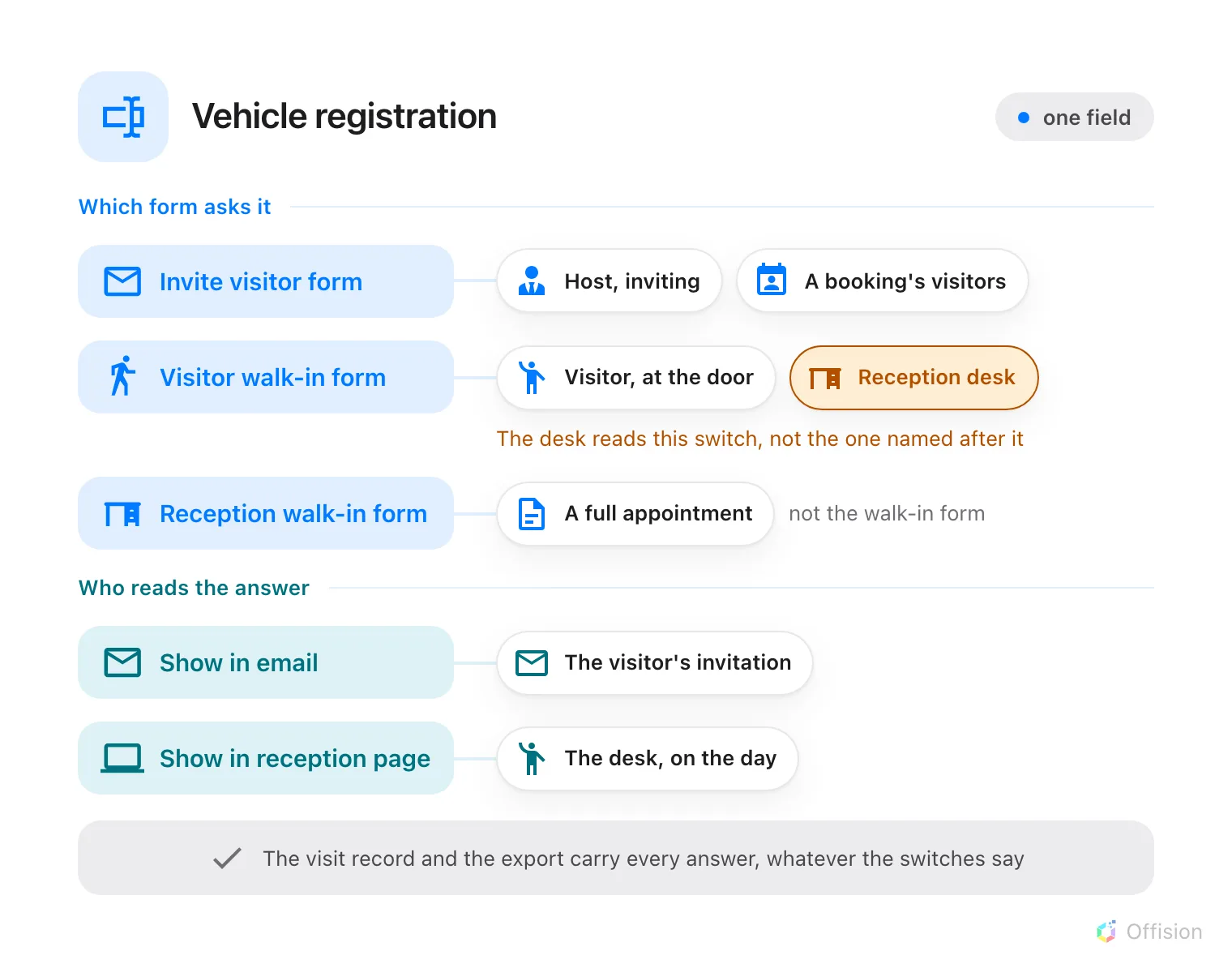
The first three switches decide which form asks. The last two decide who reads the answer.
| Setting | What it does | When to change it |
|---|---|---|
| Enable input in invite visitor form | Asks the question on the host’s invite screen, and in the visitor section of a booking | The default place to ask. Note the booking’s visitor section shows only fields with this switch on — a field turned on for reception alone never appears there |
| Enable input in visitor walk-in form | Asks it on the visitor’s own self-registration screen — and on the receptionist’s walk-in form | This is the switch the reception desk actually reads, despite its name. Turn it on for anything you need from an unexpected arrival. An upload field is the exception: it appears for the receptionist and never for the visitor |
| Enable input in reception walk-in form | Asks it only when a receptionist books a full appointment on someone’s behalf | Leave it alone unless your receptionists create appointments rather than register arrivals. It does not drive the walk-in form its name describes |
| Show input value in email | Puts the answer in the visiting invitation and its update and cancellation notices | Leave off for anything the visitor should not be sent in writing |
| Show input value in reception page | The desk sees the answer beside the visitor on the day | Turn on for anything reception has to act on — a vehicle, an escort, a delivery |
There is a fourth surface, and no switch reaches it: the pre-registration page an invited visitor opens from their badge email asks for their own details, the terms and any survey, and no visiting-form field at all. A question you need before someone travels has to be a survey question rather than a field here — see Write a visitor survey.
Whatever these switches say, the answer always reaches the visit’s own record and the visitor export — one column per field.
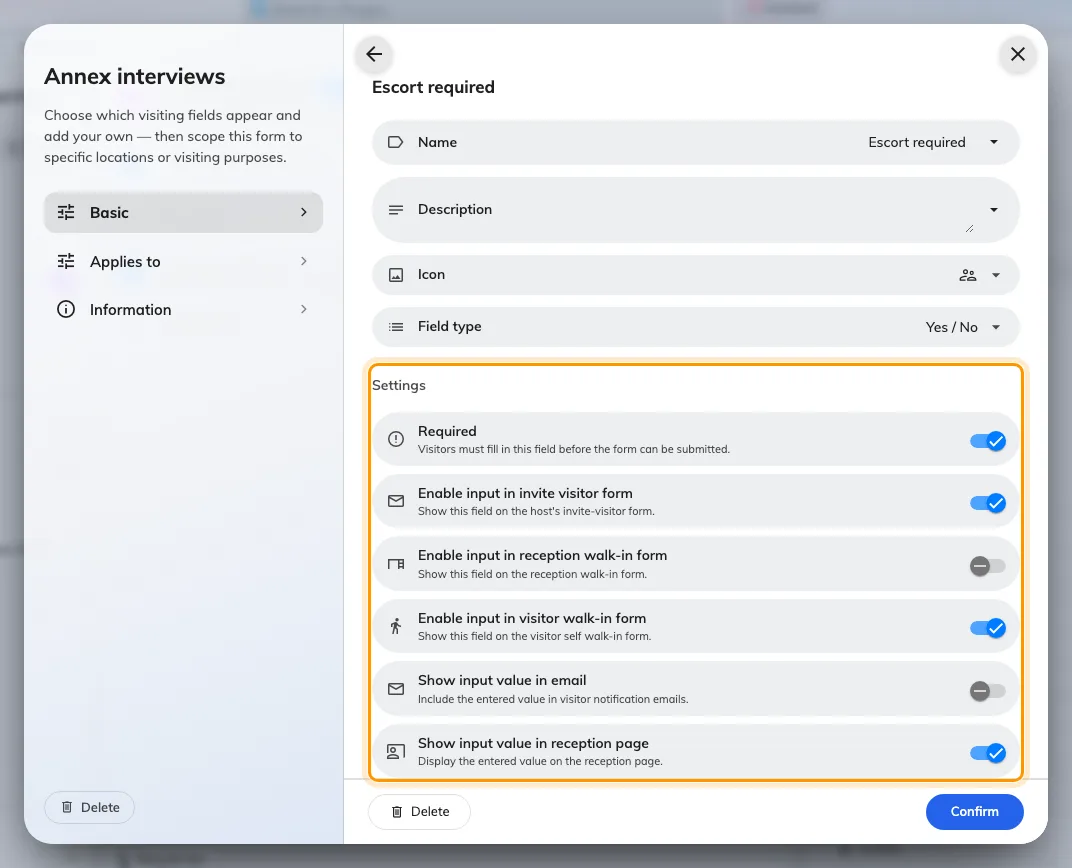
A field's five switches, under its name, icon and type.
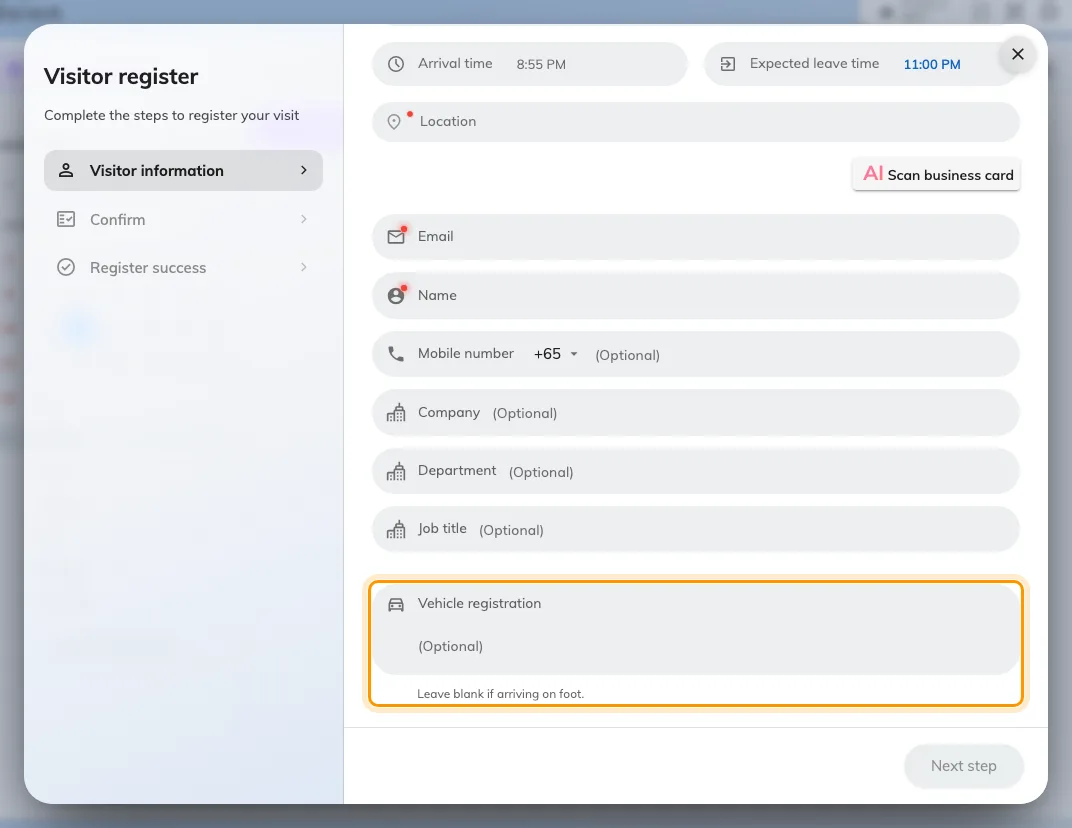
A field with the visitor walk-in switch on, asked at the reception desk.
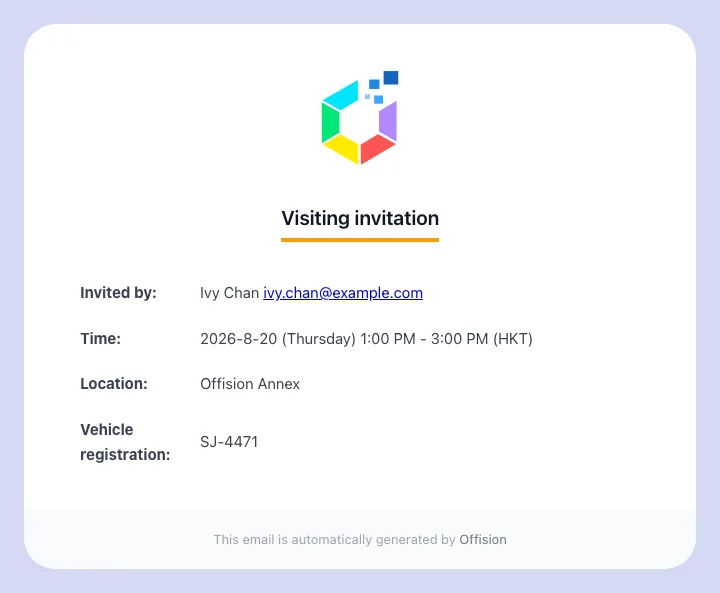
The visiting invitation, carrying a field set to show in email.
Field types
| Field type | Accepts |
|---|---|
| Text | One line of free text |
| Number | A number. Drops leading zeros and prefixes, so not for identifiers like AB-0042 |
| Rich text | A formatted paragraph |
| Yes / No | A single switch |
| Phone number | A telephone number |
| Date | A calendar date |
| Time | A time of day |
| Select | One choice from the options set on the field |
| Multiple select | Several choices from those options |
| Autocomplete | One entry from a data set, searched as the person types |
| Upload file | One file, of the accepted types — signed-in people only, see below |
| Upload multiple file | Several files, on the same terms |
There is no combined date-and-time type. A visit that needs both already has Period.
Data sets
A data set is the reusable list of options an Autocomplete field reads from, kept on its own screen so several forms can share one list. Visiting keeps its own catalogue, separate from booking’s — see Visiting data set reference.
Which form a visit uses
Applies to carries two independent scopes, and a form has to pass both.
| Setting | What it does | When to change it |
|---|---|---|
| Specify location | Limits the form to certain buildings and rooms | Leave off to apply everywhere. On a multi-site estate, on |
| Specify visiting purpose | Limits the form to certain visiting purposes | Leave off to apply to every purpose. Turn on for questions only contractors or interviewees should meet |
A scope left off matches everything rather than nothing — which is why a form with both switches off is asked on every visit on the site. And every form that passes is used: they are merged, not ranked, so a visit that satisfies two forms is asked everything both of them ask.
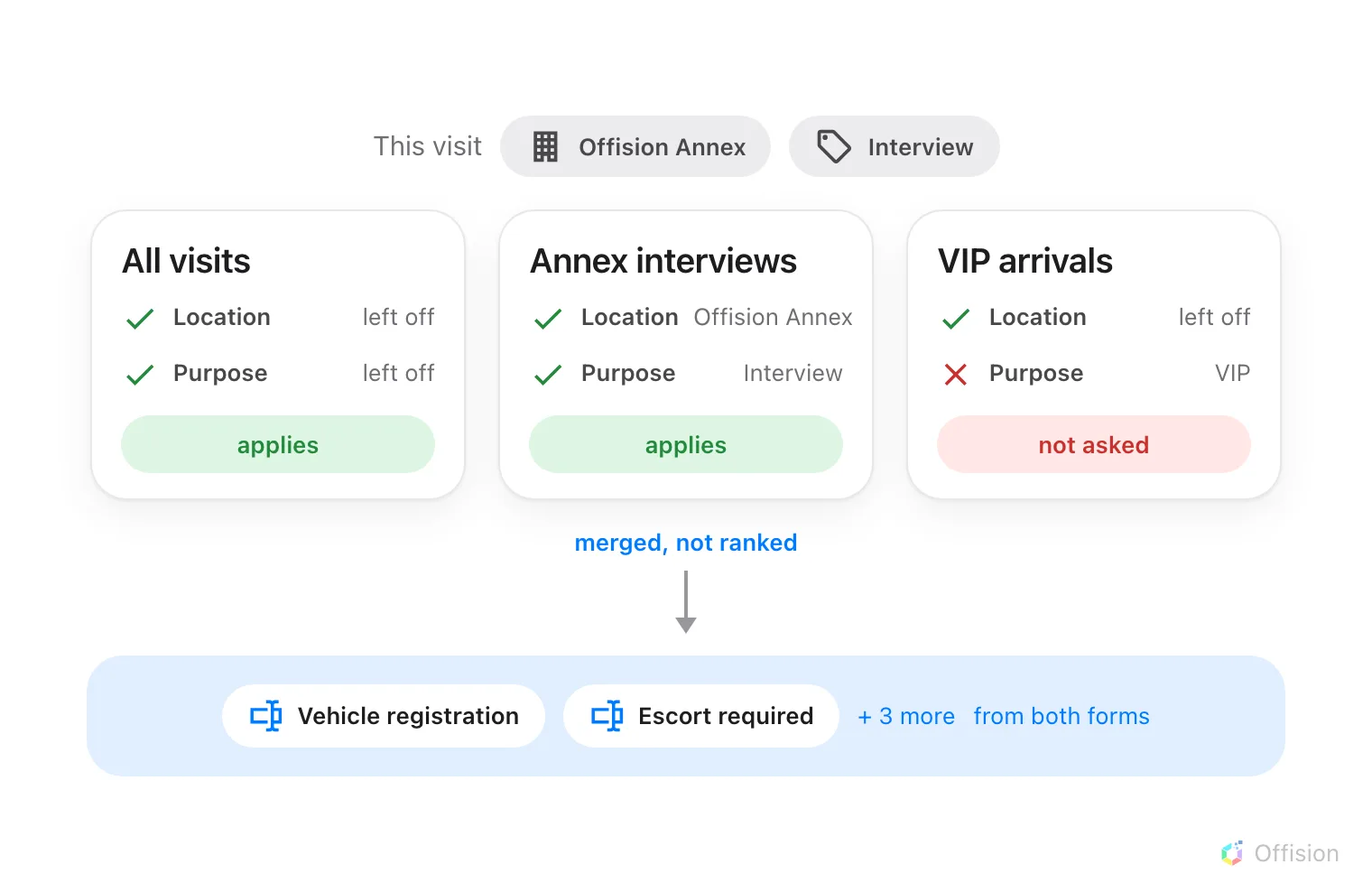
A form applies when both its scopes match or are left off, and everything that applies is merged.
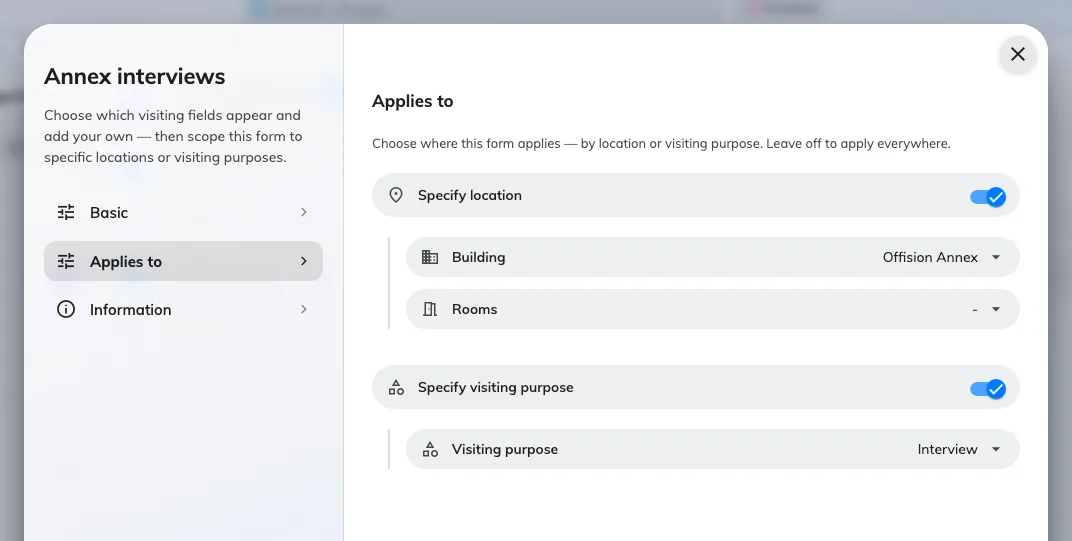
A form scoped to one building and one visiting purpose.
There is no default form and no override. Nothing on a visiting purpose can replace the form the way a booking purpose can replace a booking form.
What this does not control
- What a visitor is asked about themselves. Name, address, company, photo and terms belong to the visiting purpose — see Set up a visiting purpose, where a field can also be demanded of the host when they invite. This screen asks about the visit, not the person.
- Visitor attributes. A separate set of fields kept against a person, on their own screen, persisting between visits. A field here is answered once per visit.
- Visitor surveys. A survey is attached to a visiting purpose, and its type decides when it is asked — Before visiting reaches the guest before they travel, After visitior leave by email afterwards. See Write a visitor survey.
- Who may invite anyone at all. Permissions and visiting policies decide that.
- What appears on the badge. That is the badge design, not the form.
- Booking forms. Booking has its own form builder on its own screen, and the two never share fields or data sets.
- Whether an answer is still valid. A file attached here carries no expiry date, and nothing on this screen refuses a badge. A visit that has to be vetted needs visitor approval, which a person decides.