

Find, blacklist and delete a visitor's record
Where a visitor's stored details live, how to find one person by name, email or company, what blacklisting and deleting each actually do, and the purge that is the only real erasure — for a data request or a person you no longer want on site.
Every person who has ever been invited has a row on Visitor data — created the first time someone invites them, reused every visit after. This is the page for “please delete my details”, for the contractor you never want back, and for fixing a misspelt email. It is not where the visits themselves are.
1. Open Visitor data
In the Visiting menu, open Visitor data — “Details of your visitors, such as email, mobile number and company name.”
Open Visitor data2. Find the person
There is one search box, in the Name column header, and it matches more than the name: email, phone and mobile number, company, job title, department and the Customize key. Type any of them. There is no date filter — this list is people, not visits — and the newest record sits at the top. The toggle above the list switches between Normal and Blacklisted; a blacklisted person is only in the second view. Sorting / Columns shows hidden columns such as phone, department and identity number.
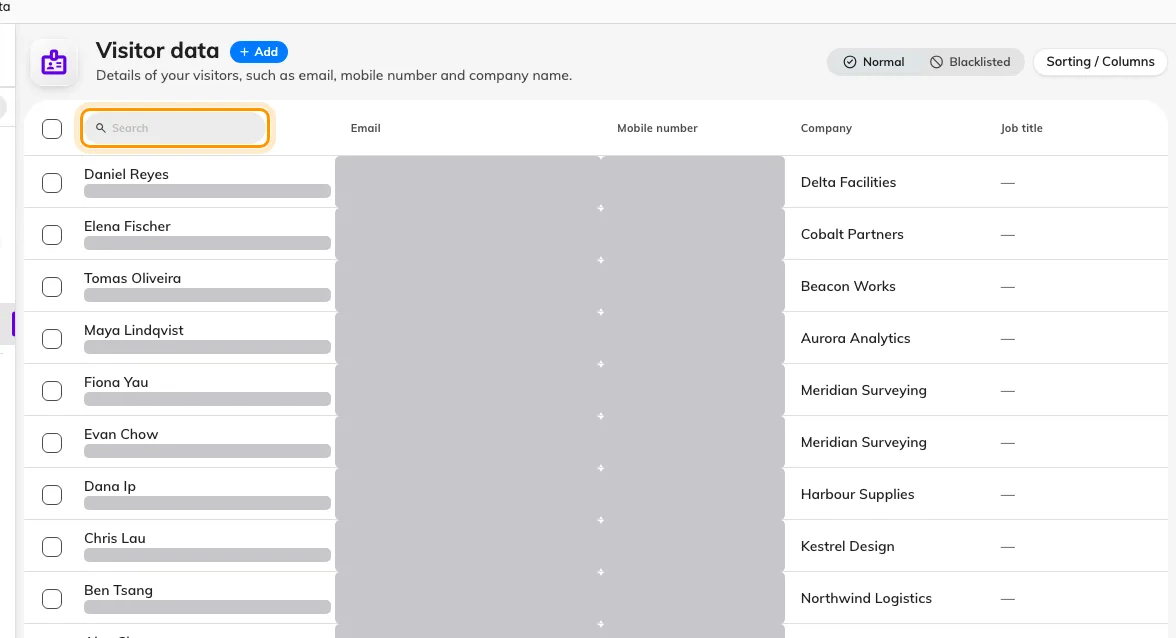
Visitor data, with the one search box in the Name column header.
3. Read the record
Selecting a row opens a side panel: Contact information (email, mobile, phone) and Professional information (company, job title, department, customize key, identity number — always masked). What it does not show is visit history. Their visits are on the Visitor badge list and their actions on the visiting Log; the record here is only who they are.
4. Edit, duplicate or blacklist
Edit corrects the details for every future invitation. Duplicate makes a second record from the same details — for the same person with a second email, say. Add to black list asks “Confirm adding to black list”; from then on the person appears only in the Blacklisted view, and Remove from black list reverses it. What the mark does after that — who is shown it, who is emailed, and why it never refuses anybody on its own — is Screen visitors against a black list.
5. Delete — and what stays
Delete at the foot of the panel asks “Confirm to delete following item(s)?” and removes the row from the list. That is all it removes: the person’s visits, badges and invitations stay exactly as they were, and nothing is anonymised. The record goes to the Recycle bin — the toggle at the foot of the list — where Restore brings it back. Because the deleted record no longer claims the email or number, the same person can be invited again and simply gets a fresh record.
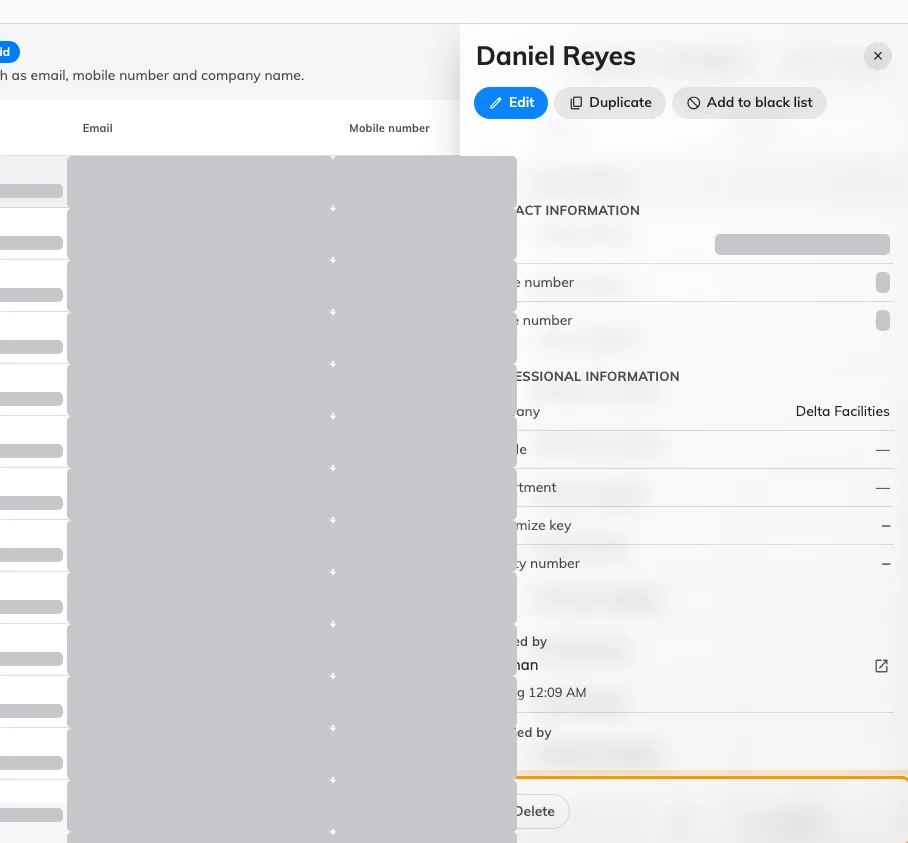
A visitor's record, with Delete at the foot of the panel.
6. Erase for real
Actual erasure is the purge in Visitor management Settings. Purge visitor record information hard-deletes visits, badges and visitors that have been inactive past the retention you set there, and Purge visitor identity information masks identity numbers on the same schedule. Each has a Purge now button; the confirmations give the count first — ”… visitor data record(s) will be permanently deleted. This action cannot be undone. Continue?” and ”… visitor identity record(s) will be permanently masked. This action cannot be undone. Continue?”. A person with a recent visit is not old enough to purge — “No visitor data is old enough to be purged right now.” means the retention has not passed.
Open Visitor management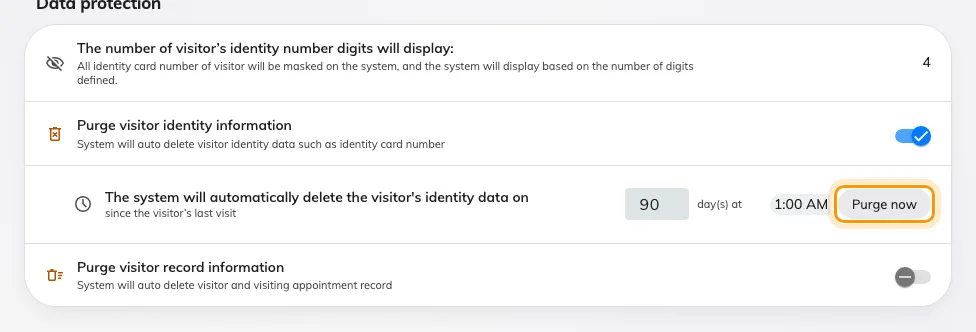
Data protection in Visitor management settings, with Purge now on each schedule.
7. Check it worked
Search for the person again. After a delete they are gone from Normal and present in the Recycle bin; after a purge they are in neither, and their visits have gone from the Visitor badge list too.