

The Apple and Google wallet pass
Issue and brand visitor Wallet passes, then understand how validity changes, regenerated codes, disabling, re-enabling and deletion update an issued pass. Covers phone refresh delays and the current badge check. Apple expiry follows badge validity rather than appointment end.
A visitor pass is the visitor’s badge as a card in the wallet app their phone already has — Apple Wallet on an iPhone, Google Wallet on Android. It carries the same QR code as the badge, so a visitor who saved it checks in at reception the same way, from their lock screen, with nothing to install and nothing to search for.
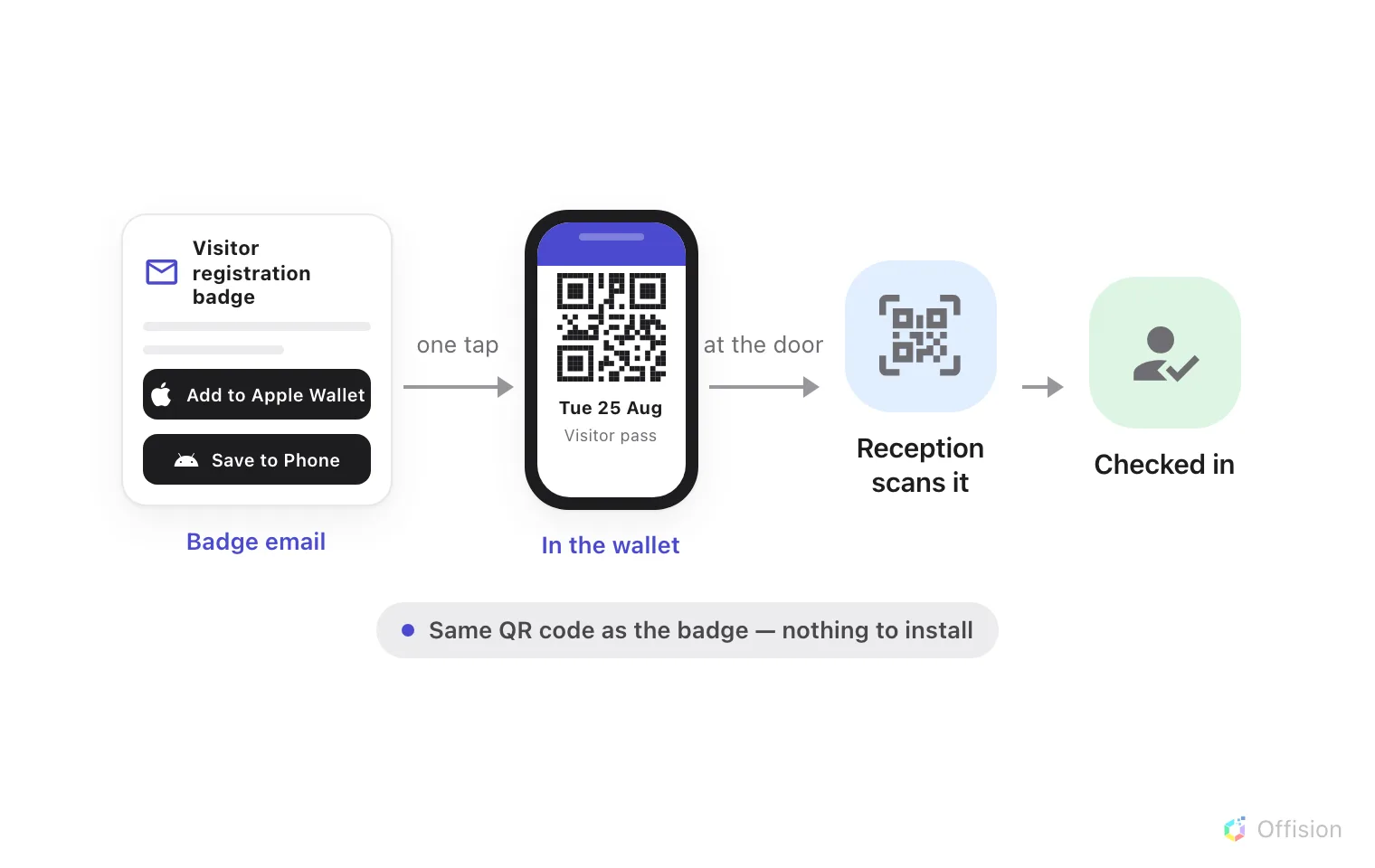
The pass rides in with the badge email; one tap puts it in the wallet, and reception scans it like any badge.
The pass is created together with the badge — when the visit is saved, not when the visitor arrives — so it is already in the email that invites them.
Where the download buttons are
In the badge email. Both buttons — Add to Apple Wallet and Save to Phone for Google Wallet — sit stacked in the middle of the badge email, above the visitor code. An email cannot tell what phone will open it, so it always offers both.
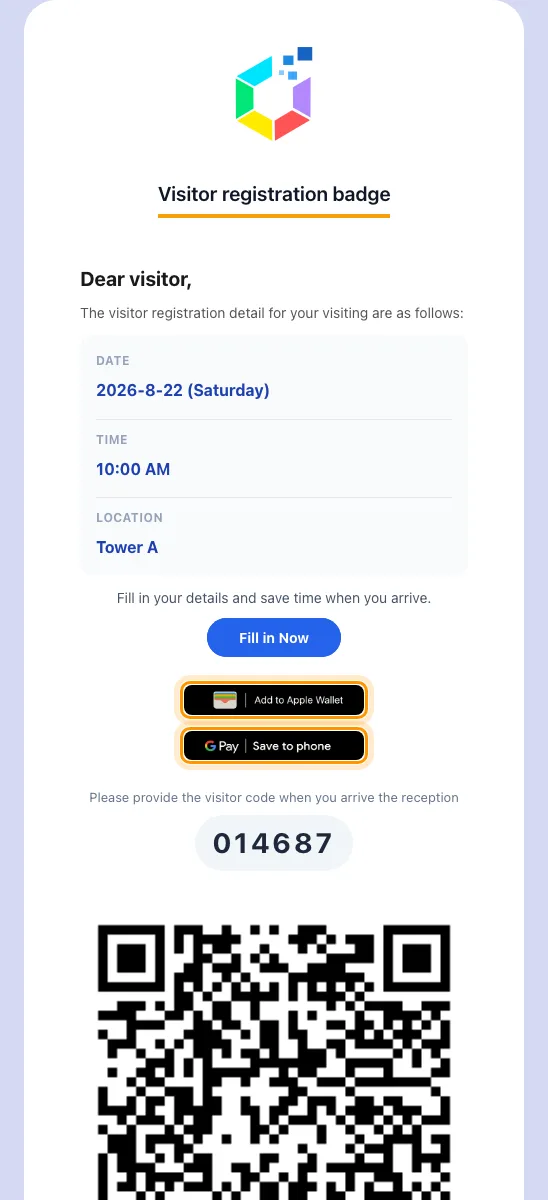
The badge email, with both wallet buttons above the visitor code.
On the visitor’s badge page. The web page a visitor opens from that email does know the device, so it shows one button, under the QR code: Apple’s on an iPhone, Google’s on Android. On a computer neither appears — the page offers Save visitor badge, which downloads the badge as an image instead. The same buttons appear on the confirmation screens of pre-registration and self check-in.
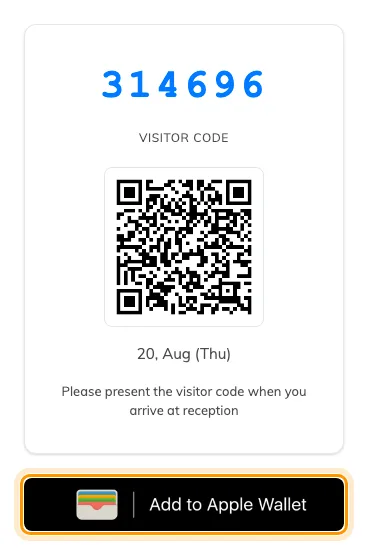
The badge page on an iPhone, with the wallet button under the QR code.
What the pass carries
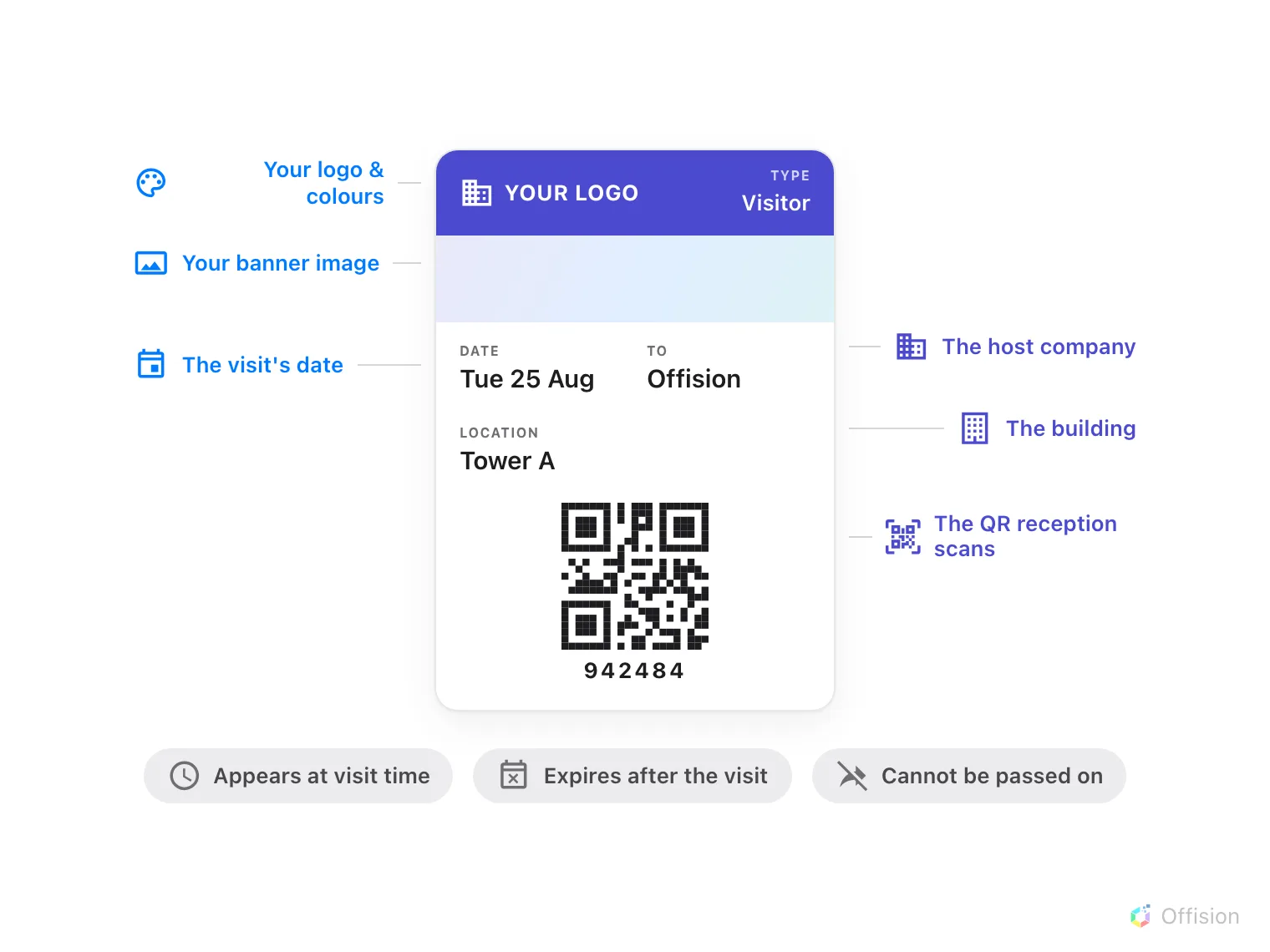
One card: your branding, the visit's details, and the QR code reception scans.
An Apple Wallet pass uses the badge’s validity end for expiry, not the scheduled appointment’s end. The appointment still supplies the displayed visit time and relevance period. A regular long-term badge uses its configured expiry; without an expiry, the Apple pass has none. Apple Wallet decides when to surface the pass, so lock-screen appearance is not guaranteed. An Apple pass also prevents sharing to another phone.
Why it beats keeping the email
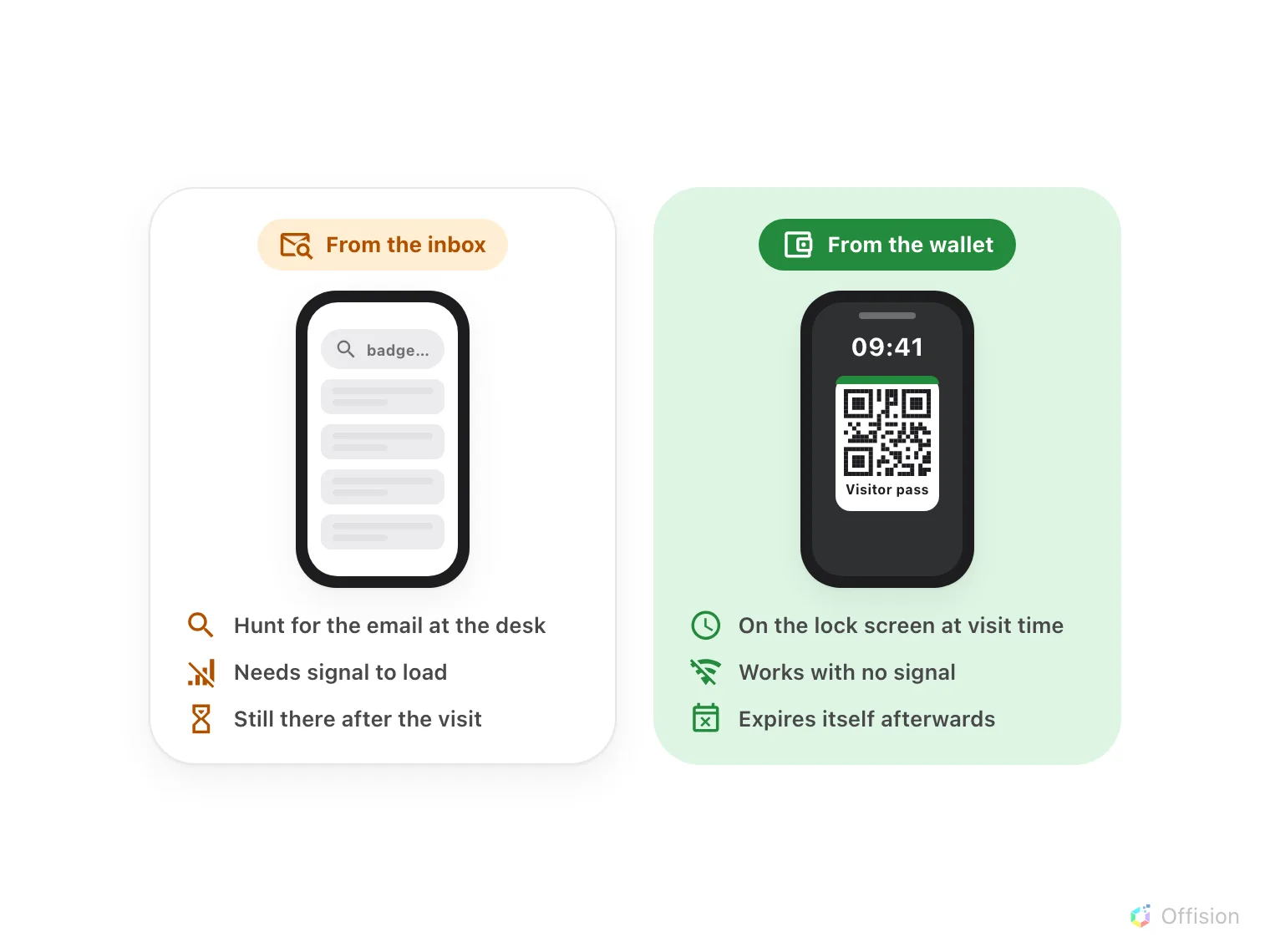
The same visitor, arriving twice: hunting the inbox for a QR code, or lifting a phone that already shows it.
A saved pass can be opened without signal. Reception still checks the current badge validity when the code is presented; a visible card does not prove access is valid.
Turning it on and branding it
The pass has one switch and one artwork set, on the Apple pass / Google pass settings page. Enable visitor pass attaches the pass to every badge email from then on; nothing else is required.
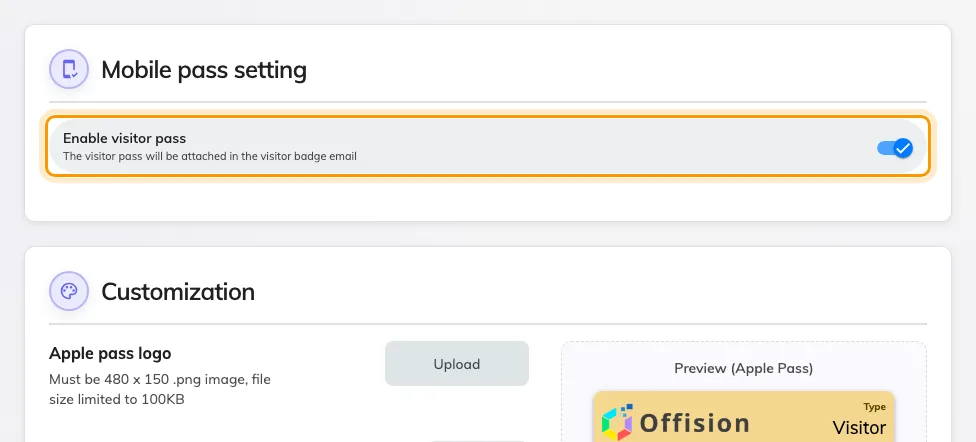
The switch. Turning it on reveals the customization card below.
Customization sets what the card looks like in the wallet: the Apple pass logo (480 × 150), the Google pass logo (512 × 512), the Banner image (1125 × 294), and the pass background, text and label colours. A live preview of both passes sits beside the fields, and Send testing email mails you a real pass to try on your own phone before any visitor sees one.
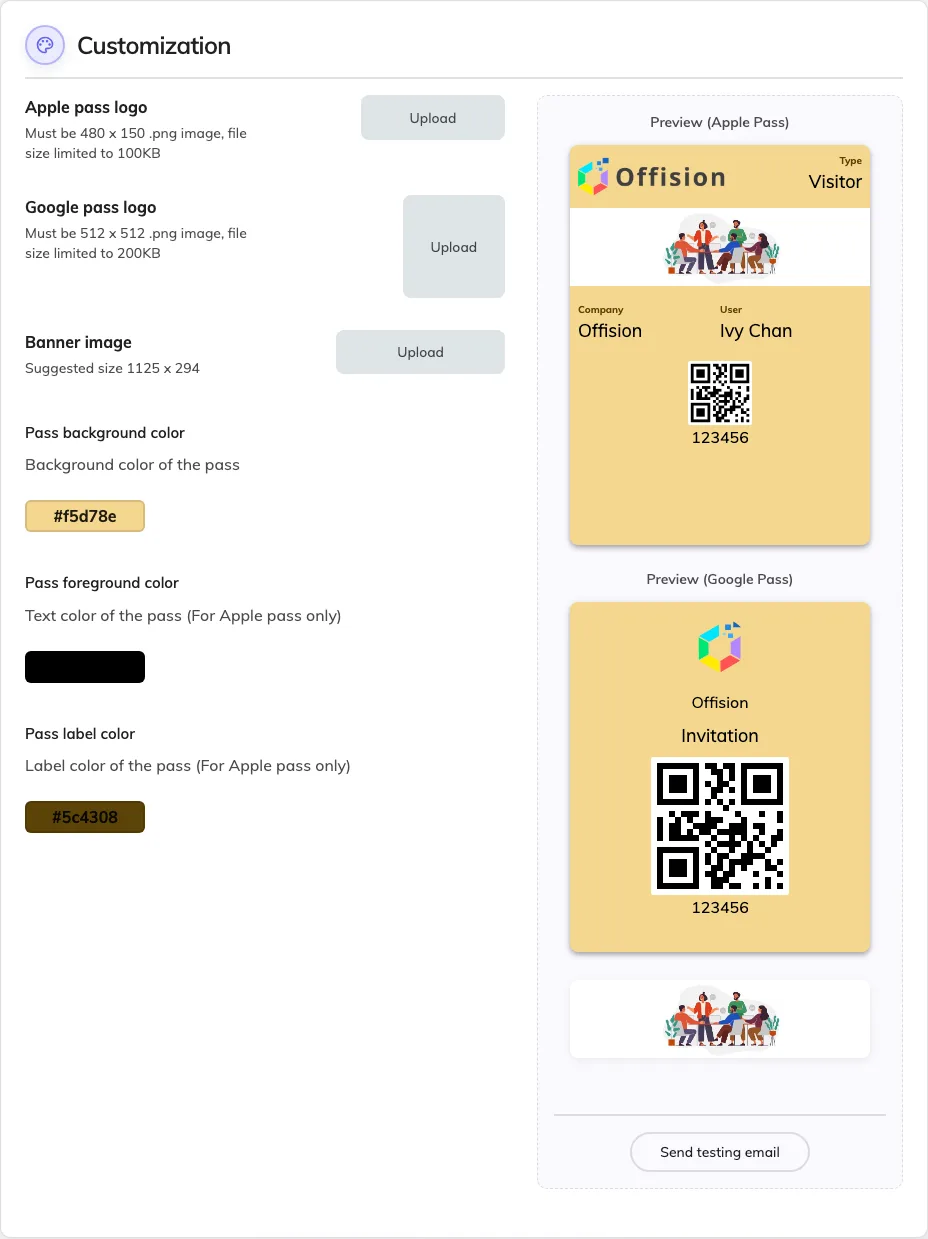
Customization: logos, banner and colours, with a live preview of both passes.
What this does not control
- The printed badge. Its layout comes from the visitor label design, not from here — see What appears on a visitor badge.
- The badge page. The web page has its own fixed layout; this artwork only dresses the wallet card.
- Locations that hide the QR code. A visiting policy that hides the QR code suppresses the pass entirely for that location — a pass without its barcode would have nothing to scan.
- Event passes. Passes for event registrations have their own switch and their own artwork, under the events module.
- Long-term badges. Contractors’ badges carry a pass of their own kind — see Give a contractor a long-term badge.
An issued pass follows the badge
Changes to a long-term badge’s validity or visitor code update its existing Wallet pass. Disable invalidates the issued Apple pass and expires the Google pass; Enable restores that pass when the badge is enabled again. Delete also invalidates it, but a deleted badge cannot be re-enabled. For the actions, see End a long-term badge.
The phone may need a network connection to receive the updated card. A card still visible in an offline wallet does not prove the badge is valid: the lobby checks the current badge when its code is presented. Keep the visitor-pass setting enabled to issue passes; there is no separate mobile-pass licence to select.