

Move to Offision from another system
The order to bring an existing workplace across: buildings, then rooms and desks, then people, then bookings and visits — each stage imported from a spreadsheet exported out of the old system, and why that order is fixed.
Almost everything in Offision can be created from a spreadsheet — resources, people, bookings, visits. So a migration is not a data project: export each list from the system you are leaving, reshape the columns in Excel, and import it here. What matters is the order, because each import names things created by the one before it.
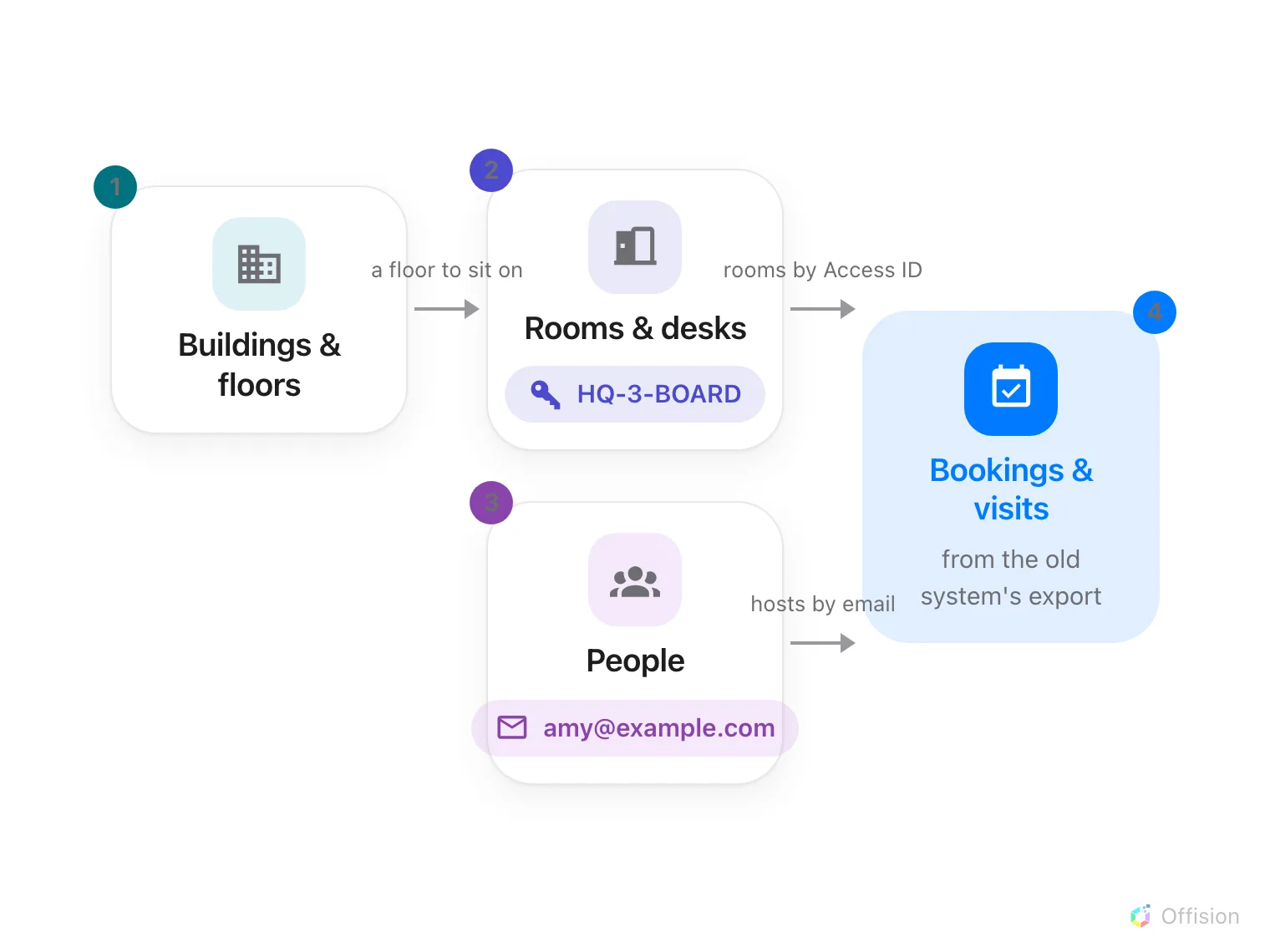
Each import names things created by the one before it — rooms by Access ID, people by email — so the order is fixed.
1. Export from the old system
Take whatever it offers — room lists, staff lists, upcoming bookings, expected visitors. The columns will not match Offision’s templates, and that is fine: at every import below you first download Offision’s own template, then copy the old system’s columns across in Excel. That copy-paste is the actual migration work, and a spreadsheet is the one place everyone can do it.
2. Buildings and floors
Everything else hangs off a location, so the estate comes first — there is no import for it, and it does not need one: it is a handful of records, made once. See Add a building and its floors.
3. Rooms and desks
On the resources list, Import (beside Add) creates rooms, desks or equipment in bulk from a template — names in every language, and capacity for rooms. See Add a room.
Then give each room an Access ID — a stable code like HQ-3-BOARD — on the
resource form. The booking import’s sheet names rooms by that code, and its
dialog has a reference page listing which rooms still lack one.
4. People
On the people list, Import creates and updates the whole directory from one sheet — see Add people to Offision. The imports below name organizers and hosts by these email addresses, so people must land before bookings do.
If the company runs Microsoft 365 or Google Workspace, connect the directory instead of importing it — accounts then arrive and update themselves.
5. Bookings
Export the old system’s upcoming bookings, reshape them into the booking template — rooms by Access ID, organizers by email — and import them on the management calendar. Every booking rule is still enforced, so what could not have been booked by hand will not import silently either. See Import bookings from a spreadsheet.
6. Visits
Export the expected visitors, reshape them into the visiting template — one row per visitor, locations by import ID, hosts by email — and import them on the Invitation calendar. Invitations, approval and badges behave as if each visit had been typed in. See Import visits from a spreadsheet.
7. Check it worked
Run one day end-to-end before retiring the old system: make a booking as an ordinary employee, check in at the panel, and let one imported visit’s guest check in at reception. Every import above ends with its own verification step — this one proves the pieces work together.
What this does not cover
This is the article for arriving from outside. Adding a site to an account that already runs Offision is the opposite job — almost nothing is imported, because the rules and content already exist — and has its own article: Open a second office by duplicating the first.
History does not migrate — Offision starts recording check-ins, logs and reports from day one. And none of the imports carry your rules: booking windows, approval, quotas and visiting purposes are configured, not imported — work through each module’s own articles once the data is in.