

Put visitors on a secured WPA-Enterprise network
Create a Visitor WiFi entry for Cisco Meraki, UniFi, TP-Link, Ruckus or any standard access point, point the access point at Offision's RADIUS server, and have visitors join with the username and password on their badge.
Done looks like this: a test visitor checks in, joins your guest SSID with the username and password on their badge, and is refused after checking out.
1. Add the network entry
Open Visitor WiFi, choose Add, and pick the brand that matches your controller from the menu — Cisco, Ruckus, TP-Link, Unifi, or Generic for any standard RADIUS access point. The brand cannot be changed after the entry is created.
Open Visitor WiFi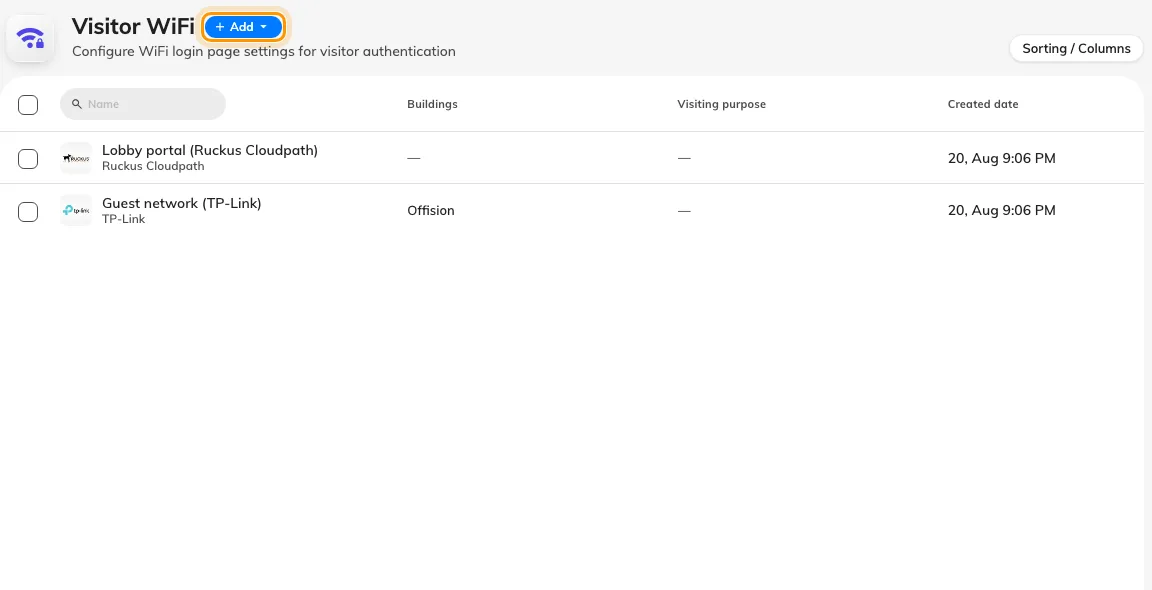
The Visitor WiFi page — one row per guest network.
The Marketplace also carries a tile per vendor under Visitor WiFi; a tile opens this same list with the brand already chosen.
2. Fill in the Basic page
Name the entry, decide the sign-in rules — Username type and Password type — and, if this network is for one site only, link its buildings.
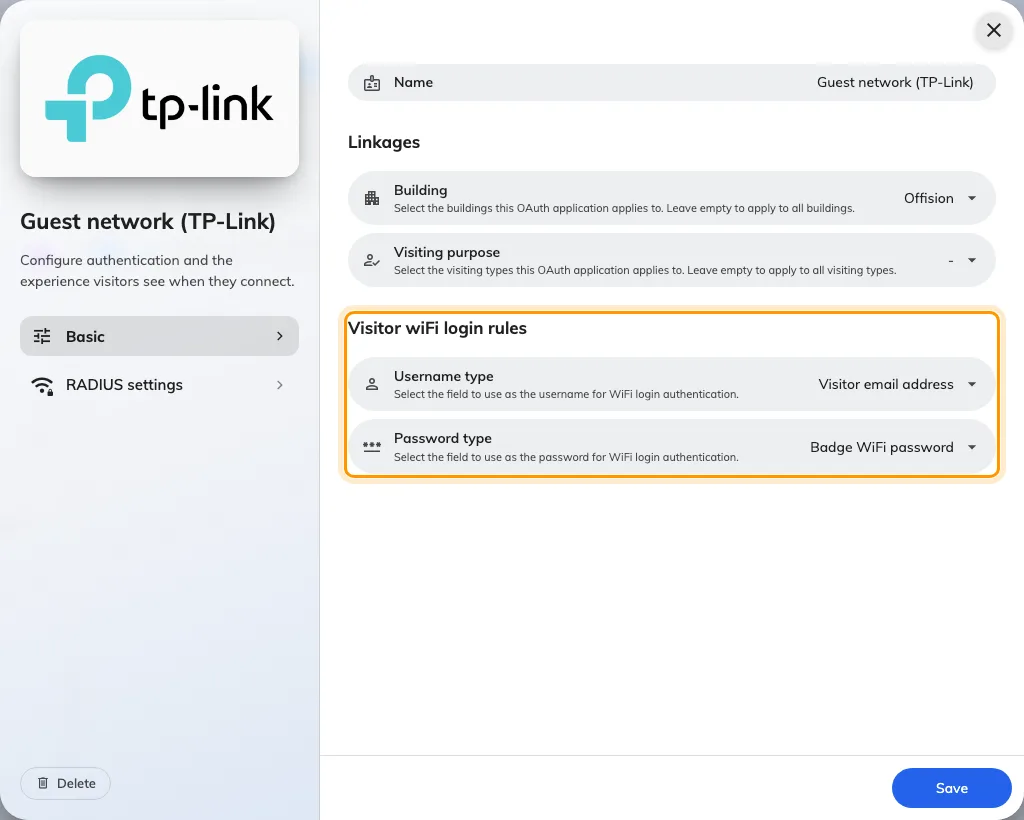
A RADIUS entry's Basic page — the sign-in rules, and no network-name field.
Every field is explained in the settings reference. There is no network-name field on this page: a secured network is named on your controller, and its security comes from the per-visitor sign-in, not a shared password.
3. Copy the RADIUS values into your controller
Open RADIUS settings, the second page of the dialog. Everything on it is generated for you: Host IP or FQDN, Auth port, Secret, and the NAS identifier.
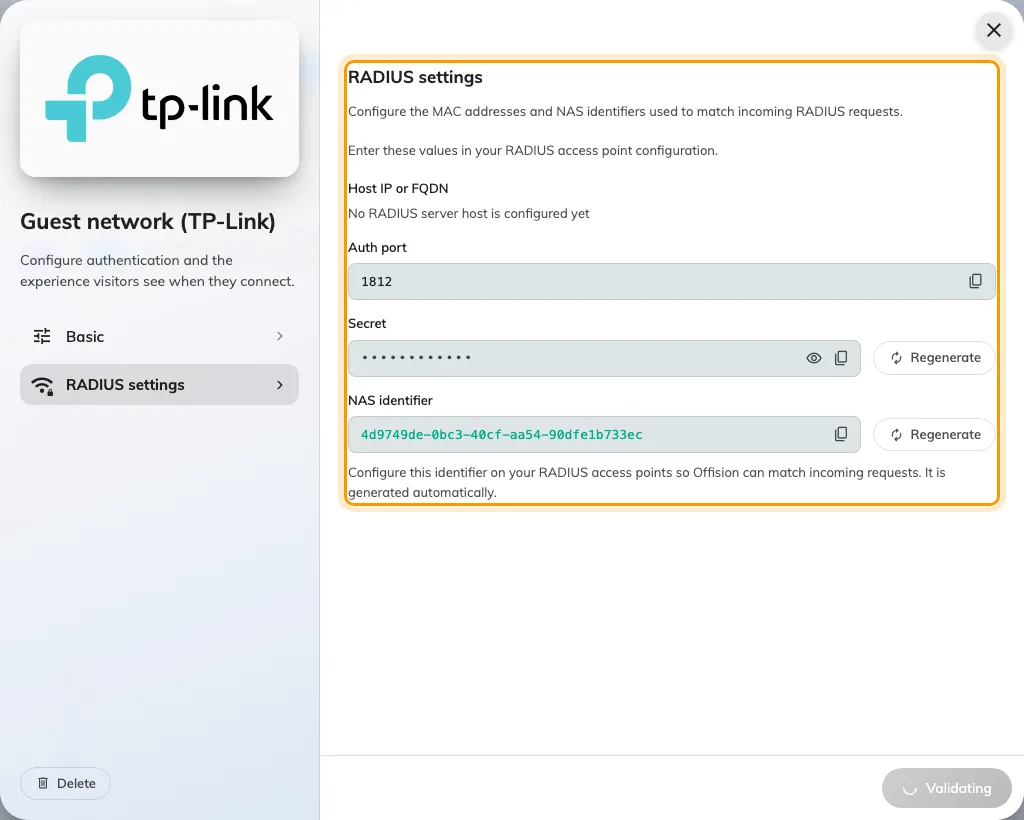
The RADIUS settings page — values to copy into the controller.
Two brands differ:
- Unifi authenticates by access point instead: enter your access points’ MAC addresses, one per line, rather than a NAS identifier.
- Cisco shows the same values arranged as a step-by-step Meraki guide.
4. Create the SSID on your controller
On the controller, create a WPA-Enterprise (802.1X) guest SSID pointing at the values from step 3. Offision’s RADIUS server answers PAP, EAP-TTLS/PAP and PEAP/MSCHAPv2 — the methods phones and laptops use out of the box.
5. Check it worked
Invite yourself, check in at reception, and join the SSID with the username and password printed on your badge. Then check out — and confirm the same details are now refused. Both results matter: the second one is the security story.
When it goes wrong
| What you see | Usual cause |
|---|---|
| Sign-in refused for a real visitor | They have not checked in yet, or their visit period has ended |
| Every sign-in refused | The entry has no Visitor WiFi Integration license, or the controller’s shared secret no longer matches — regenerating the Secret without updating the controller does this |
| The controller never reaches Offision | The NAS identifier (or a Unifi MAC address) is missing or mistyped on the access points, so requests cannot be matched to the entry |
| The badge prints no WiFi details | Expected for RADIUS brands — see what the badge can print |