

Write a visitor survey
Ask every guest a set of questions — a safety induction, a health declaration, an NDA, a safeguarding or background-check declaration — either before they travel or after they leave. The four answer types, the one that takes an acknowledgement, and where the answers can be read. An answer is recorded, never judged: it has no expiry date and refuses nobody.
A survey is a short questionnaire every visitor on a given visiting purpose has to answer. It is how a site puts a safety induction, a health declaration, a safeguarding or background-check declaration, or an NDA in front of a guest without anyone at the desk having to remember to ask.
Know what it is before building on it: a survey records an answer against that one visit. It carries no expiry date, so nothing notices that last year’s induction is stale, and no answer ever blocks a badge or a check-in — where a visit has to be refused on what somebody declared, a person decides that through approval. The details are at the end, under What a survey cannot do.
1. Create it
Open Visitor surveyGive it a Name and, if the questions need framing, a Description that opens the survey and a Footer that closes it. Branch management limits the survey to one branch of the organisation.
2. Choose when it is asked
Survey type is the decision the rest of the survey depends on, and it cannot be half of both.
| Survey type | When the visitor answers it |
|---|---|
| Before visiting | In the invitation flow, on the pre-registration page they open from their badge email, on the self-registration form, and at check-in — desk or lobby board |
| After visitior leave | In an email sent once they are checked out |
Before visiting is the one an induction needs: it reaches the guest while they are still at their own desk, and again at the door if they skipped it. The after-visit email goes out only when the purpose actually carries an after-visit survey — no survey, no email.
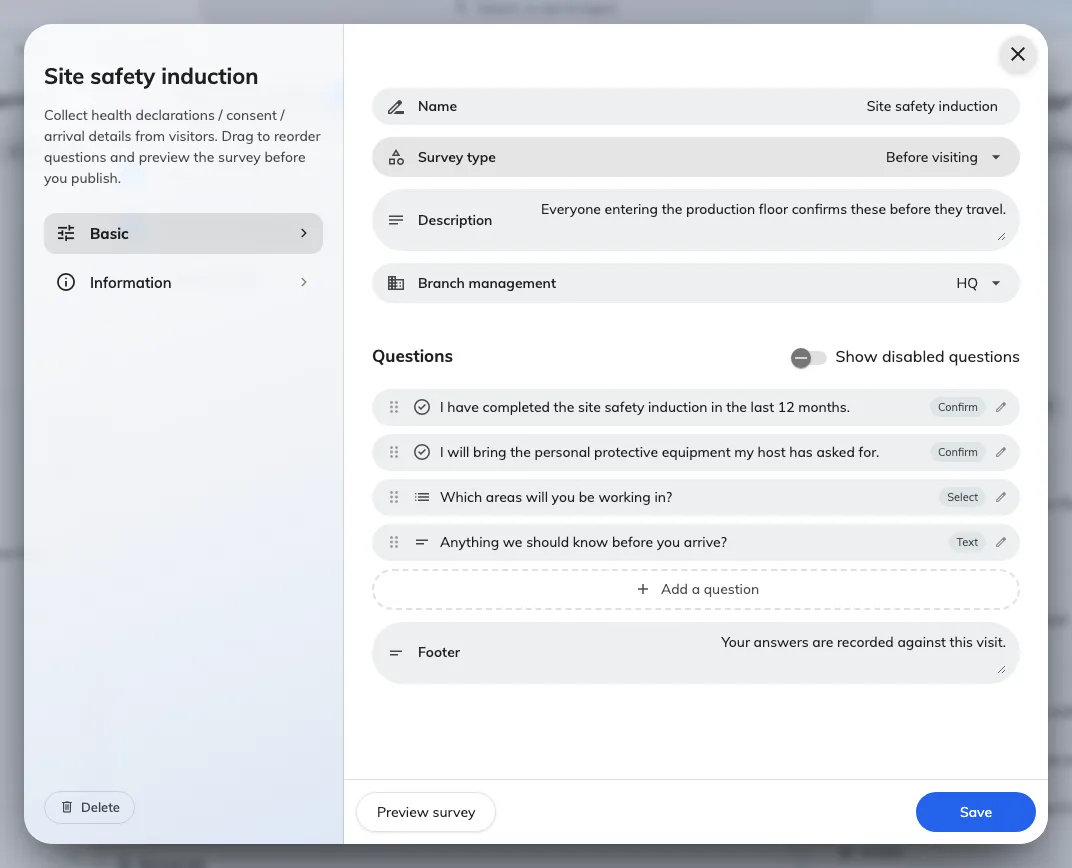
A survey, its type, and the questions under it.
3. Add the questions
Add a question, then set its Answer type.
| Answer type | What the visitor does |
|---|---|
| Yes / No | Answers one switch |
| Select | Picks one of the Options you list |
| Text | Types a free answer |
| Confirm | Ticks an acknowledgement — the sentence they are agreeing to is Customize confirm text |
Confirm is the type an induction or an NDA is built from: the question is the statement, and the tick is the record that they accepted it.
Remarks puts a line of guidance under a question. Optional lets the visitor leave it blank — leave it off for anything you intend to rely on later. Drag the questions to reorder them, and use Preview survey to read the whole thing the way a guest will.
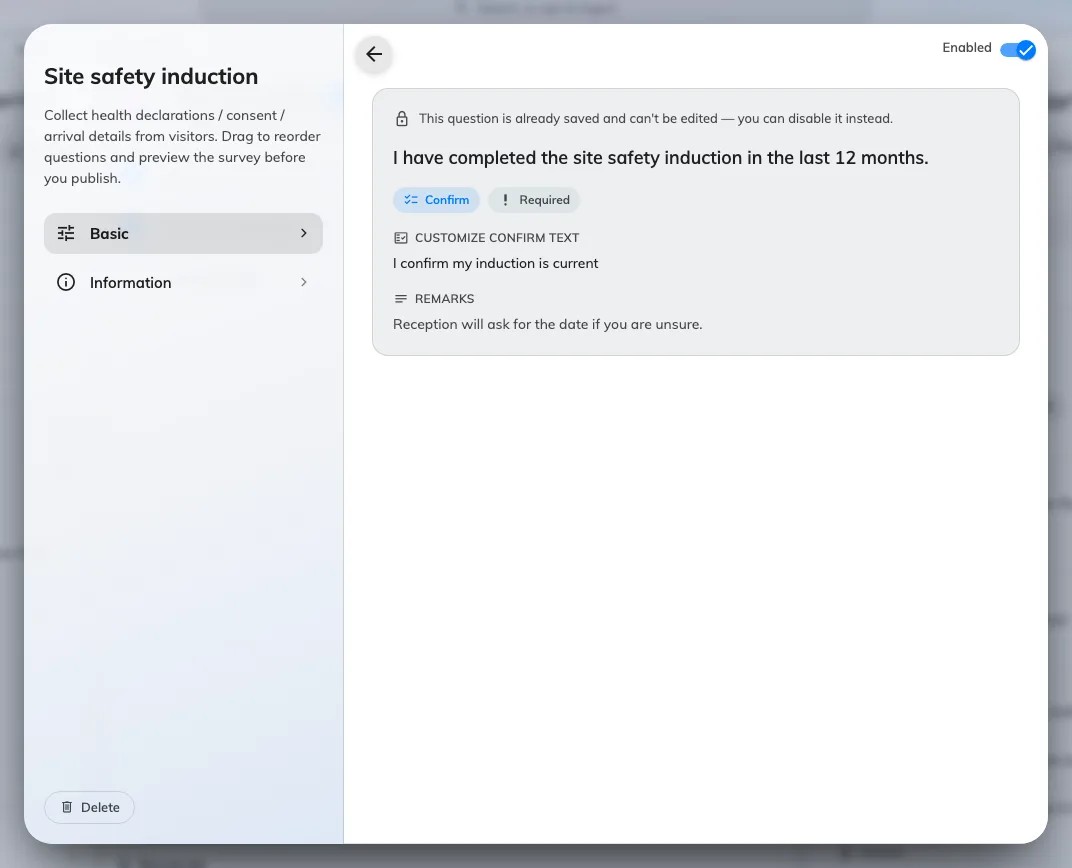
A question and its answer type. Saved questions can be disabled, not edited.
4. Attach it to a visiting purpose
A survey asks nobody anything until a purpose carries it. Open the purpose, go to Self-registration & survey, and tick it — see Set up a visiting purpose. A purpose can carry several, and each becomes a step of its own.
Scoping is what makes “contractors only” work: put the survey on a Contractor purpose and nobody visiting for a meeting is ever asked it.
5. Check it worked
Invite yourself under that purpose and open the pre-registration link in the email. The survey should be a step, with your questions on it in order.
Reading the answers
- At the desk. The reception and lobby-board check-in dialogs re-show the survey with the visitor’s earlier answers already filled in, so the desk can see what they said without leaving the arrival.
- In bulk. Export survey records on the survey’s own menu downloads every answer as a spreadsheet — one row per visitor, one column per question. The list itself shows only Replied surveys, a count.
There is no survey column on the visitor list and no survey section in a visitor’s record. The export is the only place a whole history is readable.
What a survey cannot do
- It cannot take a file. The four answer types are the whole set — there is no upload. A permit or an insurance certificate is not something a visitor can attach anywhere in Offision; see Visiting form reference.
- It has no expiry. An answer is recorded against one visit and carries no validity date. Nothing notices that last year’s induction is stale.
- It refuses nobody. No answer blocks a badge, triggers approval or stops a check-in — answers are recorded, never judged. Where a visit has to be vetted, use Require approval before a visitor is invited, which a person decides.
- A long-term badge skips it. A standing-pass holder’s arrival bypasses the surveys and the terms entirely — see Give a contractor a long-term badge. A contractor who must keep re-confirming an induction should be invited normally, not given one.