

The visitor photo, and what it does not prove
Where a visitor's photo is asked for, where it is taken, and the one badge design that prints it. Also why it is evidence for a person to read rather than a check the system performs, so a shared code is not caught by it.
A visitor photo is the face taken when a guest signs in. Offision does two things with it: prints it on the badge, where the design has room, and keeps it on the visit for staff to open later. Whether it is taken at all is decided by the visiting purpose, so two guests arriving the same morning are not necessarily both photographed.
It is not a check
Nothing compares the photo with the person holding the badge. There is no face matching at the desk, at a lobby board or at a gate. Scanning a badge tests the code: that it is a real one, that it has not been used, and that it belongs at this location.
So the photo does not stop a code being passed around — a shared code scans exactly as its owner’s does. What catches it is a person at the desk or the barrier comparing the printed face with the one in front of them. The photo is evidence for that person, not a lock.
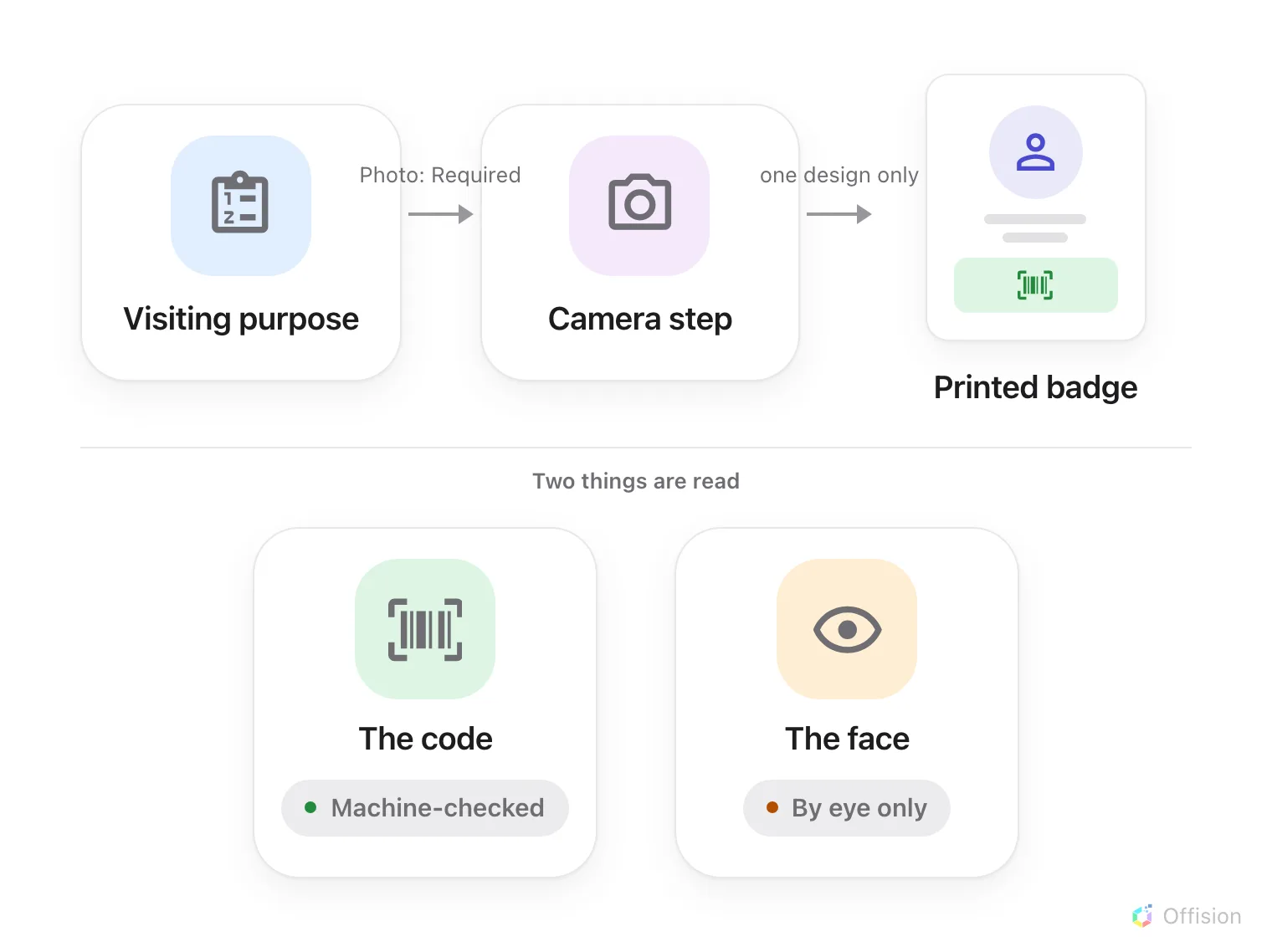
The photo reaches the printed label. Nothing on the path compares it — only the code is machine-checked.
Ask for it
A purpose’s Photo field has the same three values as every other thing it can ask for, and a new purpose starts at Hidden:
- Hidden — there is no photo step at all.
- Optional — the step appears and may be passed.
- Required — the visitor cannot finish without one. That also rules the purpose out for a receptionist working from a desk with no camera.
Reception can view the photo appears once Photo is not Hidden; see Who can see it. Where a visit carries more than one purpose, the strictest setting wins.
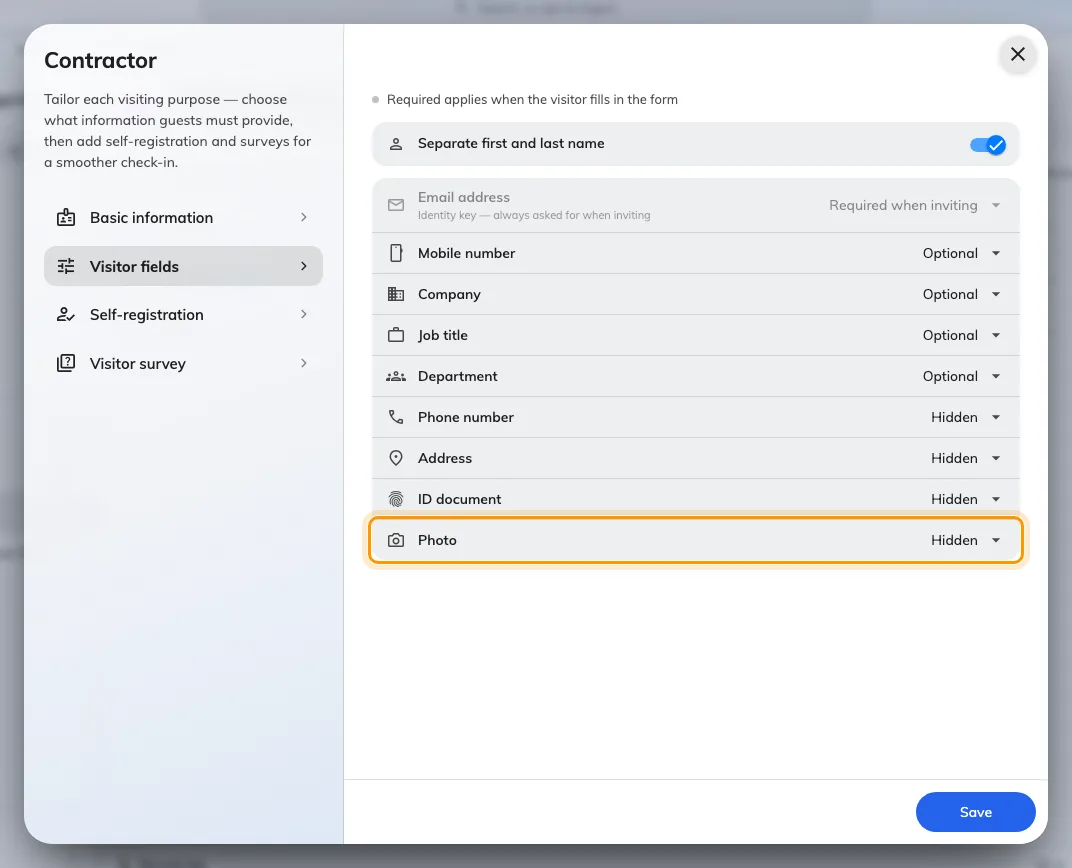
Photo sits with the other things a purpose can ask for, and starts Hidden.
Where it is taken
Always a camera, never a file. There is no upload anywhere — not for the visitor, not for an administrator editing the record afterwards. The camera runs a short countdown inside an oval guide, and the guide is framing help only.
Five places take one: the walk-in and the check-in wizards on a lobby board, the same two at reception, and the visitor’s own walk-in page on their phone.
Two gaps are worth knowing. An invitation collects no photo, so a guest who registered in advance still stops at the step when they arrive if their purpose asks for one. And a badge that already has a photo is not asked a second time when the same visitor checks in again.
Where it prints
One design carries a face: the photo and Wi-Fi layout. Every other design in the gallery leaves the photo off, however many visits have one — so a badge printing without a face is usually the design rather than the photo. See Change the visitor badge design.
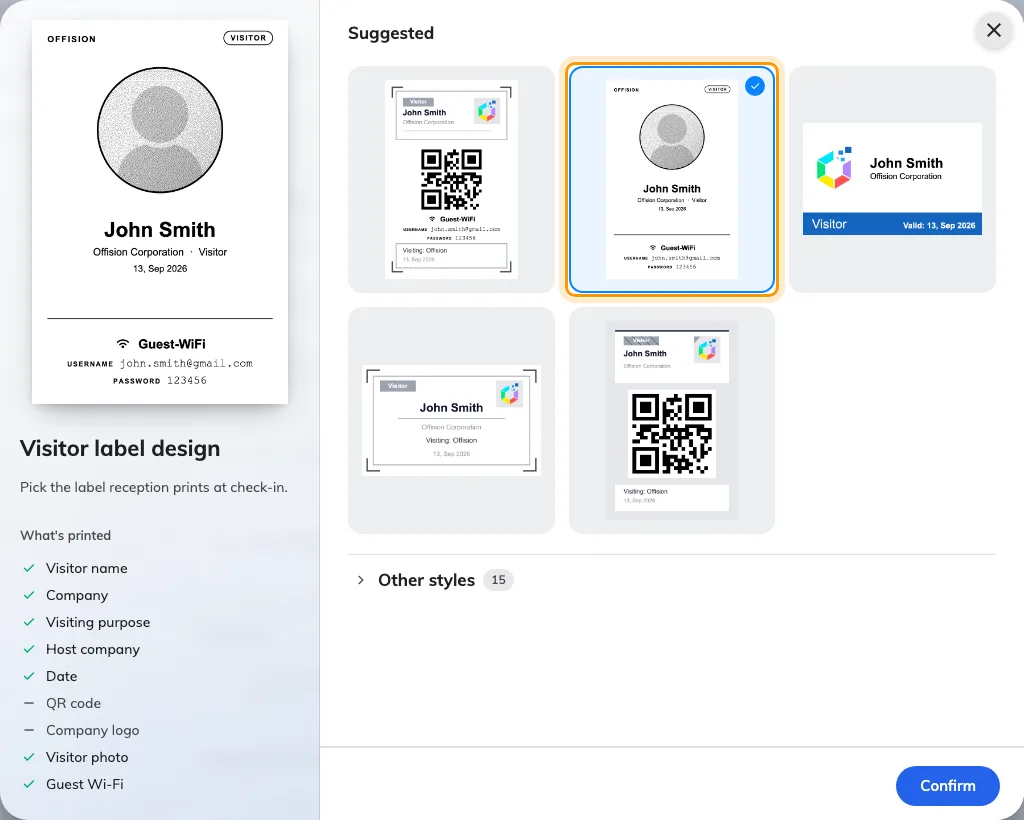
Visitor label design, with the photo and Wi-Fi layout picked. It is the only design whose printed contents include a visitor photo.
On that design the picture is cropped to a circle and reduced to black and white for label printers, and the layout prints no company logo. A visit with no photo still prints: the slot fills with a head-and-shoulders outline, which looks deliberate rather than broken.
The photo reaches the printed label only. The badge in the invitation email, the Apple or Google wallet pass, and the badge page a visitor opens on their phone never show it.
Who can see it
- Administrators — always, from the visiting record. The reception setting does not restrict them.
- Reception — only where Reception can view the photo is on. The photo is withheld by the server, not merely hidden on screen.
- Guards and the visitor — never. A guard’s scan returns a verdict on the code and nothing else.
How long it is kept
There is no separate retention for photos. They are deleted with the visit they belong to, under Purge visitor record information on the visiting settings page. This is not the same thing as the selfie a staff member takes to clock in, which has a retention period of its own.
When the badge comes out without a face
In order of likelihood:
- The badge design is not the photo and Wi-Fi layout. No other design prints one.
- The purpose has Photo set to Hidden, so nobody was ever asked.
- The visit is older than the setting. Turning Photo on does not fill in visits already on file.
- Failed to save the photo appeared at the desk. The registration went through and only the picture did not — take it again from the visitor’s card on the reception list rather than registering them a second time.