

Require approval before a visitor is invited
A visit that needs approving reaches the guest as nothing at all until somebody decides. Where the approver is named, what they see, and what the host and the guest are each told.
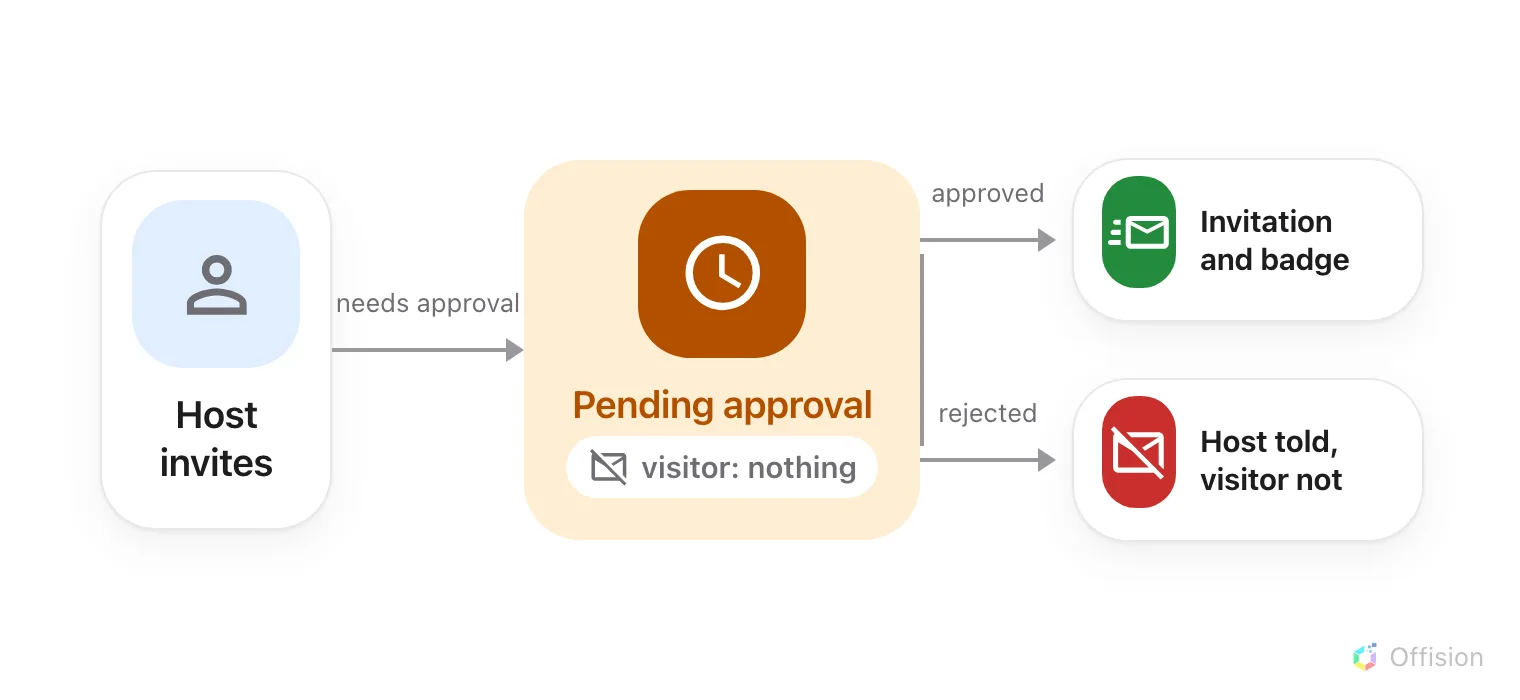
Until somebody decides, the guest gets no email, no badge and no code. A rejection reaches the host only.
1. Work out which policy the visit will use
A visiting policy is attached to a building, a floor or a room, and the most specific one wins: a room’s own policy beats its floor’s, which beats its building’s. Turning approval on at the building therefore covers everything under it, which is usually what you want.
Two consequences are worth knowing before you choose where to put it:
- A visit that touches more than one location needs approving if any one of those locations requires it.
- Every approver on every policy involved is emailed, and any one of them decides for the whole visit. There are no approval levels and no second signature.
2. Open Invitation & approval
Select the policy and open it for editing. Its settings are split into pages down the left — Visiting policy, Vehicle registration, Invitation & approval, Others — and approval is the third. The policy’s name is the title above them rather than a field on a page of its own.
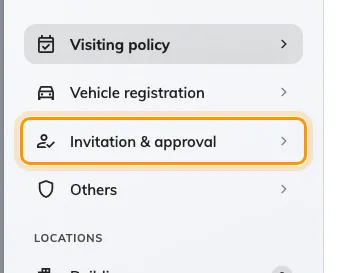
Invitation and approval, the third page of the policy.
3. Turn it on
Turn on Visitor approval and the approver field appears underneath it; until then there is nothing to configure. The page carries more than approval now — who may invite a visitor at all, and which organisation unit their invitations belong to — described in the visitor invitation settings.
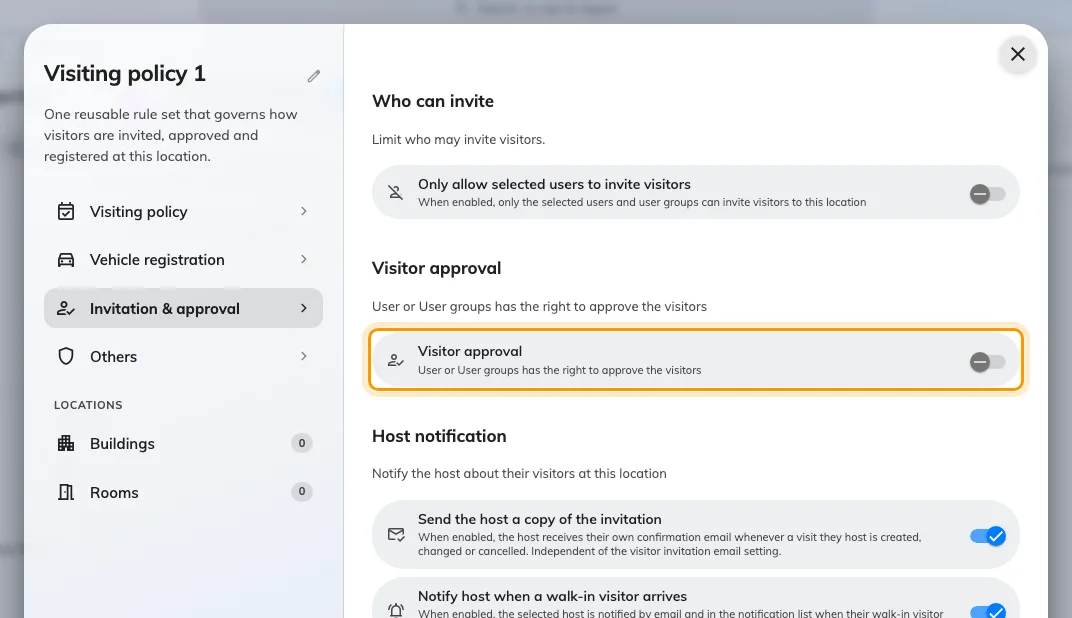
One switch. The rest of the page appears only once it is on.
4. Name the approvers
Visitor approval user(s) or user group(s) is who gets asked. It takes people and user groups together, and everyone named is emailed about every visit the policy covers.
Name a user group rather than individuals wherever one exists. Approval named on a person fails silently the day they change role, and there is nothing to catch it: a visitor request has no deadline, so it does not bounce and does not expire. The invitation simply never goes out, and the host is left assuming it did.
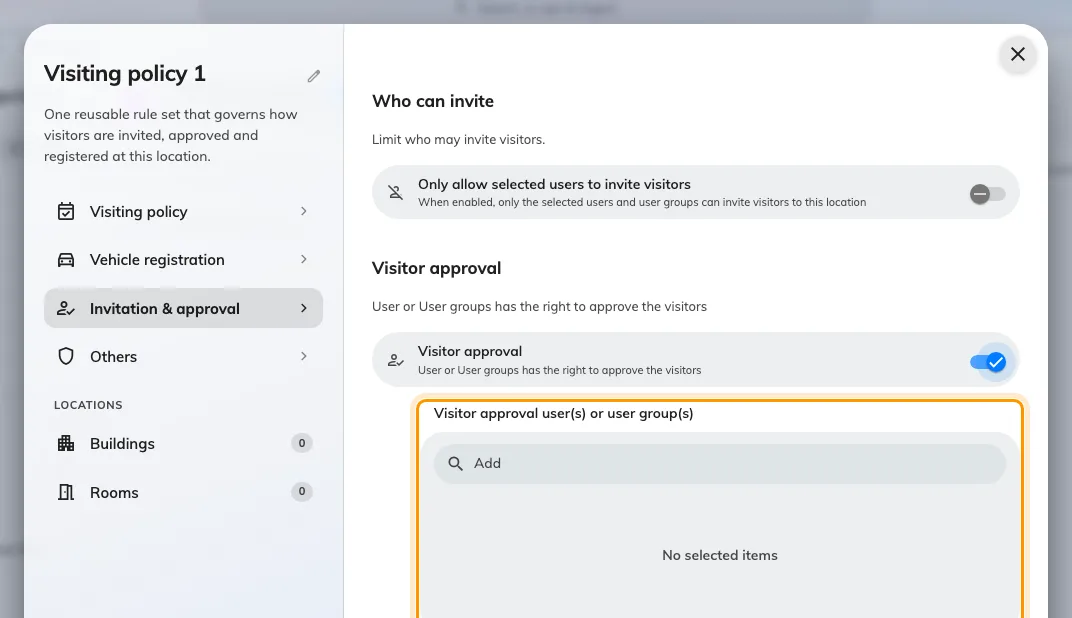
Approvers for this policy. Prefer a user group over named people.
Save the policy. It applies to the next invitation anybody creates.
5. What the approver gets
Two things reach them, and both end up on the same screen.
- An email, Visiting approval request. It carries a link that opens the request in the app — there are no approve and reject buttons in the message itself.
- A Visitor approval page in the app, carrying a count of what is waiting.
That page exists only for someone named on a policy. A colleague who cannot find it has not been named on one, and that is the first thing to check when requests appear to be reaching nobody.
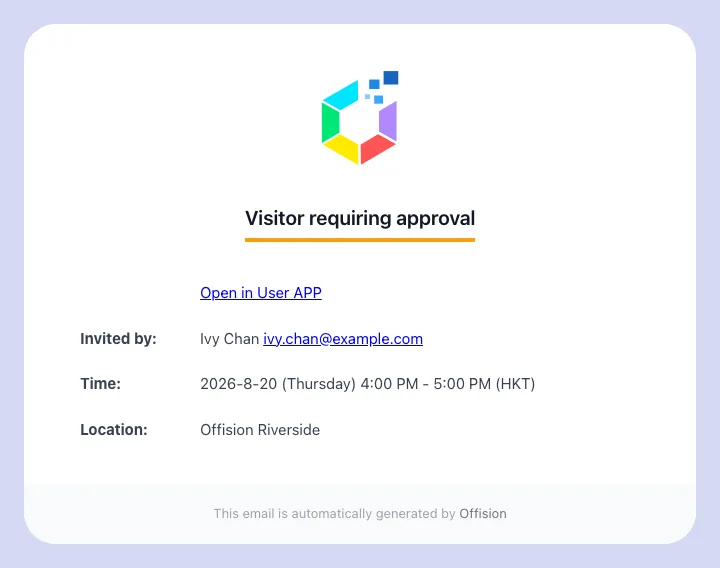
The email an approver receives.

Visitor approval in the app, with what is waiting to be decided.
6. Decide, one guest at a time
Opening a request shows who invited them, where, when and under which visiting purpose — then every guest on the visit, each with a tick and a cross of their own. Approve all and Reject all set them in one pass. A guest on your Black list is flagged in this list, which is the point of flagging them.
Two things about this screen catch people out:
- Nothing is applied until you press Confirm. Ticking a guest changes nothing on its own.
- Confirm stays disabled until every guest has been decided. A visit cannot be half-answered and left for later.
Approval is recorded per guest, so a visit with several guests can end up in a state no single guest is in.
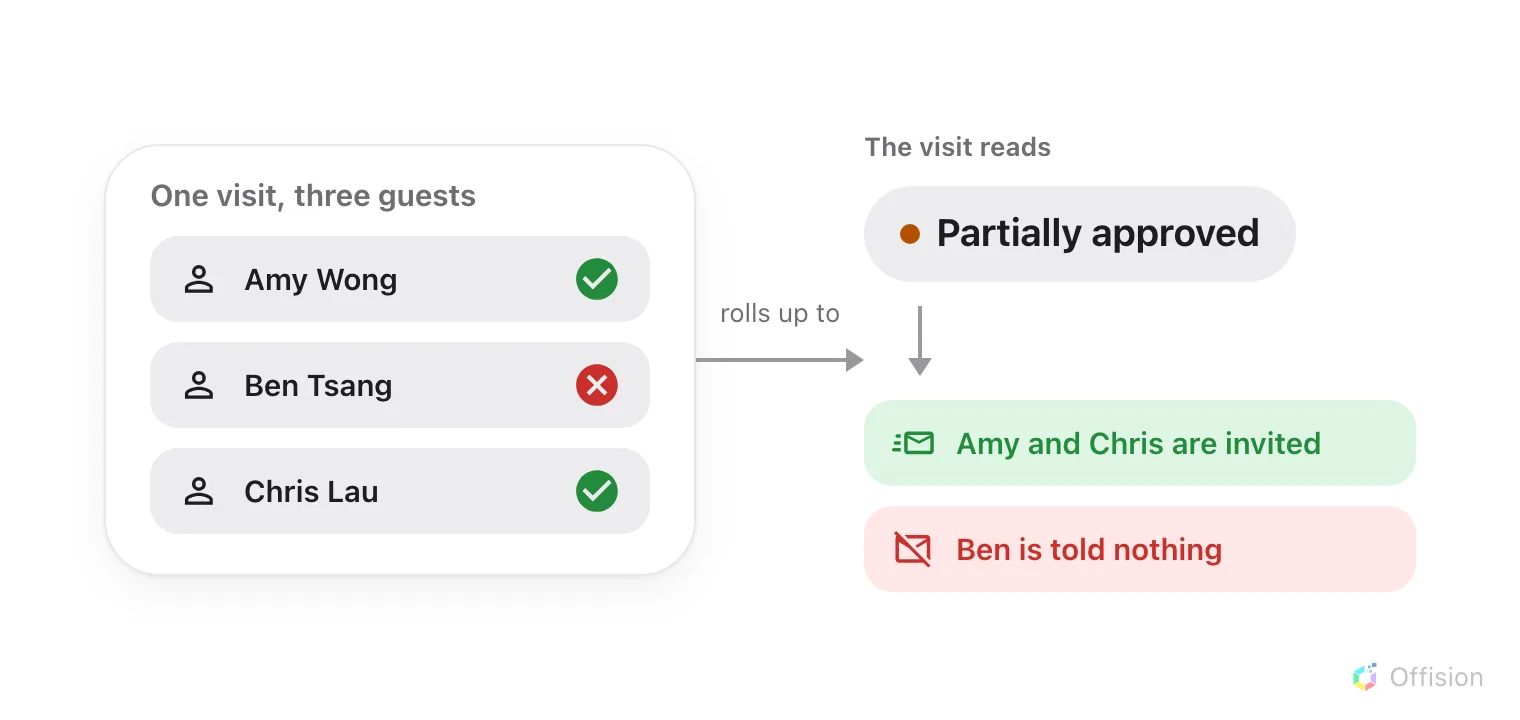
The visit's status is whatever its guests add up to, and only the approved ones are emailed.
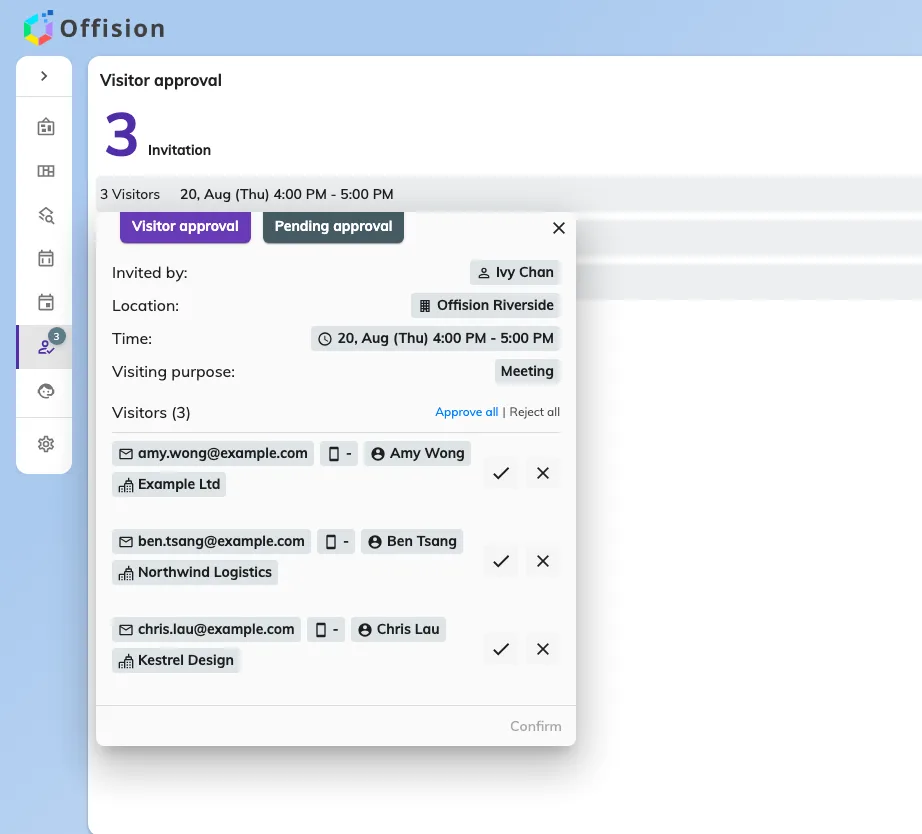
One request, with a decision to make on each guest.
7. If you administer Offision
There is no approval queue in the admin console. Administrators change a guest’s state from the Invitation calendar instead: open the visit, and each guest carries Change to approve, Change to reject and Change to waiting approval.
The third is the one worth remembering. A decision is not final — putting a guest back to waiting is how a mistake gets undone, and it is the only route back.
Open Invitation8. Check it worked
Invite a guest to a covered room, as somebody other than the approver, then look at three mailboxes:
- The guest should have nothing at all.
- The approver should have Visiting approval request.
- Approve it, and the guest should now receive Invited visitor while the host receives Visiting invitation approved.
If the guest was emailed straight away, the location the visit landed on is not covered by the policy you edited. That is the commonest mistake here, and the reason step 1 is about where the policy is attached rather than what it says.
What approval does not do
- It asks for no reason. Rejecting a guest records no explanation and sends none — unlike a rejected vehicle, which does carry one. If the host needs to know why, tell them yourself.
- It never expires. There is no auto-reject after so many days. A request nobody answers waits indefinitely, and nothing anywhere reports that it is waiting.
- It does not survive an edit. Changing a visit that was already approved puts every guest back to Pending approval and sends the request again. A corrected time or an added guest costs the whole visit its approval.
- It never writes to the guest. A rejected guest is told nothing, then or ever. If they had already been approved, their badge stops working and they find out at the door.
- It is not a chain. One flat set of approvers, one decision, no escalation and no routing to the guest’s host.
- It does not change what a guest is asked for. That is the visiting purpose — see Set up a visiting purpose.