

Download a day of visitor records
The Visiting daily report is one day's visitors as a table — who came, when they checked in and out, hosted by whom — downloadable as Excel or PDF. How to pick the day, choose the columns, and what each download actually contains.
One row per visitor, for one day — the sheet to hand security after an incident, or to file for a compliance check. Done means: the day you were asked about is on screen, and the file is downloaded.
1. Open the report and pick the day
Open Visiting daily reportThe report shows one day at a time — today, until you change it. The arrows either side of the date step a day at a time; the date itself opens a picker for anything further back. There is no range: a week means seven downloads, or the Visitor badge list’s export instead.
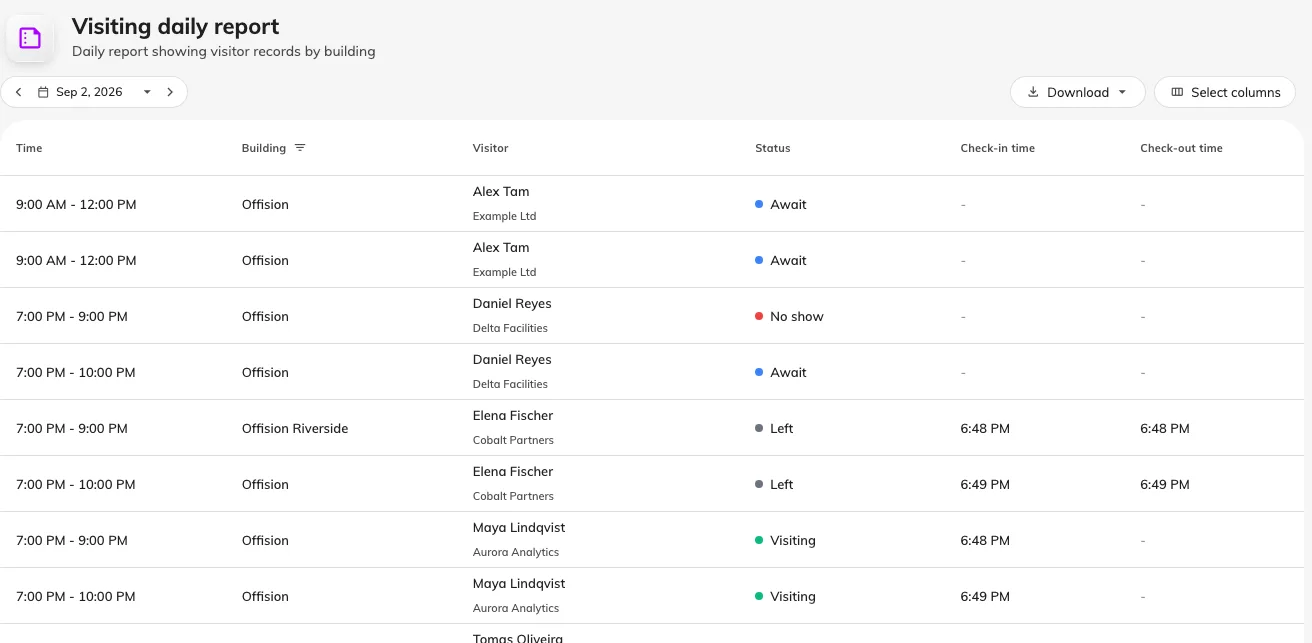
One day's visitors, with the total in the footer.
Each row carries the visit’s time, the visitor and their company, and a status pill — Await, Visiting, Left, No show, Overstay — in the same colours the visiting calendar uses.
2. Filter by building
The building filter hides inside the Building column header — the funnel icon beside the word. It is the same picker the Dashboard uses, and it sticks until you clear it with the cross that replaces the funnel.
3. Choose the columns
Select columns opens a panel on the right, and there are twenty-six columns in it. Time, visitor and status are always shown; building, check-in and check-out start visible; everything else starts hidden.
What starts hidden is most of the record. The visitor’s own details — company, email, mobile, phone, job title, department, identity number, address, first and last name — then the colleague who invited them, with their email and staff ID, and finally the visit purpose, room, walk-in flag, registration code, memo and the two notes. The visitor and inviter fields are the same ones the visiting record summary email attaches, so a figure you read in that email can be found here under the same name.
Your choice and order are remembered on your account, so set it up once for the report you file regularly.
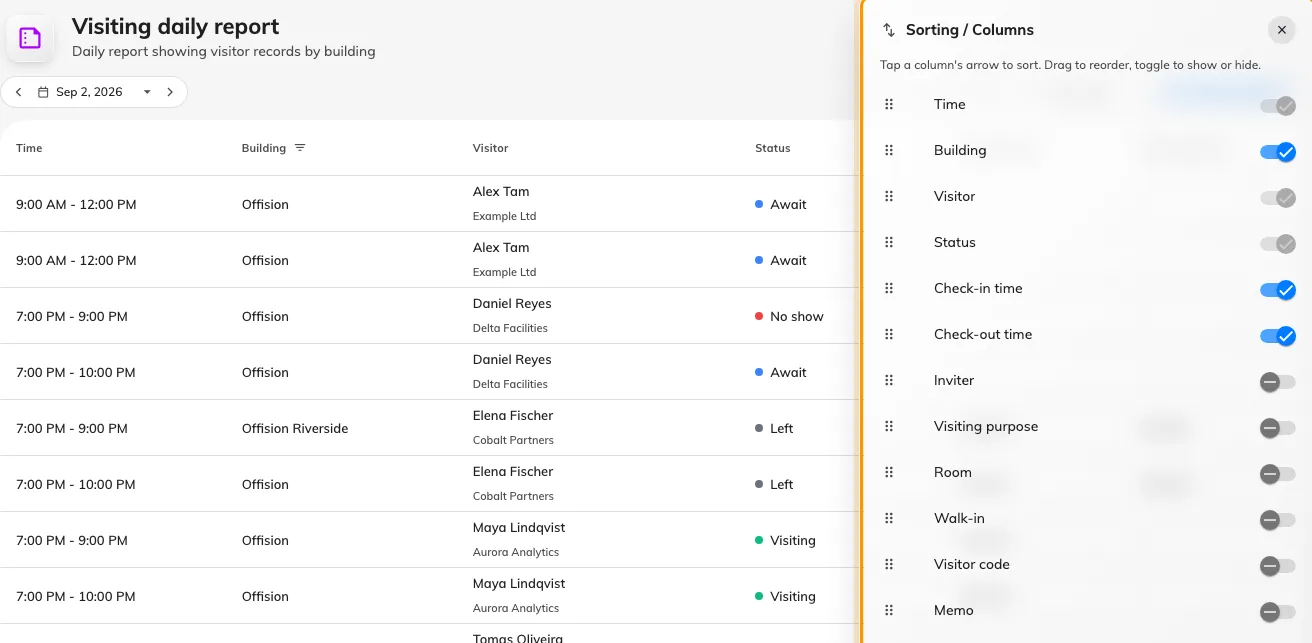
Hidden columns wait in the Select columns panel.
4. Download it
Download offers two formats, and both of them follow the columns you chose:
- Download as Excel — your columns, in the order you arranged them, one sheet named for the day.
- Download as PDF — a print of the table as you see it.
Hiding a column hides it from the download too, which is what makes the memo and the notes safe to leave off a file somebody else will open.
The button is disabled while the day is empty — an empty day downloads nothing, which is also how you know “no visitors” from “wrong filter”.
Check it worked
Open the file and compare its last row against the footer’s total. If the file has fewer rows than you expected, the building filter from step 2 is the usual cause — it applies to the download too.