

Visitor WiFi settings, field by field
Every field in a Visitor WiFi entry — the Basic page, the RADIUS settings, the OAuth Config values and the WiFi login page design — what each does and when to change it.
Each row on the Visitor WiFi page is one guest network. Opening one shows a dialog with up to three pages, listed on the left: Basic always, then either RADIUS settings (the Cisco, Unifi, TP-Link, Ruckus and Generic brands) or OAuth Config and WiFi login page (the Ruckus Cloudpath brand).
Open Visitor WiFiBasic
| Setting | What it does | When to change it |
|---|---|---|
| Name | Names the entry in the list. Visitors never see it | Name it after the network or site it serves, so the right row is obvious once you have several |
| Building | Which buildings this network serves. Empty means all buildings | Set it when different offices run different guest networks — the badge prints the one for the visit’s building |
| Visiting purpose | Which visiting purposes may use this network. Empty means all | Restrict it when only some kinds of visit should get WiFi at all |
| Brand | The controller vendor, picked from the Add menu and shown as the dialog’s banner. It decides how visitors sign in: every brand except Ruckus Cloudpath is a RADIUS (secured network) brand. It cannot be changed afterwards | Only at creation. To move a network to another brand, create a new entry |
| Username type | What the visitor signs in with: Visitor email address, Registration code, Mobile number, Last name or Reference code | Pick something every visitor reliably has. Last name can match several visitors at once — the password then decides which |
| Password type | What proves it is them: Badge WiFi password, Registration code, Mobile number or Not required | Badge WiFi password is the per-visit code minted at check-in — the safest default. Not required waves through anyone with a valid username |
| WiFi SSID | Ruckus Cloudpath only. The network name shown to the visitor — on the badge and the lobby board | Match it exactly to the SSID broadcast by your controller; Offision displays it but does not create it |
| WiFi password | Ruckus Cloudpath only. The network’s shared password, where the SSID is not open | Set it if the network itself needs a password to join before the login page appears |
The last two fields do not exist on RADIUS brands: a secured network has no shared password, and its name lives on your controller.
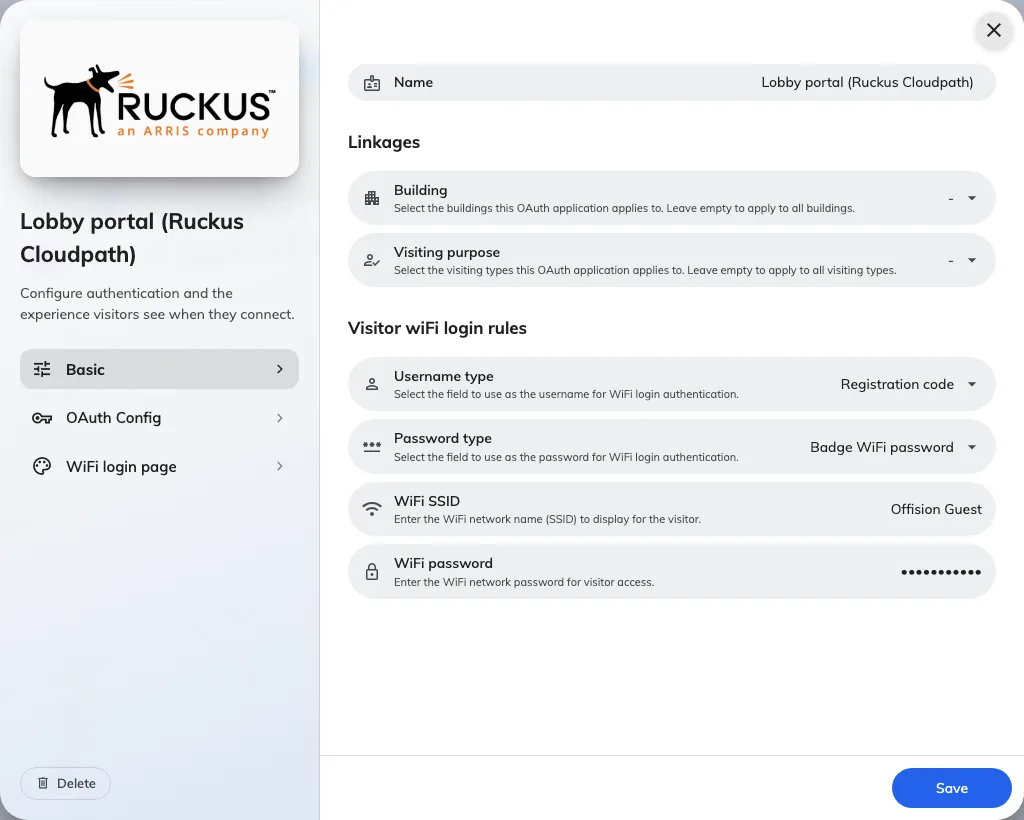
Basic: who the entry applies to, and which visitor fields become the username and password.
RADIUS settings
Everything on this page is generated by Offision for you to copy into your controller — nothing here is typed in except the UniFi MAC list.
| Setting | What it does | When to change it |
|---|---|---|
| Host IP or FQDN | The address of Offision’s RADIUS server, shown as a host name and an IP | Never changed — copy whichever form your controller accepts |
| Auth port | The UDP port the controller sends authentication to (1812) | Never changed — copy it |
| Secret | The shared secret between your controller and the RADIUS server. Shown masked, with show, copy and Regenerate | Regenerate it if it may have leaked — then update the controller immediately, or every sign-in fails |
| NAS identifier | The generated identifier that tells Offision which entry an incoming request belongs to. Regenerate issues a new one | Never changed in normal use. Configure it on the access points exactly as shown |
| MAC addresses | Unifi only, replacing the NAS identifier. Your access points’ MAC addresses, one or more, comma- or line-separated | Add every access point that serves the guest network — a request from an unlisted one cannot be matched |
The Cisco brand shows the same values arranged as a step-by-step Meraki guide.
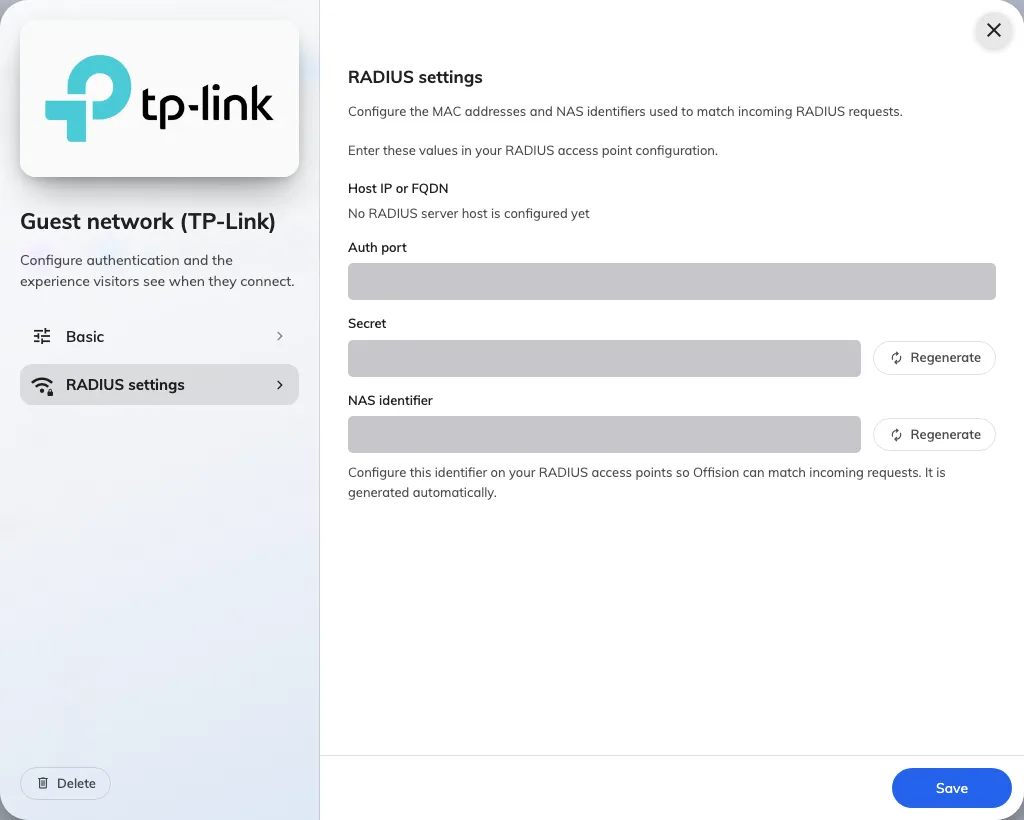
RADIUS settings, on an entry whose provider uses them. Values masked — yours are your own.
OAuth Config
Ruckus Cloudpath only. The values to copy into the controller’s Custom OAuth 2.0 form, each with a copy button: Name (suggested), Consumer key (Client ID), Consumer secret (Client Secret), Access token endpoint URL, Authorize URL, Data URL and Scope.
| Setting | What it does | When to change it |
|---|---|---|
| Consumer secret (Client Secret) | Proves the controller to Offision. The full secret is only shown at creation or after regeneration | Regenerate if lost or leaked, then paste the new value into the controller |
| OAuth redirect URL | The callback URLs from your controller that Offision will allow during sign-in. Add one per line; each is removable | Add the redirect URL your controller’s portal documentation gives you — sign-in fails without it |
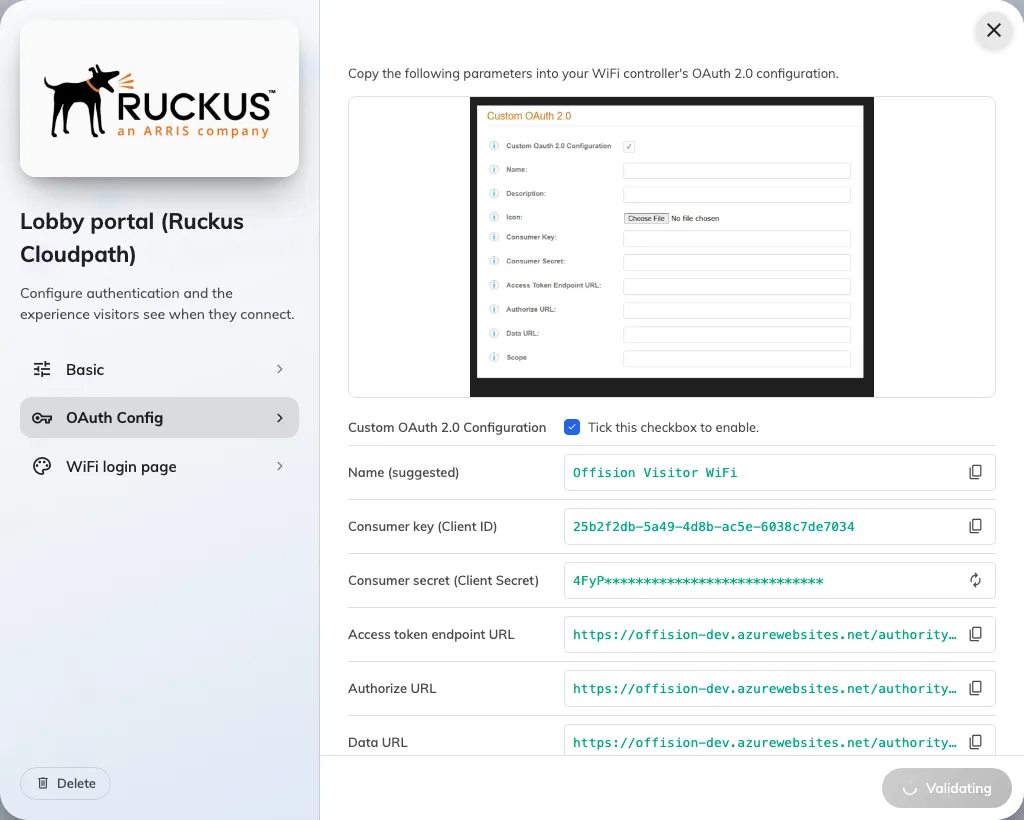
The OAuth Config page: the parameters to copy into your WiFi controller, each with a copy button.
WiFi login page
Ruckus Cloudpath only. What the visitor sees in their browser. All text fields can be entered per language.
| Setting | What it does | When to change it |
|---|---|---|
| Logo | Shown at the top of the login page. 256 × 256 recommended | Set it so the page is recognisably yours — visitors hesitate at an unbranded sign-in page |
| Page title | The heading on the page | Default is fine; change it to name the network or the site |
| Welcome message | A short line under the title | Use it for the one instruction visitors need — where the code is on their badge |
| Footer text | A line at the bottom of the page | Terms of use, or a front-desk contact |
| Background Image | Fills the page behind the sign-in card. 1920 × 1080 recommended | Optional branding |
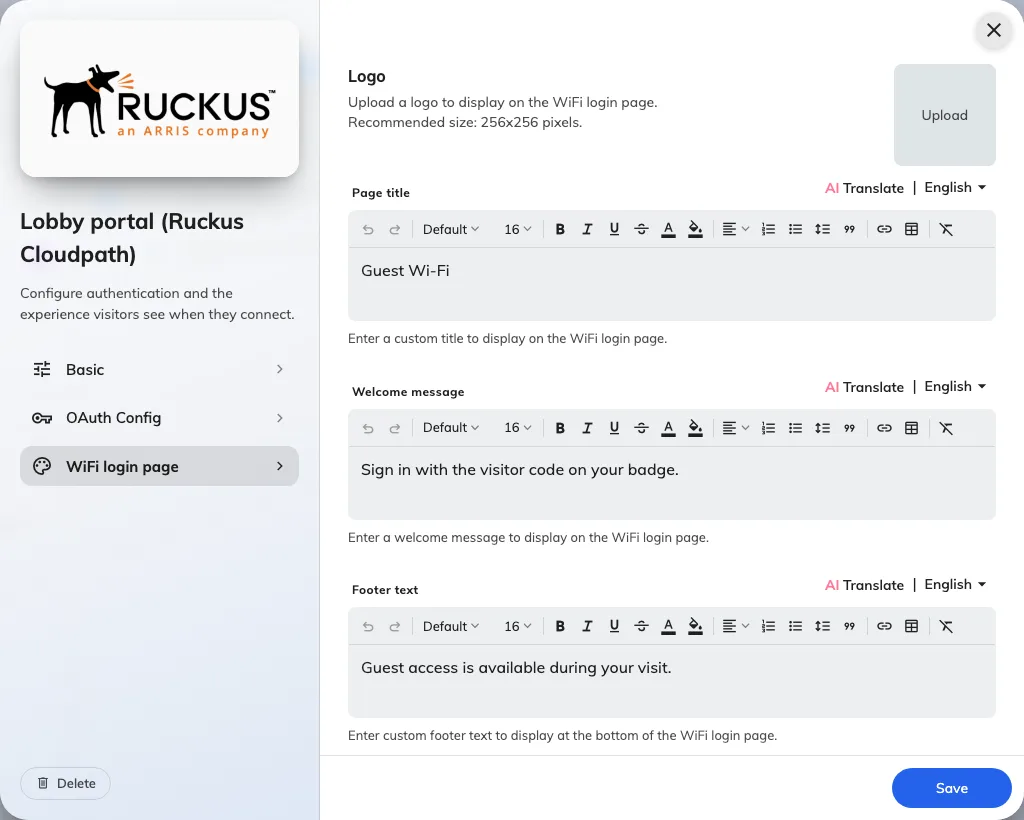
WiFi login page: the logo, title and text a visitor sees when they connect.
What this does not control
- The badge layout — whether a badge prints WiFi details at all is the badge design, on Visitor label design. See Print the WiFi code on the badge.
- When the code is valid — always check-in to check-out. There is no setting that extends a visitor’s access beyond their visit.
- The signage Wi-Fi QR widget — its network details are typed into the widget, not read from here.