

Email a forecast of upcoming visitors
Schedule a recurring email that counts the visitors expected in the coming day or week and attaches the full list as a spreadsheet — who receives it, what the counts include, and how to send one immediately to check it arrives.
A subscription, not a viewer: this forecast, this often, to these people, about these buildings. The email counts the visitors expected in the coming window and attaches the full list as a spreadsheet, so a facilities manager knows tomorrow’s load without opening the console.
1. Open the email report page
In the Visitor module the page sits under Settings, behind Show more — it is not one of the pinned entries.
Open Email report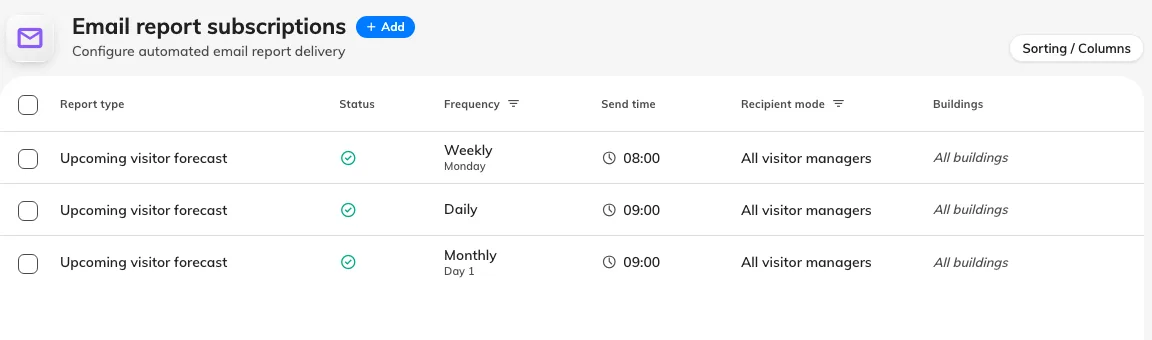
Each row is a standing instruction with its own recipients and schedule.
2. Add a subscription
Choose Add. Report type is already Upcoming visitor forecast — the only report the visitor module publishes. Leave Enabled on; turning it off later pauses the sending without losing the recipients.
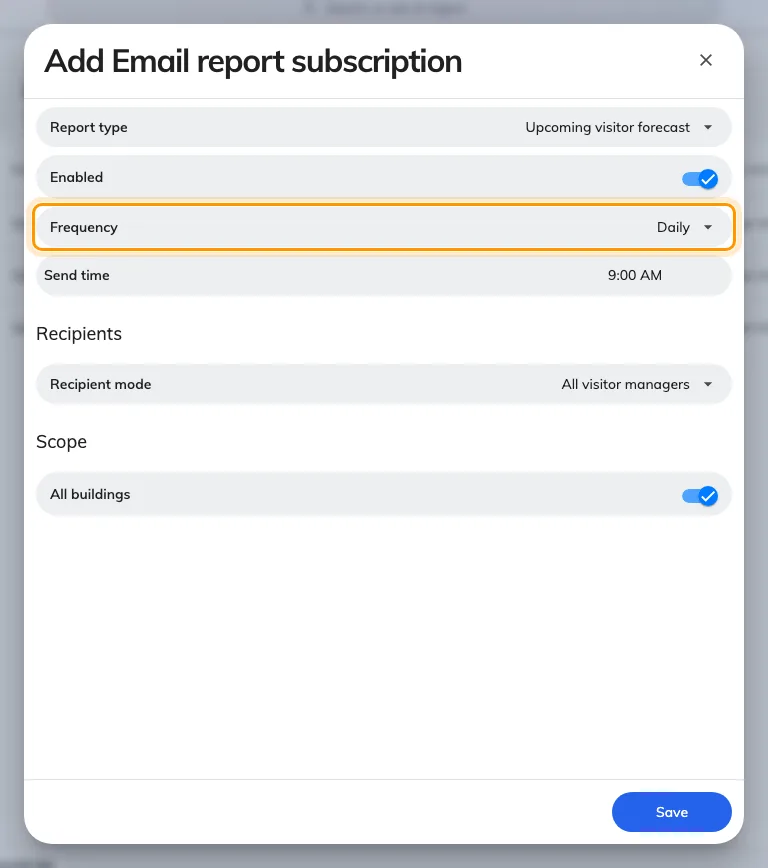
Frequency and send time decide when the email goes out.
3. Choose the schedule
| Frequency | Arrives | Covers |
|---|---|---|
| Daily | Every day | The next day |
| Weekly | The day of week you pick | The next seven days |
| Monthly | The day of month you pick, 1 to 28 | The next day |
Every forecast starts tomorrow — today’s arrivals are never in it. Only Weekly widens the window; a monthly email still covers a single day. Send time is honoured to the hour, in the system time zone.
4. Choose who receives it, and which buildings
Under Recipients, All visitor managers sends to everyone holding Visitor manager or Global administrator, resolved fresh at each send; Specify recipients names people or user groups. Either way the list is filtered to people who hold Visitor manager or Global administrator — naming anyone else, directly or through a group, silently drops them. A subscription addresses managers; it never grants sight of visitor data.
Leave All buildings on, or turn it off to scope the forecast to the buildings one recipient runs. Then Save.
5. Send one now to check
Select the subscription and choose Send now in the panel on the right. This is a live send to the real recipients, not a preview — check a recipient’s inbox, not just the confirmation.
What arrives
The email leads with the day (or week) it covers, then four counts — total
visits, distinct visitors, hosts, and buildings involved — a View details
link into the Visitor badge list, and the full list attached as
visitors-<date>.xlsx, named for the day the forecast covers, not the day
it was sent.
If it does not arrive: the recipients most likely lack Visitor manager — if nobody on the subscription qualifies, nothing is sent at all. Then check Enabled, then whether the schedule has simply not come round yet (Send now distinguishes the two), and last whether any Offision email reaches anyone. An email of zeroes with an empty spreadsheet is the schedule working on a quiet day, not a failure.