

How visitors get online, and why the code on their badge is safe to print
The two ways Offision puts a visitor on your guest network — a secured WPA-Enterprise network or a hosted WiFi login page — and why either way the printed code only works between check-in and check-out.
The WiFi password printed on a visitor badge is not your network’s password. It is a code created for that one visit at the moment the visitor checks in, and it stops working the moment they check out — or their visit period ends. That is what makes it safe to hand out on paper: nobody is walking away with a shared password, and nobody in IT resets anything when they leave.
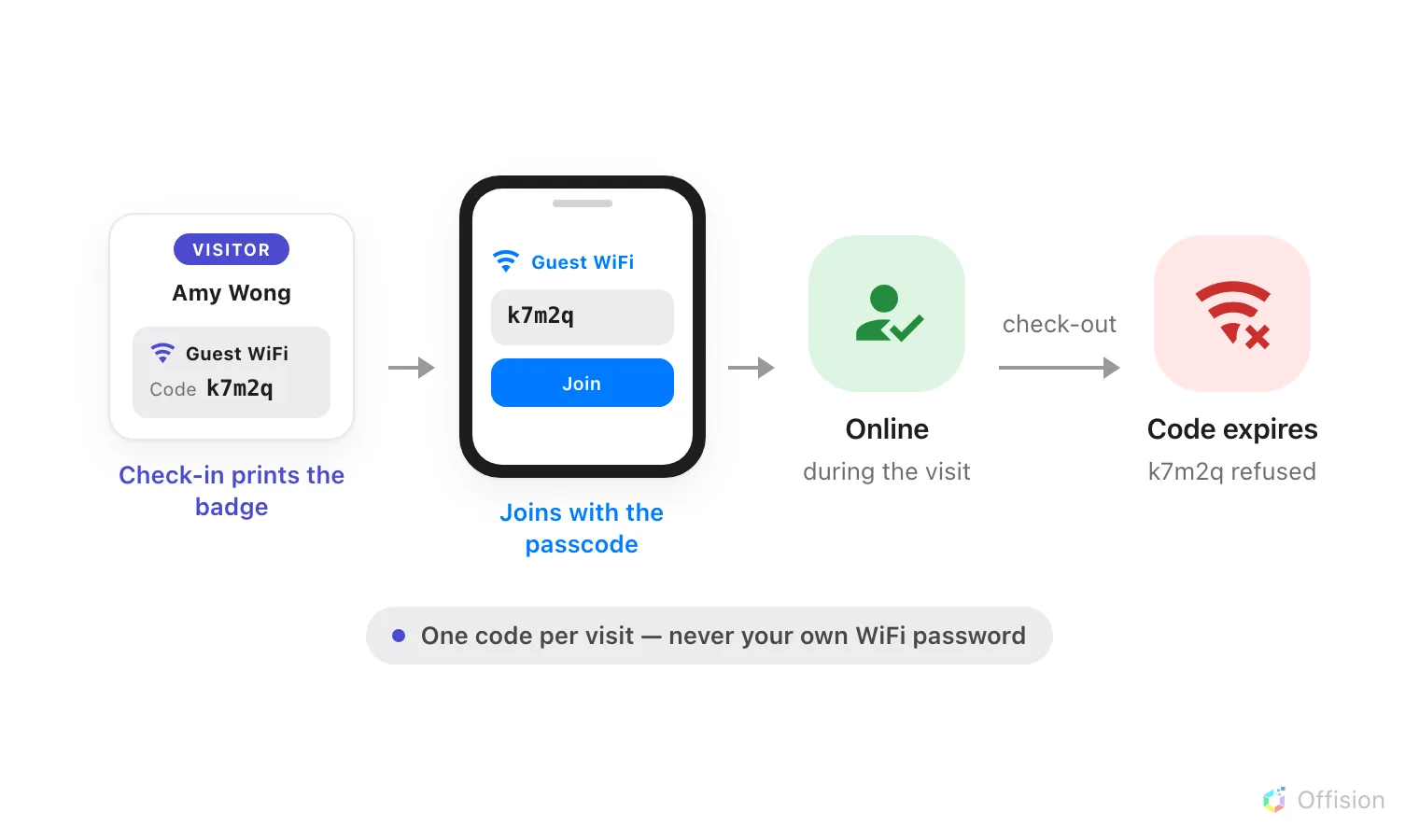
The visitor joins the guest WiFi with the passcode printed on their badge at check-in — and the passcode stops working at check-out.
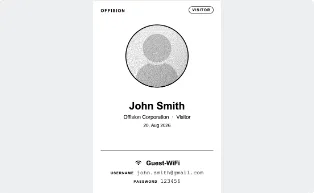
The badge as it prints — the Wi-Fi block carries the code for this visit alone.
Two doors, one check
Each guest network is one entry on the Visitor WiFi page, and its Brand decides which door visitors use:
- A secured network (the Cisco, Unifi, TP-Link, Ruckus and Generic brands) — the network itself asks for a username and password, and the visitor types the details from their badge into the ordinary Wi-Fi join dialog. Your access points check them with Offision. See the WPA-Enterprise guide.
- A WiFi login page (the Ruckus Cloudpath brand) — the visitor joins an open network and a branded page appears in their browser asking for the same details. See the login page guide.
Either way it is the same check: does this belong to a visitor who is checked in right now, inside their visit period?
Open Visitor WiFiWhat visitors sign in with
Each entry picks its own Username type — Visitor email address, Registration code, Mobile number, Last name or Reference code — and Password type — Badge WiFi password, Registration code, Mobile number or Not required. One choice drives everything: the login page asks for it, the network checks it, and the badge prints it.
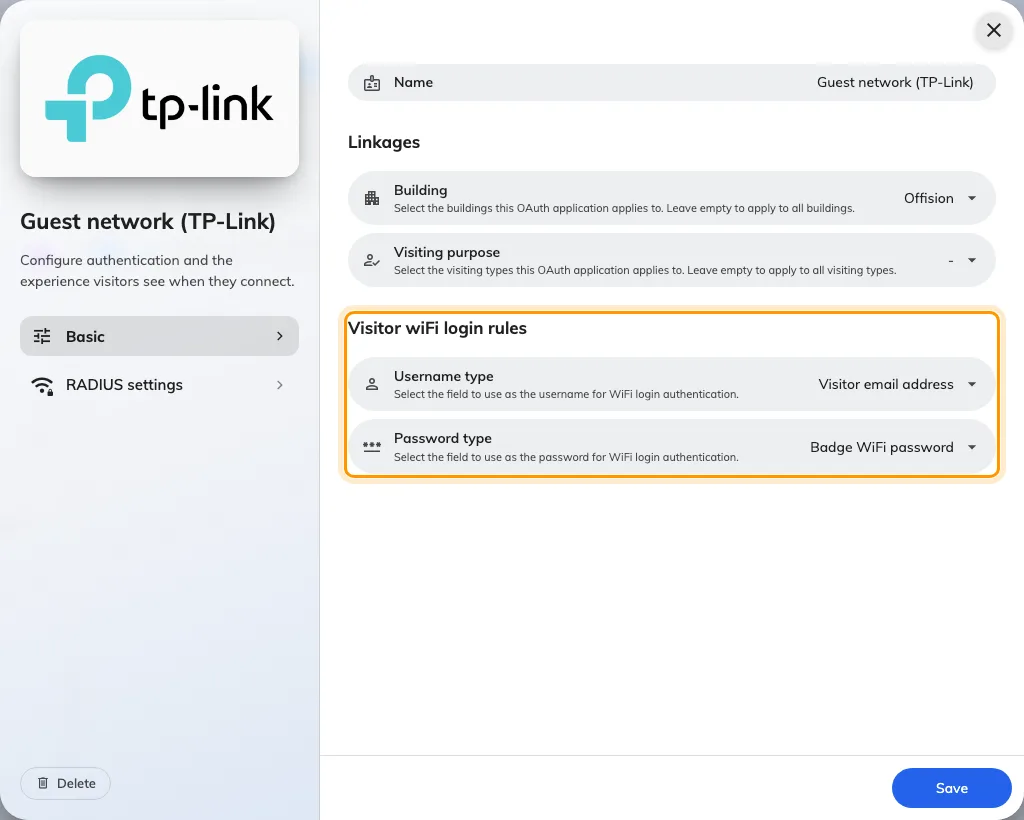
An entry's sign-in rules — the Username type and Password type a visitor is checked on.
Where each network applies
An entry can be linked to buildings and visiting purposes; left empty, it covers all of them. The badge prints the network for the building the visit is in, so two offices can run two different guest networks without anyone choosing.
What this does not control
- A secured-network entry prints no network name on the badge — the network is named on your controller, not in Offision. See what the badge can print.
- The invitation email carries no WiFi details. The credentials only exist once the visitor checks in.
- The signage Wi-Fi QR widget is separate — it can share any network you type into it, visitor or not. See Buttons and QR codes.
- Staff WiFi is not set here. These entries authenticate visitors only.
Each entry needs its own Visitor WiFi Integration license — one per network.