

Make a purpose the default, or delete one
Choose the visiting purposes and default offered by each building, duplicate a purpose, and handle upcoming visits and cleared defaults when deleting one.
1. Choose the building’s purposes
On Visiting location, select the building and choose Edit. On Settings, set Visiting purpose to All or Specify. With Specify, select at least one Specific purposes entry. This determines which purposes are offered at that building; editing the questions remains on Visiting purpose.
2. Choose its default
Set Default purpose to one of the building’s offered purposes, or choose No default, then save. With several purposes and no default, the person inviting or registering a visitor must choose. If only one purpose is available, it is selected automatically.
When an invitation includes several buildings, a purpose is pre-selected only when every building agrees on the same available default. Otherwise choose an offered purpose explicitly.
The old Set as default action on a purpose’s detail panel has been removed. Configure each building instead. Buildings not yet configured retain the previous default where it is still available; explicitly choosing No default stops that fallback.
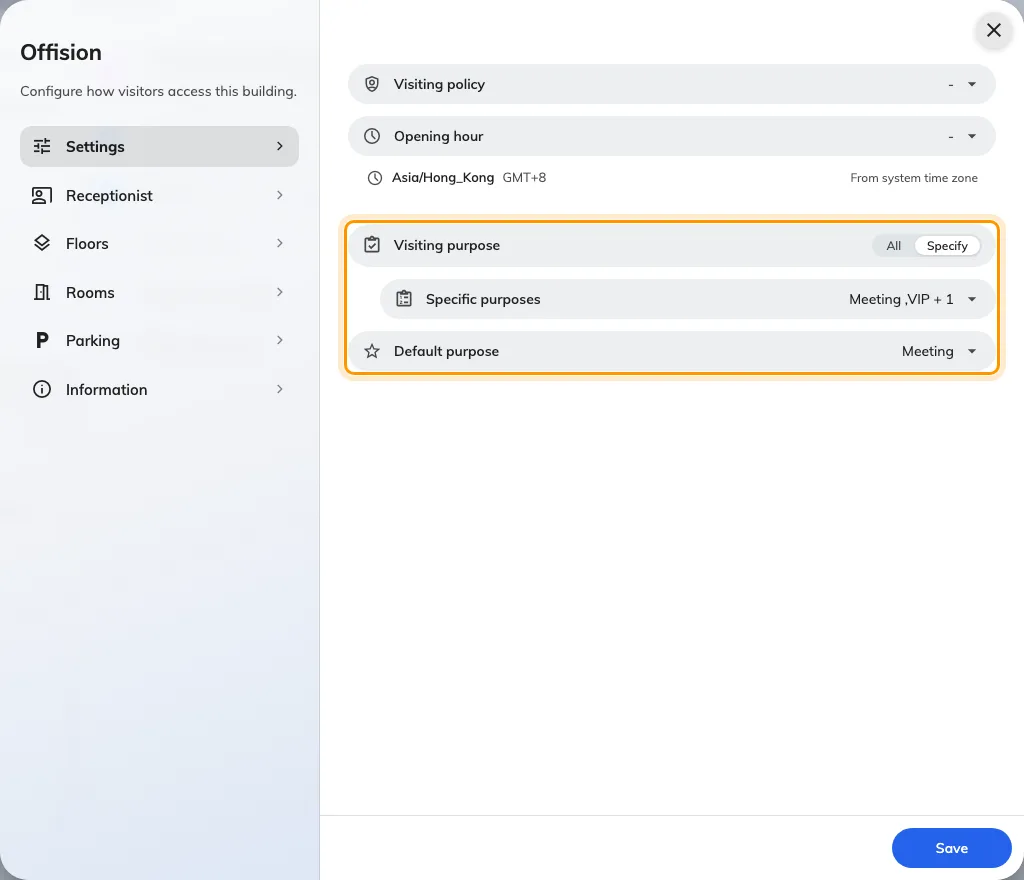
The building's Settings page chooses offered visiting purposes and a default from that list.
3. Duplicate a purpose
On Visiting purpose, select a row and choose Duplicate. Adjust the name and questions, save, then check that the copy is offered in the intended buildings. A building using Specify may need its list updated.
Open Visiting purpose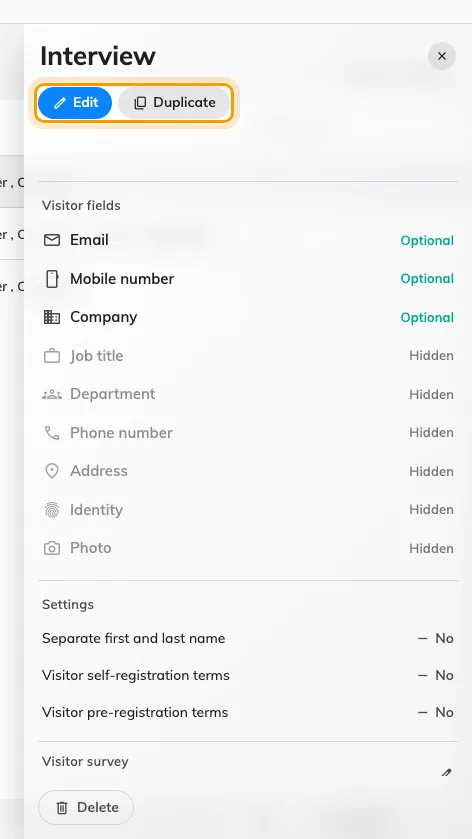
The purpose detail panel offers Edit and Duplicate; building defaults are configured on the building.
4. Delete a purpose and handle upcoming visits
Select its row on Visiting purpose and choose Delete. The former Cannot delete default restriction no longer applies. Deleting a building’s default clears that selection; choose a replacement on the building afterwards.
If the purpose still has upcoming visits, the confirmation lets you move them to another purpose. Check that the replacement is suitable for their locations and questions. Delete without moving leaves affected visits unable to check in or be edited. Past visits are never moved and keep their original purpose.
5. Verify each building
Open a new invitation or walk-in registration for each affected building. Confirm the offered list and initial selection. After deleting or restricting a purpose, return to the building and replace any cleared default. Check migrated visits under the replacement purpose.