

Give a contractor a long-term badge
A standing pass for people who come back — contractors, cleaners, an agency engineer. It carries no appointment and no host, and at the lobby board it turns the walk-in form into a single screen the visitor barely has to fill in. Issue one, and set the period that ends it.
Some visitors are not really visitors. The contractor who is in three mornings a week, the cleaning firm, the engineer an agency sends whenever a lift sticks — registering each of them from scratch every time is the wrong shape of work. A long-term badge is a standing pass issued once against an email address. It carries no appointment, no host and no building, and it is the visitor’s own to keep: the same code works on every arrival until it expires or you disable it.
What it buys is the arrival. A holder scans their code at the lobby board and gets Quick walk in — one screen, already filled in — instead of the full walk-in form.
It is also the only badge that works on more than one day. The badge attached to an invitation admits its holder on the day of that visit and no other, whenever the email was sent — see When a visitor badge starts and stops working.
A badge ends in one of three ways, and all three are deliberate: its period runs out, somebody disables it, or somebody deletes it — see Stop a long-term badge that should no longer work.
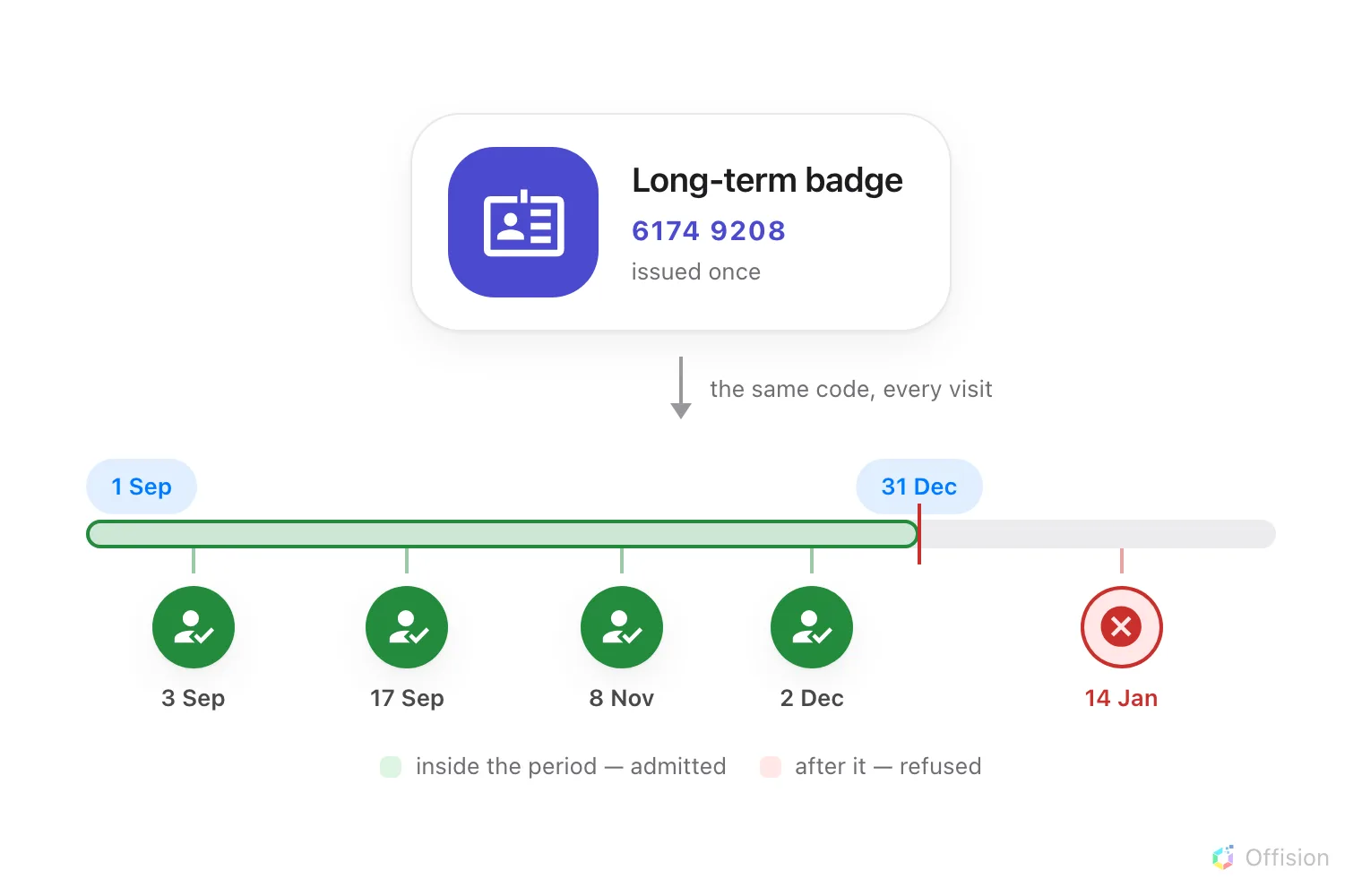
One badge, used as many times as the holder comes back — until the day its period ends.
1. Create the badge
Open Visitor Long-Term Badge from the Visiting menu, then Create Long-term Badge.
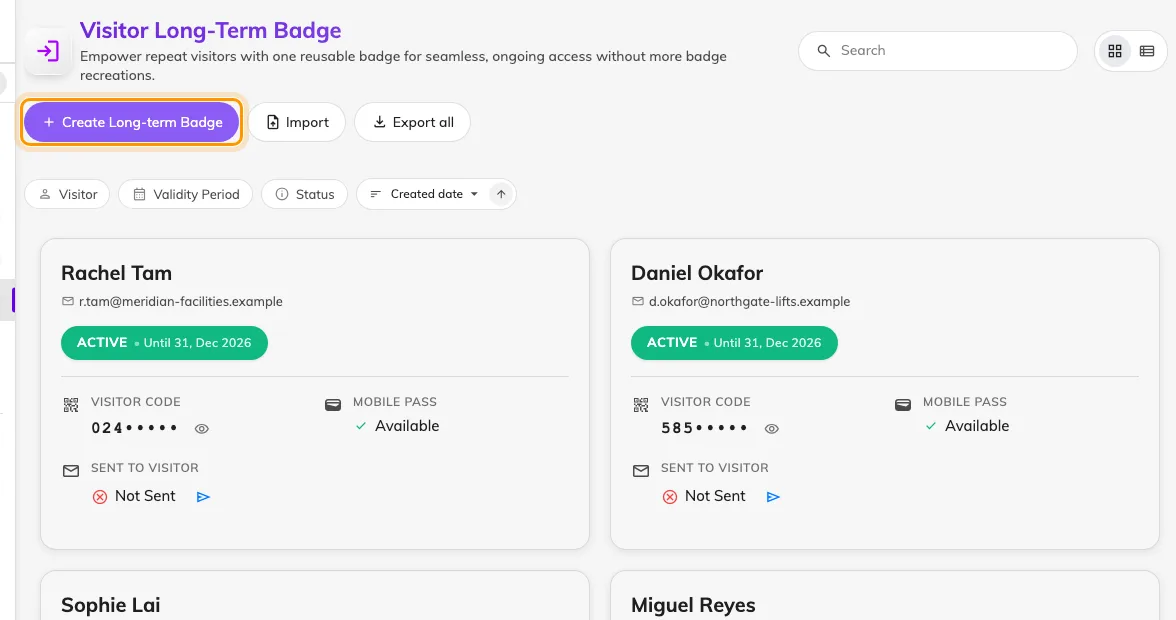
The long-term badge list, with Create Long-term Badge beside Import.
The form is deliberately short:
- Email — required, and the only thing that identifies the holder. Issuing a second badge to the same address updates the one that exists rather than creating a duplicate.
- Validity Period — either No Time Limit, or Limited Period with a date range. A new limited period defaults to today through the same date next year.
- Send Email to Visitor — on by default, at the bottom left. Leave it on unless you are preparing badges ahead of announcing them; you can send later.
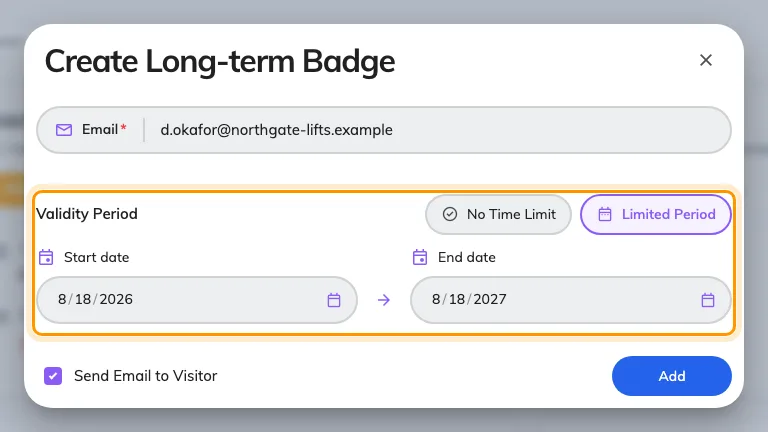
Create Long-term Badge, on Limited Period. No Time Limit hides the date range.
Note what the form does not ask for: no building, no floor, no visiting purpose, no host. A long-term badge is not scoped to a place — it identifies a person, and where they may go is decided at the board when they arrive.
2. Or import a batch
Import takes a spreadsheet, which is the sensible route for a contract that starts with thirty names. Download the template from the dialog and keep its column order:
| Column | Contents |
|---|---|
| 1 | Email address — required |
| 2 | Display name |
| 3 | Company |
| 4 | Job title |
| 5 | Department |
| 6 | Phone number |
Only the first column is compulsory, and a row without one is dropped silently — there is nothing to address a badge to. Give phone numbers their country code: a bare local number is stored as a dial code with no number after it.
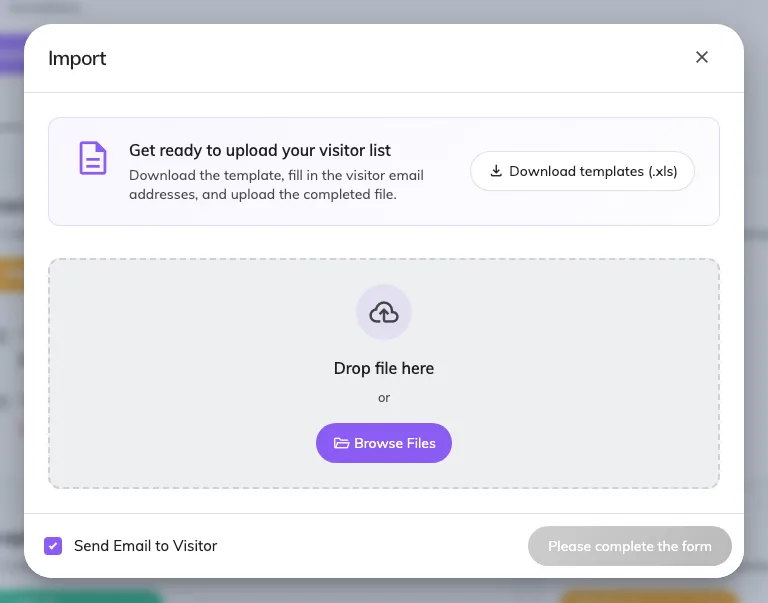
The import dialog, with the template download.
3. What the visitor receives
The email arrives as Visitor long term Badge and carries everything the holder needs:
- the valid period, shown only when the badge has one — an open-ended badge says nothing about dates rather than saying “forever”
- Add to Apple Wallet and Save to Phone, when a mobile pass was generated
- an eight-digit code, printed large
- a QR code of the same badge
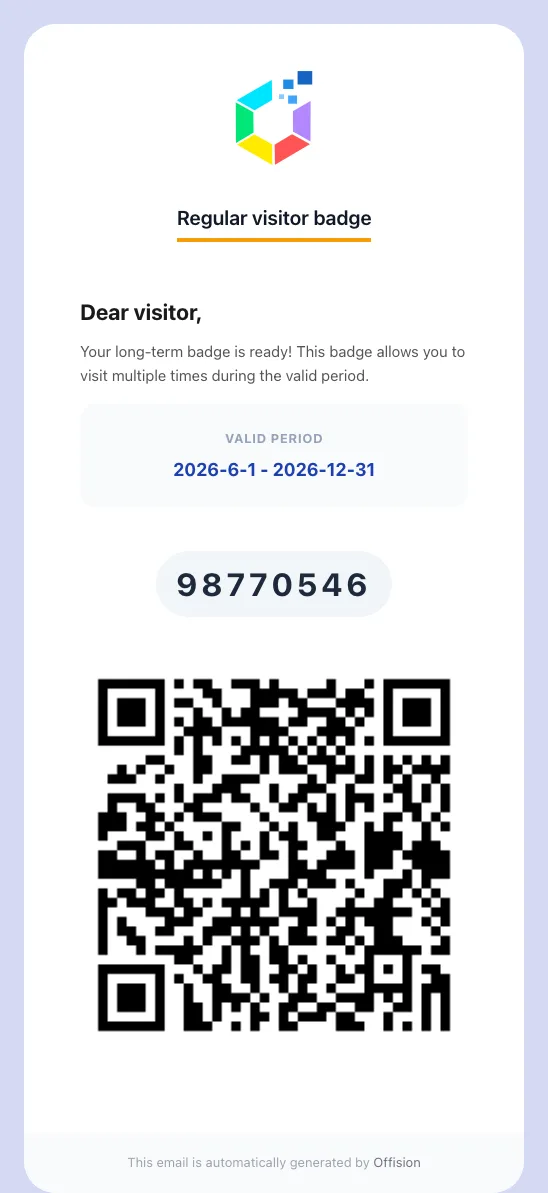
The long-term badge email. The period card is absent on a badge with no time limit.
Two details worth knowing. The eight digits are what tells a long-term badge apart from an ordinary visitor code, which is six — so a code’s length tells you which kind of pass you are looking at. And the QR does not encode those digits; it carries the badge’s own identifier. Both work at the board, so it makes no difference which one the visitor shows.
The holder can also find the badge themselves in the visitor app, under Regular passes, where it shows as Active, Pending, Invalidated or Expired.
4. Walking in with it
At the lobby board the visitor chooses Check in and presents their code — scanned, or typed at the keypad. What opens is Quick walk in: one page, no wizard, with their name and company already on it and no way to edit them.
They are asked for three things, and all three are already answered:
- Visiting purpose — the first one is selected for them
- Visit time — 1 hour, 2 hours, 3 hours or Full day, and Full day is the default. Custom opens a date picker for anything else
- Location — the first building is filled in, and on a board bound to one building there is nothing to choose
Anything the visiting purpose adds as an extra field appears under those. In the ordinary case the visitor reads the screen and submits it.
Everything else the walk-in form would ask is skipped, because the badge already answers it: the identity fields, the photo, the business-card scan, the visitor surveys, the terms and conditions, the vehicle section, and the confirmation step. No badge email or SMS goes out either — the holder is already carrying the pass this would have sent them.
A label printer attached to the board still prints a badge, exactly as it does for an ordinary walk-in.
5. Check it worked
The badge should be on the list, and the visitor should appear as an ordinary visiting record with today’s arrival on it — a quick walk-in creates a real visit, the same as any other.
If the board answers Visitor record not found, the code was not recognised at all: check the badge is not disabled or past its period.
What a long-term badge does not do
This is the section to read before promising one to a customer.
It does not open doors. A long-term badge identifies a person at the lobby; it grants no access control on its own. Door access is a separate arrangement.
It does not skip the visit. Every arrival still creates a visiting record. The badge shortens the form, it does not bypass it, so the site always knows who is in the building.
It cannot check anybody out. A long-term code presented to Check out answers Visitor record not found unless the holder has a visit open at that moment — a standing pass has no visit of its own to close. Check out is a property of the visit, not of the badge.
It does not collect the paperwork. A standing-pass arrival skips the visitor surveys and the terms and conditions every other visitor meets, so a contractor on one stops re-confirming their safety induction on each visit. Where that confirmation is the point, invite them normally and put the questions on the visiting purpose — see Write a visitor survey.
It is not a Wallet pass by itself. The Apple and Google buttons appear in the email only where the mobile pass feature is switched on; without that, the badge is the code and the QR, which is enough.