

Request service at the room panel
The Service button in the panel's dock — what the sheet lists, how a request goes out, and why an idle room offers nothing.
The pot is empty, the screen will not wake up. Nobody leaves the meeting to find someone — the panel by the door takes the request where the problem is.
Where it is on the panel
Which control you get depends on the panel’s skin:
| Skin | Where |
|---|---|
| In-room control | Service in the dock along the bottom |
| Mini | Request service in the menu, while the room is in use |
| Modern | No service control — the app or the room’s QR code is the route |
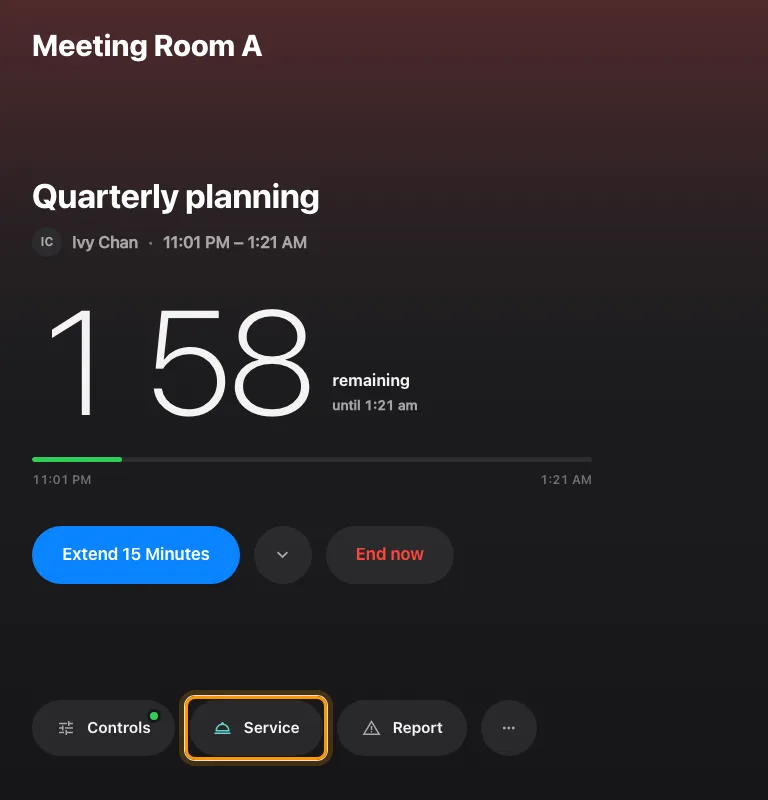
The in-room control skin's dock, with Service in the middle.
1. Open the Service sheet
Tap Service. The sheet lists this room’s services under Service items, and below them any Links the room carries — Request service and Technical support rows that show a QR code to continue on your own phone, no account needed.
A room with exactly one service and no links skips the list and opens that service directly.
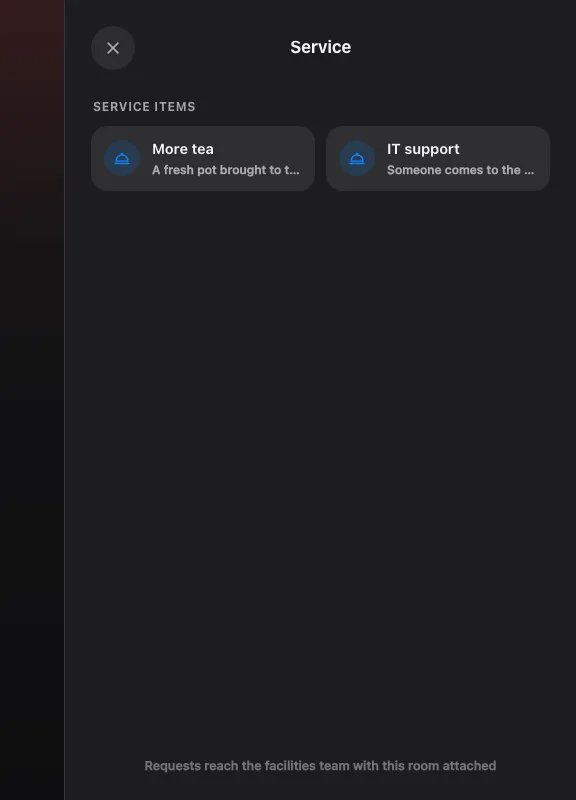
The Service sheet: this room's services, then the links.
2. Fill it in and send
Each service asks only what it was set up to ask — a count, a choice, a line of text. A red dot marks what must be answered, and Note · optional takes anything else. Then Send request.
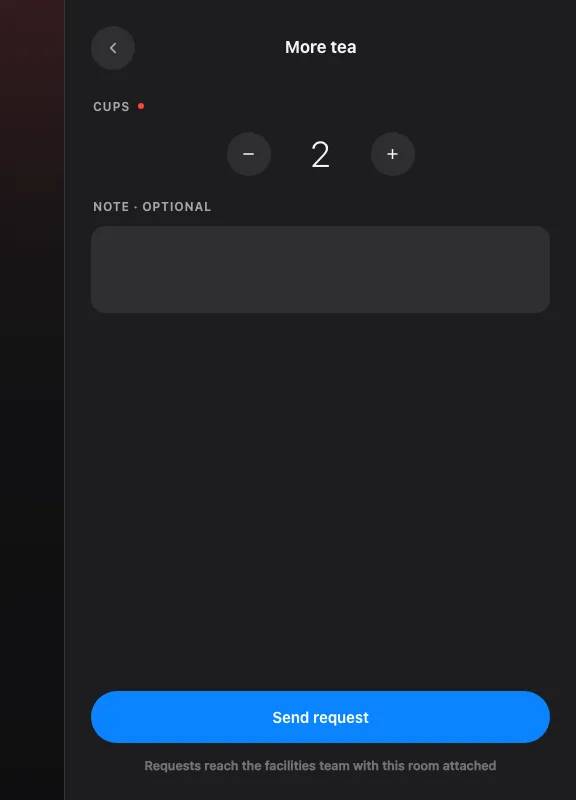
One service, filled in. Send request is the whole form.
The panel confirms — Request sent, The facilities team has been notified — and the sheet closes itself. The room is attached automatically, so nobody has to say where they are.
Daily cut-off and photos
An in-use service may have a daily last-order time in the room’s time zone. New requests are refused at and after that time, even while the room is in use. Requests reopen the next day when the service’s hours and booking allow them. A photo added to the service helps people recognize it while choosing; it does not change which rooms offer it.
Check it worked
Open Service requested in the admin console. The request is there against the room, with a member of staff already assigned, and it appears the moment it is sent — staff working from the queue see it immediately.
Open Service requested