

The button tiles
The five tiles a person presses — booking check-in, check-out and extend, visitor self service, taking attendance, the door, and the screen's language — with each one's settings and where it may sit.
One tile, one job. These are the small widgets that put a single thing to press on the screen. The codes people scan instead are in The QR code tiles, and the places themselves — plus the settings that apply to the whole design — are in Widgets and the places they go.
Booking buttons
Check in, check out and extend, as tiles. The buttons act on the bookings of the resources you point them at, and each action appears only if you turn it on.
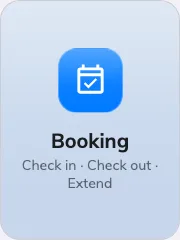
Booking buttons on an action tile.
Can go on: Action buttons
| Setting | What it does | When to change it |
|---|---|---|
| Resources | Which resources’ bookings the buttons act on — Follow device location, All resources, By building, By floor or Specific resources. Following the device, an Auto scope row narrows it to Smart, This room, This floor or This building | Leave it following the device on a screen beside the room it serves; pick specific resources for a kiosk that fronts several |
| Type | Narrows the chosen resources to one resource type; empty means Any resource type | The location mixes rooms and desks and the buttons should serve only one kind |
| Show check-in | The tile that confirms a booking on arrival. Open door on check-in additionally releases the Door you pick at the same moment | Hide it where check-in happens at the room’s own panel or in the app |
| Show check-out | The tile that ends a booking and frees the resource. Open door on check-out works the same way as its check-in twin | Hide it where bookings simply run out on their own |
| Show extend | The tile that lengthens the booking that is running | Hide it where back-to-back bookings leave nothing to extend into |
Visitor self service buttons
Reception without the receptionist: walk-in registration, check-in, check-out and re-check-in as tiles, with an optional guest Wi-Fi service. On an action tile it stays compact; on the main stage the services spread out beside a QR code, so a guest can also register from their own phone.
Its settings come in three groups — On screen, QR code and Registration — because the QR code is now an action in its own right rather than something inferred from the tiles beside it.
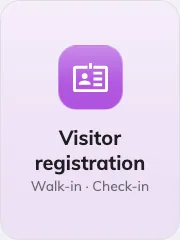
Visitor self service buttons on an action tile.
Can go on: Main stage · Action buttons
| Setting | What it does | When to change it |
|---|---|---|
| Show walk-in registration | A guest without an invitation registers at the screen. Need to check-in after register keeps a separate check-in step afterwards, on this panel or at reception | Turn the second one on where reception still wants to see everyone who registered |
| Show check-in | The tile an invited guest checks in on | Hide it where guests check in by scanning a code instead |
| Show check-out | The tile a leaving guest checks out on | Hide it where nobody is expected to sign out |
| Show re-check-in | Lets a guest who already checked out come back in without registering again | A site guests leave and re-enter during the day |
| Print visitor badge label | A badge label is printed for the guest | A label printer is connected at this screen |
| Location | Which building’s visits the buttons serve — Follow device location, All buildings or Choose… | Leave it following the device unless one screen serves several buildings |
| Show guest Wi-Fi | Adds the guest network as a service. Wi-Fi source is Enter manually — with Network name (SSID), Password and Security — or Guest Wi-Fi portal, picking the WiFi login page | The lobby doubles as the place guests get online |
| Show QR code | “Lets a guest register from their own phone.” An explicit switch — the QR is no longer implied by the tiles | Off on a screen guests are meant to touch, or one nobody can reach with a phone |
| QR code route | What the scanned code does: Follow on-screen actions (the default — it does whatever the tiles do), Register only, or Register and check in | Point it straight at registration where the tiles offer more than a guest with a phone should get |
| Access key type | How often the code behind the QR is replaced — Daily, Hourly or Every 3 minutes, the same setting the standalone QR code widget carries. New widgets start on Every 3 minutes | Slow it down only where the screen is behind a desk. A code photographed off a lobby wall stays usable for exactly this long |
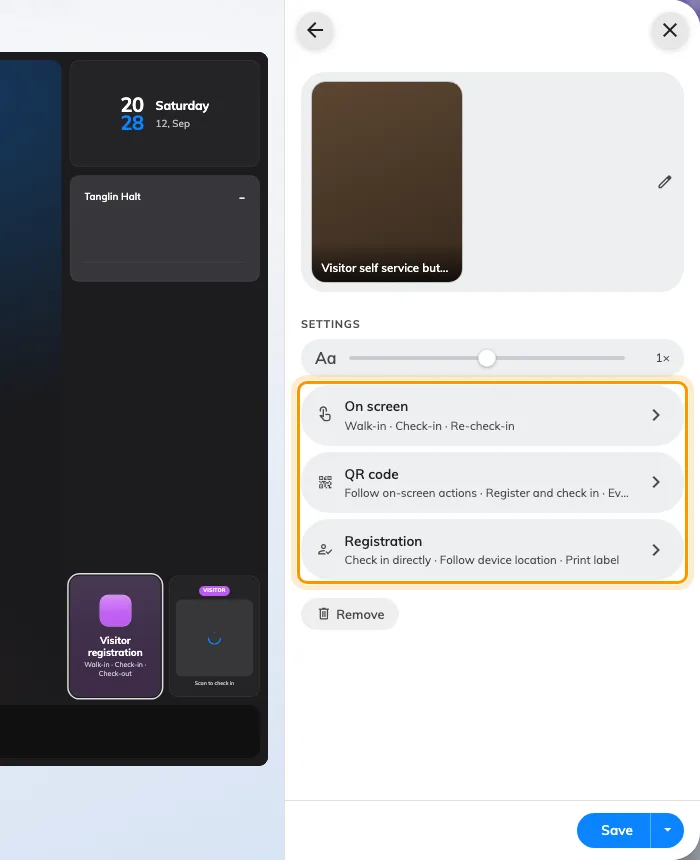
The visitor tiles' settings, behind three groups — On screen, QR code and Registration.
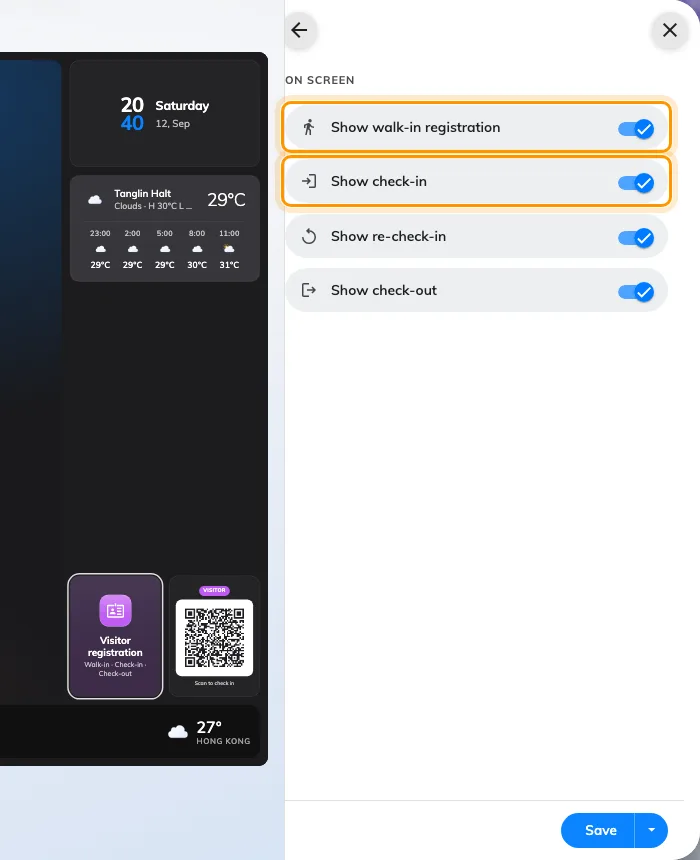
On screen — walk-in registration and check-in are separate tiles.
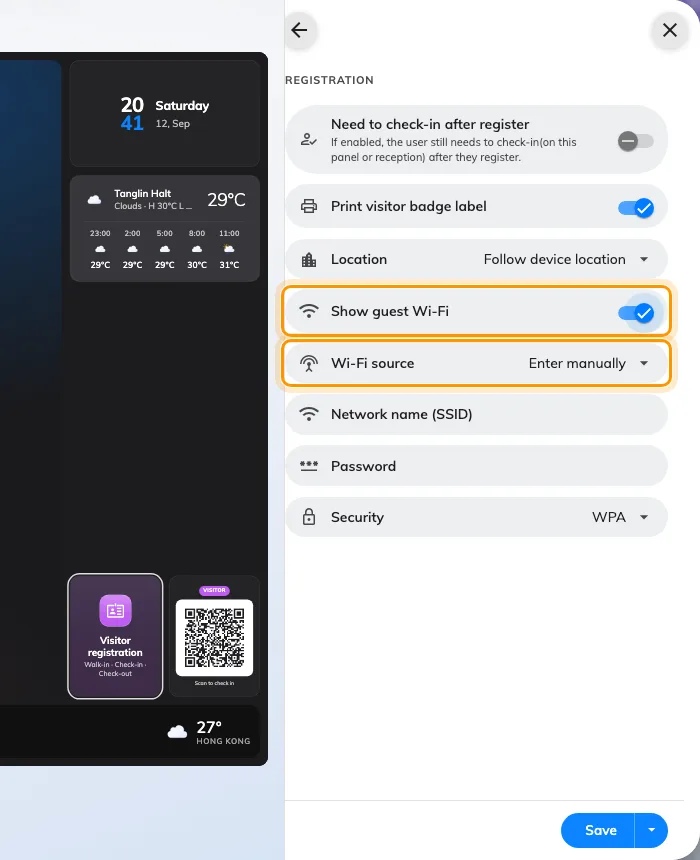
Registration — Show guest Wi-Fi, and the Wi-Fi source it reveals.
Under the QR route the form says Currently followed by what the code actually resolves to, which is worth a glance when the route is left on Follow on-screen actions — that answer changes as the tiles above it change.
Open door button
One door, one press. The tile is captioned with the door’s own name — a design can carry several of these — and the press asks the person to identify themselves before the door opens. With no door picked, or nobody allowed, the tile goes quiet.
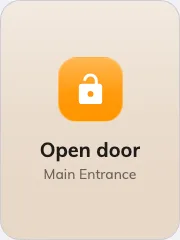
The open door button on an action tile.
Can go on: Action buttons
| Setting | What it does | When to change it |
|---|---|---|
| Door | The door the button releases; its name becomes the tile’s caption | Every tile needs one — add more tiles for more doors |
| Allow users | Lets staff identify themselves and open | Off where the button is for guests only |
| Allow visitors | Lets a visitor open with their visitor badge | Off where the door is staff-only |
| Who can open | Everyone allowed above, or only Today’s booking participants — with Participant resources naming the resources whose bookings count | The door guards meeting rooms rather than the office entrance |
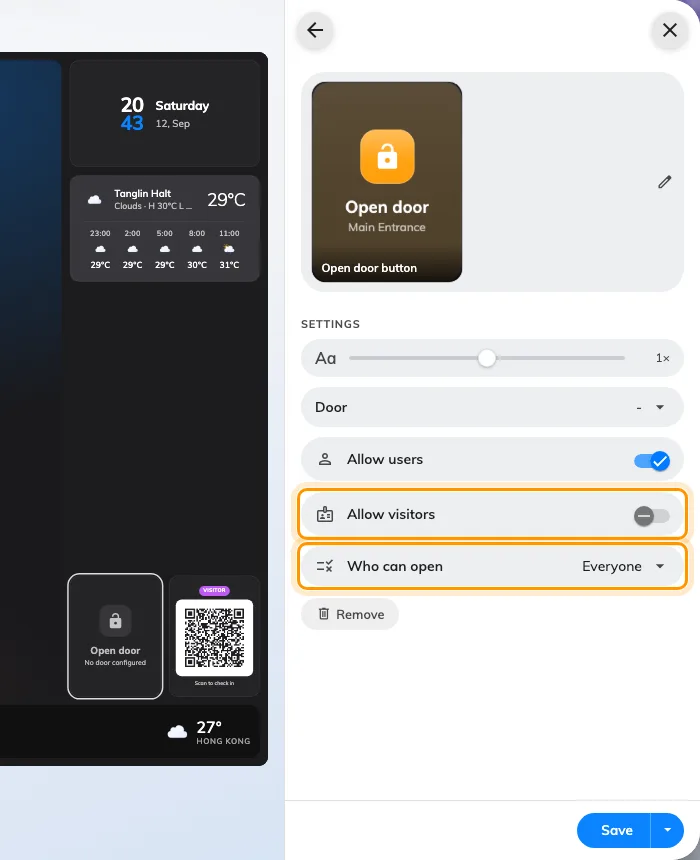
The open door button — Allow visitors, and who the press will open for.
A visitor opens it with their badge, and that badge only works on the day of the visit — see when a visitor badge starts and stops working.
Take attendance
Staff sign in and out of their working day at the screen. The tile carries the enabled actions, and a press opens the sign-in sheet; with no working schedule picked it goes quiet and reads No working schedule set. The schedule itself — who is on it, and the rules a punch must pass — is Attendance’s working schedule.
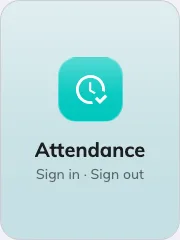
Take attendance on an action tile.
Can go on: Action buttons
| Setting | What it does | When to change it |
|---|---|---|
| Working schedule | The schedule the sign-in is recorded against; without one the tile stays quiet | Every tile needs one — pick the schedule the people at this screen are on |
| Sign in | Offers Sign in, to start the working day | Off at a screen people only leave by |
| Sign out | Offers Sign out, to end it | Off at a screen people only arrive at |
With both on, the tile reads Attendance and the press asks which of the two is wanted; with one, the tile is that action and the press goes straight to it.
Language selection
The screen’s display language, changed at the screen — each language listed in its own script.
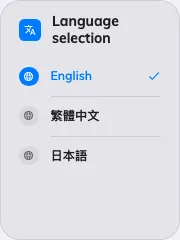
Language selection as a direct list.
Can go on: Action buttons
| Setting | What it does | When to change it |
|---|---|---|
| Design | List shows the languages right on the tile, one tap to apply; Button is a single tile that opens a chooser | List for two or three languages; Button where the list would outgrow the tile |
| Limit languages | Restricts the choice to the Language entries you pick, instead of everything the system offers | The site really uses two languages, not the whole list |
What this does not control
- What there is to act on. A check-in button needs a booking, the visitor tiles need the Visiting module’s records, and the door button needs a door set up in access control. None of that is created here.
- Their size and colour. The design-wide font size, appearance and widget background apply to these tiles like everything else — see Widgets and the places they go.
- Where the screen thinks it is. Everything set to Follow device location reads the device’s location, not the content’s.