

Both maps
Open a second office by duplicating the first
Offision holds every office in one account, so a second site is a new building rather than a second setup — policies, panel configurations, signage content and branding are shared the moment it exists. What Duplicate copies, the three copied fields that must not stay copied, and how rooms and people arrive in bulk.
Offision manages every office from one account. A new site is a new building in the Offision you already run, not a second Offision to set up — so there is nothing to clone, and most of what you would have cloned is shared the moment the building exists: a booking policy covers a class of rooms wherever they are, a panel configuration is a named set any number of panels point at, signage content belongs to no room and no building, and branding, languages and email are company-wide.
A building also has a Duplicate, which copies the shell. So opening a second office is three jobs: duplicate the shell, correct the fields the copy got wrong, and fill the floors.
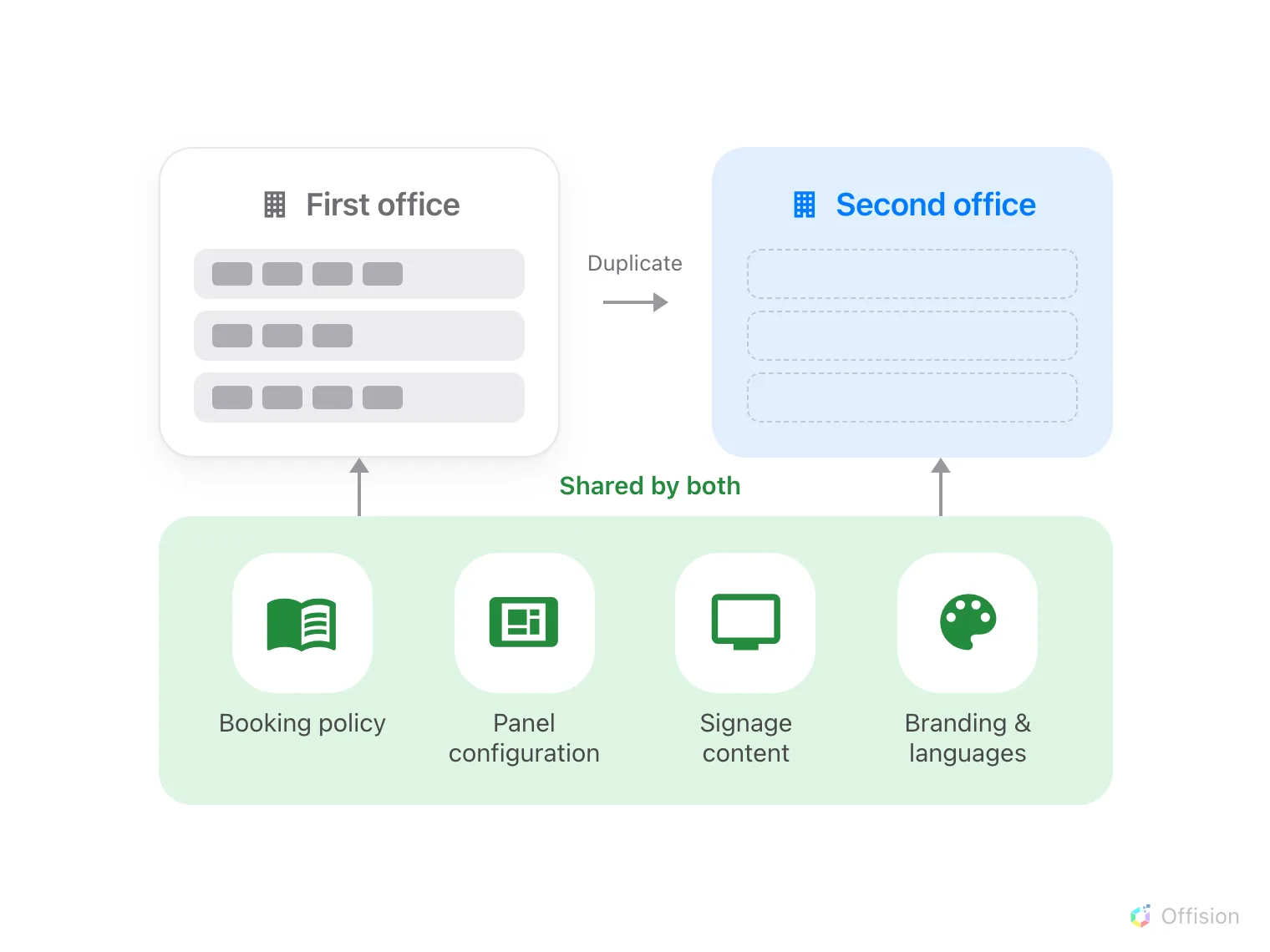
Both offices live in one Offision, so the records carrying the rules are used by both. What Duplicate hands you is the shell.
1. Duplicate the building
Select the building you are copying and choose Duplicate. It opens the add form filled in from that building, with Copy appended to every language of the name.
Open LocationsIt brings the Address, the map pin under Location, the country or region, and the Floors page’s names in their order. It also brings the building’s business hour and visiting policy — neither is a field on this form, so they travel invisibly — and any Roles assignments.
It does not bring the Access ID, blanked because it must be unique, nor anything standing on a floor. The floors are created empty: no rooms, no desks, no panels, no floor plan. A floor list identical to the first office’s is carrying nothing at all.
2. Correct what it copied
This is the step to slow down for, because nothing here looks wrong on screen.
The map pin is still on the first office. The pin is this building’s time zone, the centre of its GPS check-in area, and the map link printed in every booking and visitor email — see what a building’s Google map location is used for. Drag it to the new address before anyone books anything, and correct the Address field in the same pass.
The business hour is the sharper one. Where a business hour pins its own time zone, that zone beats the map pin, and the line under the map says so — From business hour. A second office on the other side of the world can be pinned perfectly and still run every booking on the first office’s clock. Give it business hours of its own rather than sharing the ones it inherited; Which time zone applies is the order the two are read in.
Then give the building an Access ID if a spreadsheet should be able to name it, and fill in the floors.
3. Put rooms and desks on the floors
Three routes, and which is right depends on how alike the rooms are.
- Copy, beside Edit on a resource, carries its policy, hours and amenities — the closest thing to cloning a room. Set its Location to the new floor and place it on the floor plan, which does not come with it: Rename, edit or delete a room.
- Import, beside Add, is for volume. The sheet carries names and a room’s capacity and nothing else, with no column for the floor, so location, policy and amenities are set afterwards: Add a room.
- Sync rooms brings them from the directory, where the company runs one. They arrive on a default floor, so expect to move them.
People arrive the same two ways — a spreadsheet or a directory sync — and the groups they land in already carry their permissions and quota. Access cards need nothing: the number belongs to the person, and any panel reads it.
4. Point it at the rules you already wrote
Nothing here is created. On each new resource, Policy, Resource quota policy and Team space offer the records the first office already uses — pick them. A room left without one is bookable by everyone, at any time, immediately.
Panels and screens are the same. A panel’s buttons, skin and screen saver come from a panel configuration any number of panels share, and signage content is a design rather than a screen — so both join what exists, and you give the hardware the new building’s location.
5. Open it to visitors
Visiting is switched on per building, and the duplicate already brought the visiting policy. What is left is the building’s opening hour, its receptionists and its quota — visitors are licensed per location, not per company, so the new site has a monthly allowance of its own. See Open a building to visitors.
One thing bites only on a second site: a lobby screen naming no building greets every visiting location, so each office’s arrivals appear on the other’s screen. Name the buildings each lobby screen serves — What a visiting location is.
6. Check it worked
Book a room at the new site as an ordinary employee and check in on its panel, then invite one visitor and let them check in at reception. A booking that lands at the wrong hour is step 2’s business hour.
What this does not cover
A floor plan is drawn per floor and never comes with a building — Create a floor map with Map 2.0 — and a second building is a second network to open up before a panel comes online.
Two things arrive whether you meant them to or not. An announcement naming no building already shows on every screen, so the new site inherits the company’s existing ones. And where roles are assigned on buildings, a site with an empty Roles page silently mails nobody when an issue is reported.
Arriving from another system instead is a different order of work, with its own article: Move to Offision from another system.