

See where your account is signed in
Check every phone, laptop and browser currently signed in as you, and sign out anything you do not recognise. Under a minute, and you need nothing but your own account.
1. Open your devices
Open your profile — your picture, top corner on a computer, or the Profile tab on a phone — and choose Manage devices.
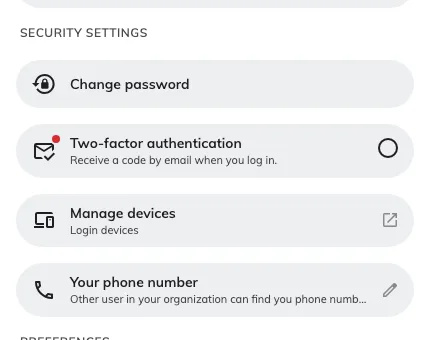
Manage devices sits with the other security settings in your profile.
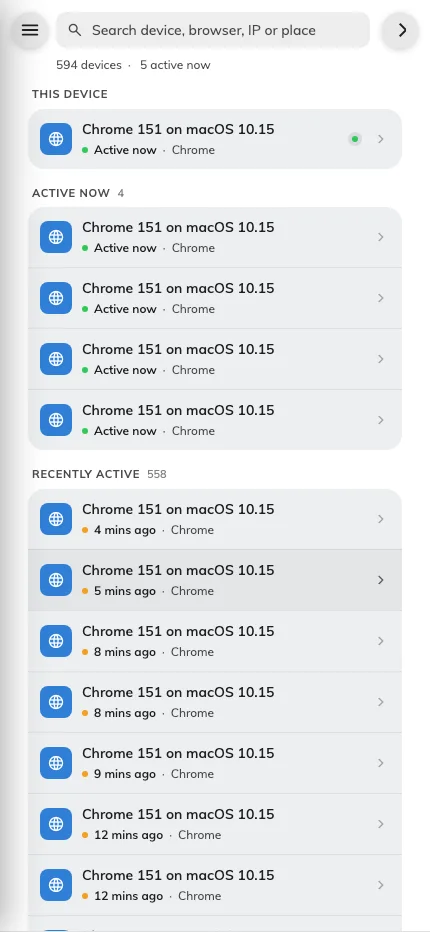
Everywhere your account is currently signed in.
2. Read the list
Everything currently signed in as you appears here, newest activity first, with the one you are reading this on grouped at the top under This device.
Each row gives you the device, when it was last active, and where it appears to be. Filter by kind — phones, computers, browsers — from the menu, and use the search box to find a device by name, browser, IP address or place. On a computer that menu is a panel down the left; on a phone, open it from the button at the top.
Judge a row on the device and the time, not the place. The location comes from the network the device is on: the office VPN puts everyone at head office, and mobile data can land a city or two away. A device you recognise in a surprising place is almost always fine. A device you do not recognise is the thing to act on, wherever it claims to be.
3. Sign out anything you don’t recognise
Tap the row to see everything known about it — platform, browser, sign-in time, last activity, IP address — then use Sign out this device.
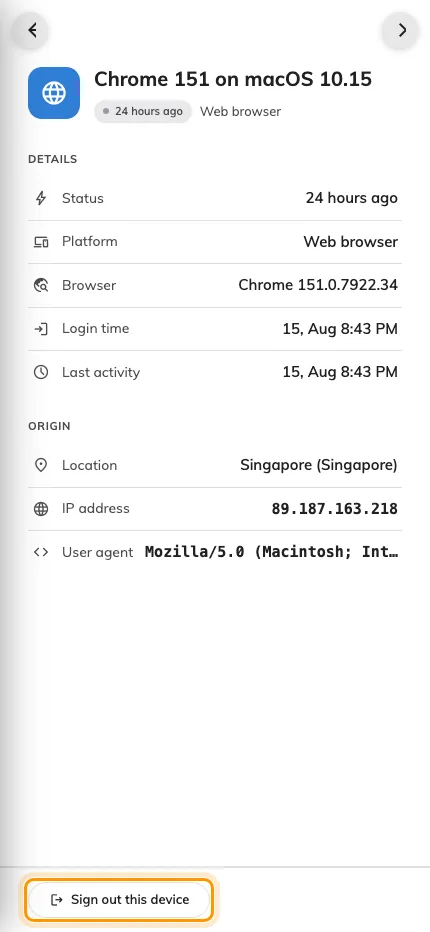
Open a device to see its detail, and sign it out from the foot of the panel.
It goes immediately, and the row disappears. The device you are using now shows You’re using this device right now instead of a button — to end that one, just log out.
To clear everything else in one go — after losing a phone, or when you simply want a clean slate — use Sign out all other devices, in that same menu. It ends every device except the one in your hand.
4. If it was not you, change your password too
Signing a device out ends that sign-in. It does not stop whoever it was signing in again, because they still have whatever they got in with.
So if a device was genuinely not yours, sign it out and change your password straight away, from Change password in the same profile panel. Then tell your administrator — they can see the sign-ins behind those devices, including failed attempts, which you cannot.
5. Check it worked
Reopen Manage devices. The device should be gone from the list.
If it is back, someone signed in again — that is a password problem, not a device problem. Change your password if you have not already, and tell your administrator.