

Which time zone applies
The system time zone is a fallback; a resource or booking with its own zone takes precedence. Read the booking zone, UTC offset and local-time hint, including recurring dates and daylight-saving changes.
The system time zone decides the time for everything that has not been given one of its own.
Read the booking form’s two clocks
The booking form shows the chosen booking time zone and its UTC offset for that booking date. When it differs from your current zone, Booking time in your timezone shows the same period converted to your zone; it does not add a second booking. Around daylight-saving changes, compare the date as well as the clock time and offset.
Recurring dates follow the booking’s selected time zone. An all-day booking covers local calendar days; its last day remains included when synchronized with Google Calendar. Before saving an edit to a recurring booking, check the selected scope and first/last dates. Changing a display zone does not reschedule the booking.
If a date falls in a daylight-saving clock change, the form may ask you to choose a valid or unambiguous local time. Select a valid time in the chosen zone rather than changing the system time zone to work around it.
The part that surprises people
A room can run on a different time from the system default — and you will not find a time zone anywhere on the room to explain it.
It comes from the room’s business hour. A business hour carries a time zone alongside the days and opening times it defines, and every room it is applied to follows that zone. A room with no business hour, or one whose business hour has no zone, falls back to the system time zone.
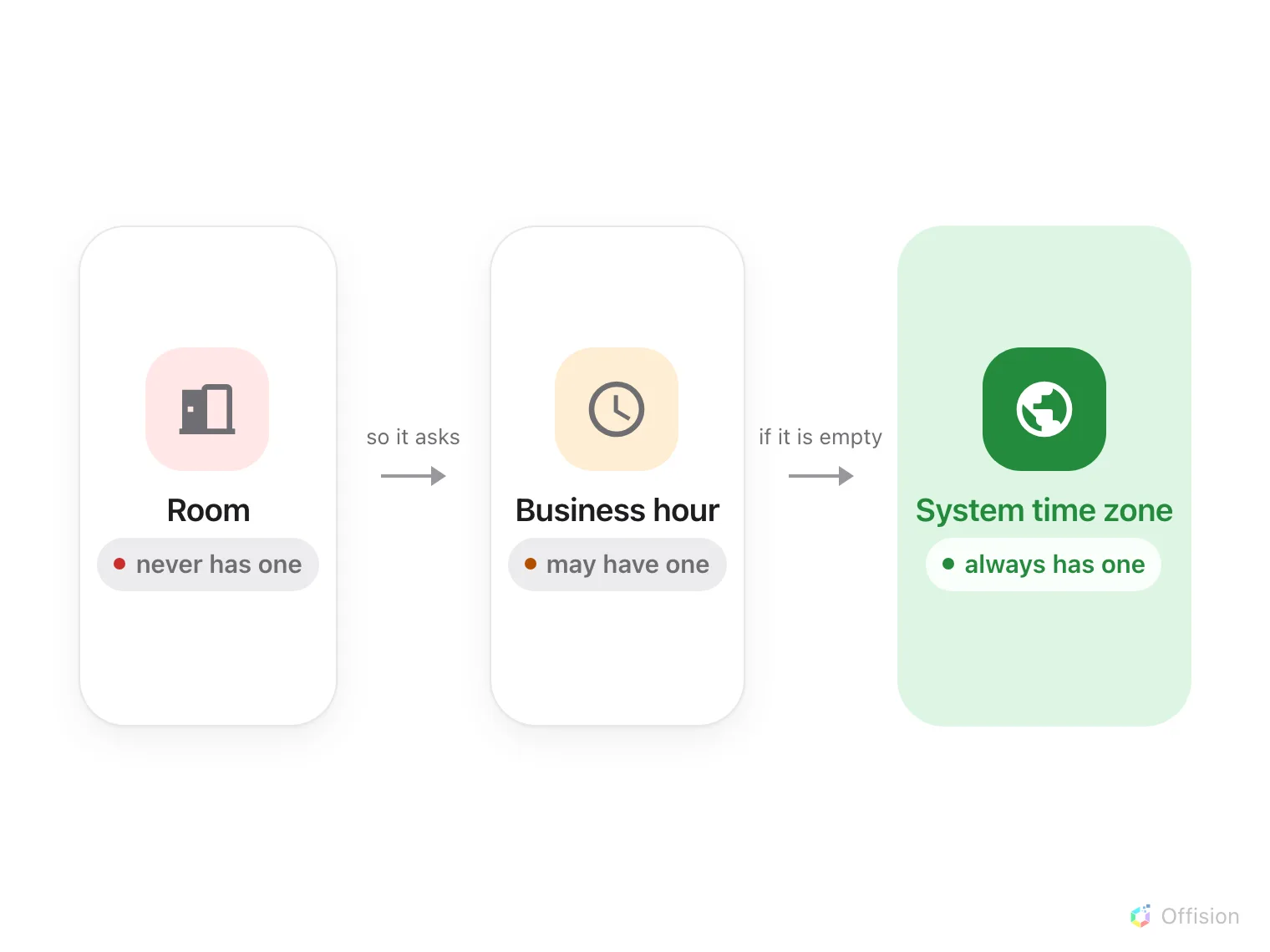
How a room's time zone is decided. The first level that has one wins.
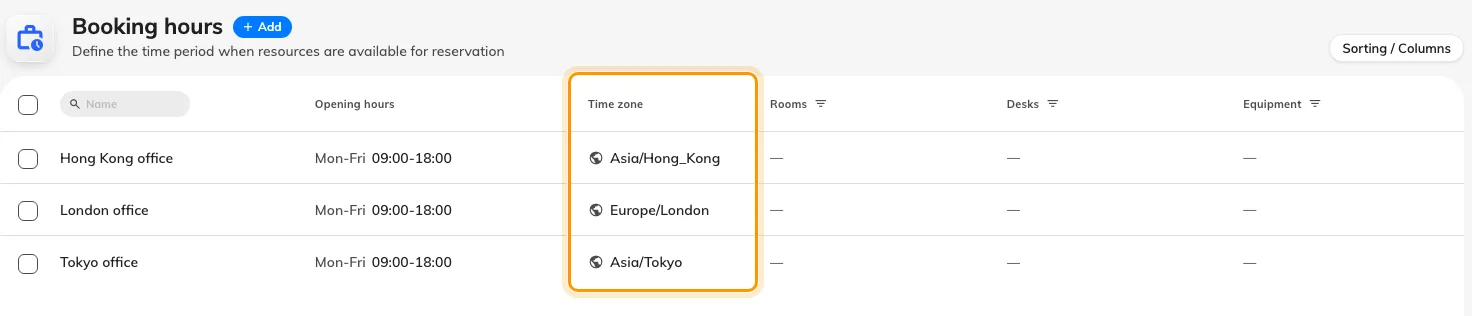
Each business hour carries its own time zone.
People are the same in spirit: each person keeps their own display preference, which is why two colleagues can look at one booking, read different clock times, and both be correct.
Why it works that way
An organisation in more than one city has no single right answer. If one global setting won, every site outside headquarters would read the wrong time, and the people most affected — the ones booking those rooms — would be the least able to fix it.
Keeping the zone on the business hour rather than on each room is what makes
opening times mean anything. 09:00–18:00 is not a fact on its own; it is only a
fact somewhere. The same object that decides when a room can be booked has to
decide where in time those hours are counted, or a Tokyo room would open at
nine in London.
It also means one edit moves a whole site. Change the business hour and every room on it moves together, instead of a hundred rooms drifting apart one at a time.
What it does not control
A building’s time zone. A building shows one, taken from the location on its map, but that is a label for the site rather than the rule a booking follows. The booking follows the room’s business hour.
Whether times read as 1:00 PM or 13:00. That is a display preference each person sets for themselves, not a system setting, and it changes nothing about when anything is scheduled.
The clock on the device in front of you. Offision does not reset a phone or a PC. When a device’s own zone differs from the one in use, Offision points it out and offers to reload rather than quietly overriding it — so a laptop still on holiday time shows a prompt, not a silently wrong calendar.