

Global password policy reference
Every field on the Global password policy screen — password rules, expiry and reuse, auto logout and lockout, self-registration — what each one does and when it is worth changing.
One screen, four sections, all of it tenant-wide — there is no per-building or per-group version of these rules. Everything here governs Offision passwords; a Microsoft 365, Google, LDAP or Active Directory sign-in is not subject to any of it. See How sign-in security works for why.
Global password policy
What a password has to look like. These are checked whenever a password is set — by the person, by an administrator, or through self-registration.
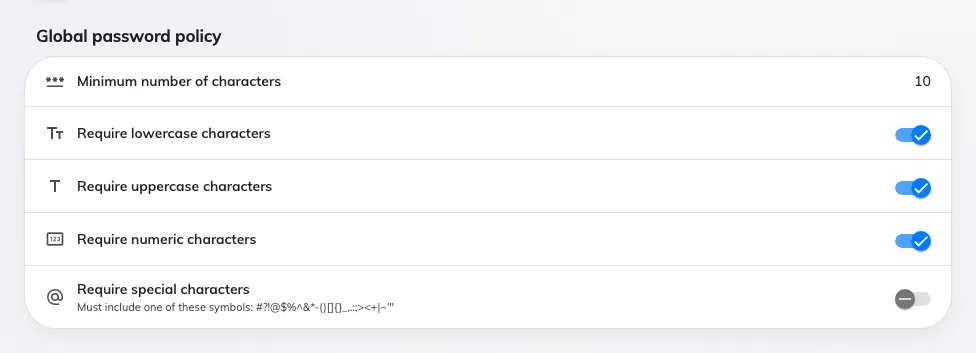
The character rules. Every password Offision stores has to pass all of them.
| Setting | What it does | When to change it |
|---|---|---|
| Minimum number of characters | The shortest password Offision will store. Between 6 and 30 | Length beats complexity for real security. 12 is a better default than 8 if your people will accept it |
| Require lowercase characters | The password must contain at least one a–z | Leave on. Turning it off buys nothing |
| Require uppercase characters | The password must contain at least one A–Z | Leave on |
| Require numeric characters | The password must contain at least one 0–9 | Leave on |
| Require special characters | The password must contain one of #?!@$%^&*-()[]{}_,.:;><+|~'" | Turn on where a security policy demands it. It is the rule people most often work around with a trailing !, so raising the minimum length usually does more good |
Password change policy
How long a password lasts, and whether an old one can come back.
| Setting | What it does | When to change it |
|---|---|---|
| Require user to set a new password | Turns on expiry. Off, a password lasts indefinitely | Modern guidance is against routine expiry — it pushes people towards predictable variations. Turn it on when an external policy requires it, not by default |
| Require a new password every | The number of months, 1 to 12. On the first sign-in past that age the person is sent to the change-password screen and cannot go anywhere else until they finish | 3 months is aggressive; 12 is the gentler choice if you must have expiry at all |
| Prevent users from reusing previous passwords | Remembers past passwords and refuses a repeat | Turn on alongside expiry. Without it, expiry just makes people alternate between two passwords |
| Number of previous passwords to remember | How many recent passwords are refused, 1 to 4 | The highest value is the useful one; a person who has to change every 3 months takes a year to cycle past four |
Login setting
What happens to an idle session, and to someone typing the wrong password.
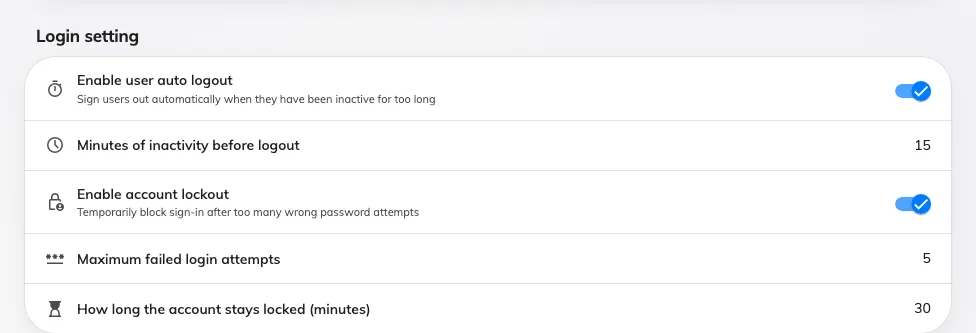
Auto logout and account lockout. Each one's numbers appear once its switch is on.
| Setting | What it does | When to change it |
|---|---|---|
| Enable user auto logout | Signs a person out after a period with no keyboard, mouse or touch activity. This one does apply to everyone, including single sign-on, because it runs in the app rather than at sign-in | Turn on for shared or public machines. It is the only control here that shortens a session for everybody at once |
| Minutes of inactivity before logout | Between 5 and 480 | 15 for a reception or shared desk; anything under 10 becomes an irritation on a personal laptop |
| Enable account lockout | After too many wrong passwords, sign-in is refused for a while even with the right password. Applies to Offision passwords only | Turn on. It is the single most useful setting on this screen for a tenant that uses passwords |
| Maximum failed login attempts | How many wrong passwords trigger the lock, 1 to 20. A successful sign-in resets the count | 5 absorbs ordinary typing mistakes while still stopping a guessing attack |
| How long the account stays locked (minutes) | The length of the lock, 1 to 1440. During it the person is told how many minutes remain. An administrator can clear it early from the person’s record | 30 is enough to defeat guessing without generating a support call |
User self-registration
Whether strangers can create their own account. Off unless you turn it on.
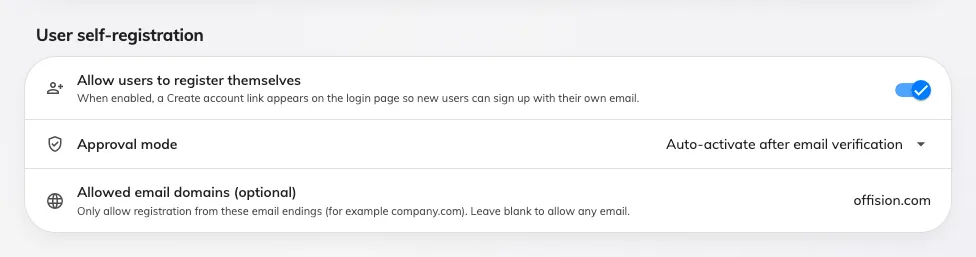
Self-registration, with the domains allowed to use it.
| Setting | What it does | When to change it |
|---|---|---|
| Allow users to register themselves | Adds a Create account link to the sign-in page, so someone can sign up with their own email rather than waiting to be invited | Turn on for a site where you cannot practically invite everybody in advance. Set the allowed domains at the same time |
| Approval mode | How a new registration becomes usable. Auto-activate after email verification — they confirm their address and are in | The only mode the screen offers |
| Allowed email domains (optional) | A comma-separated list, for example acme.com, partners.com. Only addresses ending in one of them may register. Blank allows any address | Never leave this blank with self-registration on: an open form on a public sign-in page will be found |
What this screen does not control
- Two-factor authentication is set on User security profiles, not here.
- Where a person may sign in from — desktop browser, mobile, the mobile app, the Outlook and Teams add-in — and IP restrictions are also per security profile.
- Ending a session that is already running. None of these settings sign anyone out; changing them governs the next sign-in. Signing a device out is on the person’s Login devices page.
- How SSO users get in. Lockout, expiry, reuse and the character rules never reach a Microsoft 365, Google, LDAP or Active Directory sign-in. Set those rules in that provider’s console.
- What someone can do once inside. That is permissions and user groups.