

Add people to Offision
Invite someone to their own account, or import a whole directory from a spreadsheet, and set what each person can do. About two minutes for one person.
1. Open the people list
Everyone in Offision lives in one list, under Directory › Users.
Open Users2. Invite one person
The button is Invite, not “Add user” — the usual way to create someone is to send them an invitation rather than to type a password on their behalf.
If you have Microsoft 365, Google Workspace or a company directory connected, Invite opens a short menu first. Choose Create Offision account for a person who signs in with Offision itself; choose the directory for anyone who should sign in with their existing company account.
The wizard that opens has three steps down the left: Account, Permissions and Done.
Email is the only field you must fill in. It is the account’s identity, the address the invitation goes to, and how the person signs in. The Display name fills itself in from the email address, so correct it only when the guess is wrong — “Amy Wong”, not “amy.wong”.
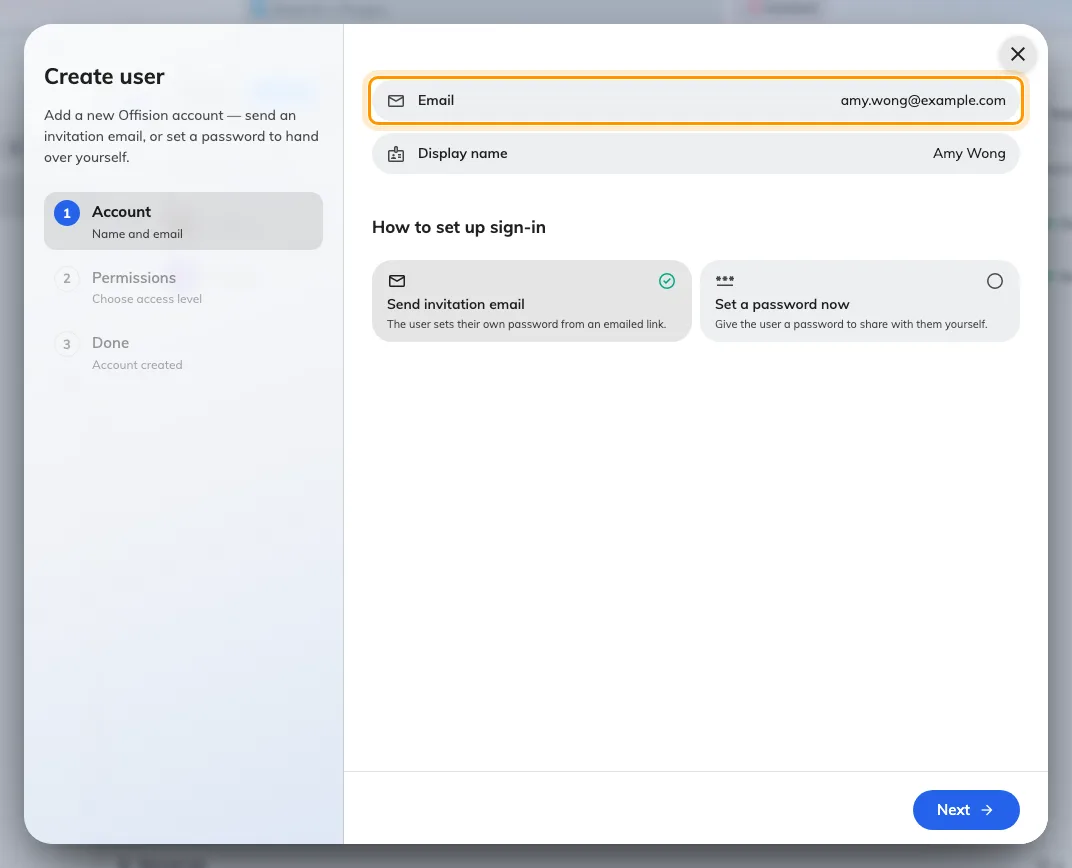
The Account step. Email is required; the display name is derived from it.
If the address is already in use you get User with this email already exists. That usually means the person is already here — search the list before creating a second record for them.
3. Choose how they get in
Under How to set up sign-in there are two tiles, and the choice matters more than it looks.
- Send invitation email — the default, and the right answer nearly always. The person receives a link and sets their own password. You never see it.
- Set a password now — you choose the password and pass it on yourself. Use this for someone with no working mailbox yet, or when you are sitting with them.
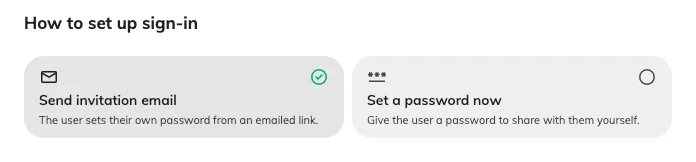
Send an invitation, or hand over a password yourself.
Choosing Set a password now offers Generate or Enter manually. Prefer Generate: the password is shown once on the last step, with a copy button, and never again. Leave Require password change at next sign-in switched on so whatever you hand over stops working as soon as they arrive.
4. Set what they can do
The Permissions step decides how much of Offision the person sees.
Most people need only User — permission to book resources through the user app and the door panels. That is the whole job for ordinary staff, and it is what the step starts on.
Everything below it grants administration. Manager roles come in Read and Write pairs, so someone can be given sight of a module without the ability to change it, and Global administrator grants all of it at once. Add these only for people who genuinely run the system.
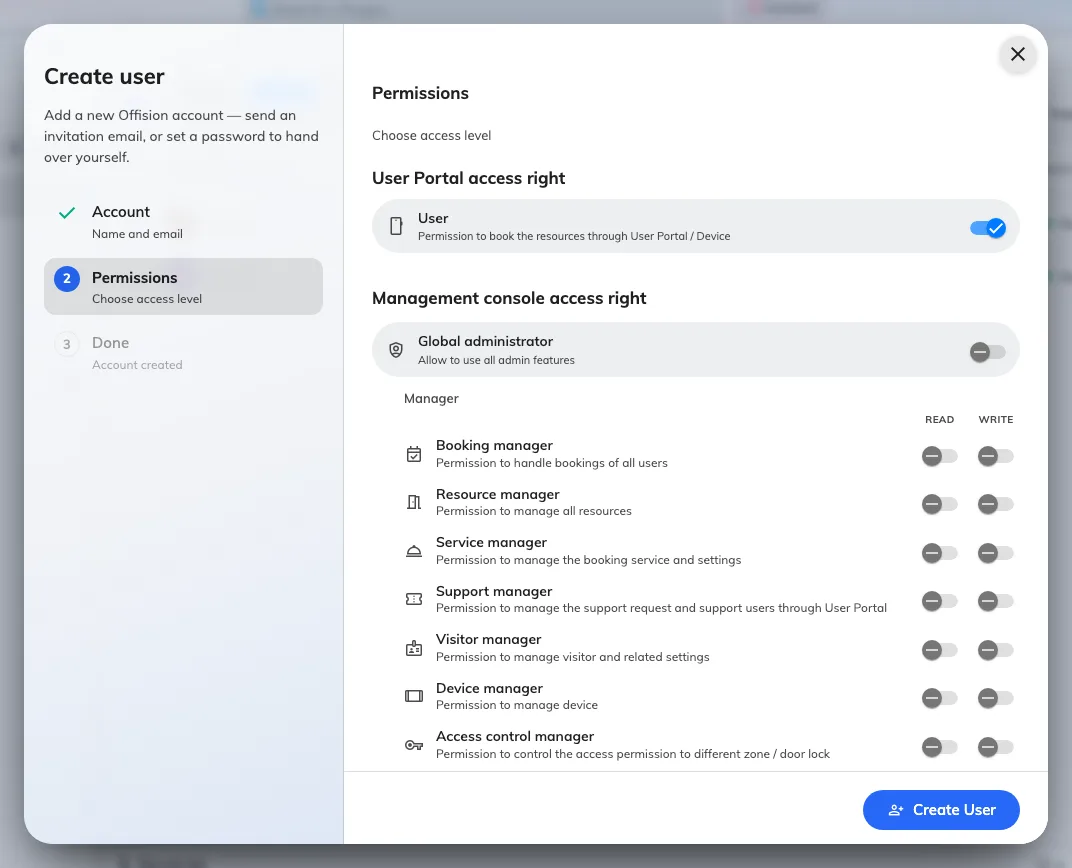
The Permissions step. Ordinary staff need only User.
5. Import a whole directory instead
For more than a handful of people, use Import rather than the wizard. It creates people who are new and updates people who already exist, in one pass.
Download a starting file first — Empty template to begin from nothing, or Current users to get everyone you already have, which is also the easiest way to correct a lot of records at once. Fill it in, then upload it back.
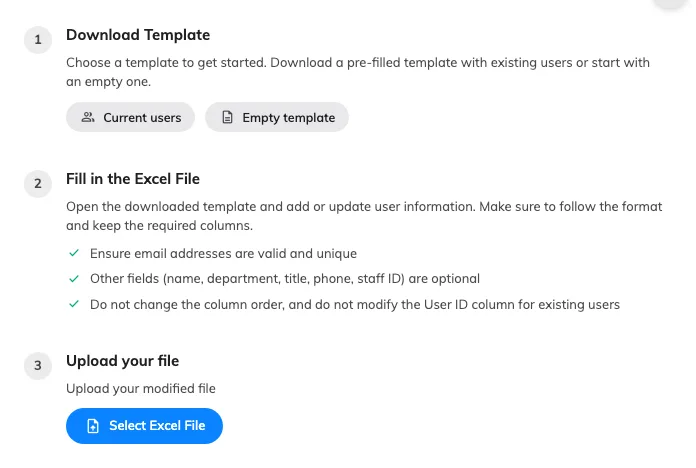
Download a template, fill it in, upload it back.
Four things decide whether an import behaves:
- The file must be Excel (
.xlsxor.xls). A CSV is not accepted. - Email address is required on every row and must be unique. Everything else — display name, department, title, phone number, staff ID — is optional.
- Leave the Id column empty for people you are adding. Offision fills it in.
- Never edit the Id of someone who already exists, and do not reorder the columns. The file is read by position, so a shuffled sheet quietly writes the wrong values into the wrong fields.
Before anything is written you get a preview marking which rows are new, which are changed, and which email addresses are invalid. Read it — it is the last point at which a mistake costs nothing. Leave Send invitation email ticked at the bottom and everyone new is invited as they are created.
6. Check it worked
A new person shows as Invited in the list. Once they follow the link and set a password they become Activated.
If someone says no email arrived, check the address on their row first, then use Resend invitation email — the action sits on the row itself and issues a fresh link. Someone left at Created was made without an invitation being sent; Send invitation starts that off.