

Remove someone who has left
Deactivate to stop them signing in while keeping their history, sign out the devices they are still on, or delete and restore from the recycle bin. What each one leaves behind.
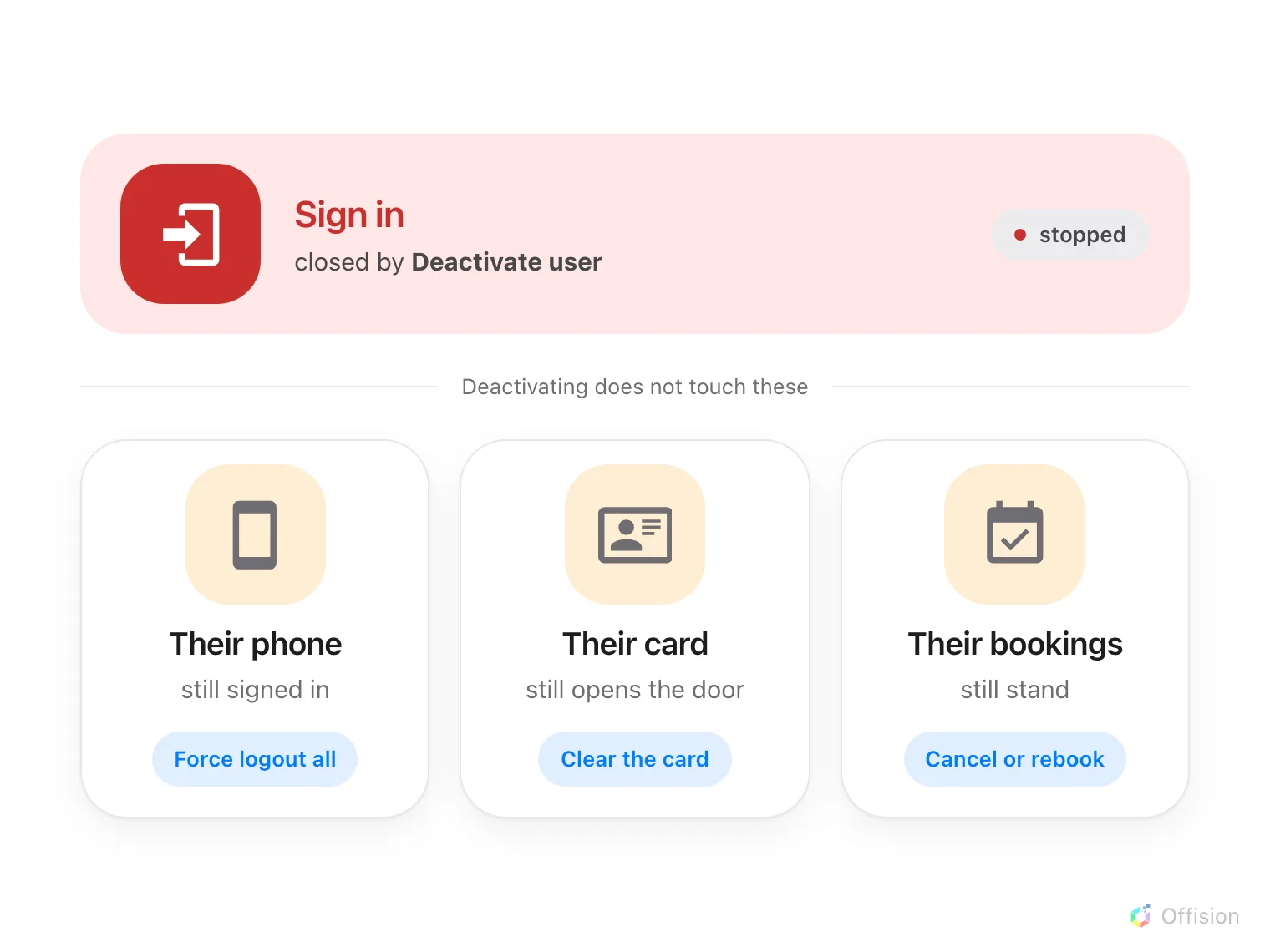
Deactivating closes the sign-in door and nothing else. The session, the card and the bookings each need their own action.
1. Choose deactivate or delete
Two different actions, and reaching for the wrong one is the usual regret.
Deactivate is what you want for someone who has left. They can no longer sign in, and their record stays in the list reading Deactivated, with everything they ever booked still attached to a readable name. It is reversible in one click. It does not sign out a device they are already on — that is step 3, and it is the step most often missed.
Delete is for a record that should not have existed — a duplicate, a typo, a test account.
Choose deactivate unless the record itself is the problem.
2. Deactivate
Open the person from Directory › Users and use Deactivate user at the foot of their panel.
Open Users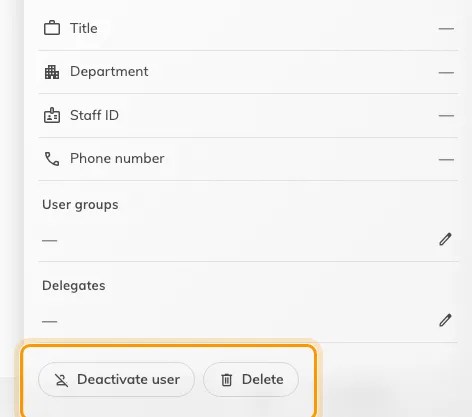
Both actions sit at the foot of the person's panel.
Offision asks you to confirm, and warns that a deactivated person can no longer sign in. Two things to expect:
- Deactivate user appears only for someone currently Activated, and never on your own account. You cannot lock yourself out this way.
- To bring them back, Re-enable user appears in the same place and restores their access.
3. Sign out the devices they are still on
Deactivating stops the next sign-in. It does nothing to a phone or laptop already signed in, and that sign-in stays valid for up to thirty days.
So finish the job on their record’s Login devices page: Force logout all ends every device they have, in one action. Do it after deactivating, never before — deactivate first and there is no gap for them to sign back in through.
If they sign in with Microsoft 365 or another company account, disable that account too. Deactivating in Offision does not reach it, and neither does forcing a logout.
See Sign out a lost or stolen device for the whole-tenant list and batch sign-outs.
4. Take away their card and door access
Deactivating changes their status and nothing else. It does not clear the access card they hold, and it does not take them off a door — so a card still in their wallet still names them at a panel, and a door that opened for that person still opens.
Deleting them does not clear the card either. With no account left to resolve to the number goes quiet at a panel, but the card record is kept — so the number stays reserved across the account, cannot be given to anybody else until it is cleared, and names them again if they are restored from the recycle bin.
Open their record, go to its Access cards page, empty the card fields and save. Clearing a field is what removes the card — there is no separate delete on that page.
Open Access cards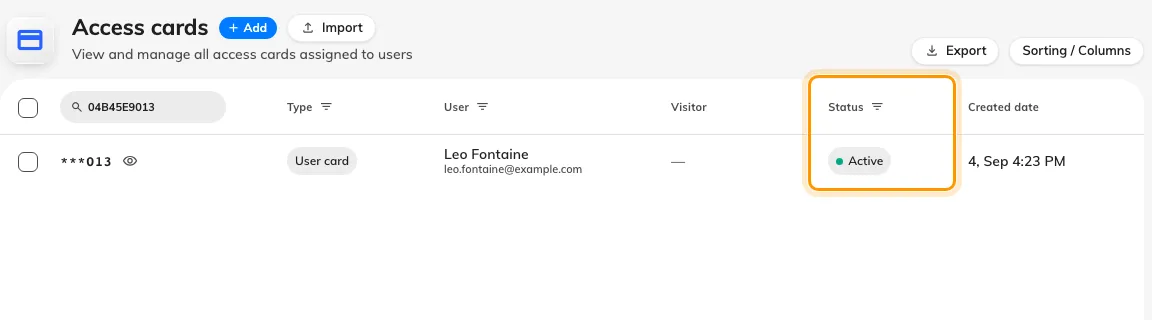
Leo Fontaine's account is deactivated; the card he holds still reads Active.
Two doors this does not close:
- A door your own access-control system releases. Offision never sends card numbers to a door controller, so withdrawing somebody there is a separate job in that system — see Where a card number is read.
- A card issued by an outside system. An external sync card is read-only on the person’s record and has to be withdrawn where it was issued.
Can this happen automatically?
Only the account part of it. Where people sync from Microsoft 365 is on, somebody removed from your directory — or moved out of a synced group — is removed from Offision on the next run, and steps 1 and 2 above happen without anybody doing them. Blocking sign-in in Microsoft 365 is not that: a blocked account is still in the directory and stays a live Offision user.
Nothing else is automatic. The card stays, the devices stay, the bookings stay, and a contractor’s long-term badge is not touched at all — it belongs to a visitor record rather than to an account. See Can access be revoked automatically when somebody leaves?.
5. What removal leaves behind
Their bookings stay exactly where they are. Offision does not cancel, release or reassign anything when a person is deactivated or deleted, and there is no prompt offering to. A room they booked for next Tuesday is still booked for next Tuesday.
So before removing anyone, deal with what is still theirs:
- Cancel bookings that should not go ahead.
- Rebook, under a colleague’s name, anything that should.
- Check recurring bookings especially — those run furthest into the future and are the ones people forget.
Their name continues to appear on past bookings after removal, which is what you want: the history stays readable.
A deactivated person can still be added to a booking. They stay in the participant picker, because it lists people rather than accounts that can sign in. A deleted person drops out of it.
6. Delete, and undo it
Delete sits beside Deactivate user on the same panel, and asks you to confirm the people it is about to remove.
Nothing is destroyed at that moment. The record moves to the recycle bin, reached from Recycle bin at the foot of the list; Back to active list returns you. Select the person there and choose Restore to bring them back, name and email intact.
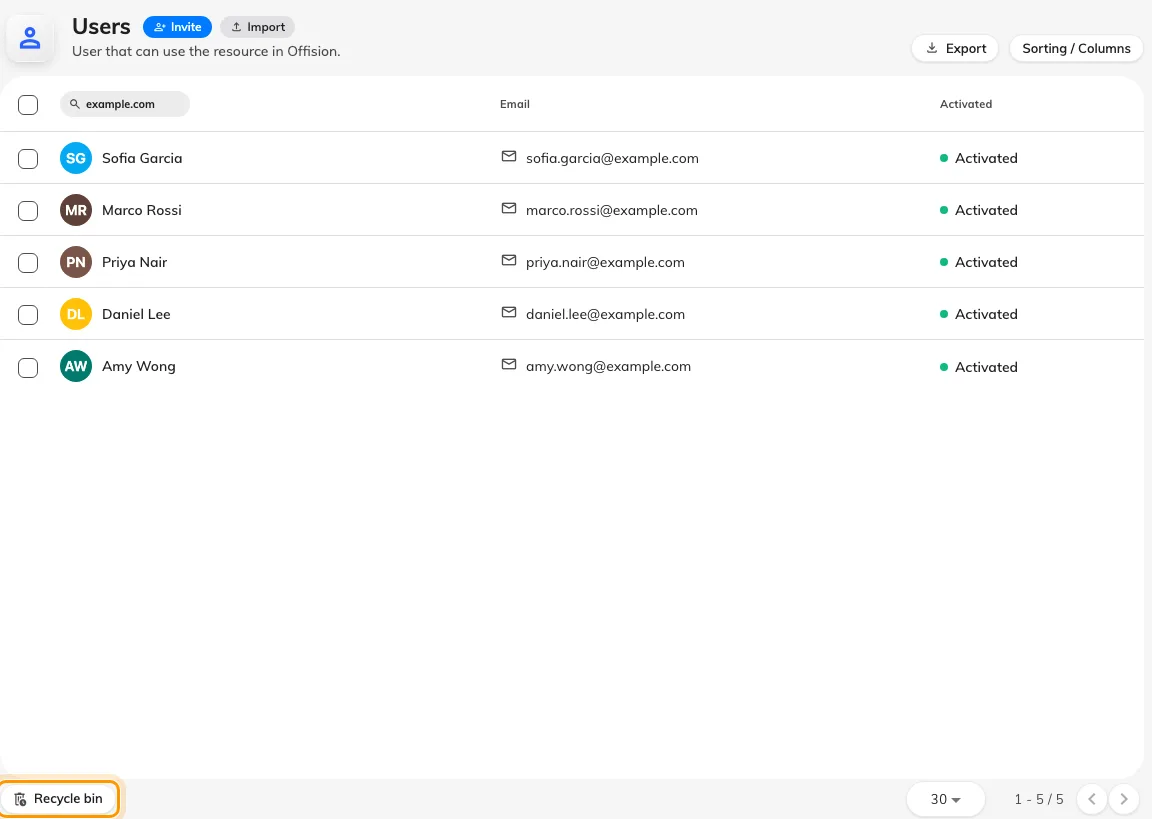
Deleted people stay in the recycle bin, and can be restored from it.
Two limits worth knowing:
- Offision refuses to delete your last global administrator. If a delete fails for no obvious reason, give someone else that permission first.
- If their email address has been reused by a newer account in the meantime, restoring renames the restored record to keep both valid. Check the name afterwards.
The recycle bin keeps deleted people for good. Nothing purges them — bookings, logs and approvals point at the person, and keeping the record is what keeps that history readable — so a deleted account can always be restored, and a deleted person’s name never disappears from what they did.
7. Check it worked
Their row should read Deactivated, or the person should appear under Deleted items rather than in the main list. Their Login devices page should be empty.
Then try their address at the sign-in page. It should be refused. If they can still get in, the change landed on a different record — search for the address itself rather than the name, since duplicates are usually why this happens.
If a device is still working rather than a sign-in still succeeding, that is a different problem — see How login devices work.