

Who can open the management console, and what they can change
The three choices on a person's Permissions page, how a group's permissions add to their own, which combination opens the console rather than only the user portal, and where the reception and service staff roles are switched on.
A person’s Permissions page decides two separate things: whether they can open the management console at all, and what they can touch once inside. The surprise for most administrators is that these are different switches — a manager who cannot book a room, and a booker who cannot see the console, are both normal.
Open UsersThe three choices on the page
The page is split into User Portal access right and Management console access right.
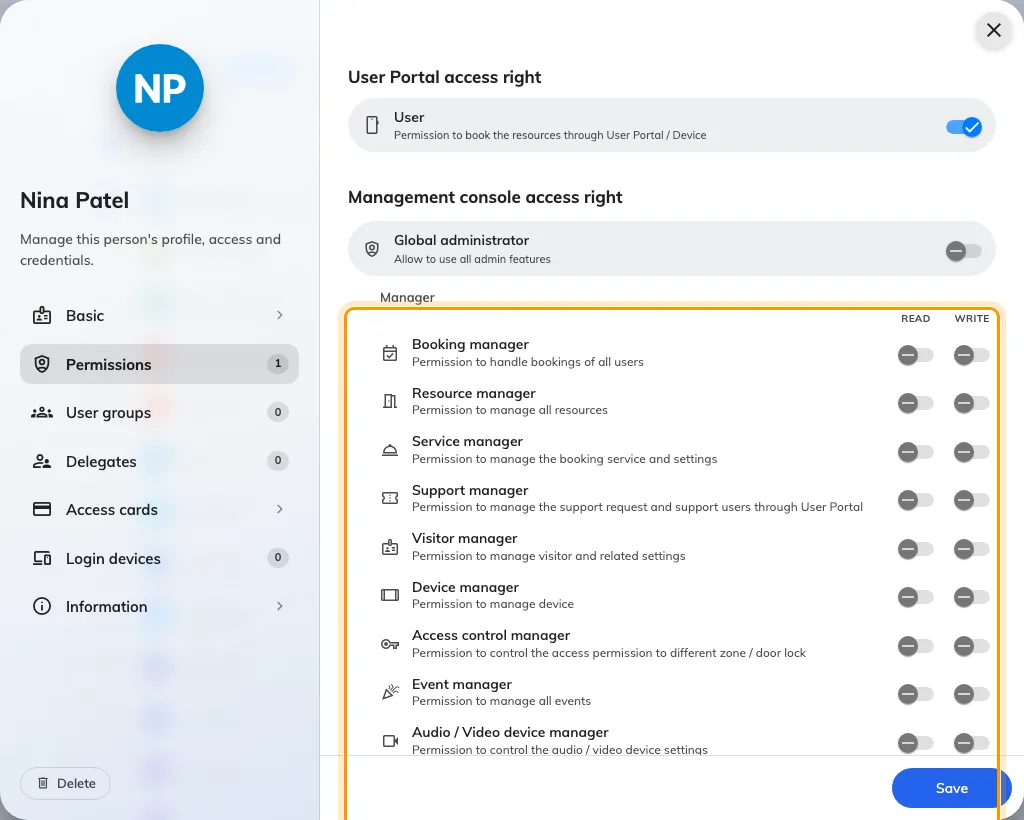
A person's Permissions page, with the manager rows ringed.
- User — the only switch under User Portal access right. It lets the person sign in to the user portal and book. Without it, they cannot use the portal even if they are a manager.
- Managers — one row per management area (User manager, Booking manager, Resource manager, Visitor manager, Device manager and so on), each with a Read and a Write column. Read opens that area of the console to look; Write lets them change it. Turning Write on turns Read on with it, and Read cannot be turned off while Write is on.
- Global administrator — everything, without exception. Turning it on clears the manager rows, because they are implied; turning it off later does not put them back, so rebuild the rows you want.
Below the managers sits Staff: Receptionist, Service staff, Support staff, Event coordinator and Visitor guard. These are not console roles. They unlock a duty inside the user portal — handling visitors at reception, taking service requests, answering reported issues — and this page is the only place they are assigned. There is no separate staff screen.
Groups add, never subtract
A user group has a Permissions page of its own, and whatever it grants is added to each member’s own permissions. The person ends up with the union: a Read they hold personally plus a Write from a group is a Write. Removing a permission from the person does nothing while a group still grants it, so when someone keeps access you took away, check their groups.
A group can grant manager access and staff roles, but not Global administrator — that switch exists only on a person.
What opens which door
- User or any staff role opens the user portal.
- Any manager Read, or Global administrator, opens the management console. A person with none of those sees No permissions and is signed out again.
- Global administrator opens both.
Inside the console, each page asks for its own area. A Booking manager sees the booking pages and nothing of Directory; giving someone the console is a matter of giving them the areas they need, one row at a time.
Two pages that look like permissions but are not
Assignable roles defines labels you can attach to people on a specific building or resource — “Floor warden”, “AV owner” — through the Roles page of that building or resource. A role grants no permission. It is a way of addressing people, and today the support-ticket policy uses it to decide who receives reports for a room or building.
User security profiles decide where a person may sign in from — desktop browser, mobile browser, the iOS / Android app, the Outlook / Teams add-in — and whether two-factor authentication is offered or required. Every person is on one profile, chosen on their Basic page. A profile never grants console access; it only narrows how an already-permitted account can arrive.
What this does not control
- Passwords, lockout and session length live on Global password policy, not on any profile or permission.
- Who may book a particular room is set on the resource, not here. User is the right to book at all.
- Which areas a manager can see stops at the module — this page says nothing about which buildings. Narrowing a manager to one campus or region is a separate mechanism, set on their branch rather than here: what a branch is, and what it scopes.